Password Protect PDF
1B+ users
Secure file transfer with TLS encryption. All files are automatically deleted.
Add a password to any PDF to keep sensitive information safe from unwanted eyes. Smallpdf Pro protects unlimited documents with trusted encryption, all managed from one secure workspace.
 ISO/IEC 27001
 GDPR
GDPR CCPA
CCPA nFADP
nFADP
- 5MPDFs edited monthly
- 1B+Users worldwide
- 10K+Business teams
- 2013Trusted since
- +40PDF tools
 4.4
4.4 4.6
4.6 4.6
4.6
Get both Smallpdf and Sign.com with one subscription.
Protect Any PDF

Reliable PDF Password Protection
Securely share your sensitive information by encrypting your files and requiring a password for access. This is the most effective way to prevent unauthorized viewing of confidential data.
No Data Retention
Your files are always safe with Smallpdf. We use TLS encryption for all data transfers and permanently delete files after one hour. We never save your document passwords.
Works on Mac, Windows, and Linux
Smallpdf is a web application accessible on any device with a browser, including Mac, Windows, Linux, and mobile devices. Open your browser and add a password to your PDF from anywhere — no software required.
Secure Encryption for Maximum Safety
Some PDF passwords can be cracked easily. With our AES 128-bit encryption, it would take thousands of years to break your password using a standard computer.
Password Strength for Added Security
The more complex your password, the safer your file. We recommend using a non-dictionary word of at least 7 characters with numbers, capital letters, and symbols.
Password Protection in the Cloud
No software installation needed. Protect your PDF with a password by uploading it, choosing a strong password, and downloading the secured file — all in your browser.
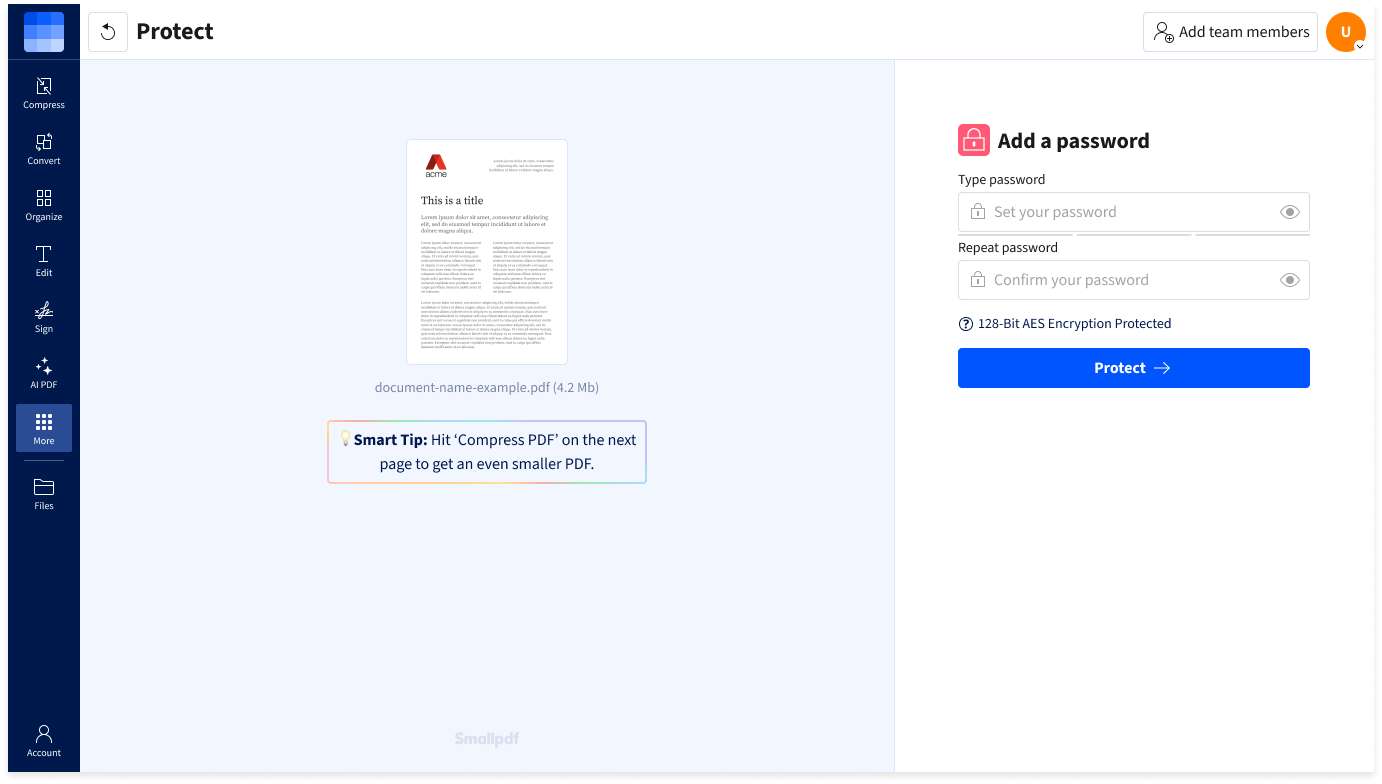
How To Password Protect a PDF Document:
- Import or drag & drop your file to our Protect PDF tool.
- Type and confirm the strong password you’d like to use.
- Click “Protect” to add the password to your PDF.
- Edit the PDF with our other tools if desired.
- Download your password-protected PDF when ready—done!