How to Create a Purchase Order in PDF
Need a purchase order PDF that’s clear, signable, and secure? Create it in minutes, then convert, fill, and share it online without layout changes.
Document Workflow Guides
PDF Sharing Tool & Guides
PDF Meeting Resources
A purchase order (PO) helps confirm pricing, quantities, and delivery terms before payment is made. And once you send it, you want it to look the same for every supplier, on every device. That’s exactly why PDF works so well.
Below, we’ll show you the fastest way to create a purchase order in PDF, along with industry-specific templates, common mistakes to avoid, and tips for smoother approvals.
Quick Checklist for Creating a Purchase Order PDF
If you already have the details, you can finish a PO quickly.
Your company name, address, and logo file (PNG or JPG)
Supplier name, address, and the right contact person
PO number and issue date
Line items: Description, SKU, quantity, unit price, and totals
Shipping details: ship-to address, delivery date, and shipping method
Payment terms (example: “Net 30”)
Approval details (who signs, and where the signature goes)
What Is a Purchase Order
A purchase order is a document the buyer sends to the seller to request goods or services. It lists what you’re ordering, how much it costs, and the terms you expect.
In many business workflows, once the supplier accepts the PO (for example, in writing or by fulfilling the order), it can function like a binding agreement. If you need strict legal certainty, follow your company policy and local requirements.
Common Types of Purchase Orders
Different PO types fit different buying patterns. These quick definitions help you pick the right template before you convert anything to PDF.
Standard PO: One purchase, one delivery, clear quantities and pricing
Planned or Scheduled PO: Expected delivery dates and quantities spread over time
Blanket PO: Ongoing purchases under agreed terms, released in smaller orders
Contract PO: Terms and authorization first, item details may come later
Digital PO: A PO created and approved electronically, often stored in a system
Required Fields for a Purchase Order PDF
A complete PO reduces back-and-forth and prevents disputes. Include these fields as a baseline, then add extras based on your industry.
Purchase order number: Your unique identifier for tracking and matching invoices
Buyer details: Company name, address, email, phone
Supplier details: Company name, address, email, phone
Issue date: When you created the PO
Ship-to and bill-to addresses: Especially important for multi-site businesses
Line items: Item name, SKU, quantity, unit price, line total
Totals: Subtotal, tax, shipping, grand total (as needed)
Payment terms: Example: “Net 15,” “Net 30,” “Due on receipt”
Delivery terms: Expected delivery date and shipping method
Approval area: Name/title and a signature space for internal approval
If you see terms like “FOB” or “CIF,” those are shipping terms that define who pays shipping and when responsibility transfers. If your team uses these terms, add them clearly in a “Shipping Terms” line.
How to Create a Purchase Order in PDF With Smallpdf
This workflow keeps formatting consistent and makes your PO easy to share, fill, and approve.
Step 1: Start With a Template and Add Branding
Choose a purchase order template in Word or Excel, then fill in your header details. Add your logo near the top and keep fonts consistent so the PO looks official.
In your template, keep the header area clean. A crowded header makes POs harder to scan.
Step 2: Add Supplier and Order Details Carefully
Fill in the supplier name and contact details first, then move to line items. Write item descriptions in a way a vendor can’t misread, especially for sizes, models, and variants.
If your PO includes multiple items, keep each line item structured the same way. This consistency helps later when you match POs to invoices.
Step 3: Convert Your PO to PDF and Preserve Formatting
Once the template looks right, convert it to PDF so the layout stays stable.
Open PDF Converter.
Upload from your device, or choose Google Drive, Dropbox, or OneDrive.
Convert your file to PDF, then download it.
Why this matters: PDF locks the layout. Your supplier sees the same columns, spacing, and totals you approved.
Step 4: Make the Purchase Order PDF Fillable for Faster Edits
If your team needs to type in last-minute details (like an updated delivery date), you can add editable areas.
Open Edit PDF.
Upload your PO PDF.
Click to add text where you need it, like a “Delivery Date” field or an “Approved By” line.
Download the updated PDF.
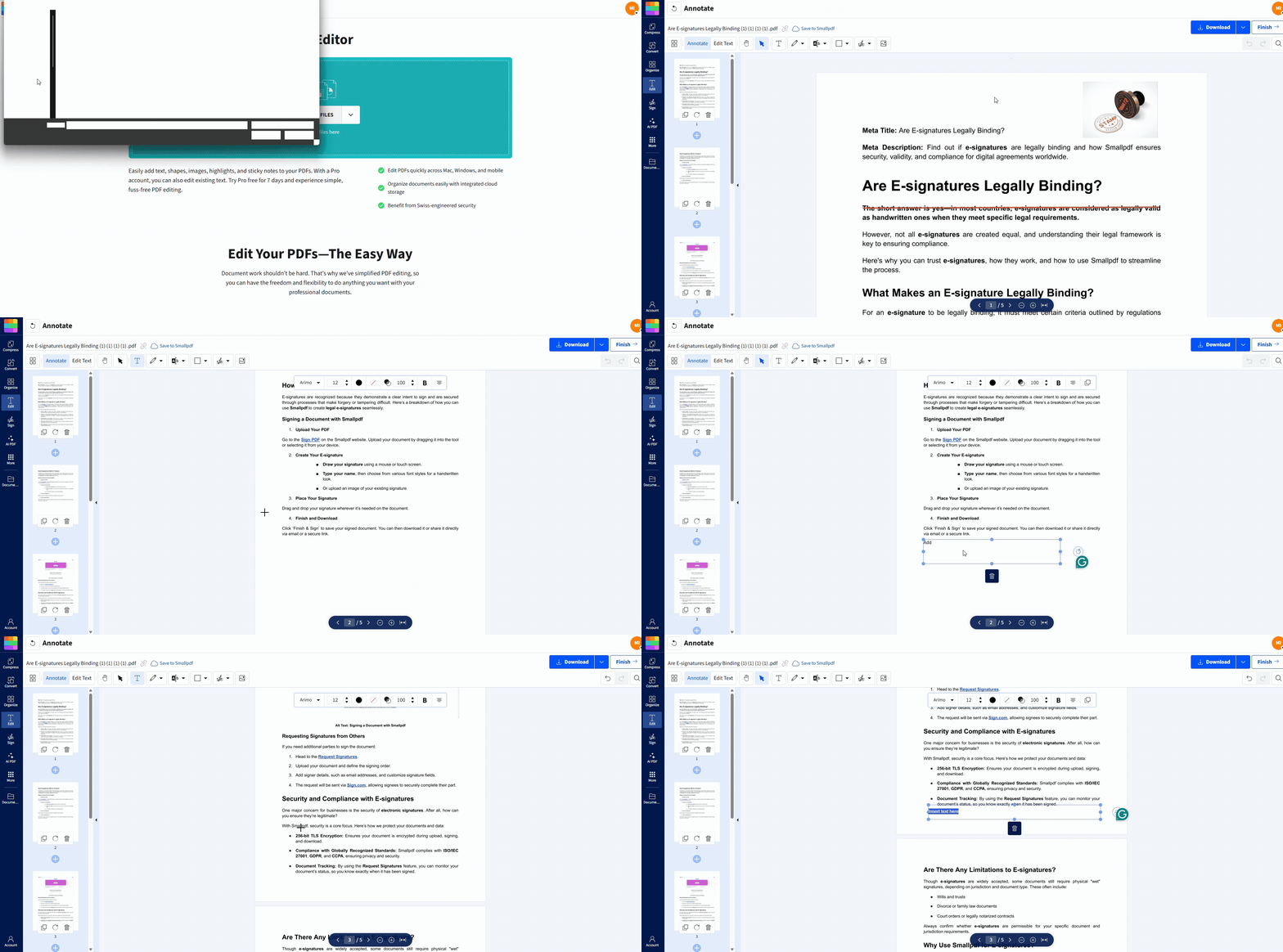
Add text boxes where people naturally expect to type, like under labels. Keep spacing generous so text doesn’t collide with lines.
Step 5: Add Approvals and Signatures
If the PO requires an internal signature, add it right before you send the file.
Open Sign PDF.
Upload your purchase order PDF.
Add a signature, then place it in the approval area.
Click “Finish,” then download the signed PDF.
If you need a multi-signer workflow, use signature requests through Sign.com, which is designed for collecting signatures from other people and tracking completion.
Step 6: Protect, Compress, and Share
Before sending, decide how strict you want to be.
If the PO contains sensitive pricing or vendor terms, use Protect PDF to add a password.
If the file is too large for email portals, use Compress PDF to reduce its size.
When you upload and process files with Smallpdf, transfers are protected with TLS encryption. Files are also deleted from our servers after a short period, which helps protect your data while you work.
Free Purchase Order PDF Templates by Industry
Purchase order PDF templates help you move faster, but they work best when they match your industry’s details. Here are four practical starting points.
1. Retail and E-commerce Purchase Orders
These templates work well when you track inventory and SKUs.
Include fields for SKU, variant (size/color), wholesale price, and expected delivery date. Add a line for “Backorder policy” if late shipments affect your sales channels.
2. Construction Purchase Orders
Construction POs often need extra clarity around materials and delivery timing.
Add fields for material specs, job site delivery address, delivery window, and a contact person on site. If you need partial deliveries, add a “Delivery Schedule” table.
3. Manufacturing Purchase Orders
Manufacturing POs often include lead times and quality expectations.
Include fields for lead time, part number, revision number, and quality requirements. If you use a bill of materials, add a reference line so suppliers know which spec set applies.
4. Professional Services Purchase Orders
Service-based POs should reduce scope confusion.
Add a short scope section, hourly or project rate, milestone dates, and an “Approval Required for Overages” note. This keeps work aligned before invoicing begins.
Real-World Ways Teams Use Purchase Order PDFs
Purchase orders don’t look the same in every business. These quick scenarios show how the same PDF workflow still applies.
A small retailer ordering weekly: A template plus a clean PO number system keeps vendors aligned. Converting to PDF prevents accidental edits.
A contractor working across job sites: A fillable PDF speeds up site-specific delivery details and reduces missed shipments.
A services team using milestone billing: A PO PDF with milestones makes approvals clear before work starts.
Common Purchase Order PDF Mistakes to Avoid
Small mistakes create big delays. Fix these before you send.
Duplicate PO numbers: Use a simple sequence (example: 2025-PO-1043).
Vague item descriptions: Add SKUs, model numbers, sizes, and pack counts.
Wrong ship-to address: Confirm the exact location, not the headquarters.
Missing payment terms: Put the terms in plain language, not assumptions.
Incorrect totals: Recheck tax, shipping, and line item math before converting.
Sending without approvals: If your policy requires approval, sign first, then send.
Over-editing after sending: If you revise a PO, issue a revised version and label it clearly.
Final Checks Before Sending Your Purchase Order PDF
A quick review saves you from reissuing the PO later.
Confirm line items match the vendor quote.
Confirm totals and currency.
Confirm delivery dates and shipping method.
Confirm bill-to and ship-to addresses.
Confirm supplier contact email and phone.
Confirm the PO number matches your internal tracker.
Confirm approvals are included if required.
If you need to send multiple POs together, you can combine them using Merge PDF so the supplier receives one clean file.
Create and Send Purchase Orders Faster With Smallpdf
When you build a PO with a solid template and convert it to PDF, you keep your formatting stable and your process clean.
With Smallpdf, you can convert your file, make quick edits, add signatures, protect sensitive terms, and share a final version that looks the same for everyone.
Want to Edit Your PDF Purchase Order?
Frequently Asked Questions
What’s the difference between a purchase order and an invoice?
A purchase order is the buyer’s request to purchase goods or services. An invoice is the seller’s request for payment after goods or services are delivered.How do I turn an Excel or Word purchase order into a PDF?
Use your app’s “Save As PDF,” or upload the file to Smallpdf PDF Converter to convert it online while keeping formatting intact.How do I make a purchase order PDF fillable?
Upload the PO PDF to Smallpdf Edit PDF, then add text where people need to type. Keep fields aligned under labels so the PO stays easy to read.Can multiple people sign a purchase order PDF?
Yes. For simple internal signing, you can sign in Smallpdf Sign PDF. For collecting signatures from others, use signature requests through Sign.com.How do I password-protect a purchase order PDF?
Upload your file to Smallpdf Protect PDF, set a password, then download the protected version before sending it.Can I automate purchase order PDFs with integrations?
If your process involves repeated conversions, cloud storage helps. You can upload from Google Drive, Dropbox, or OneDrive, then save the result back to the same place to keep files organized across teams.How do I convert a scanned purchase order into an editable file?
If your PO is a scan, OCR is the step that turns it into selectable text. With Smallpdf Pro, you can run OCR, then edit or convert depending on what you need next.What should I include to avoid supplier disputes?
Use a clear PO number, detailed line items, exact totals, delivery dates, and written payment terms. The more specific your PO, the less room there is for misunderstandings.Edit and finalize purchase order PDFs before sending with Smallpdf