How To Send PDF to Kindle (3 Easy Methods)
Send PDF to Kindle in three simple ways. Prepare, send, and read your documents comfortably on any Kindle model or app in under a minute.
Ebook Tool & Guides
PDF Reading Tools & Guides
PDF Sharing Tool & Guides
Sending a PDF to Kindle does not need to be confusing. Once you know where your Kindle email lives and how each transfer method works, you can move files from your computer or phone to your Kindle in just a few clicks.
Quick Summary: Send PDF to Kindle in 60 Seconds
Before you send large or scanned PDFs, you can run them through Smallpdf Compress PDF or PDF OCR to reduce size and make the text searchable. That helps them open faster and read better on Kindle screen
Tip: Use the tool below to upload your PDF, then compress it or run OCR so it opens faster and the text is searchable on Kindle.
Choose the Best Way To Send a PDF to Kindle
You can think of your options as a simple flow:
If your file is under 50 MB and you have Wi-Fi, use email.
If you want more control or have several files, use Send to Kindle on the web or desktop.
If you are offline or sending very large files, use USB transfer.
The sections below walk you through each method step by step.
Method 1: Send a PDF to Kindle by Email
Email is the most flexible way to send PDF to Kindle. It works on all Kindle models and apps and does not require cables or extra software.
Find Your Kindle Email Address
Every Kindle has a unique email address for receiving documents. To find it:
Log in to your Amazon account and open “Manage Your Content and Devices.”
Click the “Devices” tab and select your Kindle or Kindle app.
Look for the “Send-to-Kindle” email address, such as “yourname_123@kindle.com.”
Approve Your Email Address
For security, Kindle only accepts documents from approved senders. Add your email so your PDFs arrive safely:
In the same settings area, open “Personal Document Settings.”
Find “Approved Personal Document Email List.”
Click “Add a new approved email address” and enter the email you will send from.
Send the PDF by Email
Once your address is approved, you can send the file:
Attach your PDF to a new email from the approved address.
Send it to your Kindle’s email address.
Leave the subject line blank, or type “convert” if you want Amazon to adjust the layout for better reading.
Email transfers typically have a 50 MB limit. If your PDF is larger, shrink it before sending.
Approve and Sync the Transfer
For first-time transfers, Amazon may email you to confirm. If so, open that email and click the approval link.
On your Kindle:
Make sure the device is connected to Wi-Fi.
“Go to Settings” > “Device Options” > “Sync Your Kindle.”
Tap “Sync” to refresh your library if the document does not appear automatically.
Method 2: Use Send to Kindle on the Web or Desktop
than email alone. They also handle larger files more reliably.
Send To Kindle From the Web or Desktop
Visit “amazon.com/sendtokindle” or install the Send to Kindle desktop app.
Sign in with your Amazon account.
Drag and drop your PDFs into the window or click to browse for files.
Choose which Kindle devices or apps should receive the documents.
Click “Send” to start the transfer.
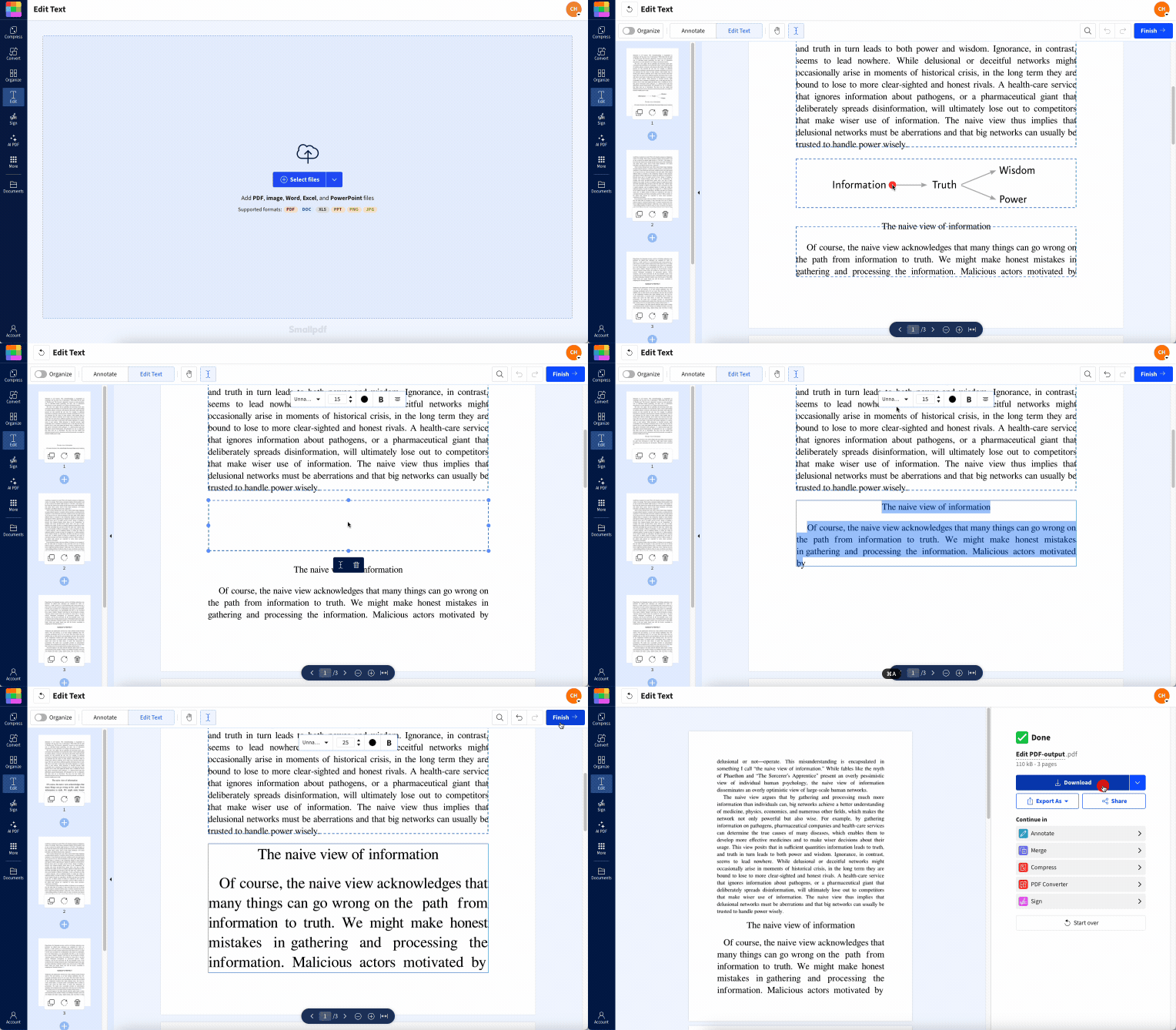
This method works well when you export several PDFs from your computer, optimize them with Smallpdf Edit PDF, and then send them in a single session.
Send From the Kindle App on Android
If your PDF lives on your Android device, you can send it directly from the share menu.
Open the PDF in your preferred viewer on Android.
Tap the share icon.
Choose the Kindle app from the share options.
Confirm the destination and wait for the upload to finish.
Send From the Kindle App on iPhone or iPad
On iOS, the process is similar:
Open the Files app or any app where your PDF is stored.
Tap the share icon.
Select the Kindle app as the share destination.
The document will appear in your Kindle library once it has been processed.
Method 3: Transfer a PDF to Kindle via USB
USB transfer is useful for very large files, slow connections, or offline situations. It bypasses email limits and Wi-Fi entirely.
Transfer From Windows
Connect your Kindle to your computer using the USB cable.
Open File Explorer and look for your Kindle as a removable drive.
Open the Kindle drive, then open the “Documents” folder.
Drag and drop your PDF files into this folder.
Right-click the Kindle drive and select “Eject” before unplugging.
Transfer From Mac
If needed, install Android File Transfer on your Mac.
Connect your Kindle via USB.
Open Android File Transfer and navigate to the “Documents” folder.
Drag your PDFs into the folder.
Eject the Kindle from your desktop before disconnecting the cable.
Kindle-Compatible File Types and Size Limits
Before you send anything, it helps to know which formats Kindle accepts and how size limits work.
Supported file types include:
PDF: supported natively, may need layout optimization
EPUB: best for reflowable text and long reading
DOC and DOCX: converted automatically to Kindle format
RTF and HTML: supported as rich text and web-style documents
JPEG and PNG: images and comics
Email transfers generally max out at 50 MB per file. USB transfers can handle much larger documents, limited mostly by your Kindle’s storage. DRM-protected files usually cannot be sent or opened unless they come from the Kindle Store or a compatible service.
Optimize PDFs for Kindle Readability
Kindles are built for text-focused e-books, so PDFs that started as print documents may need a little preparation. You can make them much easier to read with a few quick adjustments.
Reduce File Size for Faster Loading
Large PDFs can feel slow on Kindle, especially if they include high-resolution images. Before you send them:
Use Compress PDF to reduce file size while keeping text sharp.
Avoid very large images if they do not add value to the reading experience.
Clean up Layout and Margins
Wide margins and dense layouts make PDFs harder to read on smaller screens. When the file is not protected, you can:
Open the document in Edit PDF.
Remove unnecessary white space or decorative elements.
Simplify headers and footers so more of the page is readable text.
Make Scanned PDFs Searchable With OCR
If your PDF is scanned, Kindle treats it like a series of images. That can be difficult to read and impossible to search. To improve this:
Run the file through Smallpdf OCR to convert images into real text.
Check a few pages to confirm the text looks correct.
Then send the updated PDF to your Kindle using your preferred method.
Improve Navigation for Long Documents
For long reports or study materials, breaking the file into smaller parts can make reading easier:
Use Smallpdf Split PDF to create chapter-based PDFs.
Name each file clearly, such as “Report Part 1” or “Chapter 3.”
Send each part to your Kindle so you can open exactly what you need.
Troubleshooting: When a PDF Will Not Send or Open
If your PDF does not show up, or it opens with errors, walk through these common issues before you start over.
File Is Too Large
Check if the PDF exceeds the 50 MB email limit.
Use Compress PDF to reduce the size.
If it is still large, switch to USB or Send to Kindle instead of email.
Email Is Not Approved
Open your Amazon “Personal Document Settings.”
Confirm that your sending email is on the approved list.
Add it if needed, then resend the PDF.
PDF Is Password Protected or Restricted
Kindle cannot open password-protected PDFs. If you own the document and are allowed to adjust it, you can:
Remove the password using Unlock PDF.
Save the updated version.
Send the unlocked PDF again by email, Send to Kindle, or USB.
Connectivity or Sync Issues
Make sure your Kindle or Kindle app is connected to Wi-Fi.
Use “Settings” > “Device Options” > “Sync Your Kindle.”
Wait a minute and check your library again.
File Looks Corrupted or Formatted Badly
Try sending the same PDF using a different method, such as USB.
If the layout is messy, open the file in Edit PDF and tidy margins or remove problem pages.
Save and resend the updated version.
Make PDFs Kindle-Ready With Smallpdf
Once you know how to send PDF to Kindle, the next step is making sure each file reads well on the device. That is where our features can help you prepare documents before transfer.
You can:
Use Compress PDF to shrink large files while keeping them readable
Run PDF OCR on scanned PDFs so you can search and highlight text on your Kindle.
Open Edit PDF to adjust layout, remove distractions, or fix page order.
Split long PDFs into sections with Split PDF for easier navigation.
These features work together so that, by the time you send your document to Kindle, it is lighter, cleaner, and more comfortable to read.
Start a free trial to explore all these options and keep your PDFs Kindle-ready without installing desktop software.
Frequently Asked Questions
How do I send a PDF to my Kindle Scribe for note-taking?
You can use email, Send to Kindle, or USB just like with other Kindles. Once the PDF is on your Kindle Scribe, you can highlight, annotate, and write directly on the pages with the stylus. Your notes stay attached to the document.Can Kindle read password-protected PDFs?
No, Kindle devices cannot open password-protected PDFs. If you have the right to modify the file, remove the password first using a PDF editor such as Smallpdf Unlock PDF, then send the updated document.Why is my PDF not showing up on Kindle after emailing it?
First check that your email address is on the approved senders list in your Amazon account. Then confirm that your Kindle is connected to Wi-Fi and use the sync option in the settings menu. If the file is very large, compress it and try again.What is the maximum PDF file size Kindle can accept?
Email transfers are usually limited to 50 MB per file. USB transfers do not have the same restriction and depend mainly on your Kindle’s available storage. If your file is too large, compress it or send it via USB instead of email.Can I annotate PDFs on my Kindle?
Most Kindle models support highlighting and basic notes on PDFs. Kindle Scribe adds more advanced handwritten annotation, so you can write directly on the document and keep your notes in one place while you read.How do I convert a PDF to Kindle format for better text reflow?
When you email the PDF to your Kindle address, type “convert” in the subject line. Amazon will try to convert the document to a Kindle-friendly format, improving text reflow. For the best results, prepare a clean, well-structured PDF before sending it.Prepare Kindle-ready PDFs quickly with Smallpdf Pro