- Home
- ›
- ›Choose the Right File Type for Your Resume: 2026 Guide
Choose the Right File Type for Your Resume: 2026 Guide
For most job applications, choose PDF to preserve formatting. Use Word (.docx) when specifically requested or for older ATS systems.
PDF Tips & Resources
More on Edit PDF
PDF Sharing Tool & Guides
The best resume file type is PDF for most applications, preserving your formatting across all devices. However, some older Applicant Tracking Systems (ATS) work better with Word documents (.docx), so always check the job posting’s requirements first.
When it comes to applying for jobs, your resume is your first impression—so every detail matters, including the file type. Choosing the right file type for your resume can make a difference when it comes to compatibility, readability, and professionalism.
At Smallpdf, we make it effortless to switch between file types, ensuring you can present the most polished version of your resume every time. This guide will walk you through the pros and cons of different resume file formats and how Smallpdf tools can help you create and adapt resumes with ease.
What Resume File Type Should You Use?
The Short Answer
PDF is your best bet for most job applications because it preserves your formatting perfectly. However, if the job posting specifically asks for a Word document or you’re dealing with older ATS software, go with .docx.
Want to Convert Your Resume in PDF?
Quick Comparison Table
| File Type | Best For | Key Advantage |
|---|---|---|
| Preserving design and layout | Looks the same on all devices. Professional | |
| Word (.docx) | Editable resumes, older ATS systems | Easy to edit. Widely supported in older software |
| Plain Text (.txt) | Basic ATS uploads | Fully ATS-friendly |
| RTF | Cross-platform compatibility | Works on many systems but with limited formatting |
You can’t print directly from a Kindle device or app—you’ll need to convert your book to PDF first on a computer. Amazon applies digital rights management (DRM) protection to most of its e-books, preventing users from doing whatever they want with them.
Don’t worry—it’s easier than it sounds! Here’s what you’ll need to get started:
A computer (Windows, Mac, or Linux)
USB cable to connect your Kindle
Calibre software (free e-book management program)
DeDRM plugin for Calibre
Important: Remember to only print books for personal use to respect copyright laws.
Can You Print from the Kindle App or eReader?
Unfortunately, this isn’t an option. The Kindle apps available on iOS, Android, Mac, and PC are designed solely for reading and managing your e-book library. Because of DRM protection on most Kindle books, these apps do not give users the ability to print e-books directly.
PDF Resume File Type
Pros of a PDF Resume
Preserves Your Format: PDFs “freeze” your resume design, ensuring fonts, layouts, and spacing stay the same no matter what device or software the recruiter uses.
ATS Compatibility: Most ATS software can read properly formatted PDF resumes, so your application won’t get lost in the system.
Professional Appearance: PDFs have a polished, finished look that leaves a great impression.
Added Security: PDFs can be locked or shared with limited permissions to prevent unauthorized edits.
Cross-platform reliability: Works the same on Mac, PC, mobile, and web browsers.
Cons of a PDF Resume
Older ATS issues: Some outdated systems struggle to parse PDF text accurately.
Harder to edit: Making quick changes requires PDF editing tools.
File size: It can be larger than Word documents, especially with graphics.
When to Use PDF
The job posting doesn’t specify a file type.
You’re emailing your resume directly to a hiring manager.
Your resume has complex formatting or design elements.
You want to ensure your resume looks identical on all devices.
Word (.docx) Resume File Type
Pros of a Word Resume
ATS-friendly: Most ATS software, especially older systems, can easily parse Word documents.
Easy editing: Making last-minute changes or updates is a breeze.
Template compatibility: It works seamlessly with resume templates.
Smaller file size: Word is generally more compact than PDFs.
Cons of a Word Resume
Formatting issues: Layout can shift when opened on different devices or Word versions.
Font problems: Text may change if the recipient doesn’t have your fonts installed.
Version compatibility: Older Word versions might not display newer .docx files correctly.
When to Use .docx
The job posting specifically requests a Word document.
You’re applying through an older company portal or ATS.
The employer needs to make comments or edits to your resume.
You’re using a simple, text-based resume format.
Other Resume File Types to Consider (and Avoid)
TXT (Plain Text)
Plain text resumes work great for older ATS systems, but offer zero formatting options. Use only when specifically requested or for basic online applications.
RTF (Rich Text Format)
RTF files offer basic formatting and work across different platforms, but they’re rarely requested and offer limited design flexibility compared to PDF or Word.
HTML
HTML resumes can look great online but aren’t practical for most job applications. Save HTML for personal websites or online portfolios.
Images (PNG/JPG)
Never submit your resume as an image file. ATS systems can’t read text in images, and recruiters can’t search or copy your information easily.
Apple Pages (.pages) and ODT
These proprietary formats create compatibility headaches. Most recruiters won’t be able to open them, so always convert to PDF or Word first.
Interactive and Online Resumes
Creative formats like interactive PDFs or online resumes can work for design roles but stick to traditional formats for most industries.
How to Choose the Right Resume File Type for Each Application
Follow the Job Post’s Instructions
This is rule number one: If they ask for a specific format, give them exactly what they want. Ignoring instructions is an easy way to get filtered out.
ATS Considerations (Older vs Modern Systems)
Modern ATS software handles both PDF and Word files well, but older systems (common at large corporations) often prefer Word documents for better text parsing.
Email vs Job Portals vs Government Portals
Email attachments: PDF is usually best for a polished, consistent look.
Job portals: Check the upload requirements—many accept both formats.
Government sites: They often have specific format requirements, so read carefully.
Accessibility and Editing Needs
If the employer might need to edit, annotate, or extract text from your resume, Word documents make their job easier.
How to Save, Convert, and Name Your Resume with Smallpdf
With Smallpdf, you can manage your resume’s format seamlessly, converting between Word, PDF, and more while maintaining the quality and integrity of your file. Here are the key tools to make your resume stand out:
Convert Any File to PDF
Convert to PDF: Have a resume created in Word, Excel, PPT, or even as a JPG? Convert it to PDF first.
Drag and drop your resume file (e.g., Word, Excel, PowerPoint, or image) into the PDF converter. Use the converter area below to add your file and start converting it to PDF.
2. The tool will convert it into PDF format in just a few clicks.
3. Download your new PDF resume directly to your device, or save it securely to OneDrive, Google Drive or Dropbox.
Convert PDF to Word for Edits
Sometimes employers request Word files to make comments or revisions. Don’t worry—Smallpdf lets you reverse the process with the Convert PDF to Word tool.
Upload your file in PDF to Word. Use the PDF to Word upload area below to choose it or drag and drop it to start the conversion.
Select “Convert to Word.”
Download your Word resume, perfectly formatted and ready for edits.
Edit and Annotate PDFs
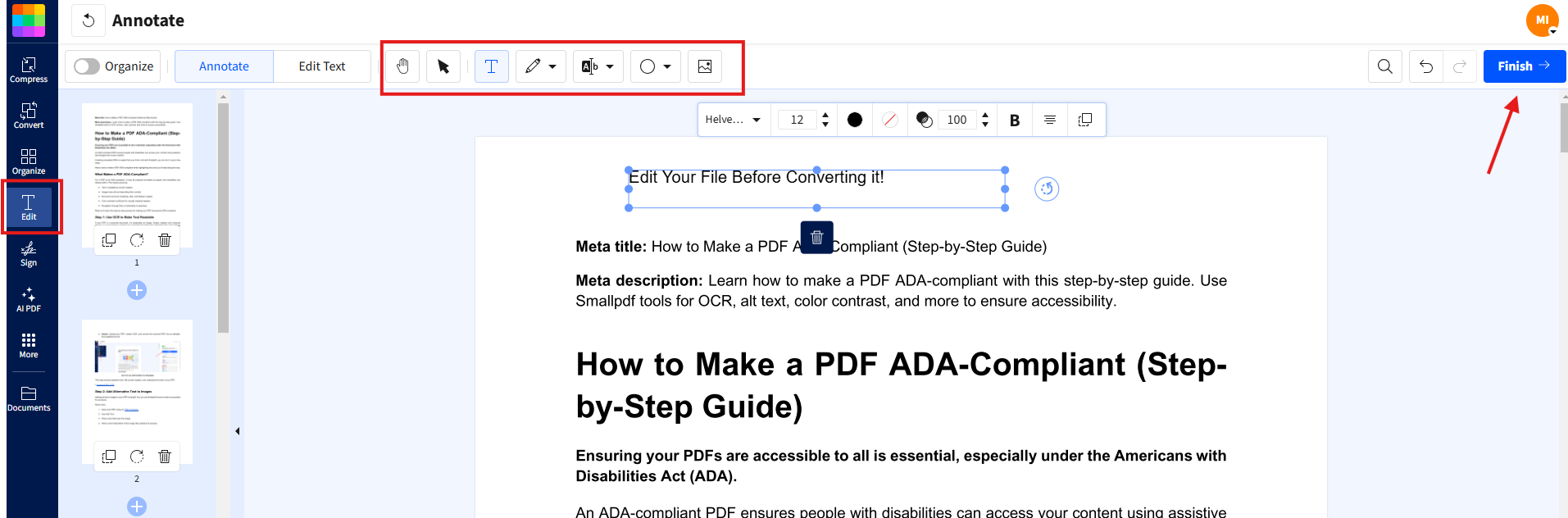
Need to make quick edits? Perhaps you spotted a typo or want to add a last-minute update. With the Edit PDF tool, you can adjust text, add new sections, or make spacing tweaks directly in a PDF without going back to the source file.
Protect and Sign
Sending out job applications remotely? With our Sign PDF, you can add a professional digital signature to your resume or any accompanying documents without printing or scanning.
If you’re emailing your resume but want to ensure privacy, you can lock it with a password using our Protect PDF feature.
File Naming Best Practices
Use a clear, professional naming convention like “FirstName_LastName_JobTitle_2024.pdf” or “JohnSmith_MarketingManager_Resume.pdf.” This makes it easy for recruiters to find and organize your application.
Why Smallpdf Is the Best Tool for Resume Management
Smallpdf isn’t just fast—it’s secure, versatile, and accessible from anywhere.
Cloud-Based Access: Use Smallpdf tools on any device, be it a laptop, tablet, or smartphone. All you need is an internet connection.
Data Privacy: Your files are protected with advanced TLS encryption and automatically deleted from our servers after one hour of processing for security.
High-Quality Conversion: We guarantee top-notch file conversions every time. With Smallpdf, you can create, edit, and share resumes on the go—no downloads or sign-ups required for basic tools.
Nail Your Next Job Application with Smallpdf
Quick Recap
PDF is the safest choice for most applications.
Use Word (.docx) when specifically requested or for older ATS systems.
Always follow the job posting’s file format instructions.
Avoid image formats like JPG or PNG.
Use professional file naming conventions.
Try Smallpdf to Keep Your Resume Text Searchable and ATS-Ready
Your resume’s file type affects how it looks and how well ATS systems read it. Smallpdf lets you switch between PDF and Word, fix formatting, and keep text searchable with OCR. Use the core tools for free or try Smallpdf Pro with a 7-day free trial for unlimited tasks and extra features. It’s an easy way to send a clean, reliable resume every time.
Frequently Asked Questions About Resume File Types
What type of file should a resume be?
PDF is often the best option as it retains formatting, is widely accepted, and works well with ATS. Use Word (.doc or .docx) if the job application specifically requests it.Should a resume be .docx or PDF?
PDF is generally better for preserving formatting, while .docx is preferred by some older ATS systems. When in doubt, check the job posting requirements or go with PDF.Should a resume be a PNG or JPG?
Never use PNG or JPG for resumes. These image formats aren’t readable by ATS systems and make it impossible for recruiters to search or copy your information.What format is best for ATS?
Both PDF and Word (.docx) work well with modern ATS systems. Older systems may prefer Word documents for better text parsing accuracy.What’s the best file name for a resume?
Use a professional format like “FirstName_LastName_Resume.pdf” or include the job title: “JohnSmith_SoftwareEngineer_Resume.pdf” for easy identification.Can I use Google Docs for my resume?
You can create your resume in Google Docs but always download it as PDF or Word format before submitting. Don’t share Google Docs links as resume submissions.Prepare and manage resume files in PDF format using Smallpdf Pro
