- Home
- ›
- ›The Complete Guide to Kindle in 2026: Types, Supported Formats, & More
The Complete Guide to Kindle in 2026: Types, Supported Formats, & More
Kindle file types can feel confusing. But once you know what works, sending and reading your files gets a lot easier.
Ebook Tool & Guides
PDF Reading Tools & Guides
More on PDF Converter
If you use a Kindle in 2026, it helps to know which Kindle file types are supported, which formats read best on the device, and how to convert files that don’t play nicely.
We’ll walk through all major formats, what they’re good for, and how we can help you prepare PDFs and documents for a smoother Kindle experience.
Kindle File Types Supported in 2026 (Quick List)
Here’s a quick answer to “what file types are readable on Kindle” in 2026:
EPUB - Accepted and converted to AZW3
AZW3 (KF8) - Main Kindle ebook format
KFX - Enhanced format for newer Kindles
AZW4 - Fixed-layout, textbook-style content
PDF - Works, but may not reflow on small screens
DOC / DOCX - Word files that Amazon converts
RTF / TXT / HTML - Basic text and web-page formats
JPG, PNG, GIF, BMP - Images, comics, and graphics
MOBI and PRC are now legacy formats. Existing files keep working, but new uploads aren’t accepted.
Kindle File Types Overview Table
| Format | Type | Reflowable | Best For |
|---|---|---|---|
| AZW3 | Amazon ebook | Yes | Most Kindle books and personal docs |
| KFX | Amazon ebook | Yes | Newer titles, typography features |
| AZW4 | Fixed layout | No | Textbooks, complex page layouts |
| EPUB | Open ebook | Yes | Side-loaded books, store purchases |
| Fixed layout | No | Manuals, forms, formatted documents | |
| DOCX | Word document | Yes (after conversion) | Drafts, reports, contracts |
| TXT | Plain text | Yes | Notes, simple reading |
| Images | JPG, PNG, etc. | No | Comics, image-heavy content |
You can’t print directly from a Kindle device or app—you’ll need to convert your book to PDF first on a computer. Amazon applies digital rights management (DRM) protection to most of its e-books, preventing users from doing whatever they want with them.
Don’t worry—it’s easier than it sounds! Here’s what you’ll need to get started:
A computer (Windows, Mac, or Linux)
USB cable to connect your Kindle
Calibre software (free e-book management program)
DeDRM plugin for Calibre
Important: Remember to only print books for personal use to respect copyright laws.
Can You Print from the Kindle App or eReader?
Unfortunately, this isn’t an option. The Kindle apps available on iOS, Android, Mac, and PC are designed solely for reading and managing your e-book library. Because of DRM protection on most Kindle books, these apps do not give users the ability to print e-books directly.
Kindle Ebook Formats Explained
Kindle uses several proprietary formats that power most books you buy from Amazon.
AZW3: The Main Kindle Ebook Format
AZW3, also called Kindle Format 8, is the current standard format for most Kindle ebooks. It supports:
Rich formatting with HTML and CSS
Tables, images, and advanced layouts
Digital rights management (DRM) when publishers require it
When you send supported files to your Kindle or buy a book from the Kindle Store, AZW3 often sits behind the scenes.
KFX: Enhanced Features for Newer Kindles
KFX is Amazon’s newer format for devices that support extra features like:
Sharper typography and ligatures
Better hyphenation and justification
More efficient image handling
You don’t choose KFX directly. Amazon serves it when your device and book support it.
AZW4: Fixed Layout for Textbook-Style Content
AZW4 is used when the layout has to stay fixed, similar to a PDF. It’s common for:
Textbooks
Technical manuals
Documents with complex page designs
On smaller Kindles, fixed layouts can feel cramped, so larger screens or landscape mode often work better.
Open and Document Formats Kindle Supports
Kindle also accepts common open formats and office documents, which Amazon converts on the way in.
EPUB: The Ebook Standard Kindle Now Accepts
Kindle now accepts EPUB, which is the standard ebook format used by many stores and libraries. When you send an EPUB to your Kindle:
Amazon converts it to AZW3 behind the scenes.
Text remains reflowable so you can change font size and layout.
If you’re choosing a starting format for ebooks, EPUB is usually the safest bet.
PDF: Great for Layout, Tricky for Small Screens
Kindle can open PDFs directly, but:
Pages don’t reflow like ebook text.
You may need to zoom and pan on smaller screens.
Complex layouts sometimes feel cramped on e-ink devices.
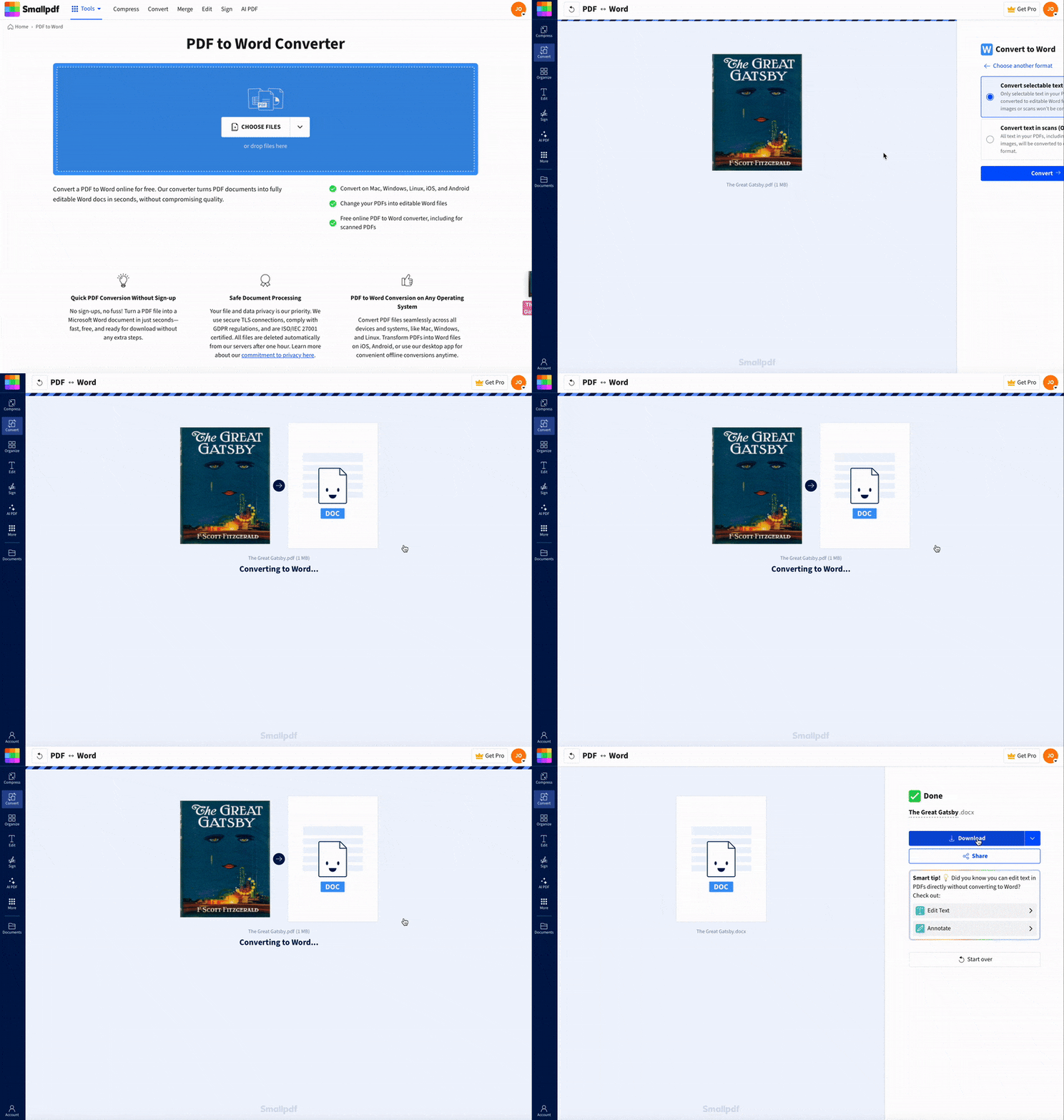
This is where Smallpdf can help: Converting the PDF to Word and adjusting the layout before sending it often improves the reading experience.
DOC, DOCX, RTF, TXT, and HTML
Kindle accepts several document formats through Send to Kindle:
DOC / DOCX: Word files that Amazon converts into reflowable ebooks
RTF: Rich text with basic formatting support
TXT: Plain text for distraction-free reading
HTML: Web pages that you want to save as reading material
These are ideal when you’re working with drafts, reports, or long-form content that doesn’t need fixed layouts.
Images: JPG, PNG, GIF, BMP
Image formats work well for:
Comics and manga
Graphic novels
Image-heavy PDFs exported as image sequences
You can package them in supported formats or use them within PDFs and ebooks.
How To Convert Files to Kindle File Types
You have several ways to convert files into Kindle-friendly formats.
Use Amazon Send to Kindle
Amazon’s Send to Kindle service is usually the easiest path:
Find your Kindle email in your Amazon account settings.
Email a supported file (EPUB, DOCX, PDF, RTF, HTML, etc.).
The file converts and appears in your Kindle library.
You can also use:
The Send to Kindle web uploader.
Desktop apps for Windows and Mac.
Word integration that sends documents straight from Word.
There’s a 200 MB limit per file, so very large PDFs may need compressing first.
Use Conversion Apps Like Calibre
If you want deeper control over formats and metadata:
Install Calibre on your computer.
Add your ebook or document to its library.
Choose “Convert books” and set EPUB or AZW3 as the output.
Transfer the result to your Kindle by USB or Send to Kindle.
This works well when you manage a large personal library.
Use Smallpdf To Prepare PDFs and Documents
We step in when you want to make PDFs and office files more Kindle-friendly. You can:
Convert PDFs to Word so text can reflow better on Kindle.
Compress large PDFs so they stay under Send to Kindle limits.
Use OCR on scanned PDFs so your Kindle can search the text.
Edit PDFs before you send them, adding notes or cleaning up pages.
Think of us as your prep step before you hand the file off to Amazon.
Make Any File Kindle Ready With Smallpdf
Many readers keep a library of manuals, reports, and scanned documents in PDF form. These often need a little work before they feel good on a Kindle screen.
1. Improve Readability By Converting PDF To Word
When a PDF has small text or a multi-column layout, reading it on Kindle can feel heavy. Our PDF to Word feature can help you:
Turn a fixed-layout PDF into an editable Word file.
Adjust margins, font size, and layout.
Get a cleaner document to send to Kindle for reflowable text.
Once you’re happy with the layout, you can send the DOCX to your Kindle with Send to Kindle.
2. Reduce File Sizes With Compress PDF
Some PDFs, especially textbooks or image-heavy files, can be huge. With Compress PDF, you can:
Cut file size while keeping text and images clear.
Bring large files under the 200 MB Send to Kindle limit.
Make downloads faster and save space on your device.
3. Use OCR for Scanned Documents
If your PDF is a scan, Kindle sees it as one big image. Our OCR feature turns that into real text.
Scan-based pages become searchable and selectable.
You can then convert to Word or keep the PDF and still benefit from search.
This is especially useful for older paperwork, academic articles, or handouts.
4. Fine-Tune PDFs Before Sending
With Edit PDF and related features, you can:
Highlight key sections you want to review on Kindle.
Save a cleaner version to send for reading later.
After that, it’s just a matter of sending the updated file through your preferred Kindle method.
Troubleshooting Common Kindle File Problems
Here are frequent Kindle file issues and quick ways to fix them.
1. File Won’t Send to Kindle
Check these points:
The file is under 200 MB.
The format is supported.
Your sending email is approved in Amazon’s Personal Document Settings.
If all that looks right, compress the PDF or convert it to a lighter format before resending.
2. PDF Text Is Too Small on Screen
PDFs don’t always resize well. To fix this:
Convert the PDF to Word with our PDF to Word feature.
Adjust the text size and layout in Word.
Send the DOCX to Kindle so you can use font and margin controls on the device.
3. MOBI File Gets Rejected
Since 2022, Amazon no longer accepts new MOBI uploads. To work around this:
Convert MOBI to EPUB using Calibre.
Send the EPUB to your Kindle so Amazon can convert it to AZW3.
4. Large Files Load Slowly or Fill Storage
If a file is slow to download or taking up too much space:
Compress the PDF.
Split very long documents into smaller parts.
Prefer EPUB or DOCX when you need reflowable text.
5. Formatting Looks Wrong After Conversion
Sometimes spacing, fonts, or images shift during conversion. To improve results:
Start from a clean source file if possible.
Convert PDF to Word, tidy the layout, then send the DOCX.
Test a short sample chapter first before converting a full book.
Get Your Files Ready for Kindle in Minutes
Once you understand Kindle file types, you can choose formats that fit your reading style instead of fighting with layout issues. Use EPUB and DOCX when you want flexible, reflowable text, and keep PDFs for documents where layout and structure matter.
We’re here to help with the preparation: Compressing large PDFs, converting documents into more Kindle-friendly formats, and running OCR on scans so they’re easier to search and read.
The result is simple. You spend less time wrestling with file formats and more time actually reading on your Kindle.
Frequently Asked Questions
What format does Kindle use natively?
Kindle mainly uses AZW3 and KFX. These formats are optimized for Kindle devices and support advanced layout, typography, and DRM when needed.Can Kindle read EPUB files?
Yes. You can send EPUB files to Kindle, and Amazon converts them into Kindle’s internal format, usually AZW3, for a smooth reading experience.Why won’t my MOBI file upload to Kindle?
Amazon stopped accepting new MOBI uploads. Existing MOBI books in your library still work, but for new content, you should convert MOBI to EPUB or another supported format, then send that version.What’s the best file format for Kindle reading?
For most books, EPUB is a great starting point because it converts cleanly to Kindle formats and stays reflowable. For dense documents with complex layouts, a well-prepared PDF can still work, especially on larger Kindle screens.How do I convert a PDF into something Kindle can reflow?
A reliable path is: convert PDF to Word with Smallpdf, adjust layout and font in Word, then send the DOCX to your Kindle. The device will treat it as a reflowable document so you can change font size and spacing.What’s the maximum file size Kindle accepts via Send To Kindle?
Send to Kindle supports files up to 200 MB. If your file is larger, compress it first or use USB transfer to move it directly to your Kindle’s storage.Are my files safe when I use Smallpdf before sending to Kindle?
Yes. We use TLS encryption while your files are in transit and remove them from our servers after a short time. That way, you can prepare contracts, reports, or personal documents for Kindle reading without leaving them stored online.Organize Kindle files and formats quickly with Smallpdf
