- Home
- ›GIF to PDF
Convert GIF to PDF
Convert GIF images to PDF directly in your browser. Upload your files, choose your page settings, and download a single PDF—no sign-up or credit card needed.
- Easy conversion from GIF to PDF in seconds
- TLS encryption for file security
- No account or credit card needed

Turn Animated GIFs Into Static PDFs
PDF pages do not play GIF animations. Converting an animated GIF creates a static result, so keep the original GIF when you still need the moving version.
Multiple Image Files & Formats
Working with many images in multiple file formats? Our all-in-one image converter’s got you covered with support for all popular image formats. GIF, JPG, BMP, TIFF, PNG, WebP, HEIC, and more. Just drop them in, and we’ll convert them for you!
No Registration Required
Free use is subject to usage limits. Start a 7-day free trial of Smallpdf Pro for unlimited access to this converter and other Smallpdf PDF tools.
Protect Files During Conversion
Smallpdf uses TLS encryption to protect files during transfer. Your files are automatically deleted from Smallpdf’s servers after one hour unless you save them to your account.
Convert From Different Devices
Use the converter through a browser on a computer, phone, or tablet. Your device needs an internet connection, but you don’t need to install desktop software.
Benefits of GIF to PDF
GIFs are a fun format for social media, but PDF is perfect when you need to share, print, or archive an image. You can also convert your GIF to JPG or combine multiple GIFs into one PDF document.
How To Convert a GIF to PDF:
- Drag & drop your GIF into the GIF to PDF converter.
- Add more supported image files if needed.
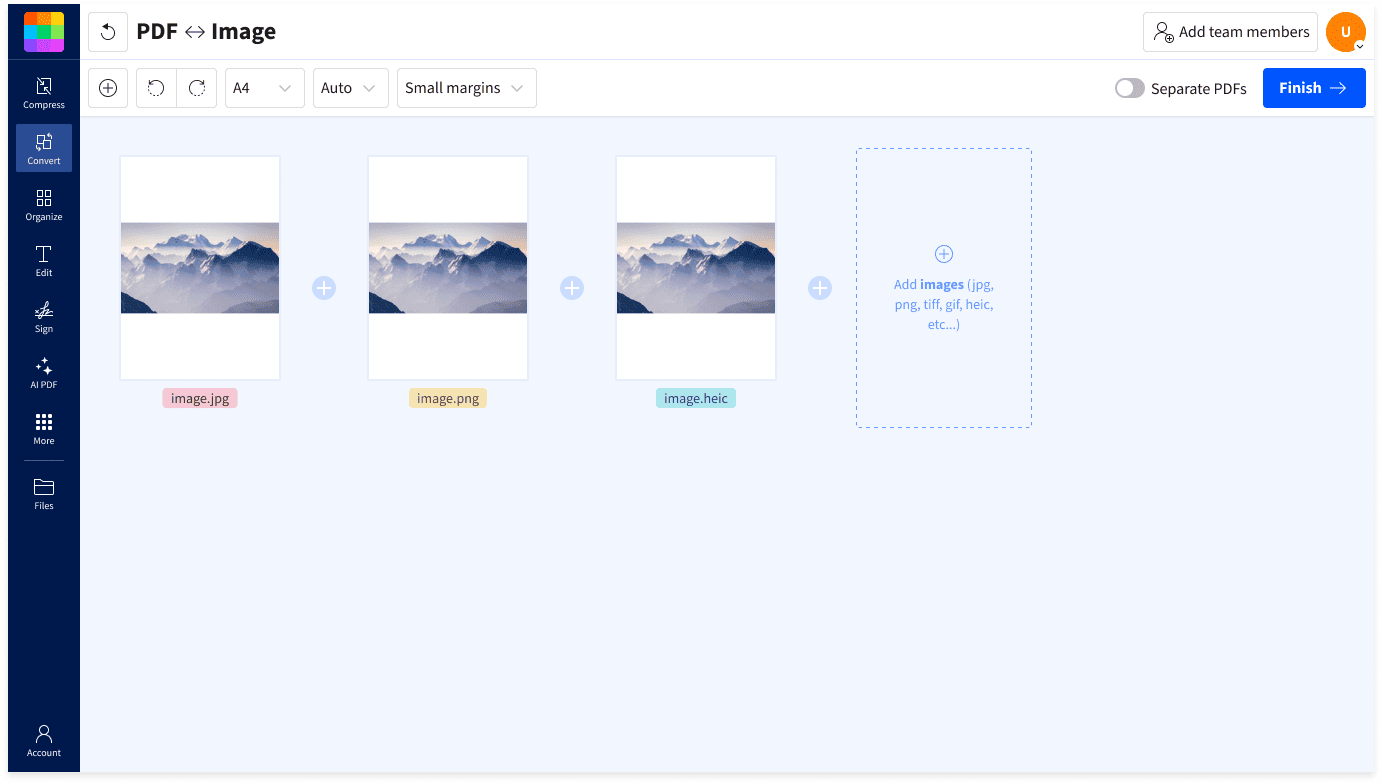
- Arrange the images and choose the PDF page settings.
- Click “Convert” to create the PDF.
- Download your newly converted PDF file or share it directly.
FAQs About Converting GIF to PDF
How do I turn a GIF into a PDF?
Upload your GIF, choose the page settings, and click “Convert.” Once processing is complete, download the new PDF directly from your browser.
Can I convert multiple GIFs into one PDF?
Yes, you can add multiple GIF files and combine them into a single PDF document. Simply drag and drop all your images into the converter, then click Convert.
How long do my files stay on your servers?
Files are deleted from Smallpdf’s servers 1 hour after processing.
What happens to animated GIFs when converted to PDF?
Animated GIFs convert to a static image in PDF format, capturing the first frame of the animation. If you need to preserve motion, consider keeping the original GIF file alongside your PDF.
Is the GIF to PDF converter really free?
Yes, you can use the converter for free without entering credit card details, although usage limits apply. Smallpdf Pro provides unlimited access and includes a 7-day free trial.
How can I make a GIF on an iPhone?
Open the built-in Shortcuts app and tap “Gallery.” Search for “GIF,” then tap the “+” beside “Make GIF” to add the shortcut. Return to the “Shortcuts” tab, open “Make GIF,” and choose a video or Live Photo. Trim the clip if needed, then tap “Done” to save the GIF to your Photos app. Shorter clips usually create smaller GIF files that are easier to send.