- Home
- ›
- ›How to Convert PDF to Video with AI in Simple Steps
How to Convert PDF to Video with AI in Simple Steps
Transform static PDFs into engaging videos with AI tools. Complete step-by-step guide plus troubleshooting tips for seamless conversion.
AI Tools & Guides
More on Edit PDF
More on Image Conversion Tools & Guides
Turning your PDF into a video? Work or school, it doesn’t matter because our tools and guidance make it easy to bring your documents to life.
This guide shows you how to prepare your PDF with Smallpdf’s AI tools first, then convert it into a polished video using platforms like Synthesia, HeyGen, or Visla. Smallpdf handles the setup (OCR, summaries, and file cleanup) while the video platforms generate the final MP4.
How to Convert a PDF to Video (Step-by-Step)
Ready to turn your PDF into an engaging video? Here’s the complete process that works with most AI video platforms.
Step 1: Prepare Your PDF with Smallpdf’s AI Tools
Start by getting a clean, usable version of your content. If your PDF is long, scanned, or dense, Smallpdf helps you turn it into clear, ready-to-use text.
Use AI PDF Summarizer:
Upload your document to our AI PDF Summarizer.
Start here: Use the AI summarizer below to upload or drag-and-drop your document and generate a summary.
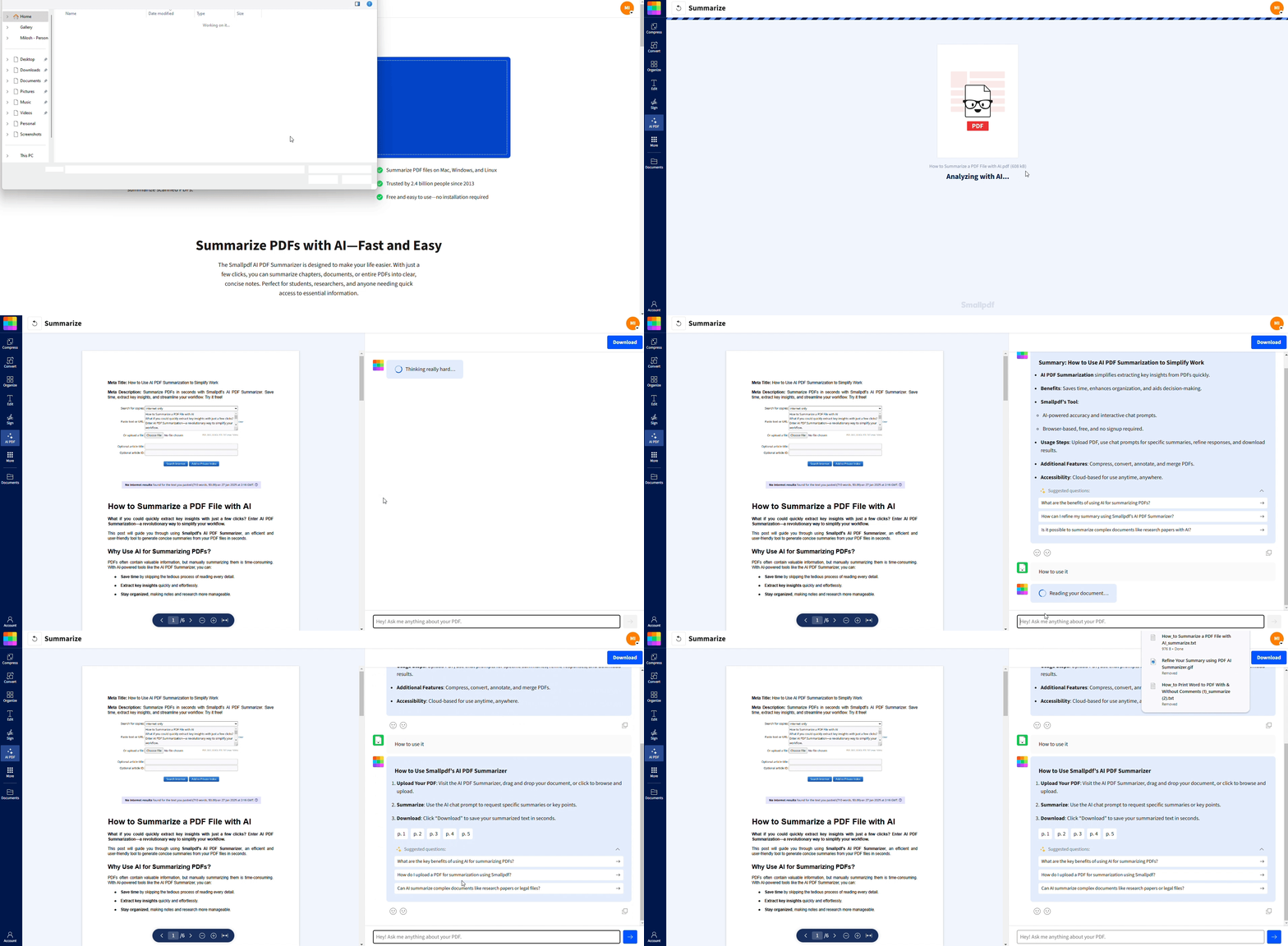
Let the AI scan and extract the main points.
Review the summary or run OCR automatically if the PDF is scanned.
Use Chat with PDF (optional):
Use Chat with PDF to ask for specific details, like:
‘What are the key sections in this document?’
‘Summarize page 4.’
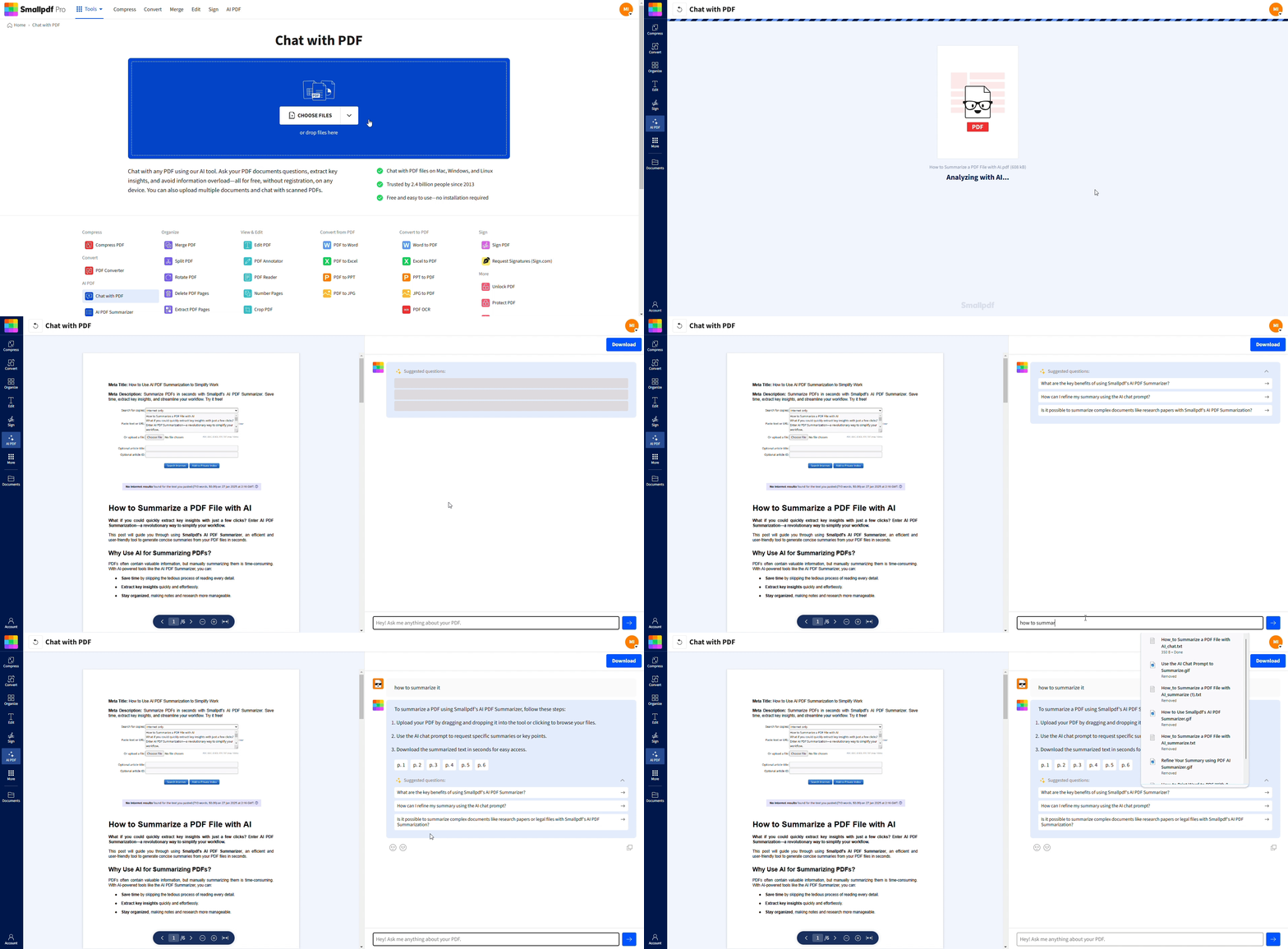
Each response includes a click-to-copy option, so you can move your text into the video tool without typing it out.
Step 2: Upload Your Content to an AI Video Platform
Choose your preferred tool—Synthesia, HeyGen, Visla, or another platform. Create a new project and paste the summarized or extracted text from Smallpdf into the script area.
If the tool accepts file uploads, you can also upload your cleaned PDF directly.
Step 3: Choose Voice, Visuals, and Layout
Select an AI voice, pick a template, and adjust the visuals. Most platforms let you choose between presenter-style videos, slides, or scene-based layouts.
Set the aspect ratio based on where your video will be shared (16:9 for desktop, 9:16 for mobile).
Step 4: Generate Your Video (MP4)
Click the generate button. Processing usually takes a few minutes depending on the length of your script and the visuals you selected. When it’s ready, download the MP4.
Step 5: Review, Edit, and Share
Watch your video and adjust timing, visual pacing, or audio. Once you’re happy with the final version, export and share it wherever you need it.
Why Convert a PDF to Video?
Now that you know the steps, here’s why turning a PDF into a video can be helpful:
Enhanced Engagement: Video content is more interactive and appealing than text-heavy PDFs.
Improved Accessibility: Videos accommodate visual learners more effectively.
Content Reusability: Repackage your PDFs (brochures, reports, or lecture notes) into shareable, multimedia formats.
Better Memory Retention: Visual and audio elements help viewers remember information longer than text alone.
Easier Sharing: Videos can be embedded, posted on social media, or shared via links more easily than PDF attachments.
Professional Presentation: Transform static documents into polished, branded video content that looks more professional.
Key PDF-to-Video Features to Look For
Not all video creation tools are built the same. Here are the essential features that make PDF-to-video conversion smooth and professional.
AI Voiceover and Narration
Look for platforms with high-quality text-to-speech voices that sound natural, not robotic. The best tools offer voice cloning options and support for multiple languages and accents.
Templates and Visuals
A good template library saves you hours of design work. Choose platforms that offer industry-specific templates, customizable layouts, and access to stock footage or images.
Presenter Avatars or B-Roll
Some tools let you add AI avatars (digital presenters) to your videos, while others focus on b-roll footage and animations. Consider your audience and brand when deciding which approach works best.
Translation and Subtitles
Multi-language support and automatic subtitle generation make your videos accessible to broader audiences. This is especially valuable for training materials or educational content.
PDF-to-Video Tools Compared
Here’s how the top AI video creation platforms stack up for converting PDFs into videos.
| Tool | Best For | Key Strengths | Considerations |
|---|---|---|---|
| Synthesia | Professional training, HR, and instruction-led videos | Large avatar library and strong language support. Polished corporate feel | Less flexible for creative formats. Templates lean toward business use |
| HeyGen | Social content, marketing, and personalized clips | Flexible styling with natural-sounding voices and custom avatars | Can feel less structured for long documents |
| Visla | Turning structured PDFs into scene-based videos | Scene editor preserves sections from your PDF. Good for manuals, reports, or SOPs | Fewer avatar options. More setup if you want a presenter |
| General AI Video Platforms (e.g., InVideo, Pictory) | Quick slideshow-style videos from summaries | Simple timeline editing. Easy to add captions and stock clips | Works best with short scripts rather than full PDF sections |
When to Pair Tools with Smallpdf (OCR, Summarization)
If your PDF contains scanned images or dense text, start with Smallpdf’s AI tools first. Our OCR technology converts image-based text into editable content, while our summarization feature helps you identify the key points worth including in your video.
Who Should Convert a PDF to Video?
PDF-to-video conversion works particularly well for specific audiences and use cases:
Training Managers: Transform SOPs, onboarding materials, and compliance documents into engaging microlearning modules.
Sales Teams: Convert product brochures and case studies into compelling sales enablement videos.
Educators: Turn lecture notes and course materials into accessible explainer videos for asynchronous learning.
Content Marketers: Repurpose whitepapers and reports into shareable video content for social media and websites.
HR Professionals: Create video versions of employee handbooks and policy documents for better engagement.
Troubleshooting PDF-to-Video Issues
Running into problems during conversion? Here are solutions to the most common issues.
Fonts or Layout Render Poorly
If your PDF’s formatting looks off in the video, try exporting your PDF with embedded fonts before uploading to the video platform.
Scanned PDFs Don’t Read Well
Scanned documents often need OCR processing before video conversion. Use Smallpdf’s PDF to Word converter to extract clean, editable text from scanned files first.
No Audio/Narration in Output
Check that you’ve selected a voice option in your video platform’s settings. Most tools require you to explicitly choose text-to-speech or upload your own audio file.
File Too Large or Low Quality
Large PDFs can create oversized video files. Compress your PDF first using Smallpdf’s compression tool, then adjust the video platform’s export settings for optimal balance between quality and file size.
Why Use Smallpdf Before You Convert: OCR + AI Summaries
Starting with Smallpdf gives you a significant advantage in the PDF-to-video process:
OCR Technology: Convert scanned PDFs into searchable, editable text that video platforms can process properly.
AI Summarization: Extract key points from lengthy documents, saving you time and creating more focused video content.
Layout Preservation: Maintain your document’s structure and formatting through the conversion process.
Compression: Reduce file sizes while maintaining quality, ensuring smooth uploads to video platforms.
Ready to Convert Your PDF to Video?
Start by preparing your PDF with Smallpdf’s AI tools to ensure the best video conversion results. Start your free trial to access all Smallpdf tools and streamline your PDF-to-video workflow.
Frequently Asked Questions
Can I convert a PDF to video using Smallpdf alone?
Not directly. Smallpdf prepares your PDF by cleaning it up, running OCR on scanned pages, and helping you pull out key points. To turn that content into a video, you’ll still use an external AI video tool such as Synthesia, HeyGen, or Visla.Which AI video tools work best with PDFs prepared in Smallpdf?
Most AI video platforms that accept text scripts or pasted content will work. After using Smallpdf to extract or summarize your PDF, you can copy the text into tools like Synthesia, HeyGen, Visla, or slideshow-style editors that build videos from text and images.What should I do if my PDF is scanned or low quality?
If your PDF is image-based, run it through Smallpdf first. Use OCR to turn the images into readable text, then summarize or copy the sections you want to include in your video. This helps the AI video platform read your content correctly and avoids strange line breaks or missing text.Is it safe to upload my PDFs to Smallpdf and AI video tools?
Smallpdf uses secure connections and deletes files after processing according to its data handling policy, which you can review in the Trust Center. For AI video platforms, check each provider’s security and privacy page, especially if your PDF contains sensitive or internal information, and avoid uploading anything confidential if their policies are not clear.Extract and organize PDF content for video workflows with Smallpdf
Related Articles
