How to Print Bulk PDF Files Effortlessly
Handling multiple PDF files can quickly become a hassle, especially when you need to print them in large quantities. Here’s what to do.
PDF Printing Tips & Guides
More on Edit PDF
More on Merge PDF
To print multiple PDFs at once, select the files in your folder, right-click, and choose Print. It’s that simple, on both Windows and Mac.
Bulk printing PDFs doesn’t have to be complicated, if you follow this simple guide, you’ll print PDF files in bulk like a pro.
Quick Checklist for Bulk Printing (No Merge Needed)
If you just need to print several PDFs fast, here’s the quickest way to do it:
Gather all the PDF files you want to print in one folder.
Select them all. Hold Ctrl (Windows) or Command (Mac) and click each file.
Right-click and choose “Print.”
Confirm printer settings, page range, and copies.
Let your computer send each file to the printer automatically.
This method skips any extra steps like merging or converting, perfect for quick batch jobs.
How to Print Multiple PDFs at Once (Windows and Mac)
Now that your PDFs are ready, it’s time to print. Most operating systems have native printing capabilities, so you don’t even need special software. Here’s how to print multiple PDFs at once based on your computer system:
On Windows
Windows 11 users: If you don’t see Print in the context menu, click “Show more options” first, then select Print.
On Mac
By using these native tools, you can print multiple PDFs in just a few clicks, even without any advanced software.
Keep Your Print Order: Merge PDFs Into One File
Need to print your PDFs in a specific sequence? Merge your PDFs into one single document first. This is the best way to maintain document order and ensure everything prints exactly as you want it.
Merging helps:
Maintain consistent page numbering across your entire document set
Create a single print job instead of multiple separate ones
Makes it easier to handle and organize your printed materials
Avoids confusion when dealing with large document batches
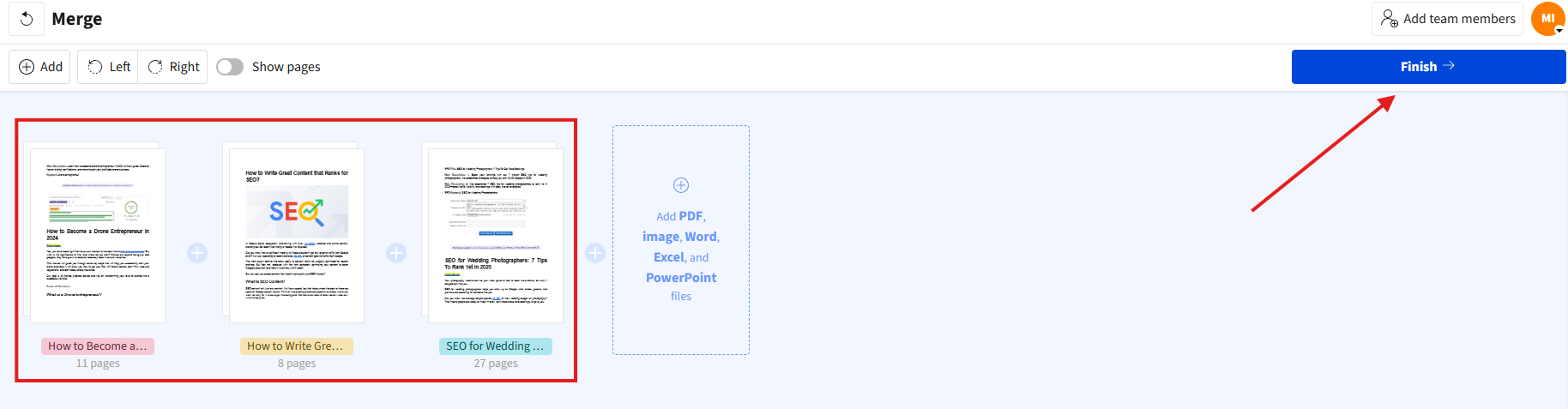
Use Smallpdf’s Merge tool to combine all your files in your desired order before printing. This makes the process seamless and professional.
When You Don’t Need to Merge PDFs First
Merging isn’t always necessary. Skip it when:
Print order doesn’t matter, for example, for separate reports or invoices
Each PDF already has its own layout or page numbering
You only need one-off copies of each file rather than a single combined packet
If consistency or order is critical, merge first. Otherwise, printing the files directly from your OS is usually faster.
Choosing the Best Way to Print Multiple PDFs
Each method has its strengths. Here’s how to decide which one works best for you.
Native OS Printing
Ideal for speed and simplicity. You can print several files straight from your folder without opening them.
Fast and built into Windows or Mac
No internet connection or software required
Limited control over print order or settings
Merging PDFs Before Printing
Useful when you need all pages to stay in the right sequence or share a single page layout.
Keeps documents in order
Prints as one continuous job
Takes a few extra steps to combine files first
Using Smallpdf Tools
Best for preparing files before you print, for example, to reduce file size or reorder pages. You can do things like:
Compress large PDFs so they print faster
Merge and organize files to maintain page order
All you have to do is download the processed file before printing.
Troubleshooting When “Print” Is Missing for Multiple PDFs
Sometimes the Print option doesn’t appear when you right-click multiple PDFs. Here’s how to fix the most common issues:
Windows 11 context menu: Microsoft changed the right-click menu in Windows 11. Click “Show more options” to see the full context menu with the Print option.
File association problems: Right-click a single PDF, choose “Open with,” select your preferred PDF app, and check “Always use this app” to fix association issues.
Save Time and Pages: Quick Tips Before You Print
Before hitting print, these quick optimizations can save you time, paper, and ink.
Compress large PDFs: Use Smallpdf’s Compress tool to reduce file sizes without losing quality. Smaller files print faster and use less memory.
Print multiple pages per sheet: In your print settings, choose “Multiple pages per sheet” to fit 2, 4, or more pages on one piece of paper.
Use duplex printing: Enable double-sided printing to cut your paper usage in half.
Switch to grayscale: For draft prints or internal documents, grayscale saves colored ink and prints faster.
Make Printing PDFs Even Easier with Smallpdf
Ready to streamline your entire PDF workflow? Smallpdf’s tools help you compress, merge, and organize your PDFs before printing—making the whole process faster and more professional.
Start your free trial to access all our PDF tools and make document management a breeze.
FAQs
Can I print multiple PDFs at once without opening them?
Yes, absolutely. You can bulk print PDF files by using tools or software that supports batch processing, or directly from your system’s printing capabilities.How do I keep PDFs in order when printing multiple files?
To ensure your PDFs print in a specific order, merge them into one document using the Smallpdf merging tool. This guarantees they print in sequence.Can I print multiple PDFs as one document?
Smallpdf allows you to prepare your files for bulk printing. After merging or compressing your PDFs, download them and proceed to print using your device.How can I print all PDFs in a folder at once?
Select all PDFs in your folder using Ctrl+A (Windows) or Cmd+A (Mac), then right-click and choose Print to print the entire folder’s contents.Why can’t I print multiple PDFs at once in Windows 11?
Windows 11 changed the context menu. Click “Show more options” after right-clicking to see the Print option, or check that your default PDF app supports batch printing.Compress, organize, and print large PDF batches using Pro tools
