- Home
- ›
- ›How To Share a PDF File on MS Teams Meeting
How To Share a PDF File on MS Teams Meeting
Learn how we share PDF files in Microsoft Teams using chat, channels, and screen share, plus how to compress and secure PDFs with Smallpdf for smoother meetings.
PDF Meeting Resources
PDF Sharing Tool & Guides
More on Edit PDF
You can share PDF files in Teams in three main ways: attach them in chat, upload them to channels, or share your screen during a meeting.
The fastest method is clicking the paperclip icon and attaching your PDF directly to a message.
We will walk you through each sharing method step by step, show you how to prepare your PDFs with Smallpdf, and help you fix common upload and sharing issues on desktop and mobile.
Quick Steps: How To Share A PDF In Teams
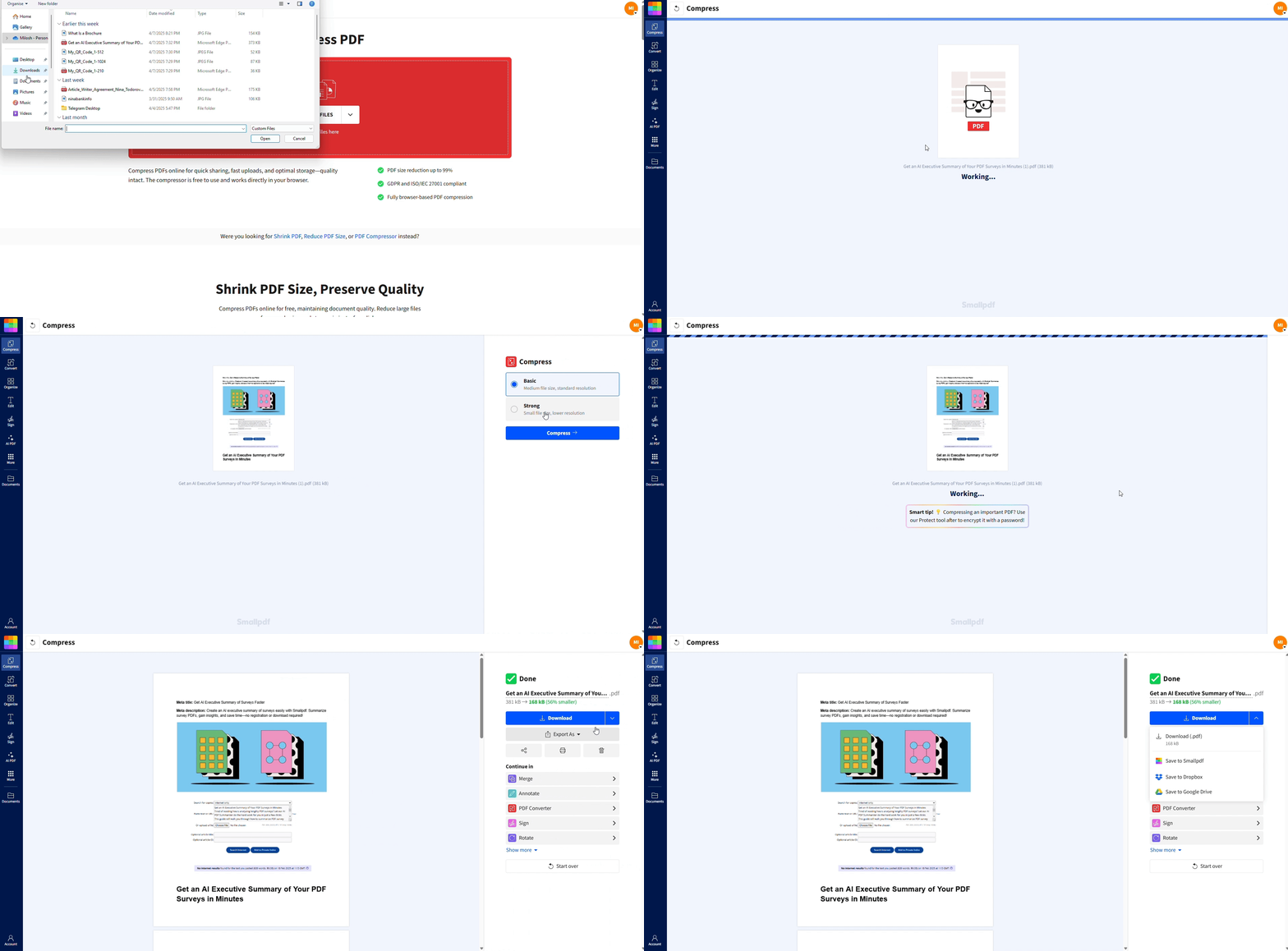
Want to Compress PDF Before Sharing On MS Team?
Once your PDF is ready and optimized, you can share it confidently in any Teams meeting.
How to Share a PDF in Teams Chat and Channels
Sharing PDFs in Teams chat and channels is the most straightforward method. You can attach files directly to conversations, making them accessible to specific people or entire teams.
1. Share A PDF In Teams Chat
Use this when you want to send a PDF file to one person or a small group.
Open the chat in Microsoft Teams.
Click the “paperclip” icon under the message box.
Choose “Upload from this device” or pick a PDF from “OneDrive.”
Select your PDF file and click “Open.”
Type a short message with context and click “Send.”
Recipients can preview the PDF directly in Teams or download it to their device.
2. Share A PDF In Teams Channels
Channels are better for documents that the whole team needs to see.
Open the team and channel where you want to share the PDF.
In the message box, click the “paperclip” icon.
Choose “Upload from this device” or “Browse Teams and channels.”
Select your PDF and click “Open.”
Add a brief explanation and click “Send.”
Teams saves PDF files shared in channels to the channel’s SharePoint document library, so everyone with access to that channel can find them later in the “Files” tab.
3. Drag And Drop PDFs Into Teams
For quick sharing, you can also drag and drop:
Drag your PDF file from your desktop or folder.
Drop it into the chat or channel message area.
Add a short note and click “Send.”
Teams automatically uploads the PDF and attaches it to your message.
How to Share a PDF During a Teams Meeting
When you need to present a PDF during a live Teams meeting, screen sharing gives you the most control.
1. Present A PDF From Your Desktop
Use this when your PDF is open in a desktop PDF viewer.
Open your PDF in your preferred PDF viewer before the meeting.
Join the Teams meeting and wait until you are ready to present.
In the meeting toolbar, click “Share.”
Choose “Window” and select the window showing your PDF.
Click “Share” so participants see only the PDF window.
This keeps other apps and notifications out of view and makes the presentation cleaner.
2. Present A PDF Using Screen Share
If you need to switch between multiple apps, share your entire desktop.
Open your PDF and any other apps you plan to use.
In the Teams meeting toolbar, click “Share.”
Select “Screen” or “Desktop,” then choose the correct monitor.
Click “Share” to start presenting your whole screen.
You can now move between your PDF, slides, and other content, while everyone follows along.
3. Share A PDF In Meeting Chat
You can also give participants a copy of the PDF during the meeting.
Click the “Chat” icon in the meeting controls.
Click the “paperclip” icon or “Attach” option.
Select your PDF from your device or OneDrive.
Click “Send” to share the PDF with everyone in the meeting.
Participants can download the PDF from the meeting chat, and it appears later in the meeting’s “Files” tab.
How to Share A PDF From The Teams Mobile App
If you are joining from your phone, you can still share PDFs in chat or during a meeting.
1. Share A PDF In Mobile Chat (iOS And Android)
Open the Teams app and go to your chat or channel.
Tap the “paperclip” or “+” icon near the message field.
Choose “Files,” “OneDrive,” or your device storage.
Select your PDF file.
Add a short message and tap “Send.”
This works well when you store PDFs in your phone’s files app or in cloud storage.
2. Show A PDF During A Mobile Meeting
Teams mobile supports basic screen sharing.
Join the meeting from your phone.
Tap the “More” (…) menu and choose “Share.”
Select “Share screen” or “Share PowerPoint” (if your PDF was converted).
Open your PDF in your phone’s viewer while sharing.
Keep in mind that presenting from mobile can be less stable on weak networks, so compressing your PDF first helps reduce lag.
Prepare Your PDF For Seamless Teams Sharing
Microsoft Teams has a 100 MB upload limit for standard file uploads. Large PDFs can fail to upload or take too long to open for participants.
1. Compress Your PDF Before Uploading
At Sallpf, we always compress large PDF files before important meetings.
Open Smallpdf and choose Compress PDF.
Upload your PDF using the drag-and-drop area below (or click to choose a file), from your device, Google Drive, Dropbox, or OneDrive.
3. Select “Strong compression” for maximum size reduction or “Basic” for balanced quality.
4. Download the optimized PDF to your device.
A compressed PDF uploads faster, opens more smoothly for everyone, and reduces bandwidth issues during screen share.
2. Secure Your PDF For Sensitive Meetings
If your PDF includes financial, HR, or confidential project data, add a password.
Go to Protect PDF.
Upload your PDF file.
3. Set a strong password and confirm it.
4. Download the protected PDF and share it in Teams.
Share the password separately, such as via a different chat or call, so no single message exposes both the PDF and the password.
3. Tidy And Annotate Your PDF
You can also clean up your PDF to make it easier to follow in a meeting.
Use PDF Annotator to highlight key numbers, diagrams, or decisions.
Use Merge PDF to combine related documents into one PDF before sharing.
Add simple labels or bookmarks so you can jump to sections quickly while presenting.
A prepared PDF keeps conversations focused and saves time during the call.
Tips for Smooth PDF Sharing in Teams
Test Before Your Meeting: Always test sharing your PDF before the meeting begins. It ensures you’re confident navigating the process while avoiding technical hiccups.
Inform Your Participants: Before sharing the PDF, give attendees a quick heads-up so they know where to look and what to expect.
Use Annotation Tools: If your PDF contains visuals or charts, use the annotation tools provided by your PDF reader to highlight key points beforehand.
Organize Your Files: Make sure you’ve saved all files in a location that‘s easy to access during the meeting to avoid delays.
How to Find and Manage Shared PDFs in Teams
Once you’ve shared PDFs in Teams, finding them later is straightforward.
Channel files: Open the channel and click the “Files” tab to see every PDF shared in that channel.
Meeting files: Open the meeting chat or calendar entry and go to “Files” to find PDFs shared during that meeting.
Delete or clean up: In “Files,” right-click a PDF and choose “Delete” to remove old or outdated documents.
Keeping these spaces tidy makes it easier for teammates to find the right PDF later.
Prepare Your PDF Before Sharing
Sharing a PDF in Microsoft Teams is much easier when the file is prepared and optimized. Once you compress, secure, and organize your PDFs with Smallpdf, you can attach them in chat, upload them to channels, and present them live in meetings without worrying about size limits or slow loading.
Frequently Asked Questions
How do I display a PDF in Teams?
Open the PDF in a viewer or browser, join your Teams meeting, and click “Share” in the meeting controls. Choose “Window” or “Screen,” select the PDF window or screen, and click Share so everyone sees the document.How do I share a document on screen in a Teams meeting?
Click “Share” in the meeting toolbar and pick “Window” to show a specific app or “Screen” to show your entire desktop. Select the window or screen that contains your document and confirm the share.How do I screenshare a PDF in Teams?
Open your PDF, then in Teams click “Share” and choose “Window” or “Screen.” Pick the PDF window or the screen where the PDF is visible. Once you share, scroll and zoom while you talk through the content.Why can’t I upload a PDF to Teams?
Upload failures usually happen because the file is too large, your network is unstable, or you lack permissions in that team or channel. Compress the PDF with Smallpdf, check your access level, and try again from a strong connection.Can I attach a PDF to a Teams meeting?
Yes. Open the meeting in your Teams calendar, go to the “Files” or “Details” area, and upload the PDF there. You can also share the PDF in the meeting chat so participants can download it before, during, or after the call.Prepare and share PDF files smoothly for Teams meetings using Smallpdf Pro
Related Articles
