How To Print HTML Pages as PDFs
Print HTML to PDF in seconds with simple browser shortcuts. Save clean, shareable copies you can edit, compress, and secure with Smallpdf.
PDF Printing Tips & Guides
More on Edit PDF
More on HTML to PDF
Modern browsers make it easy to print HTML to PDF without extra software. You can save single pages, full articles, or long guides as PDFs, then bring them into Smallpdf to compress, edit, merge, or sign.
This guide walks you through quick steps for desktop and mobile, plus fixes for layout problems and ads.
Quick Start: Print HTML Webpage to PDF In 5 Steps
You now have a PDF copy of that page. Next, upload it to Smallpdf to compress, merge with other PDFs, or convert to Word if you want to edit the content.
How To Print HTML to PDF on Windows and Mac
Every major browser has a built-in print to PDF option. The basic flow is the same: Open the page, open the print dialog, choose a PDF destination, and save.
Google Chrome
Open the webpage in Chrome.
Press Ctrl+P (Windows) or Command+P (Mac).
In “Destination,” select “Save as PDF.”
Under “More settings,” adjust paper size, scale, and “Background graphics.”
Click “Save,” pick a location, and confirm.
Microsoft Edge
Open the webpage in Edge.
Press Ctrl+P (Windows) or Command+P (Mac).
In “Destination,” select “Microsoft Print to PDF.”
Check the preview, adjust margins and scale if needed.
Click “Print,” choose a file name and folder, then save.
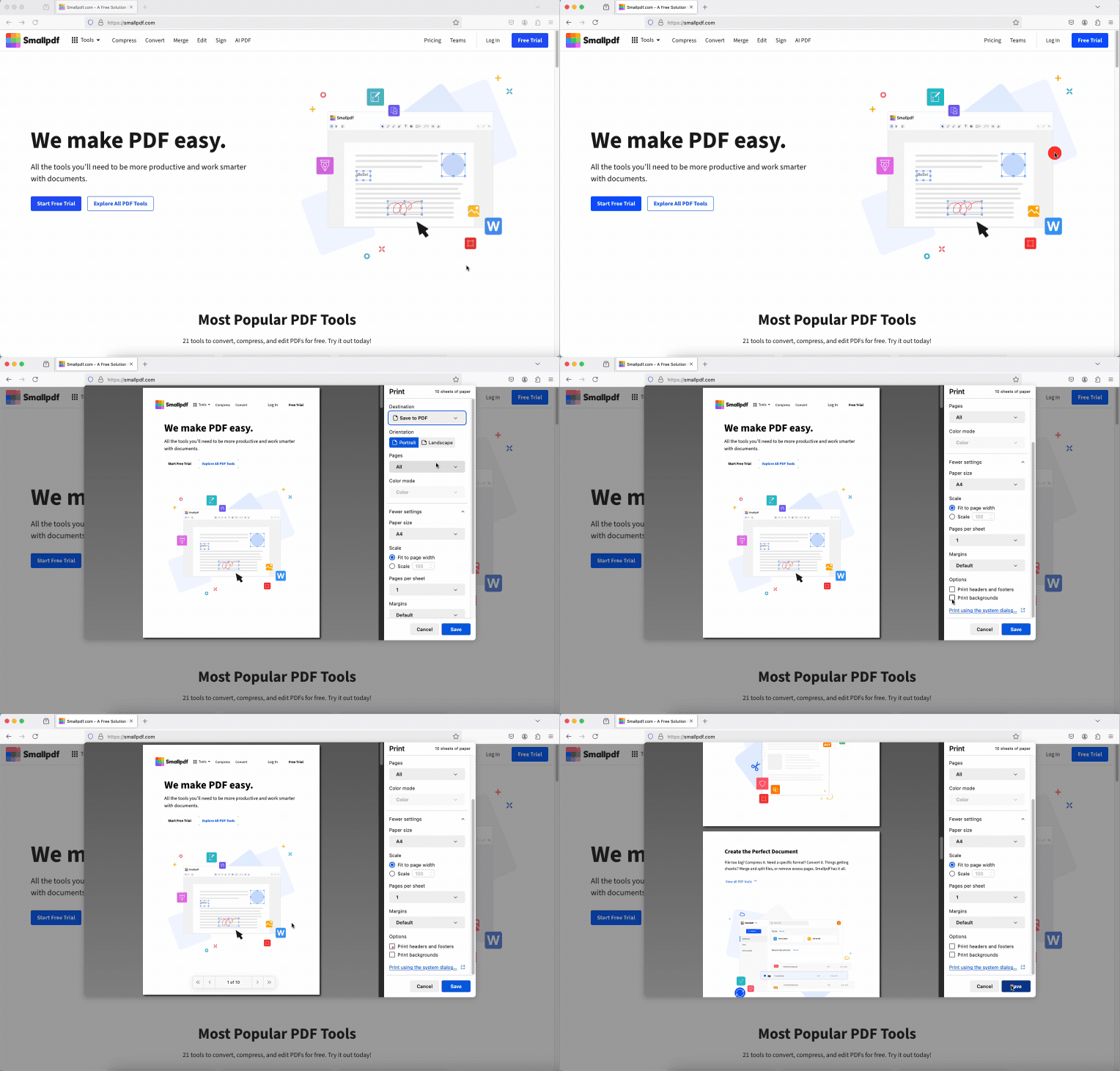
Mozilla Firefox
Open the webpage in Firefox.
Press Ctrl+P (Windows) or Command+P (Mac).
Choose “Save to PDF” or a similar PDF printer in “Destination.”
Review the preview for cut-off text or images.
Click “Save” and choose where to store your PDF.
Safari (macOS)
Open the webpage in Safari.
Click “File” in the menu bar.
Select “Export as PDF…”
Choose the destination folder, name your file, and click “Save.”
If you want more control (margins, orientation, scale), you can instead click “File” > “Print…”, then adjust settings and choose “Save as PDF” in the lower-left corner.
Opera
Open the webpage in Opera.
Right-click on the page and choose “Save as PDF,” or click the “Snapshot” button in the address bar.
Confirm the page range and options if prompted.
Select a folder and click “Save.”
Once saved, you can drag that PDF into Smallpdf to compress or edit it before sending it to others.
How to Print a HTML Webpage to PDF on iPhone and Android
If you’re on the go and need to print a HTML as PDF on Android or iPhone, you can still get a clean, readable file with just a few taps.
iPhone and iPad (Safari)
Open the webpage in Safari.
Tap the “Share” button.
Scroll down and tap “Print.”
On the print preview, pinch out on the page to turn it into a full-screen PDF preview.
Tap the “Share” button again and choose “Save to Files,” “Mail,” or another app.
Android (Chrome And Other Browsers)
Open the webpage in your browser.
Tap the three-dot menu in the top-right corner.
Tap “Share,” then choose “Print.”
In the printer dropdown, select “Save as PDF.”
Adjust options such as orientation or pages, then tap the PDF button to save.
You can upload these mobile PDFs to Smallpdf later to compress or merge them, or keep them as offline references on your device.
Single Page vs. Entire Website: What You Can Really Save
Browsers print one page at a time, not an entire website. When you print website to PDF, you are saving a single URL or view, not every page under that domain.
Single webpage:
Ideal for articles, receipts, help pages, and landing pages
Use browser print to PDF as shown above
Multiple pages from a site:
Print each important page to its own PDF.
Use Smallpdf Merge PDF to combine them into one document.
Very long or scrolling pages:
Most browsers handle full-length pages automatically.
Check that “Pages” is set to “All” in the print dialog.
Adjust the scale if sections appear cut off.
For full-site archiving, you would need specialized crawling or archiving tools. For everyday tasks, saving the key pages as PDFs and merging them is usually enough.
How To Keep the Webpage Layout When You Print to PDF
Sometimes, the printed PDF does not match what you see on screen. A few settings in the print dialog can help preserve the original layout when you print HTML to PDF.
Enable “Background graphics” to keep colors, images, and section backgrounds.
Set margins to “None” or “Minimum” to fit more content per page.
Use a scale close to 100% so text stays readable.
Turn off headers and footers if you do not want extra URLs or dates at the top and bottom.
Switch to Landscape for wide layouts with tables or charts.
Always look at the preview pane before you click “Save.” If something looks wrong there, it will look wrong in the final PDF.
How To Save Full, Scrolling Pages When You Print HTML to PDF
Many modern pages are much longer than your screen. You usually do not need a special add-on to capture them.
Use Browser Print Settings
In the print dialog, make sure “Pages” is set to “All.”
If you see gaps or cut-off sections, tweak the scale slightly.
For sticky headers or floating bars, scroll the page so they are in a good starting position before printing.
When to Use Extensions or Online Converters
For very long pages with infinite scrolling, dynamic content, or heavy scripts:
A full-page screenshot or “save as PDF” browser extension can capture everything in one go.
Some online converters let you paste a URL and generate a PDF server-side.
These methods can help when the built-in print fails, but they may not respect login-protected content or very interactive pages.
Troubleshooting Common Print HTML to PDF Issues
Printing web pages is not always perfect. Here are fixes for common frustrations.
1. Blank Areas or Missing Content
Scroll through the entire page first so lazy-loaded images are forced to load.
Wait a few seconds before opening the print dialog on content-heavy pages.
Try another browser if certain elements never appear in the preview.
2. Too Many Ads or Pop-Ups
Close all pop-ups and overlays before printing.
Use Reader Mode (Firefox, Safari) or “Simplify page” options to strip ads.
Print from the Reader or simplified view for a cleaner PDF.
3. Forms and Interactive Elements Not Showing
Check the preview to confirm the entered text appears in the form fields.
If fields are blank, try another browser or take a screenshot instead for forms that do not print correctly.
After you have a PDF you like, you can upload it to Smallpdf to make edits or combine it with other documents.
Edit, Compress, and Convert Printed PDFs With Smallpdf
Printing a website to PDF is often just the first step. We help you turn that raw capture into a polished document.
After you print website to PDF:
Use Compress PDF to shrink large files for email or uploads.
Use Edit PDF to add text, highlights, shapes, or images.
Use PDF Converter to turn the PDF into Word or PowerPoint for deeper editing.
Use Merge PDF to combine multiple web page PDFs into a single report.
Use eSign PDF to sign or approve content directly on the page.
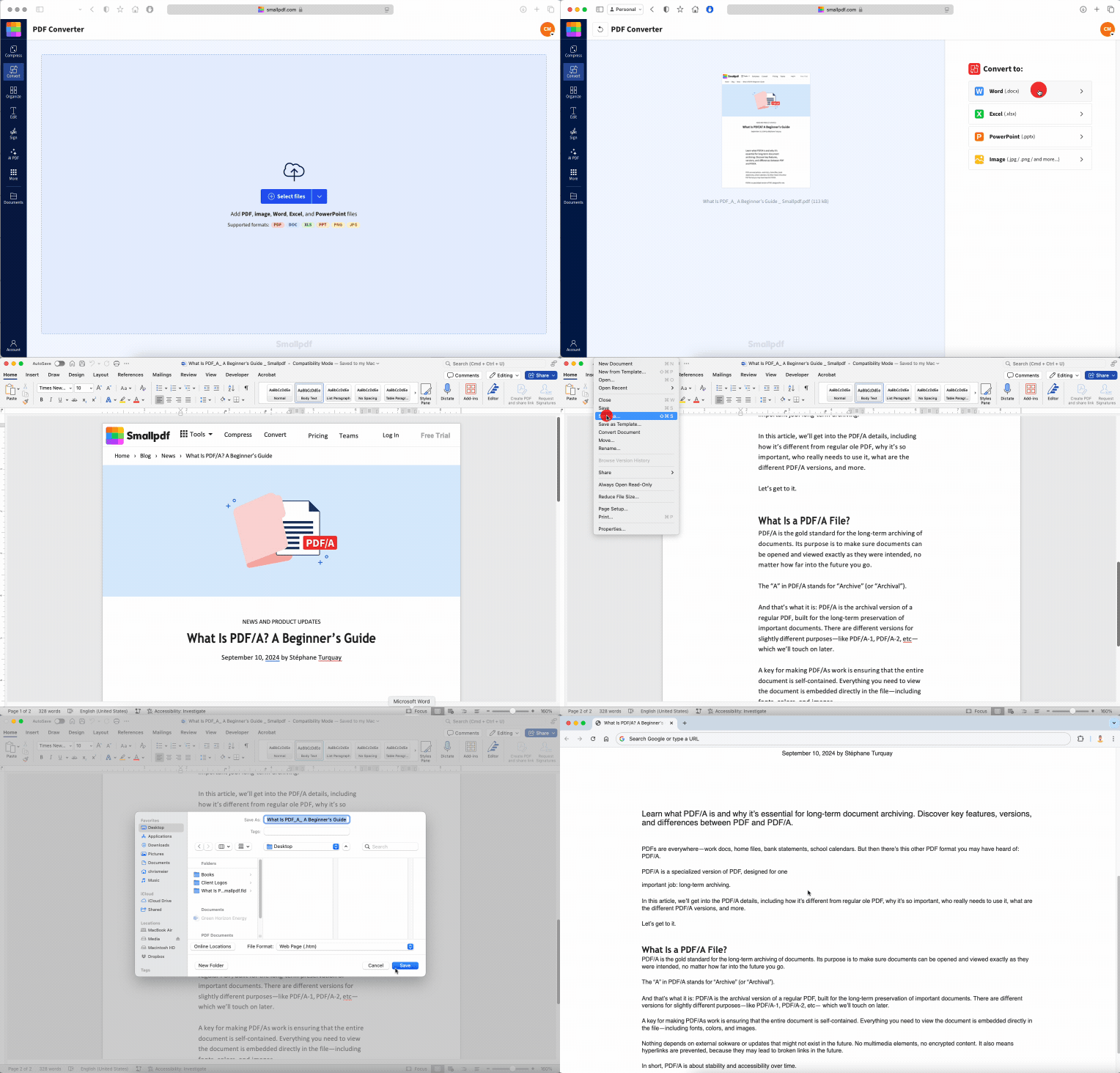
You work in your browser the whole time, and you can start with free daily tasks before deciding if Pro fits your workflow.
Turn Any HTML Into a Shareable PDF With Smallpdf
Once you know how to print a website to PDF in your browser, capturing articles, receipts, and guides becomes a simple habit. Save the page as a PDF, upload it to Smallpdf, and you can compress, edit, merge, or sign it in one place.
Next time you find a page worth keeping, print it to PDF, drop it into Smallpdf, and turn that snapshot into a clean, ready-to-share document.
Want to Convert a PDF for Free
FAQs: Print Website to PDF
How do I print an entire webpage to PDF, not just one page?
Browsers can only save one page (one URL) at a time. To capture several pages from a site, print each one to PDF separately, then use our Merge PDF to combine them into a single document.Can I print a website to PDF without ads or clutter?
Yes. Use Reader Mode in browsers like Firefox or Safari, or use a “Simplify page” option where available. This removes most ads and sidebars so your PDF focuses on the main content.Why does my website PDF look different from what I see on screen?
Web pages often use special print CSS rules that change layout for printing. Turn on “Background graphics,” adjust margins, and check scale in the print dialog. If the preview still looks wrong, try another browser or a simplified view.How do I print a password-protected page to PDF?
First, log in and make sure you can view the content normally in your browser. Then use the same print to PDF steps as any other page. The PDF will capture what you can see on screen, but it will not keep the login protection.Can I edit the text after I print a website to PDF?
Usually yes. If the PDF contains real text, you can use the Edit PDF for quick changes or convert the file to Word with PDF Converter for more advanced editing.What is the difference between “Save as PDF” and “Microsoft Print to PDF”?
“Save as PDF” is commonly used in Chrome and macOS dialogs, while “Microsoft Print to PDF” is specific to Windows. Both create PDF files with similar results, though metadata and compression may differ slightly between systems.Refine and organize HTML-to-PDF files with Smallpdf Pro
Related Articles
