- Home
- ›
- ›How to Convert HTML Checkboxes to Interactive PDFs
How to Convert HTML Checkboxes to Interactive PDFs
Learn how to convert HTML forms to interactive PDFs with working checkboxes using free tools—no more static forms that users can’t fill out.
More on HTML to PDF
More on PDF Converter
More on PDF Form Filler
It is annoying when you save an HTML form as a PDF and find that the checkboxes and other form elements stop working. It’s nothing you did wrong, but there is a reason for it.
HTML and PDF are two very different formats and converting from one to the other means losing some formatting. Links are nearly always kept the same. But headings, form elements, and other styling are often ignored. So the checkboxes will still appear in your PDF, but you won’t be able to click them.
This is a problem if you’re working on forms, surveys, or any document that requires user input. But there’s a simple way to fix this, restoring checkbox functionality using Smallpdf’s PDF Converter and LibreOffice.
Quick Summary
Start here: Use the converter below to upload your PDF and convert it to Word.
This keeps your layout intact and restores the form elements your browser couldn’t carry across.
What You’ll Need
Your HTML form saved as a PDF from your browser
Smallpdf PDF Converter to turn the PDF into an editable DOCX
LibreOffice to insert checkboxes and export a PDF Form
At-a-Glance Steps
Save the HTML form as a PDF in your browser.
Upload that PDF to Smallpdf and convert it to a DOCX.
Open the DOCX in LibreOffice and insert checkbox fields.
Export the file as a PDF Form with interactive fields enabled.
What Is an Interactive PDF?
An interactive PDF is a dynamic document that goes beyond static text and images, incorporating clickable elements that users can engage with directly. Unlike regular PDFs that are essentially digital paper, interactive PDFs include functional components that respond to user input.
Common interactive elements include:
Fillable forms - text fields, checkboxes, radio buttons, and dropdown menus
Hyperlinks - clickable links to websites, email addresses, or other document sections
Clickable buttons - navigation controls and action triggers
Embedded media - videos, audio files, and animations
Interactive navigation - bookmarks and clickable table of contents
You’ll find interactive PDFs used for online forms, product catalogs with clickable ordering, training materials with embedded videos, and presentation slides with navigation buttons. They’re perfect when you need user engagement beyond simple reading.
Why Use Interactive PDFs for Forms and Checkboxes?
Interactive PDFs offer several advantages over static documents or web-based forms, especially when you need professional presentation with reliable functionality.
Key benefits include:
Professional appearance: Maintain consistent branding and layout across all devices and viewers.
Data collection efficiency: Users can fill, save, and submit forms without internet connectivity.
Universal compatibility: Work across different operating systems and PDF viewers.
Enhanced accessibility: Support screen readers and keyboard navigation when properly designed.
User engagement: Interactive elements keep readers actively involved with your content.
Organizations like the NHS use interactive PDFs for their annual reports, combining professional presentation with clickable navigation and embedded multimedia elements. This approach ensures accessibility while maintaining the document’s integrity across different platforms.
How to Create an Interactive PDF With Checkboxes
Converting HTML checkboxes to interactive PDFs requires a few steps, but the process is straightforward using Smallpdf’s tools and LibreOffice. You’ll transform static form elements into fully functional, clickable checkboxes.
Step 1: Save Your Web Form as a PDF
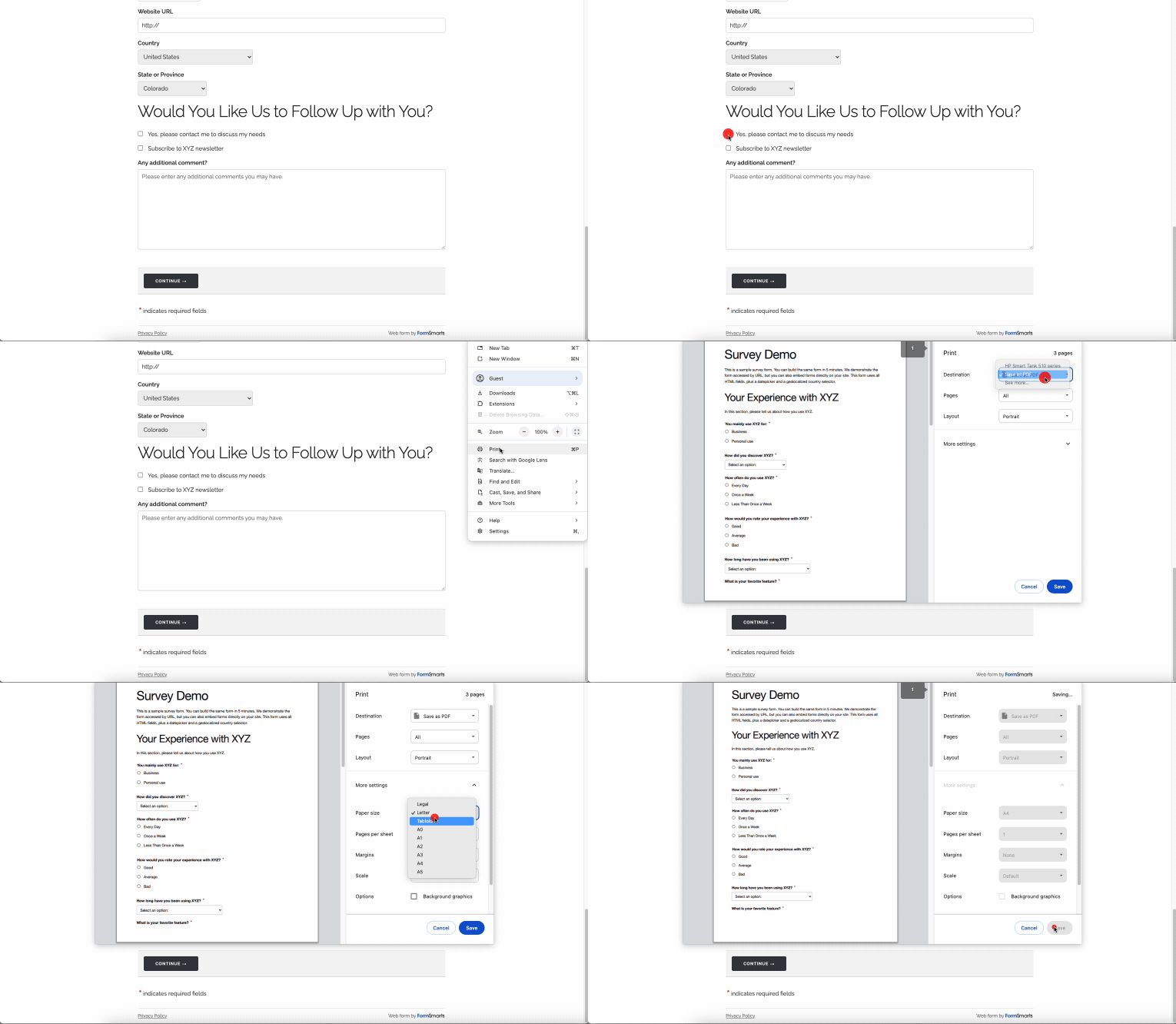
The first step is to save your HTML form as a PDF directly from your browser, using the built-in “Save to PDF” feature.
Open the form in your browser, press Ctrl + P (Windows) or Cmd + P (Mac), and select “Save as PDF” as the destination. This creates a PDF version of your form that looks like the web page, but the checkboxes won’t be interactive—they’ll just be static images. That’s where the next step comes in.
Step 2: Convert the PDF to Editable DOCX With Smallpdf
Since the checkboxes aren’t functional in the PDF you just saved, the next step is to convert the PDF into an editable DOCX file.
Using Smallpdf’s PDF Converter, upload the PDF and select the option to convert it to Word.
The checkboxes will still be non-interactive symbols or empty boxes. That’s fine—this is just an intermediate step before adding real checkboxes.
Step 3: Add Checkable Fields and Export as Interactive PDF
LibreOffice is the best tool for turning static checkboxes into interactive ones. If you don’t already have it, download and install LibreOffice —it’s free and works across different operating systems.
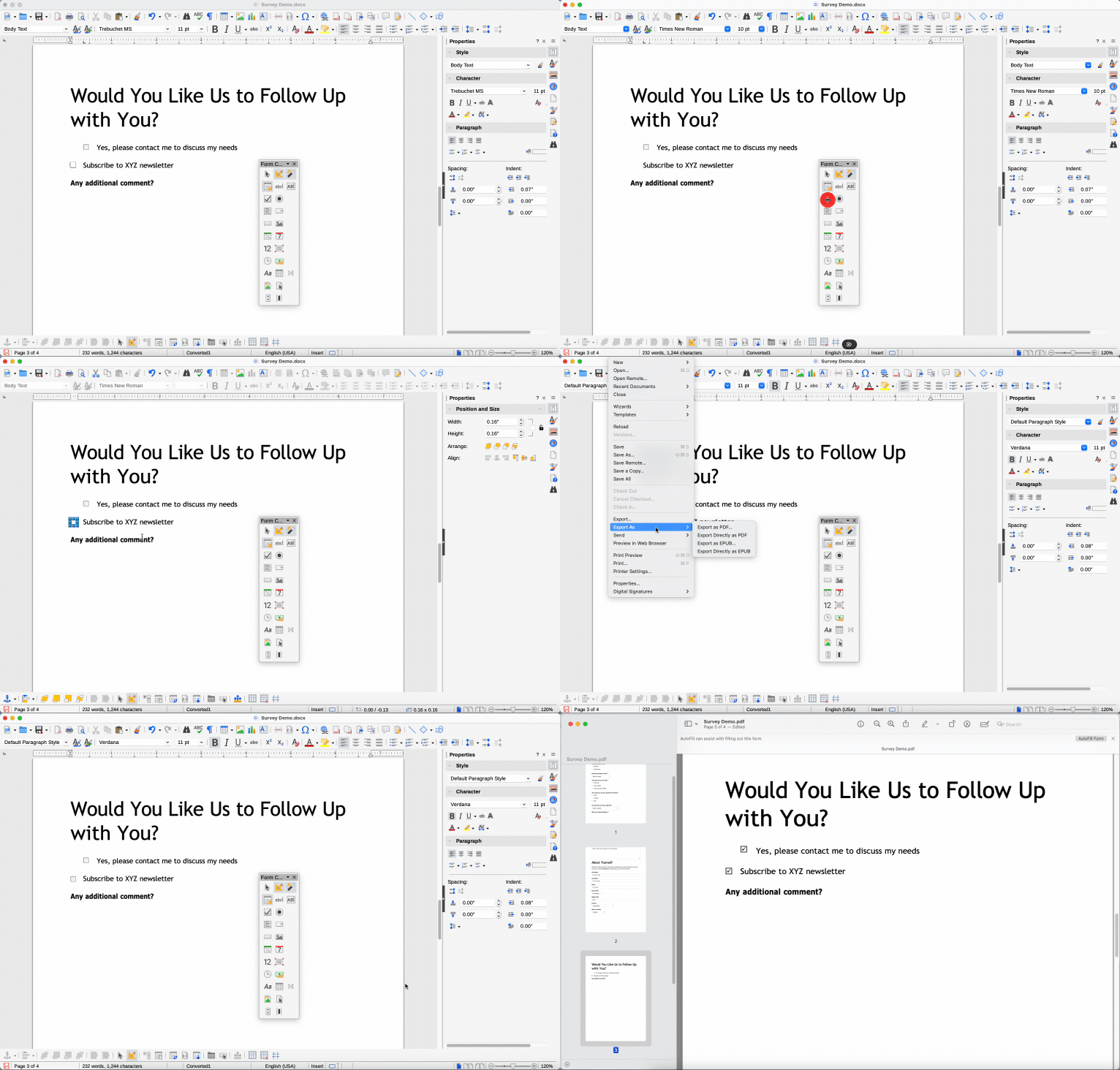
Open your DOCX file in LibreOffice.
Enable the “Form Controls” toolbar by going to “View,” then “Toolbars,” and select “Form Controls.”
Select the “Checkbox” tool and click where each checkbox should be.
Adjust the size and position if needed.
Save the document as a PDF Form by going to “File,” select “Export As,” and choose “Export as PDF.”
Make sure the “Create PDF Form” option is checked.
Open the new PDF in any PDF viewer and test the checkboxes—that’s it!
Start here: Use the PDF Reader below to upload the final PDF form and quickly verify the fields behave correctly.
At this point, you now have a fully functional, interactive PDF where checkboxes can be selected, making your web form conversion truly seamless. You can follow the same steps to add other form elements too, if needed.
Export and Test Your Interactive PDF Across Viewers
Before sharing your interactive PDF, proper testing ensures compatibility across different PDF viewers and devices. Each PDF reader handles interactive elements slightly differently, so thorough testing prevents user frustration.
Follow this testing checklist:
Test in multiple PDF viewers: Browser-based PDF viewers, mobile apps.
Check checkbox functionality: Ensure all checkboxes click and maintain their state.
Verify form field properties: Confirm tooltips, required fields, and validation work correctly.
Test on mobile devices: Check that interactive elements are touch-friendly.
Validate accessibility features: Ensure keyboard navigation and screen reader compatibility;
If you notice issues in specific viewers, return to LibreOffice and adjust the form field properties before re-exporting. Most compatibility problems stem from export settings rather than the interactive elements themselves.
Best Practices for Interactive PDF Forms and Checkboxes
Creating effective interactive PDFs goes beyond just adding clickable elements. Following these best practices ensures your forms are user-friendly, accessible, and professional.
Key recommendations include:
Set logical tab order. Users should move through fields in a natural sequence when pressing Tab.
Use descriptive field names. Name form fields clearly for accessibility and data processing.
Add helpful tooltips. Provide guidance text that appears when users hover over fields.
Ensure sufficient contrast. Make checkboxes and text clearly visible for users with visual impairments.
Group related elements. Organize checkboxes and fields logically to reduce user confusion.
Test keyboard navigation. Ensure users can complete forms without a mouse.
Companies creating catalog order forms often use these practices to streamline the ordering process. Clear field labels, logical grouping, and proper tab order make forms faster to complete and reduce user errors.
Troubleshooting Interactive PDF Checkboxes
If something doesn’t look right in your final PDF, don’t panic—there’s usually an easy fix.
If checkboxes are missing or replaced by text, the problem likely started in the original HTML form. Once you have converted the saved PDF to Word, you should be able to edit all the text and other elements.
If checkboxes appear in the PDF but aren’t clickable, the issue is usually in the export settings. Make sure you’re selecting “Create PDF Form” when exporting from LibreOffice.
For checkboxes that appear corrupted or display incorrectly across different PDF viewers, the problem often lies in appearance streams or form field properties. Return to LibreOffice, delete the problematic checkbox, and recreate it with default settings.
If users report that checkbox selections aren’t saving, check that the PDF wasn’t flattened during export. Interactive elements require the document to maintain its form structure rather than being converted to static images.
Start Creating Interactive PDFs Today
You now have a clear path to turn static HTML forms into working, interactive PDFs.
Smallpdf helps you get the cleanest starting point by converting your saved web form into an editable DOCX, while LibreOffice lets you add checkboxes and other form controls before exporting your final PDF.
Using both tools together keeps the process simple and avoids the common formatting issues that appear when you convert browser-based forms.
If you want a fast way to handle future conversions, organize PDFs, or edit other documents along the way, Smallpdf offers 30+ tools that slot neatly into this workflow.
Ready to keep going? Start your free trial to access all Smallpdf tools and work with your documents without limits.
Want to Convert a PDF to Word?
Frequently Asked Questions
Why do my HTML checkboxes turn into plain squares when I export the page as a PDF?
Browsers don’t preserve form behavior when printing to PDF. The layout is captured, but interactive elements lose their underlying code. That’s why the checkboxes look correct but can’t be clicked.Do I need to rebuild every checkbox manually in LibreOffice?
Not always. If your layout is consistent, you can duplicate a working checkbox and paste it into the right positions. This keeps field settings consistent and saves time on larger forms.Will the interactive checkboxes work the same in every PDF viewer?
Not exactly. Most desktop viewers support them, but some browser-based readers handle form fields differently. If a checkbox looks fine in one viewer but glitches in another, re-exporting with the “Create PDF Form” option usually fixes it.Can I keep my original HTML styling when creating an interactive PDF?
Visual styling (fonts, spacing, colors) often carries over. Interactive behavior doesn’t. After converting with Smallpdf, you can adjust spacing and layout in LibreOffice, so the final PDF stays as close to your original HTML as possible.What if my exported PDF looks blurry or the text isn’t crisp?
This usually means the page was printed as an image rather than selectable text. Re-save the web page using your browser’s “Save as PDF” option, then run it through Smallpdf again. If the text still appears fuzzy, check whether the original HTML used images for text.Can I add more than just checkboxes in LibreOffice?
Yes. You can insert text fields, dropdowns, radio buttons, and date pickers. These extra fields do not affect the steps in the guide and export correctly when “Create PDF Form” is enabled.Do interactive PDFs support screen readers?
They do, but only if the form fields are labelled correctly. In LibreOffice, you can open each field’s Properties panel and add a clear description so assistive technologies can recognize the field.Is there a way to automate similar conversions in the future?
You can simplify future tasks by creating a template in LibreOffice with your preferred form fields, then using Smallpdf to convert new HTML layouts into editable DOCX files that fit into the same structure.Convert HTML checkboxes into fillable PDFs with Smallpdf
Related Articles
