Understanding What PDF Metadata Is
Understand what PDF metadata really stores behind your documents. Control how your files appear, get found, and stay private when you share them.
More on Protect PDF
More on Edit PDF
PDF Tips & Resources
PDF metadata is the information your file carries in the background. It doesn’t show on the page, but it affects how your PDF appears in search, in file lists, and in other systems. When you learn how to read and change this data, you gain much better control over your documents.
Below, we explain what PDF metadata is, why it matters, and how you can view, edit, or remove it using Smallpdf and tools you already use.
What Is PDF Metadata?
PDF metadata is information about your document that’s stored within the file itself but isn’t visible on the actual pages. Think of it as a digital filing card attached to your PDF.
Common metadata fields include:
Title: The document’s official name (often different from the filename)
Author: Who created the document
Subject: A brief description of the content
Keywords: Searchable terms related to the document
Creation date: When the file was first made
Modification date: When it was last changed
Application: What software created the PDF
This information lives in the document’s properties section, completely separate from the visible content you see when reading the PDF.
Why PDF Metadata Matters
Metadata is easy to ignore until something goes wrong. Then it becomes very important.
1. Better Search and Organization
Good metadata helps you:
Find the right document quickly in long folder lists.
Group files by project, client, or author.
Filter documents by date when you need the latest version.
If your title and subject fields are clear, you do not have to guess what “final_v3.pdf” really contains.
2. Accessibility and Compliance
Screen readers and assistive tools often use metadata:
A clear Title helps users who rely on assistive technology.
A correct Language tag supports pronunciation and navigation.
Well-formed metadata supports standards like PDF/UA and general accessibility guidelines, which matter for public or legal content.
3. Search Engines and File Sharing
When you publish PDFs online, some platforms and search engines can read metadata. A meaningful title and subject can:
Improve how your file appears in search results.
Make shared links look more professional.
At the same time, hidden fields may expose more than you intend. That is where privacy comes in.
What Information Can PDF Metadata Reveal?
Most people expect to see a title or author in metadata. Sometimes there is more detail than you might like.
Typical sensitive fields include:
Full names of editors or creators
Company or department names inside the author field
Internal project codes in the subject line
Draft labels or comments left in custom fields
Original creation dates that show how old a template really is
This isn’t always a problem, but for public reports, legal files, or anonymous submissions, you may want to clean this up.
Types of PDF Metadata
Not all metadata is the same. It helps to group it into a few types.
1. Descriptive Metadata
This describes what the document is.
Title
Subject
Keywords
Language
You can adjust these fields to make files easier to identify and search.
2. Administrative Metadata
This describes how the document was created and handled.
Author
Application
Creation date
Modification date
You often adjust this when you want to hide internal details or reset a document’s visible history.
3. Structural Or Custom Metadata
Some PDFs carry extra information used by certain systems.
Custom properties like “Department” or “Client name.”
Workflow flags such as “Approved” or “Draft.”
These fields can be helpful inside your own systems, but you may not want to share them outside your team.
How To View PDF Metadata
Before you change anything, you need to see what is already there. You can do this with both built-in viewers and Smallpdf.
View Metadata in Browsers or Desktop Viewers
On a desktop, you often find metadata in a “Properties” or “Info” panel.
Typical flow:
Open the PDF in a viewer such as a browser or system viewer.
Look for a “Document properties,” “File info,” or “Details” option.
Review the visible fields like title, author, and dates.
Some viewers only show the basics, but that is usually enough to spot obvious mistakes or privacy concerns.
View Metadata With Smallpdf
If you want a deeper look, you can also use Smallpdf in your workflow.
One simple method:
Upload the file to PDF to Word in Smallpdf using the drag-and-drop area below (or click to choose a file).
2. Download and open the converted Word document.
3. In Word, open the “File” menu and review the “Info” or “Properties” section.
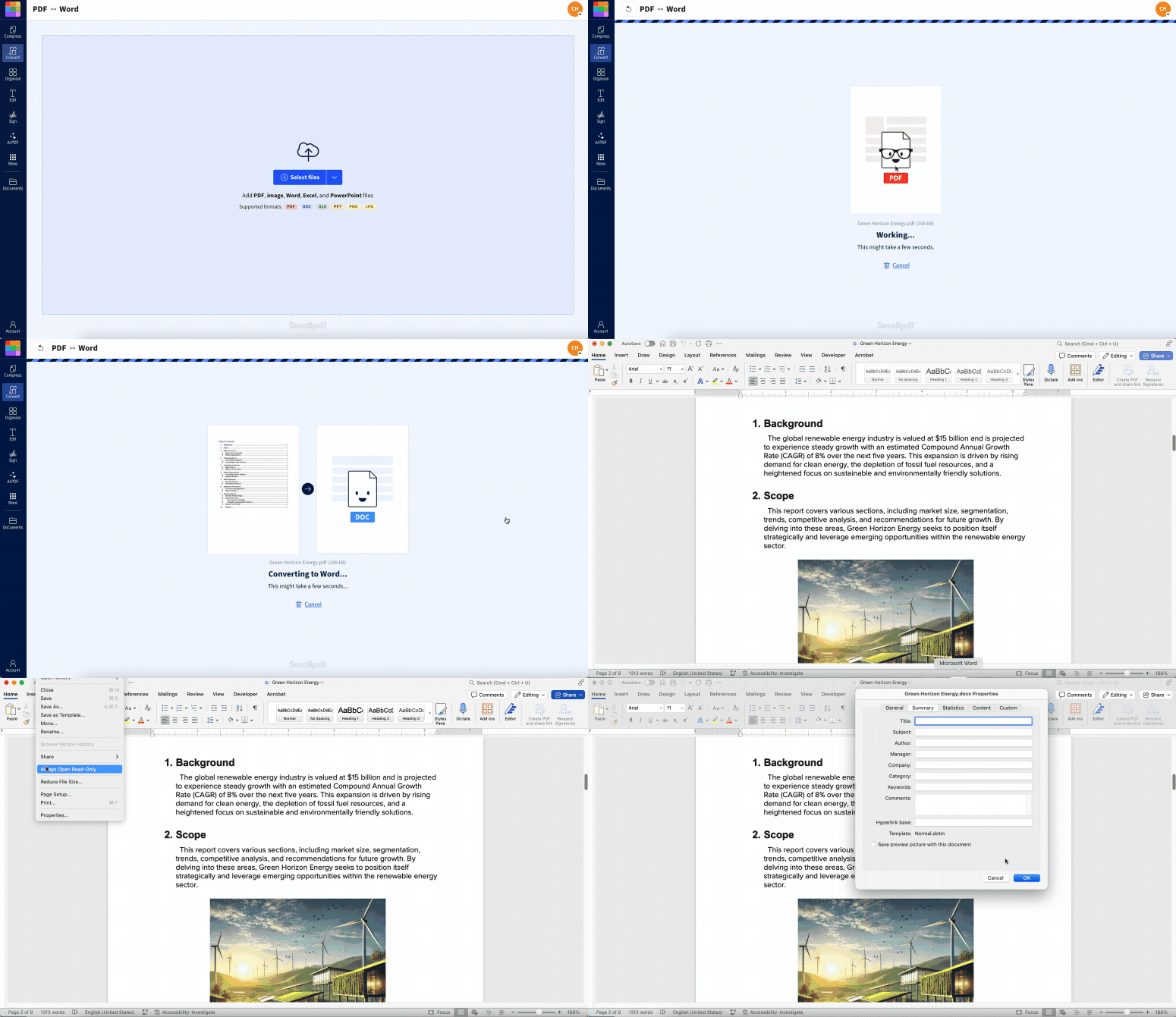
You’ll see many of the same fields the PDF used, now presented in a familiar interface. This also sets you up for editing.
How To Edit PDF Metadata With Smallpdf
PDF viewers rarely let you update metadata directly, but you can adjust it quickly with Smallpdf. Our Edit PDF tool lets you update visible details, clean up document information, and prepare a polished version before you finalize your metadata.
Update Metadata With the Edit PDF Tool
The Edit PDF tool is the fastest way to correct what readers see inside your document before you export a clean version with the right metadata. When your visible title, headings, author line, or document summary match your intended metadata, every conversion step stays consistent.
Here’s how to use it:
Upload your PDF to Edit PDF using the drag-and-drop area below (or click to choose a file).
2. Update visible text like titles, headers, author names, dates, labels, or descriptions.
3. Remove outdated information from the page.
4. Add missing details that should match your final metadata.
5. Save your edited PDF.
Once the document content reflects the metadata you want, you can move to the final update step.
Clean Up Content Before You Re-export
While your document is open in Edit PDF or Word, it’s a good time to align everything:
Remove outdated internal notes from the visible text.
Replace old project names or author information.
Standardize headers and titles across multiple documents.
Fix typos or layout inconsistencies before final export.
Then, when you convert back to PDF with Smallpdf, both the content and the metadata are aligned.
How To Reduce or Remove PDF Metadata for Privacy
Sometimes you’re less interested in editing metadata and more focused on stripping it out.
Create a “Clean” Version of a PDF
A simple way to reduce PDF metadata is to rebuild the file from a fresh export.
You can:
Copy the visible content into a new blank document.
Avoid copying any visible document info blocks you no longer want.
Save the new file and convert it back to PDF.
This new PDF carries only the metadata you add at this stage. It is a practical way to remove custom fields that older systems added.
Use Smallpdf in a Wider Privacy Workflow
You can combine metadata cleanup with other steps in Smallpdf:
Use Protect PDF to add a password before sharing a cleaned file.
Use Compress PDF to reduce size for email or upload portals after cleanup.
Use Merge PDF to join several cleaned files into one report.
This gives you a single, controlled version that you are comfortable sending outside your organization.
Security and Metadata in Smallpdf
When you work on metadata, you often handle internal reports, contracts, and client files. That means security matters.
Smallpdf helps by:
Using encryption during file upload, processing, and download.
Removing files from our servers after a short time.
Offering Smallpdf for Teams so your whole team can follow the same process with shared access.
You can clean, convert, and prepare PDFs in your browser without installing extra software or moving files through unknown systems.
Want to Edit PDF Metadata for Free
FAQs About PDF Metadata
Can PDF metadata be edited?
Yes. You can edit PDF metadata by converting the file with Smallpdf, then changing fields in a program like Word before you convert it back. This lets you fix titles, add keywords, or update authors in a clear interface.How do I remove created and modified dates from a PDF?
You cannot fully erase all traces of dates from every system, but you can reset them. Convert the PDF to Word with Smallpdf, then save and export it again as a new PDF. The new file carries fresh creation and modification dates based on the time of export.Why is PDF metadata useful?
Metadata helps you keep documents organized and easy to find. It supports search, filtering, and sorting in file systems and document platforms. It also plays a role in accessibility and can help you meet compliance requirements for public content.Can you track who made a PDF from metadata?
Metadata can show an author name or application, which may suggest who created or exported the file. It does not give a full edit history. For detailed tracking, you would need version control or collaboration tools that log changes over time.Where is PDF metadata stored?
Metadata is stored inside the PDF file structure, usually in a dedicated metadata section or properties stream. You do not see it on the page, but viewers and indexing systems can read it when they open or scan the file.How do I view PDF metadata without paid software?
Open the PDF in a browser or system viewer and look for document properties. For a deeper view, convert the PDF to Word using Smallpdf and inspect the “Info” or “Properties” panel there. Many free viewers also offer basic metadata panels.Can PDF metadata be completely removed?
You can create a new PDF that only contains the fields you set at export time. In practice, that often means converting, recreating, or re-exporting the content through tools like Smallpdf so older custom fields and internal notes do not carry over.Edit and organize PDF metadata with Smallpdf Pro
