How to Add Image of Signature to PDF?
Need to sign a PDF fast? Add a signature image in minutes, place it cleanly on the page, and download a signed PDF that’s ready to send.
More on Sign PDF
More on Edit PDF
More on PDF to Word
Sometimes you just need your handwritten signature on a PDF, not a long signing workflow. The good news is you’ve got a few solid options: Type a signature, draw one, or upload a signature image (like a PNG of your real signature).
We’ll focus on uploading an image, and cover the other two methods, mobile tips, and the fixes you may usually need.
Quick Checklist: Add a Signature Image to PDF
Quick start: Use the editor below to upload your PDF, then add your signature image with “Add image.”
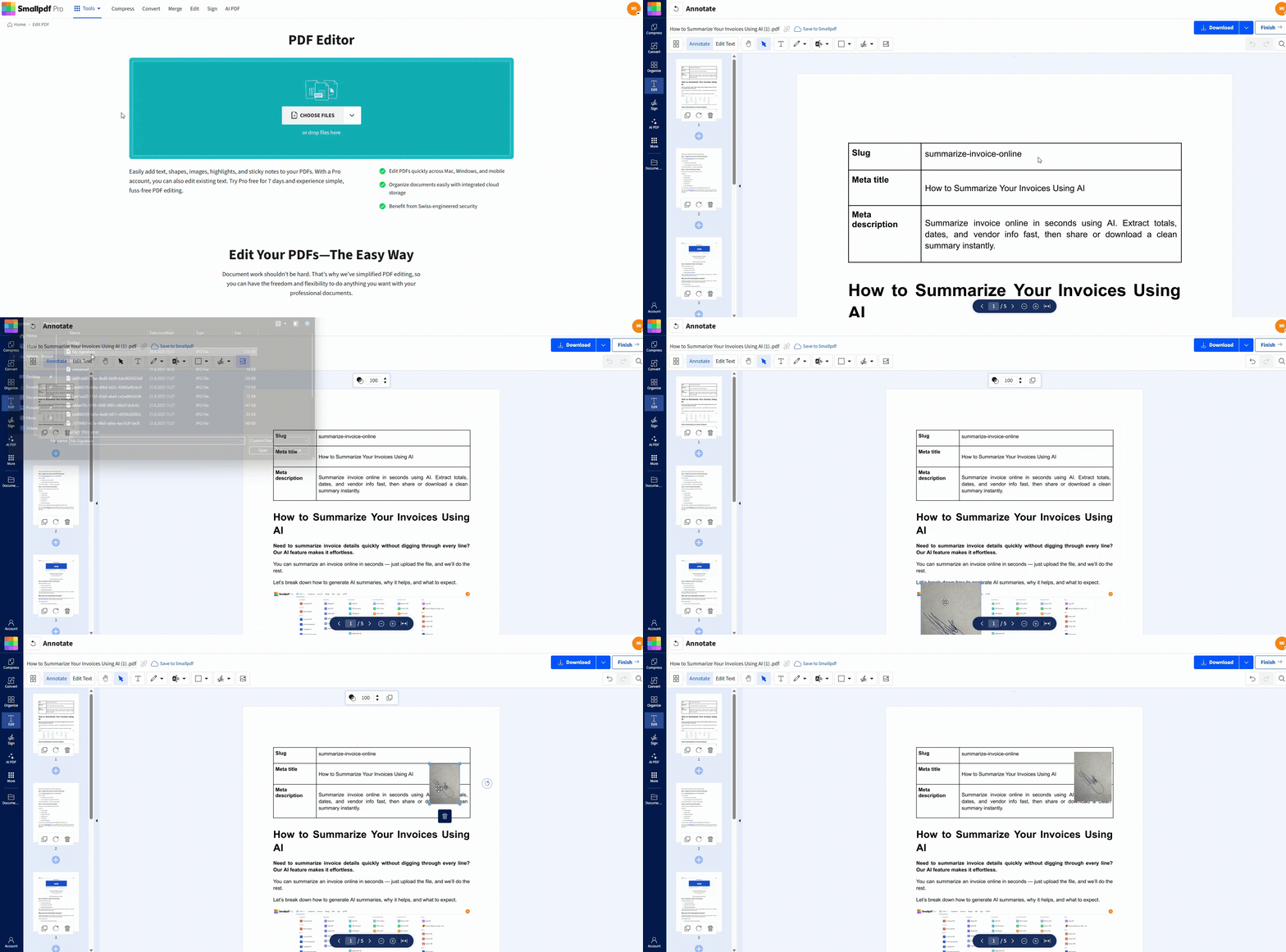
How to Add a Signature Image to a PDF
If you want to place a handwritten signature image (like a PNG) onto a PDF page, Smallpdf Edit PDF is the right feature. It lets you insert images, position them precisely, then export the updated PDF.
Step 1: Open Smallpdf Edit PDF
Go to Edit PDF, and you’ll land on the upload screen. Use the editor area below to add your file and open it for editing.
Step 2: Upload Your PDF From Device or Cloud
Drag your PDF in, or upload from Google Drive, Dropbox, or OneDrive.
Step 3: Upload Your Signature File
Click “Add image,” then select your signature image. PNG is usually the cleanest choice because it can keep a transparent background.
Step 4: Place and Resize Your Signature
Drag the image onto the signature line, then resize from the corners until it matches the space on the page.
Step 5: Export and Download the Signed PDF
Click “Export,” then download your updated PDF. You can also save it to cloud storage from the final screen if you prefer.
Type vs. Draw vs. Upload Image: Which Signature Method Should You Use?
All three options can work. The best choice depends on what the recipient expects and how consistent you want your signature to look.
| Method | Best For | What It Looks Like | What to Watch |
|---|---|---|---|
| Type | Quick approvals and low-friction signing | A styled text signature | Looks less “handwritten.” |
| Draw | Touchscreens and quick handwritten signing | A real scribble | Mouse drawing can look shaky. |
| Upload image | Reusing your real signature everywhere | Your actual handwriting | Needs a clean PNG or careful cropping. |
Use Smallpdf Edit PDF for uploading a signature image, and use Sign PDF when you prefer to type or draw a signature and complete a signing flow. Upload your file in the tool area below to start with the option that fits your signing style.
How to Create a Clean Signature Image for PDFs
If your signature file is messy, every signed PDF will look messy. Spending two minutes here saves you from redoing documents later.
Write, Capture, and Crop
Use this process once, then reuse the file.
Sign on plain white paper using a dark pen.
Take a photo in bright light, or scan it if you can.
Crop tightly so only the signature remains.
Save as PNG if possible, especially if you want no background.
If you’re scanning, aim for a crisp scan quality. Many people use 300 DPI as a practical baseline for print-ready clarity, but the bigger factor is a sharp, well-lit capture with clean edges.
PNG or JPG for Signature Images
PNG is the safer choice for signatures because it can maintain transparency. That prevents the white rectangle effect behind your handwriting.
Use JPG when:
You don’t care about transparency.
The signature will sit on a white page background anyway.
Other Ways to Add a Signature Image to a PDF on Mac, Windows, and Mobile
Smallpdf Edit PDF is the most consistent option across devices when you’re placing a signature image, since it lets you insert and position an uploaded PNG or JPG in your browser.
Add a Signature Image on Mac With Preview
Preview can place an image on top of a PDF page, which works well for signature images.
Open the PDF in Preview.
Open the “Markup” toolbar.
Insert your signature image, then drag it into place.
Save the PDF.
This is a good option when you already have the file on your Mac, and you only need a quick overlay.
Add a Signature Image on iPhone With the Files App
If your signature is saved in Photos or Files, you can insert it using built-in markup.
Open the PDF in the Files app.
Tap “Markup.”
Add the signature image, then position it.
Save a copy.
This works best for simple signing. If you need repeatable placement across pages, Smallpdf Edit PDF is usually faster.
Add a Signature Image on Android
Android experiences vary by device, but the common approach is using your device’s built-in PDF viewer markup features or opening the PDF in an app that supports inserting images.
If you want the same signing workflow across Android and desktop, Smallpdf Edit PDF keeps it consistent in a browser.
Add a Signature Image Using Microsoft Word
This is a workaround, but it’s handy when you've already edited in Word.
Open the PDF in Word (Word will convert it to an editable document).
Insert your signature image.
Export back to PDF.
This can change formatting, so it works best for simple documents.
Are Signature Images Legally Binding?
In many situations, yes. Under U.S. law, the ESIGN Act defines an electronic signature broadly as a sound, symbol, or process attached to a record and executed with the intent to sign. That definition can cover typed names, drawn signatures, and signature images in the right context.
In the EU, eIDAS also defines electronic signatures and distinguishes different levels (simple, advanced, qualified). The level you need depends on the document and the risk involved.
A practical rule:
For everyday documents and internal approvals, a signature image is often accepted.
For higher-stakes agreements, regulated industries, or strict compliance needs, you may need stronger verification, audit trails, or a qualified approach based on local requirements.
If someone tells you, ‘We need a specific signature type,’ follow their requirement. It saves you a rejection loop.
Need Multiple Signers or Proof of Signing?
If you’re collecting signatures from others, a simple image signature on a PDF might not be enough for your workflow. Head over to Sign.com for signature requests, plus features like audit trails, access codes, and Certificates of Completion.
That’s the better route when you need:
Multiple signers
A clear signing record
Extra controls around access and completion
Quick Tips for Better-Looking PDF Signatures
Small changes make a signature look more professional.
Use a transparent PNG to avoid a white background box.
Keep signature size realistic. Match the line height near the signature field.
Place it on the signature line, then nudge slightly above it.
Preview the signed PDF on mobile before sending, especially if the recipient will sign or review on a phone.
Troubleshooting Signature Image Problems
Most issues come from the image file, not the PDF.
1. My Signature Image Has a White Box Behind It
Use a transparent PNG, or recreate the signature image with better cropping. If you can’t get transparency, draw the signature inside Smallpdf instead.
2. My Signature Looks Blurry
Your image is too low resolution, or you’re stretching it too much. Start with a sharper capture, then resize down in the signer, not up.
3. I Can’t Place the Signature Where I Want
If the PDF is flattened or non-editable, you can still place a signature on top in many cases. If the file has restrictions that block actions, you may need to remove restrictions first (you can do this with Unlock PDF), then sign again.
4. The PDF Is Scanned
You can still place a signature image on a scanned PDF because you’re signing on top of the page. If you also need to fill text fields or search text, OCR is the step that turns a scan into selectable text.
5. I’m Worried About Uploading Sensitive Documents
Smallpdf uses advanced TLS encryption during file transfer and follows published security standards like ISO/IEC 27001, plus privacy frameworks like GDPR.
For most features, files are deleted automatically after one hour of processing.
Helpful Smallpdf Features After You Sign
Signing is often the last step, but not always.
Use Protect PDF if you need to add a password before sending.
Use Compress PDF if your signed PDF is too large to upload or email.
Use Edit PDF if you need to add text alongside the signature, like a printed name or date.
Sign PDFs Your Way With Smallpdf
If you want the fastest way to add a real handwritten signature, uploading a clean PNG signature image is hard to beat.
Smallpdf Edit PDF lets you upload, place, resize, and download in one smooth flow, with cloud imports so you’re not hunting for files.
Want to Add Signature Image to PDF?
Frequently Asked Questions
How do I add a signature image to a PDF for free?
Upload your PDF in Edit PDF, click “Add image,” upload your signature PNG or JPG, place it on the page, then export and download the updated PDF.What’s the difference between an e-signature and an image signature?
An e-signature is a broad category that can include typed, drawn, or image-based signing actions, as long as it shows intent. An image signature is simply one way to represent your signature visually.What file type should my signature image be?
PNG is best when you want transparency. JPG works if you’re fine with a solid background.Can I sign a PDF on my phone?
Yes. You can sign in a mobile browser using Smallpdf Sign PDF, and Smallpdf also supports signing on mobile via its apps.Why does my signature look too big or too small?
Resize it using the corner handles, then compare it to the surrounding text size. If it still looks off, recreate the image at a higher quality and try again.How do I send a PDF to others to sign?
For signature requests and tracking, use Sign.com, which supports audit trails, access codes, and Certificates of Completion.Add an image signature to your PDF using Smallpdf Pro
