- Home
- ›
- ›Adding Alt Text to PDFs for Better Accessibility
Adding Alt Text to PDFs for Better Accessibility
Need a screen reader-friendly PDF? Add alt text, fix tags, and improve reading order using Smallpdf and Word, with no expensive software.
PDF Reading Tools & Guides
More on Edit PDF
More on Organising and Repairing PDF
Alt text matters because images often carry the point. A chart shows performance. An icon signals a warning. A diagram explains a process. Without text alternatives, a screen reader may announce ‘image’ and move on, which isn’t very helpful.
Instead, provide text alternatives for non-text content so it can be presented in forms people need, like speech.
Making your PDFs accessible is not a niche task.
What PDF Accessibility Means
PDF accessibility means your document works for assistive technology, not only for sighted readers. In practice, three pieces do most of the heavy lifting:
Tags and structure: Headings, lists, tables, and landmarks that describe what each part is
Reading order: Content flows logically when read aloud, not only visually
Text alternatives: Alt text for images, charts, icons, and linked objects
Tagged PDFs are a key here. Tags carry the semantic information that assistive tech depends on, and this is core to PDF/UA expectations.
How To Add Alt Text to a PDF: Step-by-Step Guide
Most basic PDF viewers don’t let you add real alt text directly. A reliable workaround is to convert your PDF to Word, add alt text in Word, then export back to PDF using accessibility options.
Here’s the workflow using Smallpdf and Microsoft Word:
Convert the PDF to an editable Word file.
Open Smallpdf PDF to Word, then upload your file from your device, Google Drive, Dropbox, or OneDrive.
Use the converter tool below to upload or drag-and-drop your PDF and convert it to Word
Open the converted DOCX in Microsoft Word.
Scroll through the document and check every image, chart, diagram, and icon that carries meaning.
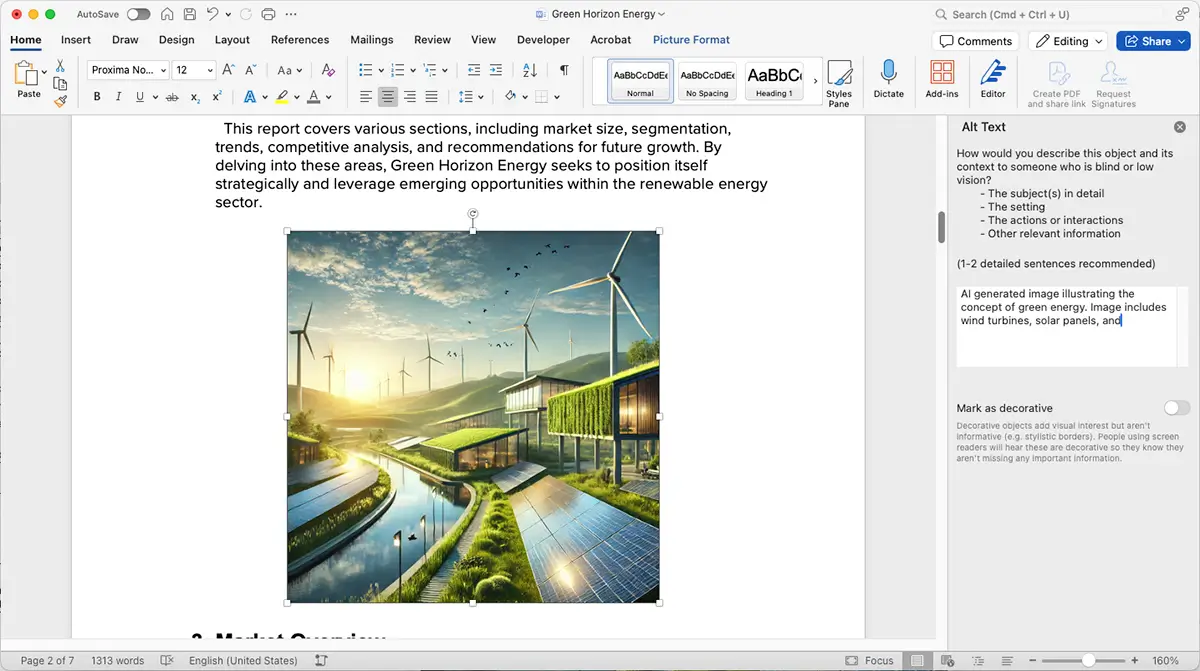
Add alt text to each image in Word.
Right-click the image, then select “View Alt Text” or “Edit Alt Text.” Add a clear description in the Alt Text pane. Microsoft’s guidance explains why this matters and how screen readers use it.
Mark decorative visuals as decorative.
If an image is purely a visual filler, mark it as decorative so it doesn’t create noise for screen reader users.
Run Word’s Accessibility Checker.
In Word, use the built-in checker to catch missing alt text, heading issues, and other common problems before export.
Export as an accessible PDF from Word.
Use “File” > “Save As” and select PDF. In “Options,” ensure “Document structure tags for accessibility” is selected so tags carry into the PDF.
Open the exported PDF and do a quick sanity check.
Confirm headings, text selection, and basic reading flow still behave as expected.
Quick Checks To Spot Accessibility Problems Fast
You can catch many accessibility issues in under two minutes. These checks help you decide what kind of fix you need.
Check One: Can You Select Text?
Try selecting a line of text.
If the entire page highlights like one big block, it’s likely an image-only scan.
If text selects normally, you’re working with real text, and accessibility fixes are much easier.
Check Two: Does the PDF Have Tags?
In many readers, open document properties and look for a “Tagged PDF” indicator.
If the PDF is untagged, screen readers have a harder time navigating the structure and reading order.
Check Three: Are Links Understandable?
Links should describe the destination or action.
Replace “click here” style link text inside the document with meaningful wording, so it reads well out loud.
Check Four: Do Headings Look Like Real Headings?
Headings should be consistent and hierarchical.
If headings are just bold text with bigger font, a screen reader may not treat them as navigation.
Make Scanned PDFs Readable Before You Worry About Alt Text
If your PDF is scanned, alt text is only part of the story. Screen readers can’t read the body text at all until the text becomes selectable.
That’s where OCR comes in. PDF OCR turns image text into real text you can select, search, and read with assistive tech. OCR is commonly a Pro-level feature in many PDF workflows, including Smallpdf Pro for advanced processing.
Once OCR is done, you can apply the Word workflow above to add alt text and improve structure.
Alt Text Examples That Actually Help
Alt text should explain what a person needs to know, not everything they can see. Keep it direct and specific.
Photos
Good: ‘Team of three reviewing printed floor plan at a desk.’
Weak: ‘People in an office.’
Icons and UI Symbols
Good: ‘Warning icon, exclamation mark inside a triangle.’
Weak: ‘Icon.’
Logos
Good: ‘Smallpdf logo.’
Weak: ‘Logo.’
Charts
Charts are where many PDFs fail. If the chart’s takeaway matters, your alt text should state the takeaway, not just the chart type.
Good: ‘Bar chart showing Q4 sales highest, up 10% over Q3.’
Weak: ‘Bar chart of sales.’
If the chart includes key numbers, include them in the surrounding text too. Alt text is not the best place for a full data table.
Diagrams and Processes
Good: ‘Three-step flow: Submit form, manager approval, then payment issued.’
Weak: ‘Process diagram.’
Decorative Images
If it’s decorative, don’t force alt text.
Good approach: Mark as decorative so it’s skipped.
Weak approach: Adding ‘Decorative line.’
Alt Text Writing Rules That Keep You Out of Trouble
These rules help you stay clear, consistent, and useful.
Start with meaning, not format. Skip ‘image of’ and describe the actual content.
Match the document context. A photo in a policy doc needs different alt text than a photo in a travel brochure.
Avoid stuffing keywords. Accessibility comes first, and keyword stuffing hurts clarity.
Be concise, but don’t chase fake limits. You’ll see “125 characters” mentioned a lot online. In practice, clarity matters more than a hard number. If you need more detail, put the key takeaway first, then add a short second sentence in the body text.
Fix Tags and Structure While You’re in Word
Alt text helps, but it doesn’t solve structure problems. If your PDF is missing real headings, lists, or table headers, screen reader navigation becomes painful.
While you’re editing in Word, look for these fixes:
Use real heading styles. Apply Word’s Heading 1, Heading 2, and Heading 3 styles in order.
Use real lists. Turn manual lists into Word bullet or numbered lists.
Add table headers. If the table has headers, make them real headers so assistive tech can interpret the table.
Set title and language. A document title and correct language help screen readers announce content properly.
When you export correctly, Word can carry important accessibility information into the PDF, including PDF/UA-style tagging details.
Common Issues When Alt Text Disappears in the PDF
This is the part that frustrates people: you added alt text, exported to PDF, and now you’re not sure it stuck.
Here are the usual causes:
Export method was wrong. “Print to PDF” can drop accessibility structure. Use Word’s “Save As” PDF flow and enable accessibility tags.
Tags weren’t included. If “Document structure tags for accessibility” is not checked, your PDF may lose structure.
The PDF viewer can’t show it. Many readers don’t display alt text cleanly, even when it exists. Testing with more than one viewer can help.
If you need a practical check without specialized software, reopening the DOCX and reviewing the Alt Text pane is often the quickest confirmation that descriptions exist and are meaningful.
Make Accessibility a Normal Part of Your PDF Workflow
Alt text is one of the fastest wins in PDF accessibility.
When you combine it with good headings, clean lists, and an accessible export from Word, your PDFs become easier to navigate for screen reader users and easier to review for everyone else.
The habit that matters most is consistency: build accessibility in as you edit, not as a rushed fix at the end.
Want to Make Your PDF Accessible?
Frequently Asked Questions
How do I know if my PDF is accessible?
Start with quick checks: text selection, tags in properties, and heading structure. If it’s a scan, OCR is usually required first.What’s the difference between a tagged and untagged PDF?
A tagged PDF includes structural information like headings, lists, and reading order. Untagged PDFs are mostly visual layouts, which are harder for assistive tech to navigate.Can I make a scanned PDF accessible?
Yes, but you typically need OCR first so text becomes selectable and readable. After that, you can improve the structure and add alt text using the Word workflow.Do decorative images need alt text?
No. Decorative visuals should be marked as decorative so screen readers skip them and users don’t get extra noise.How long should alt text be?
Make it as long as it needs to be to communicate the meaning. Keep it tight, put the main takeaway first, and move heavy detail into the body text near the image.Speed up PDF prep with Smallpdf Pro
Related Articles
