- Home
- ›
- ›How to Put Transparent Stamp on PDF Document?
How to Put Transparent Stamp on PDF Document?
Need a transparent stamp that won’t block text? Learn how to add a clear PNG stamp to your PDF in minutes and keep your layout clean and readable.
More on Watermark PDF
More on Edit PDF
More on PDF Annotator
You can add a transparent stamp to any PDF by placing a PNG image with a transparent background right where you need it.
A transparent stamp helps you brand files, mark approvals, or add signatures without covering the content. You can place a logo or a signature as a clear overlay that blends into the page.
We’ll use Edit PDF for image stamps and Sign PDF for signature stamps, so you get clean, professional results every time.
Quick Steps: Add a Transparent Stamp to a PDF
Quick steps: Use the editor below to upload your PDF and add your transparent PNG stamp with “Add image.”
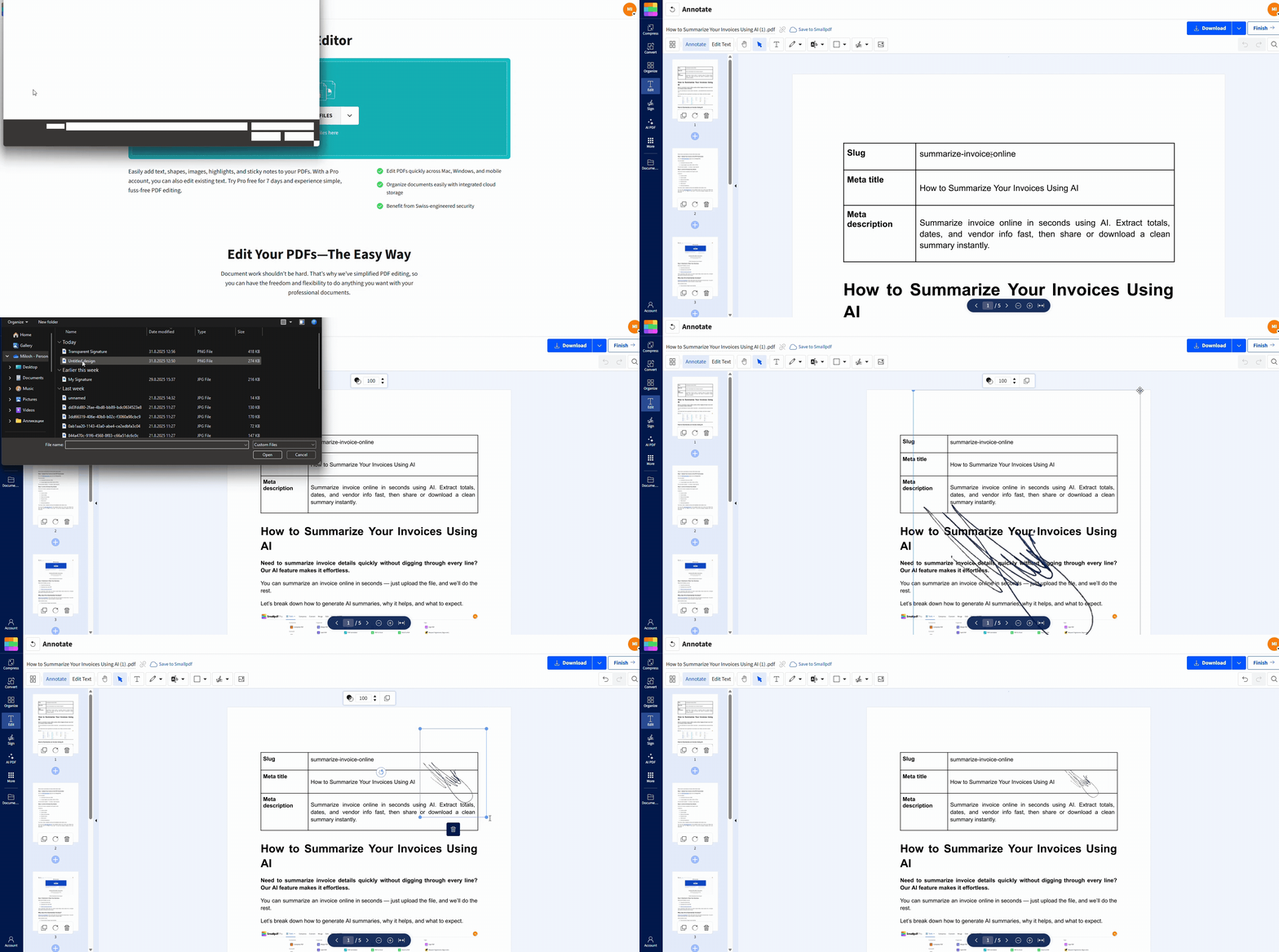
For detailed instructions and signature stamps, continue reading below.
What a Good Transparent Stamp Looks Like
Before you start, it helps to know what you’re aiming for.
A properly stamped page should look like this:
Your stamp has no white box behind it.
The text under the stamp stays fully readable.
The stamp edges look sharp, not fuzzy.
Your stamp color looks intentional, not overpowering.
If you’re seeing a white rectangle, your image file isn’t truly transparent. Jump to the Troubleshooting Transparent Stamp Issues section below and fix the PNG first.
What Is a Transparent Stamp for PDFs?
A transparent stamp is usually a PNG image with a transparent background. That transparency is stored in the PNG file itself, so the background disappears and the page shows through.
That’s why PNG matters. JPG can’t store transparency, so it always brings a solid background with it. If you want a stamp that overlays content without blocking it, PNG is the format you want.
Transparent stamps are common for:
Logos in headers or footers.
Approval seals like ‘APPROVED,’ ‘PAID,’ or ‘REVIEWED.’
Watermarks like ‘CONFIDENTIAL’ or ‘DRAFT.’
Signature images that should look natural on the page.
How To Add a Transparent Stamp to a PDF With Smallpdf Edit PDF
You’ll place a PNG with a transparent background using Edit PDF. This works for logos, seals, and any graphic you export as PNG.
Step 1: Open Smallpdf Edit PDF
Open Edit PDF in your browser. You’ll land on the upload screen with a clear prompt to add your file.
Step 2: Upload Your PDF
Upload from your device, or import from Google Drive, Dropbox, or OneDrive. Once it loads, you’ll see the PDF page preview in the editor.
If your PDF has multiple pages, you can scroll through them and stamp each one before exporting.
Step 3: Choose Your PNG
Click “Add image” in the editor, then choose your PNG stamp file.
The stamp appears on the page as a movable object, ready to be dragged into place.
Step 4: Place and Resize the Stamp
Drag the stamp to where it should sit, then resize using the corner handles.
These placement tips help it look intentional:
Resize from a corner to keep proportions clean.
Avoid stretching the image wider or taller than its original shape.
Start with a high-resolution stamp so edges stay crisp after resizing.
If you notice a white rectangle behind the stamp, the PNG wasn’t exported with transparency. Fix the image first, then re-add it.
Step 5: Export and Save Your Stamped PDF
Click “Export,” then download your stamped PDF. If you started from Google Drive, Dropbox, or OneDrive, you can also save back to the same location.
If you need to send the file out for review, exporting a clean final copy is usually the safest move, since everyone sees the same stamped version.
Create a Transparent Signature Stamp With Smallpdf eSign
If you’re stamping a signature, use Smallpdf eSign instead of dropping a signature image manually. It’s designed for signing workflows, and signatures are placed as clean overlays without awkward backgrounds.
Step 1: Open Smallpdf eSign and Upload the PDF
Open eSign, then upload your PDF from your device or import it from Google Drive, Dropbox, or OneDrive.
Step 2: Create Your Signature
Choose the option that matches your situation:
“Draw” to sign with your mouse, trackpad, or finger.
“Type” to create a stylized signature.
“Upload” to use a signature image you already have.
Step 3: Place, Resize, and Save
Click where the signature should go, resize it, then confirm placement. Download the signed PDF or save it back to your cloud storage.
A signature stamp should sit on top of the page content without boxing out the line underneath.
How To Make a Stamp Transparent Before Adding It
If your stamp image has a background, remove it before stamping. Otherwise, you’ll get the classic white box problem.
In practice, people handle this in a few common ways:
Online background removers for quick logo and signature cleanup
Design apps that let you remove backgrounds and export transparent PNGs
Image editors with selection or eraser tools for precise results
When you export, look for settings like “Transparent background” or “PNG with transparency.” Then test the PNG by placing it over a dark background. If the background disappears, you’re good.
Examples: When Transparent Stamps Work Best
Transparent stamps shine when you need a mark that’s visible but doesn’t interfere with the document.
Invoices and receipts: Add a logo or ‘PAID’ stamp without covering totals.
Contracts and agreements: Place ‘APPROVED’ in the margin so terms stay readable.
Internal drafts: Add ‘DRAFT’ or ‘CONFIDENTIAL’ without making the text hard to read.
Forms: Add a company seal near the signature line without hiding fields.
Certificates and letters: Place an emblem in the corner without covering names.
If you also need a traditional stamp workflow, our guide on how to add a stamp to a PDF is a helpful companion read.
Pro Tips for Professional-Looking Transparent Stamps
A transparent stamp should look sharp and sit naturally on the page. These transparent stamp tips help keep it professional.
Start with a clean source file. A crisp PNG beats a screenshot every time.
Keep sizing realistic. Oversized stamps pull attention away from the content.
Choose smart placement. Corners and margins usually look best for approvals and logos.
Use lighter colors for watermarks. You want the mark visible without overpowering text.
Stay consistent across pages. Same size and placement gives multi-page PDFs a polished feel.
Save your original PNG. Reusing the same stamp keeps branding consistent across documents.
If your stamp includes text, export it at a higher resolution so letters don’t blur when resized.
Troubleshooting Transparent Stamp Issues
If your stamp doesn’t look right, the fix is usually quick. Start with the symptom you’re seeing.
1. White Box Around the Stamp
This means the file isn’t transparent. Try this:
Re-export the image as a transparent PNG.
Remove the background again, then export with transparency enabled.
Test the PNG over a dark background to confirm it’s truly transparent.
2. Stamp Looks Blurry or Pixelated
This usually happens when the PNG is too small or you’ve resized it too aggressively. Fixes that help:
Start with a higher-resolution stamp image.
Avoid stretching a small stamp to cover a large area.
Resize down instead of resizing up whenever possible.
3. Stamp Covers Too Much Text
The stamp may be too large or too dark. Try this:
Reduce the stamp size and move it into a margin.
Use a lighter stamp version for watermark-style marks.
Place it in a corner that doesn’t overlap key tables or signatures.
4. Stamp Shifts After Export
If you place the stamp very close to a page edge, it can look misaligned after export. Try this:
Zoom in before placing the stamp.
Align it using nearby elements like margins or table lines.
Re-export and re-check page one before stamping every page.
5. PNG Won’t Upload or Doesn’t Appear
This is often a file issue. Try this:
Confirm the file opens normally on your device.
Re-save the PNG from your editor, then upload again.
If the stamp is stored in cloud storage, download it to your device first, then upload.
Make Your Stamps Look Clean and Intentional
A transparent stamp should add clarity, not clutter. If you start with a real transparent PNG and place it using Smallpdf Edit PDF, you’ll get a clean overlay that keeps your text readable.
For signatures, Smallpdf eSign gives you a smoother way to place signatures and initials without background issues, so the final PDF looks like it was finished the first time properly.
Frequently Asked Questions
How do I put a transparent stamp on a PDF document?
Open Smallpdf Edit PDF, upload your PDF, click “Add image,” select your transparent PNG, place it, then click “Export” to download the stamped PDF.How do I insert a transparent image in a PDF?
Use Smallpdf Edit PDF and add the image using “Add image.” If your PNG has real transparency, it overlays the page without blocking what’s underneath.Why does my stamp show a white box in the PDF?
Your image file isn’t truly transparent. Remove the background again and export as a transparent PNG before adding it to the PDF.How do I add a transparent watermark in a PDF?
Create a light transparent PNG watermark, then place it using Smallpdf Edit PDF. Keep it subtle so body text stays readable.Can I make a stamp transparent inside a PDF?
The transparency has to exist in the image file itself. If your stamp has a background, remove it first, export as a transparent PNG, then stamp the PDF.Can I use JPG for a transparent stamp?
No. JPG doesn’t support transparency. Use PNG for a stamp that needs a clear background.How do I create a transparent signature stamp?
Use Smallpdf eSign to create and place your signature. It’s designed for signatures and keeps the background clean.How do I stamp multiple pages with the same PNG?
Add the PNG stamp to each page where you need it, keep placement consistent, then export once at the end so you don’t lose changes.Add transparent stamps to PDFs using Smallpdf
