Can You Convert PDFs to Audio with AI?
Turn any PDF into audio with AI text-to-speech technology. Learn how to prep documents and convert them to MP3s you can listen to anywhere.
AI Tools & Guides
More on Edit PDF
More on PDF OCR
To make a PDF into audio, you’ll use Smallpdf’s PDF AI tools to prepare the text, and then paste that text into an AI text-to-speech tool to generate the audio file. This guide walks you through each step in that workflow.
Quick PDF to Audio Checklist
Note: Use the tool below to upload your PDF and run OCR, summarize, or extract sections before copying the text into a text-to-speech app
What Is “PDF to Audio With AI”?
PDF to audio AI uses text-to-speech (TTS) technology to convert written content in PDFs into spoken audio. This process involves extracting text from your PDF and using AI-powered voices to read it aloud, creating an audio file you can download and listen to.
Here’s what PDF to audio AI can do:
Convert any text-based PDF into natural-sounding speech.
Handle scanned documents using OCR (optical character recognition).
Offer multiple AI voices with different accents and languages.
Export audio files in MP3, M4B, or other formats.
Adjust playback speed to match your listening preferences.
Benefits of Converting PDF to Audio with AI
Converting PDFs to audio opens up new ways to consume content and boosts productivity in several key areas.
Accessibility: Listen to content while on the go—perfect for multitaskers who want to “read” during commutes, workouts, or daily tasks.
Reduced eye strain: Give your eyes a break from screens while still absorbing important information.
Enhanced learning: Auditory learners can better retain information when they hear content rather than read it.
Productivity boost: Process documents faster by listening at increased speeds or while doing other activities.
Offline listening: Download audio files to listen anywhere, even without internet access.
How to Make a PDF into Audio
Converting PDFs to audio involves two main steps: preparing your document and generating the audio file. Here’s the complete process using Smallpdf for prep work and audio tools for conversion.
Step 1: Prepare Your PDF (Text or Scanned) with Smallpdf
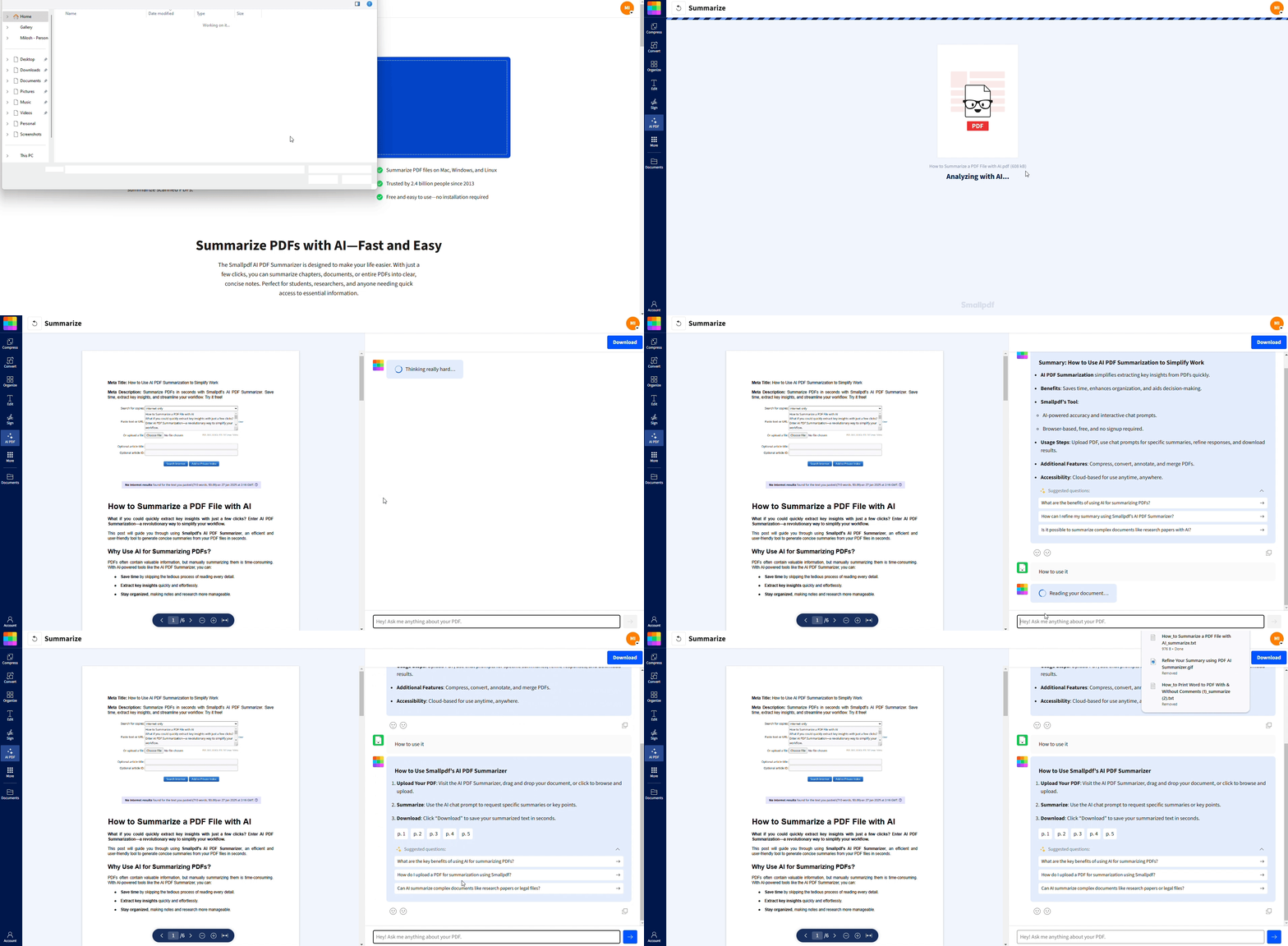
Start by making sure the text in your PDF is readable. Smallpdf works with normal text PDFs and scanned files using OCR.
Upload your document to our AI PDF Summarizer.
2. If the file is scanned, Smallpdf will automatically detect the pages and convert the images into editable text.
3. Check that everything was captured correctly, especially if your PDF has tables, handwriting, mixed languages, or complex layouts.
Step 2: Optimize Your Content with Smallpdf AI
Shaping the text before audio conversion makes the listening experience smoother.
Use the AI Summarizer to condense long PDFs into short, clear highlights for easier listening.
Open Chat with PDF to pull out specific chapters or topics you want to hear.
Translate the content if you need it in a different language before generating the audio.
Use click-to-copy to grab the cleaned or summarized text.
Step 3: Convert the Text to Speech With an Audio Reader
Move your prepared text into a dedicated text-to-speech tool to create the actual audio.
Choose a TTS platform such as NaturalReader, Speechify, or Narakeet.
Paste in the text you prepared with Smallpdf.
Pick the voice style, speed, accent, or language you prefer.
Generate the audio file and let the tool process the text.
Step 4: Download and Listen Anywhere
Finish up by saving the audio in a format that works for your device.
Select the export format you want: MP3 for general playback, M4B for audiobook apps, or WAV for maximum quality.
Download the file to your device or cloud storage.
Move it into the apps you use most, whether that’s a podcast player, audiobook app, or your phone’s music library.
Key Features to Look For in a PDF to Audio AI Tool
When choosing tools for your PDF to audio workflow, focus on features that enhance both quality and usability.
Natural Voices and Speed Controls
Look for platforms offering high-quality AI voices that sound natural and engaging. The best tools provide multiple voice options, including different genders, accents, and speaking styles. Speed controls let you adjust playback from slow learning pace to rapid information processing.
OCR Support for Scanned PDFs
Essential for converting scanned documents, image-based PDFs, or documents with mixed text and images. Smallpdf excels here, automatically detecting and converting scanned content into editable text that audio tools can process.
Multilingual and Accent Options
Choose tools that support multiple languages and regional accents, especially if you work with international documents. This ensures proper pronunciation of names, places, and technical terms in various languages.
Export Formats (MP3/M4B) and Accessibility
Multiple export options give you flexibility in how you listen. MP3 works everywhere, while M4B format includes chapter markers for audiobook-style navigation. Look for tools that also support accessibility features like highlighting text as it’s read.
Best PDF to Audio AI Options (and Where Smallpdf Fits)
The most effective approach combines Smallpdf’s document preparation capabilities with dedicated audio generation tools.
Smallpdf for Prep (OCR, Summarize, Translate)
Smallpdf handles the crucial first step: making your PDF audio-ready. Our OCR technology converts scanned documents to text, while AI tools summarize long content and translate foreign languages. Additional features include:
Extract PDF Pages for selecting specific sections
Cloud integration with OneDrive, Google Drive, and Dropbox
Audio Readers to Generate Speech
For the actual audio conversion, these tools work well with Smallpdf-prepared content:
| Tool | What it’s good for | Voice options | Export formats | Notable strengths |
|---|---|---|---|---|
| NaturalReader | Everyday listening, study material, documents | Multiple AI voices in several accents | MP3, WAV | Clear voices and simple controls |
| Speechify | Mobile listening and fast playback | Large library of premium voices | MP3 | Strong mobile app with speed controls |
| Narakeet | Longer scripts and bulk text conversion | Wide selection of narrator styles | MP3, M4A, WAV | Good for batch conversion and multimedia projects |
Try Smallpdf to Prep Your PDF for Audio
Ready to transform your PDF workflow? Smallpdf’s AI-powered tools make document preparation simple and secure, whether you’re working with scanned files, foreign languages, or lengthy reports.
Start your free trial to access all Smallpdf tools and see how easy PDF to audio conversion can be.
Summarize Your PDFs with AI
Frequently Asked Questions
Can I turn a scanned PDF into audio?
Yes. Run the file through OCR in Smallpdf first so the text becomes editable. Once the words are recognized, copy the text into a text-to-speech tool to create the audio.Does Smallpdf generate the audio file?
No. Smallpdf prepares the text only. You’ll need a separate text-to-speech reader to create the MP3, M4B, or WAV file.What if my PDF is very long?
Summarize it in Smallpdf before converting it to audio. A shorter version is easier to listen to and quicker to process in a TTS tool.Can I convert only part of a PDF?
Yes. Use Chat with PDF to pull out the section you want, then paste only that text into your audio reader.How do I handle PDFs with tables or complex layouts?
Check the OCR output in Smallpdf to make sure the text was captured correctly. Tables and graphics may need light cleanup before you send the text to your audio tool.Can I convert a PDF in another language to audio?
Yes. Translate the PDF in Smallpdf, then use a text-to-speech tool that supports the language you want to hear.Turn PDFs into audio faster with Smallpdf Pro
Related Articles
