Why You Can’t Always Convert a URL to PDF
Learn 5+ ways to convert any webpage to PDF in seconds—from browser shortcuts to mobile tricks that bypass workplace restrictions.
More on PDF Converter
More on Edit PDF
More on PDF to Word
Having trouble turning a URL into a PDF? Many webpages don’t convert cleanly because of scripts, logins, or security settings that block online tools.
This guide breaks down what’s happening behind the scenes, shows you the quickest ways to save a webpage as a PDF on any device, and offers secure alternatives if your browser, network, or firewall prevents a direct conversion.
Quick Answers Before You Start
Why can’t I convert a webpage to PDF?
Some sites block printing or use scripts that don’t load correctly when converted. Pages behind logins, dashboards, and dynamic apps often fail.
Why do I get a blank PDF?
Your browser may be blocking certain elements, or the page didn’t finish loading before conversion. Reload the page and try again.
What if my workplace blocks online converters?
A firewall may be restricting access. You can still save webpages as PDFs using your browser’s print function or your mobile device.
Why does the PDF look different from the website?
Interactive or moving parts (like menus, videos, or expanding sections) don’t behave the same in static PDFs, so layouts may shift.
Can I fix formatting issues after saving?
Yes. Once saved as a PDF, you can open it with editing tools to add notes, highlight text, reorder pages, or convert it to Word to clean up layout problems.
Want to Convert a PDF to Word?
How to Convert a URL to PDF in Your Browser
The easiest way to convert any webpage to PDF is using your browser’s built-in print function. It works on all major browsers and takes just a few seconds.
Here’s how to do it:
Open the webpage you want to convert in your browser.
Press Ctrl+P (Windows) or Cmd+P (Mac) to open the print dialog.
Select “Save as PDF” or “Microsoft Print to PDF” as your destination.
Adjust your settings: Choose landscape or portrait orientation, set margins, and adjust the scale if needed.
Click “Save” and choose where you want to store your PDF file.
This method works in Chrome, Firefox, Safari, and Edge. The exact wording might vary slightly between browsers, but the process is essentially the same.
Why Some Websites Won’t Convert to PDF Properly
Ever noticed that some web pages convert to PDF effortlessly while others refuse to cooperate? It usually comes down to a few common issues.
Dynamic content that changes based on user interaction can cause problems. JavaScript-heavy sites, single-page applications, and pages behind login walls often don’t convert well because the content isn’t fully loaded when the conversion happens.
If you’re getting an error message, seeing a blank page instead of a proper PDF, or finding that the tool just doesn’t work, one of these is likely the culprit.
Edit and Enhance Your Converted PDF with Smallpdf
Once you’ve converted your webpage to PDF, you might want to polish it up. That’s where Smallpdf’s editing tools come in handy.
You can compress your PDF to reduce file size, merge multiple webpage PDFs into one document, add annotations or highlights for important sections, or even add your digital signature if it’s a form or document that needs approval.
Remember that once you save a web page as a PDF, you can still convert the PDF to Word so that you can fix formatting and layout issues, before converting it back to PDF.
Ready to perfect your converted PDFs? Start your free trial to access all Smallpdf tools.
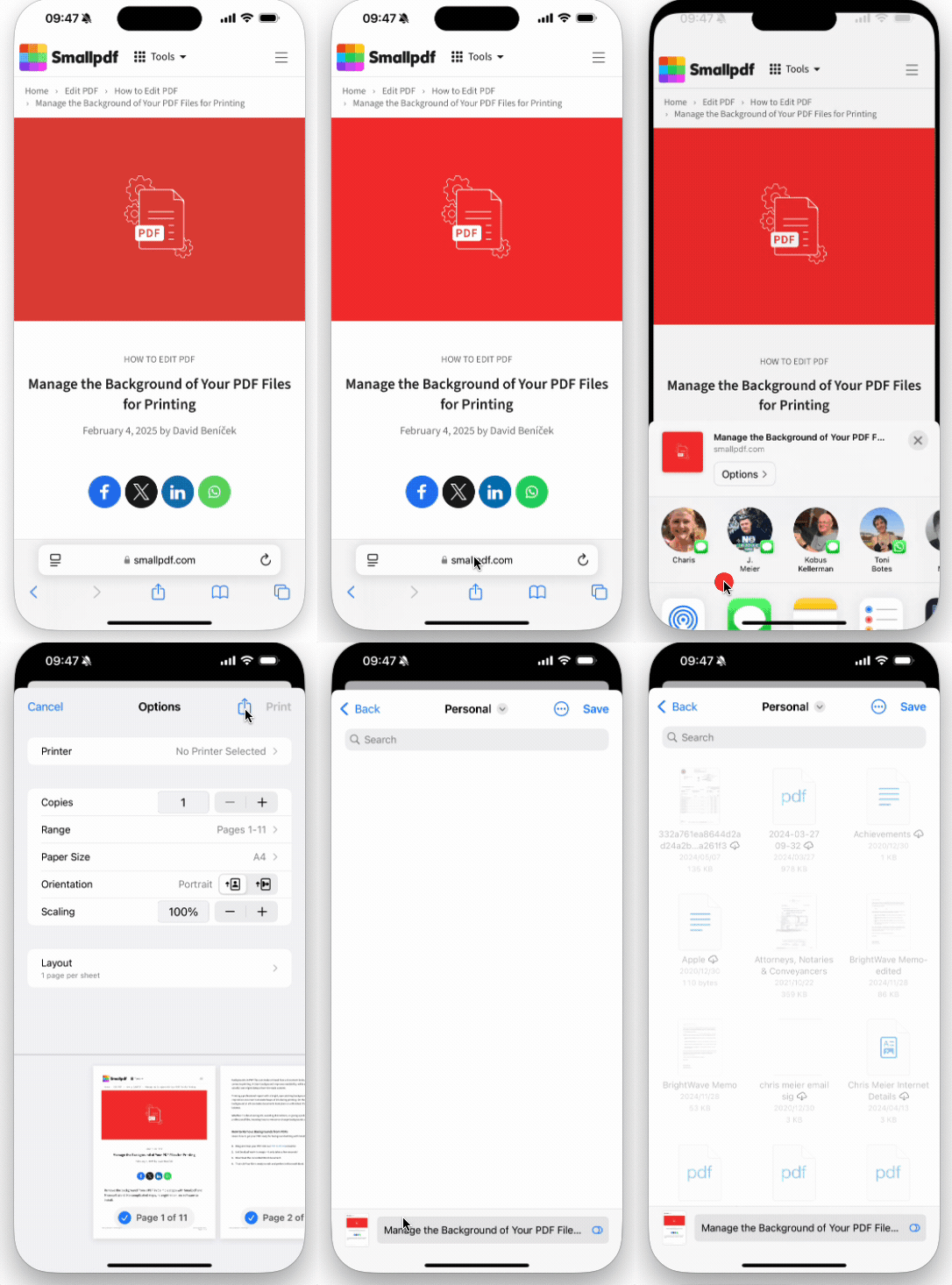
As easy as that! And a useful way around workplace restrictions without breaking any rules.
When a Firewall Blocks Online PDF Converters
If you’re on a work, school, or public Wi-Fi network, a firewall might be stopping you from using online tools like our PDF Converter. Some networks block access to file conversion sites for security reasons, especially in managed environments.
If you can’t access Smallpdf or certain websites, there are a few things you can try.
Check if the Firewall Is the Issue
Open a private/incognito window or switch to mobile data on your phone to see if the site loads. If it works outside the network, the firewall is likely blocking it.
Request Temporary Access
If you’re on a work or school network, ask IT if they can grant temporary access. Although we take security and privacy seriously, your company’s own security policy might still not allow this.
Try a VPN (If Allowed)
If your network policy permits it, a VPN might let you bypass restrictions but make sure it’s within the rules before using one.
When “Save as PDF” Is Disabled
Some browsers—especially on managed devices—have the “Save as PDF” option disabled. IT departments do this to prevent saving or sharing sensitive content outside the organization.
If you can’t find the option to save a page as a PDF, try these steps:
Check system policies. If you’re using a work or school device, certain settings might be locked. If possible, try using a personal device.
Look at group policies. IT teams often enforce restrictions across entire organizations. If it’s work-related, they might approve an exception if you explain why you need it.
Disable conflicting browser extensions. Some add-ons, like security or ad blockers, can interfere with built-in printing and saving options. Try turning them off temporarily.
If none of these work, you may need a workaround—learn more about alternative ways to save a webpage.
FAQs About Converting URLs to PDF
Can I convert any website to PDF?
You can convert most publicly accessible websites to PDF, but some sites with dynamic content, login requirements, or anti-scraping measures might not convert properly.Why does my PDF look different from the webpage?
PDFs are static documents, so interactive elements like videos, animations, and dropdown menus won’t work the same way as they do on the live webpage.How do I convert password-protected pages?
You’ll need to log in first, then use your browser’s print function while you’re still authenticated on the site.Do hyperlinks stay clickable in the PDF?
Yes, most conversion methods preserve clickable links, though some formatting might change depending on the conversion tool you use.What’s the best format setting for webpage PDFs?
Portrait orientation works best for most articles and blog posts, while landscape might be better for wide tables or dashboards.Convert web pages to PDF after download using Smallpdf Pro
Related Articles
