- Home
- ›
- ›How To Keep Table of Contents Clickable After Word to PDF Conversion
How To Keep Table of Contents Clickable After Word to PDF Conversion
Keep your table of contents clickable after conversion. Use the right Word settings and our converter to preserve every TOC link in your final PDF.
More on Word to PDF
More on PDF to Word
More on Edit PDF
A long report, thesis, or manual is much easier to navigate when readers can click straight from the table of contents to the right section. The problem often appears at the last step: You export to PDF, and all those handy links stop working.
With a few small changes in Word and the right conversion path, you can keep your table of contents clickable every time.
Quick Checklist for Clickable Table of Contents
Use this list as a quick reminder when you convert Word to PDF and want to keep the table of contents clickable.
Use Word’s built-in heading styles for every section title.
Insert an automatic table of contents from the “References” tab.
Test navigation inside Word with Ctrl + click.
Use Export, Save As PDF, or Word to PDF instead of Print to PDF.
Review links in the final PDF before you share it.
Following these steps gives your readers a smoother experience, especially in long documents.
Step-By-Step: Keep Your Table of Contents Clickable
Start with a clean structure in Word, then convert it in a way that preserves links.
Step 1: Apply Heading Styles to Your Document
Clickable tables of contents rely on heading styles, not manual formatting.
Open your Word document.
Select a main section title and apply “Heading 1” from the “Home” tab.
Apply “Heading 2” and “Heading 3” to sub-sections where needed.
Avoid formatting headings only with bold, size, or color.
Heading styles give Word the structure it needs to build a table of contents and create links later.
Step 2: Insert an Automatic Table of Contents
Next, generate the table of contents using Word’s built-in feature.
Place your cursor where the table of contents should appear.
Go to the “References” tab.
Click “Table of Contents” and pick one of the automatic layouts.
Word fills the table using the headings you applied.
Avoid typing a table of contents by hand. Manual lists do not convert into clickable links.
Step 3: Test Your Links Inside Word
Before you export anything, confirm the links already work.
Hold “Ctrl” and click a table of contents entry.
Check that Word jumps to the correct heading.
Repeat for a few more entries across the document.
If navigation doesn’t work inside Word, it won’t work in the PDF either. Fix the structure now to avoid extra work later.
Step 4: Convert With Smallpdf Word to PDF
Once your table of contents is working, convert it with a feature that preserves hyperlinks.
Open the Word to PDF converter.
Add your .doc or .docx file in the converter area below by dragging it in, or import it from Google Drive, Dropbox, or OneDrive.
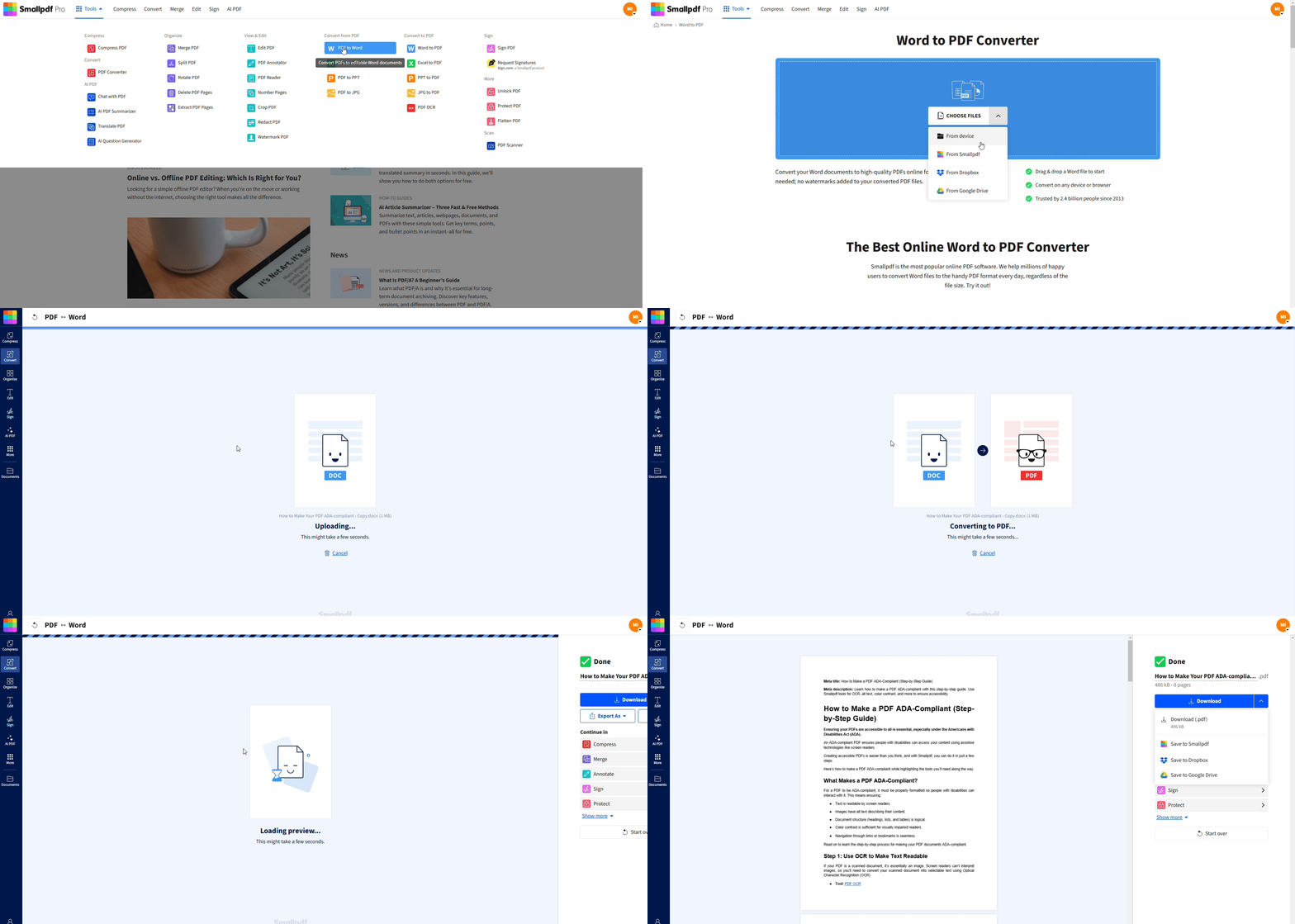
Wait a few seconds while we convert your file.
Download the PDF or save it back to cloud storage.
We keep table of contents links, regular hyperlinks, and internal bookmarks wherever the source document supports them.
Step 5: Check The Clickable TOC In Your PDF
Finally, test the links again in the PDF.
Open the file in a PDF reader.
Click entries in the table of contents.
Confirm each one jumps to the correct page or heading.
If something doesn’t work, you can fix the source file and convert again, or repair specific links using Edit PDF.
What Is a Clickable Table of Contents in PDF?
A clickable table of contents works like a navigation panel inside your PDF. Instead of scrolling page by page, readers tap a section title and jump straight to it.
Clickable tables of contents are especially helpful for:
Manuals and handbooks with many sections.
Academic theses and reports with detailed structures.
Proposals and client documents where people need quick access to specific parts.
Fast navigation saves time and makes your document feel more professional.
How Links and Bookmarks Work in PDFs
Behind the scenes, each table of contents entry becomes a link that points to a page or internal bookmark. When a converter preserves these links, your PDF keeps that structure. If a method flattens the document into simple pages, the links disappear, and the table of contents becomes plain text.
Prepare Your Word Document for a Clickable Table of Contents
Good conversion starts with a well-structured Word file. A few preparation steps make link preservation much more reliable.
1. Apply Heading Styles Consistently
Heading styles are the map Word uses for both the table of contents and bookmarks.
Use “Heading 1” for major sections.
Use “Heading 2” and “Heading 3” for sub-sections.
Keep the same level for similar sections to avoid confusion.
You can use shortcuts like Ctrl + Alt + 1, 2, or 3 on Windows to apply these styles quickly.
2. Insert and Update The Automatic TOC
Word needs an up-to-date table before you export.
Go to “References” > “Table of Contents.”
Insert an automatic table if you have not already.
After you finish editing, right-click the table of contents.
Choose “Update Field,” then “Update entire table” to refresh entries and page numbers.
This ensures every heading appears correctly and the links point to the right pages.
3. Test Hyperlinks and Cross-References
If your document uses cross-references or manual links as well, test them alongside the table of contents.
Hold Ctrl and click each entry in the TOC.
Test any “See page X” or “See section Y” references you created.
Confirm that page numbers in the table match what you see on screen.
Fix any issues now, then move on to conversion.
Convert Word to PDF Without Breaking Table of Contents Links
Not all Word to PDF methods treat links the same way. Some keep them, others remove them.
Method 1: Convert With Smallpdf Word To PDF
Our Word to PDF feature is built to keep clickable table of contents links wherever the source document supports them.
Open Word to PDF.
In the converter area below, upload your document by dragging it in or clicking “Choose Files.”
Let the conversion run in the cloud.
Download the finished PDF or save it directly to Google Drive, Dropbox, or your Smallpdf storage.
Your TOC entries should stay clickable, along with regular hyperlinks and internal references.
Method 2: Export as PDF From Microsoft Word
Word’s export feature can also preserve links when set up correctly.
Go to “File” > “Export” > “Create PDF/XPS,” or “File” > “Save As” and choose “PDF.”
Click “Options.”
Enable “Document structure tags for accessibility.”
Select “Create bookmarks using: Headings.”
Choose “Standard (publishing online and printing)” for better quality.
These settings help Word maintain both the table of contents and bookmark structure in the PDF.
Method 3: Convert Using Google Docs
Google Docs can handle simple cases if you prefer a browser-only workflow.
Upload the Word document to Google Drive.
Open it in Google Docs.
Check that the table of contents still works.
Go to “File” > “Download” > “PDF Document (.pdf).”
This tends to preserve basic TOC links, though complex layouts and cross-references may not carry over as well as with dedicated converters.
Methods To Avoid: Print to PDF
Print to PDF is useful for quick copies, but not for clickable links.
Word’s built-in “Print to PDF” treats your document like a printed page.
Hyperlinks and interactive elements often get flattened.
Tables of contents become plain text without navigation.
If you need a clickable table of contents, avoid Print to PDF and use export or Word to PDF instead.
Troubleshoot Word to PDF Conversion Issues (When Links Aren’t Clickable)
Some links still break, especially if the source document is older or heavily edited. A few patterns show up often.
1. Common Reasons Links Stop Working
Broken table of contents links usually come from:
A manually typed table of contents instead of an automatic one
Headings formatted with bold text but no heading style
A conversion path that flattens links, such as Word’s built-in “Print to PDF”
Corrupted field codes in an older document
Once you know which case applies, you can fix it directly.
2. Fix Problems In Word And Re-Export
The most reliable fix is to correct the structure in Word.
Delete the existing table of contents.
Reapply heading styles to each section title.
Insert a new automatic table of contents from the “References” tab.
Update the table, then test links with Ctrl + click.
Convert again using Word to PDF or Word’s Export feature.
This often restores all clickable entries in one go.
3. Fix Links Directly in the PDF
If you can’t get back to the Word file, you can repair the table of contents inside the PDF.
Open the PDF in Edit PDF.
Select each table of contents line.
Add a link that points to the correct page or view.
This method works best for shorter tables where you can match items to pages without much effort.
Advanced Workflows and Alternative Methods
Sometimes your document does not start as a clean Word file, or you need more structure than a simple table of contents.
Create Manual Links in a PDF Editor
If you built the document in another format or received a PDF without links, you can still add navigation.
Open the PDF in Edit PDF.
Highlight the table of contents text you want to make clickable.
Add hyperlinks pointing to the right pages or destinations.
This gives you a clickable table of contents even when you never had access to the original Word file.
Use Bookmarks for Deep Navigation
Bookmarks act like a side panel of shortcuts inside the PDF.
Open the file in a PDF editor or reader that supports bookmarks.
Add bookmarks at each main heading and section start.
Organize them in a hierarchy that matches your table of contents.
Readers can then navigate using both the clickable TOC and the bookmark pane.
Use OCR for Scanned Documents
If your “document” is a scan or an image-only PDF, you need OCR first.
Run the file through PDF OCR, so text becomes selectable.
Rebuild the table of contents in Word or inside the PDF once text is recognized.
Add links or bookmarks based on the new text layer.
Without OCR, a table of contents in a scan is just a picture, and links cannot be added accurately.
Make the Most of Smallpdf After Conversion
Preserving a clickable table of contents is only part of the workflow. Once your PDF is ready, you can refine it further.
Edit, Annotate, and Organize Your PDF
After conversion, you can:
Use PDF Annotator to highlight sections, add comments, or mark key chapters.
Use Edit PDF to correct small typos or adjust labels around the table of contents.
Use Number Pages to keep long documents organized and easy to reference.
These features help you polish the final PDF without going back to Word every time.
Share, Protect, and Store Linked PDFs
Once the structure looks good, you can share your document safely.
Protect PDF with a password if the file contains sensitive content.
Save directly to Google Drive, Dropbox, or your Smallpdf storage for easy access.
Use Compress PDF to reduce file size while keeping links active, so large reports are easier to email.
This keeps your clickable table of contents intact across all the places your PDF travels.
Keep Your Table of Contents Clickable in Every PDF
A clickable table of contents turns a long PDF into something people can move through quickly, instead of scrolling and guessing. With heading styles, an automatic table of contents, and a conversion path that preserves hyperlinks, you can keep that navigation in place every time you export from Word.
We handle the heavy lifting on the conversion side. Use the Smallpdf Word to PDF converter to keep table of contents links working, then refine your document with editing, annotation, and protection features in the same place.
That way, your next report, manual, or thesis is as easy to navigate as it is to read.
Word to PDF Conversion FAQs
How do I keep the table of contents clickable after Word to PDF conversion?
Use heading styles in Word, insert an automatic table of contents, and test links before exporting. Then convert with Word’s Export feature or Smallpdf Word to PDF converter instead of Print to PDF. Those paths preserve hyperlink information.Why did my table of contents links stop working in the PDF?
Links usually break when the table of contents is typed manually, when headings do not use styles, or when you use Word’s built-in “Print to PDF.” Rebuild the TOC using Word’s automatic feature and re-export using an export or conversion feature that supports links.Can I fix a non-clickable table of contents in an existing PDF?
Yes. Open the PDF in Edit PDF, select each table of contents entry, and add a link to the correct page. This is more manual work, but it helps when you cannot edit the original Word file.Does Smallpdf keep internal links when converting Word to PDF?
Our Word to PDF feature is designed to preserve internal links, including automatic table of contents entries and standard hyperlinks, as long as they work correctly in the original Word document. Always test inside Word first to confirm the structure is sound.Should I use Print to PDF for documents with a clickable table of contents?
No. Print to PDF often removes interactive elements and flattens links. If you want to keep your table of contents clickable, use Export, Save As PDF, or our Word to PDF converter instead.How can I make a scanned table of contents clickable?
Run OCR on the scanned document so the text becomes selectable. Then either rebuild the document in Word with heading styles and a new automatic table of contents, or add links directly in the PDF using an editor once the text layer exists.Prepare interactive PDFs with working table of contents using Smallpdf
