How To Mail Merge a PDF in 2026
Create a mail merge in Word, then mail merge a PDF for polished, personalized documents. Send, sign, and store them securely.
More on Merge PDF
PDF Page Tools & Guides
PDF Sharing Tool & Guides
If you work with invoices, contracts, letters, or certificates, you probably mail merge in Word first and only think about PDFs at the very end.
The challenge starts when you want every personalized document to become a clean, consistent PDF that’s ready to email, sign, or archive. That’s where a clear workflow matters.
In practice, the best approach is simple: Keep all personalization in Word or Excel, then convert the final outputs to PDF with our features. This keeps your layouts intact, keeps file sizes under control, and saves you from managing hundreds of separate exports by hand.
Quick Summary: How To Mail Merge a PDF
Once you have this structure in place, you can reuse the same steps for invoices, onboarding packs, reports, or any other recurring document.
What Mail Merge for PDFs Actually Means
source document, then convert the result into PDFs that all look the same but contain different data.
Core Components of a Mail Merge
Every mail merge has three main building blocks:
Data source: An Excel file, Google Sheet, or CSV with columns like “First name,” “Email,” “Amount,” or “Due date.”
Template: A Word document that contains the wording, layout, and basic design you want to reuse.
Merge fields: Placeholders in the template that pull in data from your spreadsheet, such as «FirstName» or «InvoiceTotal».
When you finish the merge, Word creates as many personalized documents as you have rows in your data source.
Why Mail Merge To PDF Instead of Word
Sending Word files for important communication can cause a few problems:
Formatting may shift on different devices.
Recipients can accidentally edit the documents.
Signatures and stamps look less professional.
Converting your merged documents to PDF gives you:
Consistent layouts across all devices and platforms
A more professional appearance for contracts, invoices, and certificates
Better control when you need to add signatures, passwords, or compression
What You Need Before You Mail Merge a PDF
A smooth mail merge starts with the right setup. Taking a few minutes here avoids confusion later.
1. Prepare Your Data Source
Set up a clear spreadsheet before you open Word.
Create a sheet with one row per recipient.
Use descriptive headers such as “FirstName,” “LastName,” “Address,” “InvoiceNumber,” “Total.”
Avoid blank rows or columns inside your data block.
Save the file in a stable location you can easily find again.
Clean, consistent data keeps your merge fields accurate and reduces last-minute fixes.
2. Create Your Template Document
Your Word template controls how every merged PDF will look.
Open Word and create a new document.
Write the core body text once, leaving space where personalized details should appear.
Keep formatting simple and consistent, especially around merge fields.
Use standard fonts and avoid complex layouts if you plan to export many PDFs at once.
3. Set Up Your Smallpdf Workflow
You will convert, compress, and secure your PDFs after the merge. It helps to plan that path early.
Decide where you want to store the final PDFs, such as Google Drive, Dropbox, OneDrive, or your device.
Choose which features you will use, for example, Word to PDF, Compress PDF, or eSign.
If you have many documents, think about grouping them so you can compress or merge them in batches.
With these pieces ready, the rest of the process becomes much more predictable.
How To Mail Merge a PDF Using Word And Smallpdf
Now, let us walk through a complete example: a Word mail merge that becomes a set of professional PDFs.
Step 1: Prepare Your Excel Data
Start with the Excel file that will power your mail merge.
Open Excel and list each recipient on its own row.
Put your column names in the first row, such as “FirstName,” “Address,” and “AmountDue.”
Check for typos, extra spaces, or missing values in critical fields.
Save the file in a location you can reach from Word.
A clean spreadsheet is the best way to prevent wrong names or mismatched data in your PDFs.
Step 2: Build And Connect Your Word Template
Next, link your Word document to the data source.
Open your template in Word.
Go to “Mailings” > “Start Mail Merge” and choose the document type, such as “Letters” or “E-mail Messages.”
Click “Select Recipients” > “Use an Existing List,” then browse to your Excel file.
Pick the correct worksheet if you have more than one tab.
Once connected, you can insert merge fields wherever personalization is needed.
Place your cursor in the line where you want to insert data.
Choose “Insert Merge Field” and select the matching column, such as “FirstName.”
Repeat for addresses, invoice numbers, amounts, or any other details.
Step 3: Finish The Merge and Review Output
Before you create PDFs, check that everything looks right.
Click “Preview Results” to see each personalized version inside Word.
Use the navigation arrows to browse through several recipients.
Correct any spacing or punctuation issues around merge fields.
When you are satisfied:
Click “Finish & Merge.”
Choose whether to “Edit Individual Documents” or send directly to email.
If you pick “Edit Individual Documents,” Word creates a new file with all merged pages.
Step 4: Convert Your Mail Merge To PDF
Now turn your merged Word output into PDFs. You can keep everything in one PDF or split into separate files, depending on your process.
To convert to PDF:
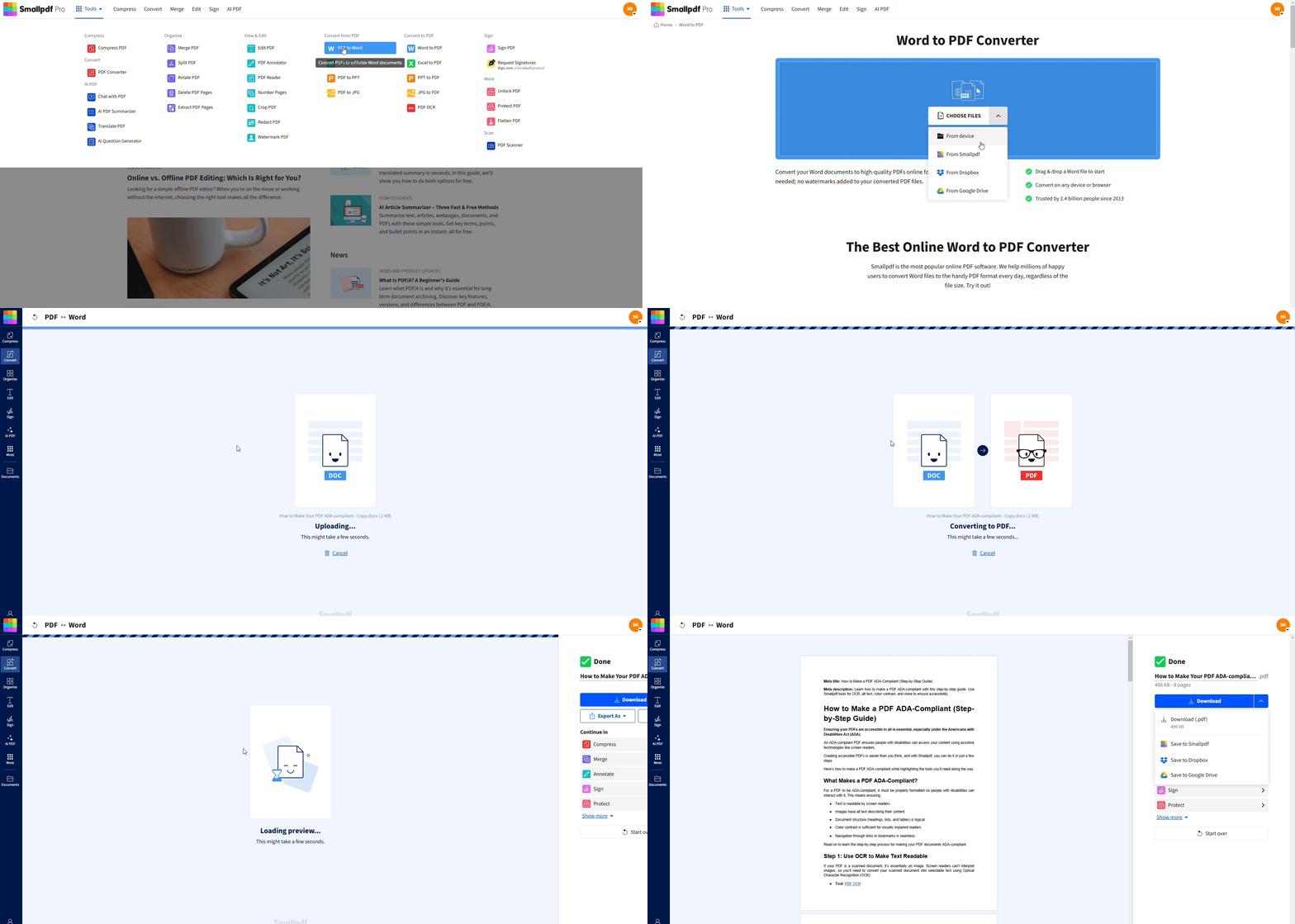
Go to our Word to PDF.
Drag and drop your merged Word file, or pick it from your device or cloud storage.
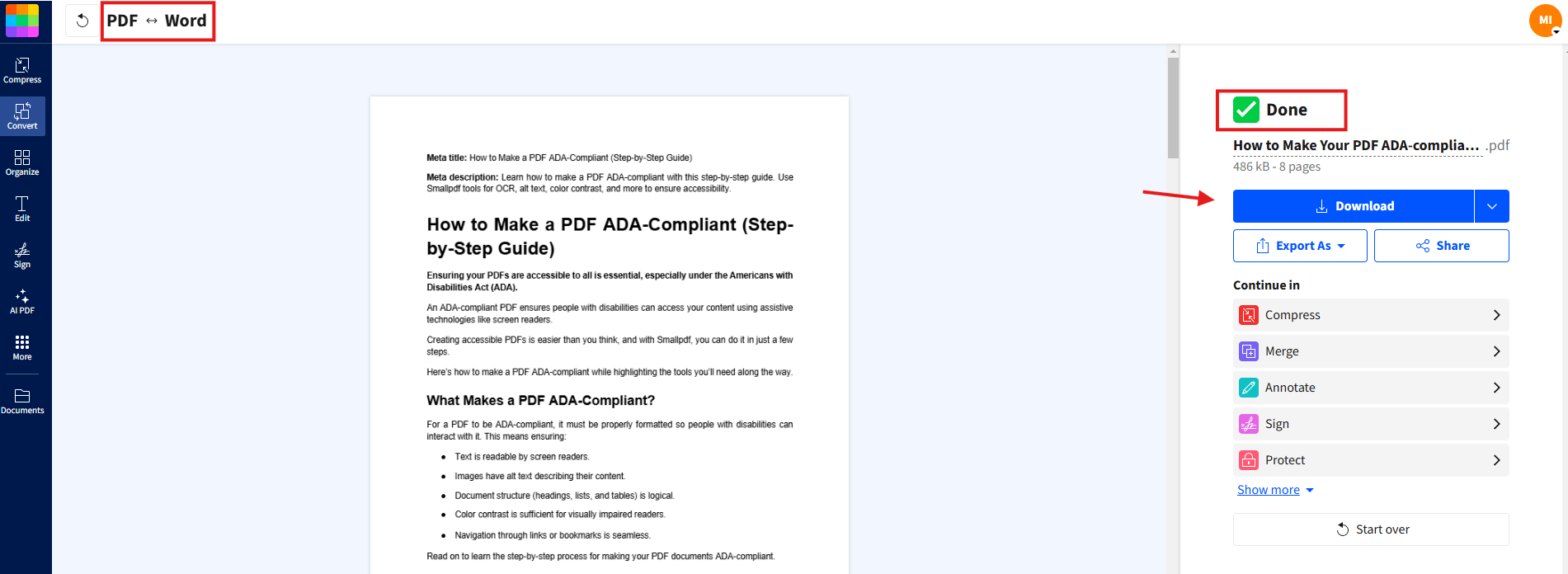
Wait a few moments while we convert your document.
Download the resulting PDF back to your computer or save it to Google Drive, Dropbox, or OneDrive.
If you need individual PDFs per recipient, you can:
Use Split PDF to separate one large merged PDF into smaller ones.
Rename each file with meaningful names, such as “Invoice_CompanyName.pdf.”
How To Email Mail Merge PDFs Efficiently
Once your PDFs are ready, you still need to get them to the right people.
Option 1: Attach PDFs Directly
For smaller lists or occasional campaigns:
Compose an email in your standard email client.
Attach the relevant PDF for each recipient.
Use clear subject lines and message text that matches the document content.
Compress PDF can help if attachments are too large for your mail provider.
Option 2: Share From Cloud Storage
For larger lists or frequent sends, cloud links can be easier.
Upload your PDFs to Google Drive, Dropbox, or your Smallpdf storage.
Generate share links with the right access settings.
Include those links in your email body instead of attaching files.
This approach keeps inboxes light and makes it easier to update documents or revoke access later.
Advanced Mail Merge PDF Workflows
Mail merge a PDF becomes even more powerful when you combine it with signatures, protection, and automation.
1. Create Contracts And Onboarding Packs
HR and legal teams often need personalized contracts and onboarding documents. You can:
Mail merge employment terms and personal details in Word.
Convert the results with Word to PDF Converter.
Use eSign to request legally binding electronic signatures from each new hire.
Password protection and limited access links help keep sensitive information secure.
2. Automate Recurring Invoices And Statements
Finance teams can save time by building a recurring mail merge.
Maintain an updated Excel file with billing amounts and due dates.
Run the merge every billing cycle to generate new invoices.
Convert them to PDFs and compress in batches before sending.
Over time, this reduces manual work while keeping output consistent month after month.
3. Combine, Sign, And Protect Mail Merge PDFs
Sometimes you want one document per person, and sometimes you want sets. You can:
Use Merge PDF to bundle multiple documents for the same recipient.
Apply eSign to collect approvals on key pages.
Protect PDF with passwords for confidential agreements and reports.
These steps help you build a complete workflow around mail merge, not just a one-time export.
How to Send a Mail Merge with PDF Attachments in Gmail
Gmail users can leverage Google Sheets and mail merge add-ons to send personalized emails with PDF attachments.
1. Import recipients from Google Sheets:
Connect your Google Sheets data to your chosen mail merge tool. Popular options include Mail Merge with Attachments or Mailmeteor.
2. Personalize the email body:
Create your email template using merge tags like [First Name] to personalize each message. Keep it conversational and relevant.
3. Attach or link PDFs:
You can either attach PDFs directly (if file sizes are manageable) or link to them in Google Drive for larger documents.
Troubleshooting Mail Merge PDF Problems
Even with a good setup, problems can appear. Here are common issues and how to fix them.
1. PDFs Are Too Large To Email
If recipients cannot download or open attachments:
Run your merged PDFs through Compress PDF to reduce size.
Remove unnecessary images or heavy backgrounds from the original template.
Consider sending links to cloud storage instead of direct attachments.
2. Data Fields Do Not Match The Right Places
Sometimes names, amounts, or dates end up in the wrong spot.
Check that your Excel headers match each merge field exactly.
Confirm that you selected the correct worksheet when connecting the data source.
Reinsert merge fields carefully if you changed column names mid-project.
A quick test with just a few rows can reveal mapping issues before a full mail merge.
3. Fonts Or Layout Break After Conversion
If your PDFs look different from your Word file:
Use standard fonts in your template where possible.
Avoid very tight spacing around merge fields. Leave room for longer names.
If you see major shifts, convert to PDF again with our Word to PDF feature instead of a built-in export.
Our conversion is designed to preserve layout, fonts, and spacing across devices.
4. Scanned Content Does Not Personalize Correctly
If part of your template started as a scanned page:
Use OCR to convert the scan into real, editable text before adding merge fields.
Rebuild complex sections with native Word text instead of images.
Test a few records after OCR to ensure everything reads and aligns correctly.
Once the scanned content is clean, the mail merge and conversion to PDF will behave more reliably.
Faster Mail Merge PDFs with Smallpdf
From creating personalized documents to securely converting them into professional-looking PDFs, Smallpdf makes the entire mail merge process seamless.
You don‘t need to worry about complicated tools, downloads, or losing formatting. Take control of your mail merges with Smallpdf‘s free PDF tools.
Convert Files to PDF for Free
Frequently Asked Questions
How do I mail merge a PDF from Word?
Create your mail merge in Word using an Excel or CSV data source. When the merged document looks correct, save it and convert it with our Word to PDF feature. You can then split or rename the PDFs if you need one file per recipient.Can I mail merge directly into PDF without using Word?
Most workflows still rely on Word or similar editors for the merge logic. You personalize the content there and only convert to PDF afterward. Our features handle the conversion, compression, and signing steps so the final PDFs are clean and consistent.How can I keep formatting when I mail merge a PDF?
Use a simple, well-structured template with standard fonts and spacing. After the merge, convert to PDF using our Word to PDF feature, which is built to preserve layout. Avoid very complex designs if you plan to generate large batches of PDFs.How do I mail merge PDFs with attachments in Gmail?
You can run the mail merge in Word and convert the results to PDFs first. Then use your email platform or a mail merge add-on that supports attachments, and attach the relevant PDF per recipient. The Smallpdf Compress PDF helps keep attachment sizes manageable.Can I mail merge fillable PDFs?
The easiest approach is to mail merge in Word using fields where you want personalized data to appear, then convert to PDF. If you need fillable form fields for recipients to complete, you can add those fields after conversion using our editing and eSign features.Why are my mail merge PDFs so big?
High-resolution images, heavy backgrounds, or long documents increase file size quickly. After you finish the merge, run the output through Compress PDF to shrink it. You can also simplify the original template to reduce image and font complexity.Is Smallpdf secure for mail merge PDF workflows?
Yes. We use TLS encryption for files in transit, automatically delete uploaded files after a short period, and hold ISO 27001 certification. That means you can handle contracts, invoices, and HR documents with strong security across your mail merge process.Convert mail merge Word documents to PDF using Smallpdf
Related Articles