- Home
- ›
- ›7 Prompts to Make a Chat with Your PDF More Effective
7 Prompts to Make a Chat with Your PDF More Effective
Stuck scrolling a long PDF for one detail? Ask sharper questions instead, and get the parts that matter in minutes, not hours.
AI Tools & Guides
More on Edit PDF
More on PDF OCR
Smallpdf’s Chat with PDF lets you ask questions in plain language and pull insights from a document without hunting page by page. You can even chat with scanned PDFs, and you don’t need to install anything or sign up to start.
This article is for beginners who want a simple workflow and power users who want better output control. You’ll get copy-and-paste prompt templates, a clean way to structure questions, and fixes for the most common ‘why didn’t it answer that?’ moments.
Quick Prompt Pack You Can Copy and Paste
Here are some simple prompts you can use right away. Just swap the bracketed parts with your details.
1) ‘Summarize pages [10–18]. Focus on [budget changes], and list the top 5 takeaways.’
2) ‘Find every mention of [termination/renewal/penalty]. Quote the exact sentence and tell me where it appears.’
3) ‘Translate the [executive summary] into [English]. Keep names, acronyms, and legal terms exactly as written.’
How Chat With PDF Works in Plain English
Chat with PDF is a faster way to get summaries, query a PDF about anything inside, or go beyond the information included, like asking for implications or next steps.
You upload a file, ask a question, and it returns a direct answer based on the content of your document. Smallpdf supports PDFs and also common file types like Word, Excel, PowerPoint, and images.
Chatting with AI works best when you treat it like a helpful analyst. Give it a target, a constraint, and the output format you want. The rest of this article shows you how.
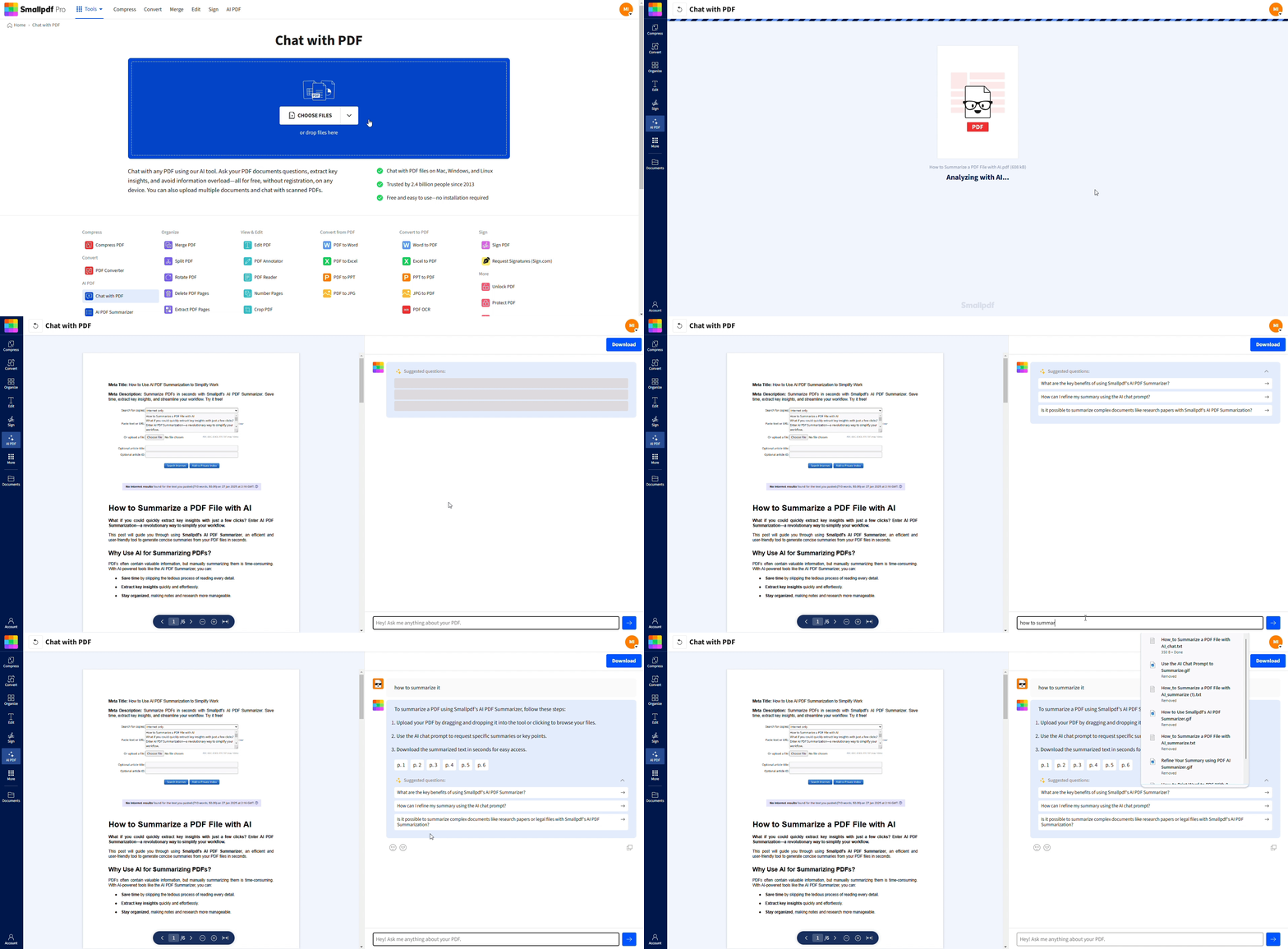
How To Use Smallpdf Chat With PDF
Chatting with PDF using AI is quick, easy, and free. Here’s a step-by-step process:
Step 1: Upload Your Document
Open Chat with PDF. In the Chat with PDF area below, drag and drop your file to start the analysis. If your file is a scan, the tool can still process it.
Step 2: Start With a Specific Goal
Before you type anything, decide what a good answer looks like. For example, you might need the three risks in a report, the renewal clause in a contract, or a summary of a chapter for study notes.
Step 3: Ask One Focused Question
Type your question in one sentence, then add one constraint. A good constraint is a page range, a section name, or an instruction to quote the exact line.
Step 4: Refine Instead of Restarting
If the answer is close but not perfect, don’t re-upload. Ask a follow-up like ‘go narrower,’ ‘show the quote,’ or ‘only use section 4.2.’
Step 5: Copy What You Need
When you get a solid answer, copy it into your notes, email, or document draft, then share the document with whoever needs it. If you’re building a study guide, you can also jump into the AI PDF Summarizer for a structured overview first.
Seven Chat With PDF Prompts That Consistently Get Better Results
Below are seven prompt styles you can reuse across reports, research papers, manuals, and contracts. Each one includes examples you can paste as-is.
Prompt 1: Section-Bound Summaries
A simple way to focus your AI is to guide it toward exactly the information you want it to focus on.
Example prompts:
‘Summarize section 3. Keep it to seven bullets.’
‘Summarize pages 12–16. Focus on changes from last year.’
‘Give me a one-paragraph overview of the “Methodology” section.’
Prompt 2: Keyword Hunts With Proof
If you’re doing review work, you usually need the exact wording, not a paraphrase. Ask for the quote.
Example prompts:
‘Find “limitation of liability.” Quote the sentence and tell me where it appears.’
‘Search for ‘data retention’ and list each mention with a short explanation.’
‘Show every place the document mentions “auto-renewal.”’
Prompt 3: Extract Data Into a Clean Structure
This is where Chat with PDF feels like a shortcut. It’s especially useful for timelines, tables, and recurring fields.
Example prompts:
‘List all dates and deadlines mentioned in the document.’
‘Pull the pricing tiers and put them in a simple table.’
‘Extract all names, roles, and organizations mentioned in section 2.’
If the PDF contains dense tables, ask it to repeat back the row headers so you can sanity-check the structure.
Prompt 4: Explain Jargon in Normal Language
This is a power user prompt because it turns a confusing paragraph into something you can act on.
Example prompts:
‘Explain section 4.1 like I’m new to this topic.’
‘Define “net present value” as used in this document, using a short example.’
‘Rewrite this paragraph in plain English, keeping the meaning the same.’
Prompt 5: Compare Two Parts of the Same Document
Perfect for big reports and policies that repeat themselves with small differences.
Example prompts:
‘Compare section 2 and section 5. What changed, and why does it matter?’
‘What does the summary claim, and what does the data section support?’
‘List contradictions or mismatched numbers across the report.’
Prompt 6: Generate Questions You Should Be Asking
This one helps when you don’t know where to start, or you’re reviewing something you didn’t write.
Example prompts:
‘Create 10 review questions based on this chapter.’
‘What questions would a cautious buyer ask after reading this proposal?’
‘Generate a short quiz from this PDF and include answers.’
If you want purpose-built question generation, Smallpdf also offers an AI Question Generator designed around quiz formats.
Prompt 7: Translate With Terminology Control
Translation gets dramatically better when you tell it what must stay untouched.
Example prompts:
‘Translate the executive summary into English. Keep product names unchanged.’
‘Translate section 6 into Spanish. Keep acronyms and legal phrases as-is.’
‘Translate and keep the same tone. Don’t simplify technical terms.’
If you need a dedicated translation flow, Translate PDF supports full translations and summaries, plus follow-up queries in your preferred language. Upload your file in the Translate PDF area below to start translating.
Real-World Workflows That Show How This Looks
A few quick scenarios you can map to your own work.
A student reviewing a research paper can start with Prompt 1 to summarize the findings, then use Prompt 4 to simplify the methodology into study notes.
A manager scanning a quarterly report can use Prompt 3 to extract the key numbers and deadlines, then Prompt 5 to compare last quarter’s narrative to this one.
A freelancer reviewing a client contract can use Prompt 2 to locate payment terms, renewal language, and cancellation rules, then copy the quoted lines into a review email.
If You’re Using Scans or Handwritten Pages
Chat with PDF supports scanned PDFs, and it can work with handwritten content using OCR. If results look off, it’s usually the scan quality, not your prompt.
You’ll get better output when you:
Scan straight, not at an angle.
Use good lighting and higher contrast.
Avoid shadows near margins and signatures.
If you’re working from notes, our handwriting OCR guidance can help you improve recognition quality before you start asking questions.
Security and Privacy Basics
If you’re using Chat with PDF for work documents, the first question is usually privacy. Smallpdf encrypts files in transit, doesn’t store your conversations, and deletes documents automatically after one hour of processing.
We’re also GDPR compliant and ISO/IEC 27001 certified, and we use TLS encryption during file transfer.
Ready To Get Better Answers From Your PDFs?
If you want faster, cleaner answers, start with the “Quick Prompt Pack” and run one prompt at a time.
Tighten it with a page range and a request for quotes, and you’ll feel the difference immediately.
When you need a structured overview first, open the AI PDF Summarizer, then jump back into Chat with PDF for follow-ups.
Frequently Asked Questions
Is Chat with PDF free to use?
Yes. You can start using Chat with PDF for free without registration, though usage limits may apply depending on your plan.Can I use Chat with PDF to summarize a long document?
Yes. You can ask for a summary directly in Chat with PDF, or use AI PDF Summarizer to generate an overview first, then follow up with questions.Can Chat with PDF translate documents too?
Yes. For full-document translation or a translated summary, Translate PDF is built for that workflow and supports follow-up questions in your chosen language.Does it work with scanned PDFs or images?
Yes. Chat with PDF supports scanned PDFs, and it can work with scanned or handwritten content using OCR, though clarity depends on scan quality.What file types can I upload besides PDF?
Chat with PDF supports PDF and also common formats like DOC, XLS, PPT, PNG, and JPG.Why did my answer feel too vague?
Your prompt was probably too broad. Add a page range, section name, or a request to quote the relevant line, then ask again with one clear constraint.Can I chat with multiple PDFs at once?
Yes. You can upload multiple PDFs and ask questions across all of them in the same chat.Is it safe to upload sensitive documents?
Smallpdf uses TLS encryption and deletes documents automatically after one hour of processing. We’re GDPR compliant and ISO/IEC 27001 certified.Chat with your PDF more effectively using Smallpdf Pro
Related Articles
