- Home
- ›
- ›Adding Emojis to Your PDFs: Troubleshooting Issues & Solving Them
Adding Emojis to Your PDFs: Troubleshooting Issues & Solving Them
Add emojis to PDFs easily for notes, fun, or emphasis. If they’re not showing up right, here’s how to insert, fix, and print them properly.
PDF Tips & Resources
More on Edit PDF
More on PDF Annotator
You can add emojis to your PDFs just like you can to most other documents, but not all PDF readers and editors handle emojis the same way. 🤔
Some will display them just fine, while others might replace them with empty boxes or weird symbols. It all depends on the support in your PDF viewer.
Quick Guide to Add Emojis to a PDF
Here are useful emoji keyboard shortcuts:
Windows: Win + .
Mac: Cmd + Ctrl + Space
Chromebook: Search + Shift + Space
Quick start: Use the editor below to upload or drag-and-drop your PDF and add emojis with the Text tool.
How to Add Emojis to a PDF
The quickest way to add emojis to your PDF is using Smallpdf’s suite of tools. 💪
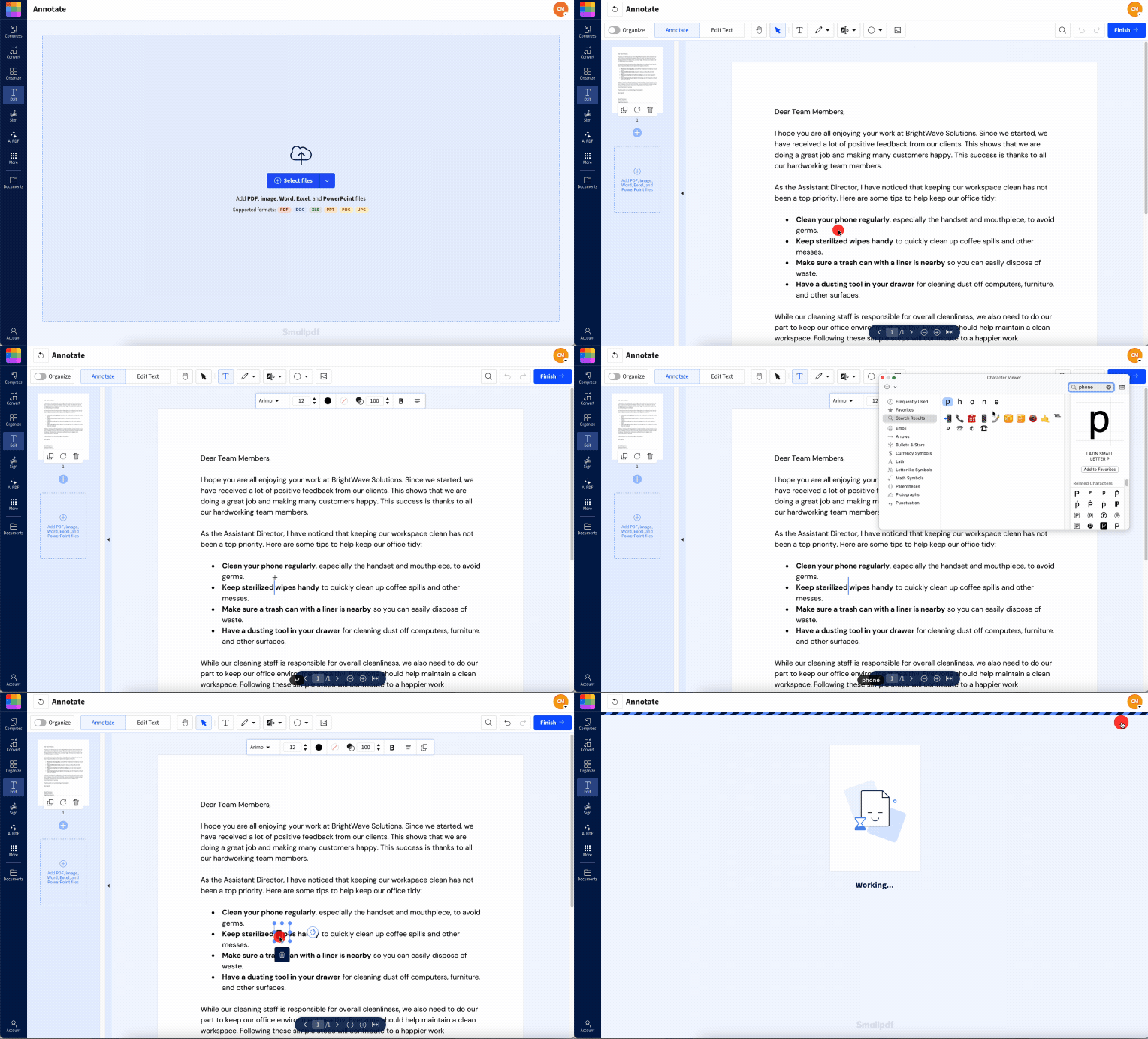
Using Edit PDF
Upload your PDF to Edit PDF.
2. Click the text box where you want to add the emoji.
3. Use the relevant shortcut to open the emoji keyboard.
4. Select an emoji and insert it.
5. Click “Finish,” then download the updated PDF.
Some features of Edit PDF only work with a Pro subscription. You can sign up for a free 7-day trial to test these out or use PDF Annotator as a workaround.
Using PDF Annotator
Upload your file to Smallpdf’s PDF Annotator.
2. Select the “Add text” tool and click where you want the emoji.
3. Use the same commands as before to launch the emoji keyboard.
4. Insert your emoji and reposition or resize if needed.
5. Click “Finish” and download your PDF. 🎉
Convert the PDF for More Control
If you want to add a lot of emojis, or need more control when adding them, converting the PDF might be better.
Upload your document to Smallpdf’s PDF Converter.
2. Choose the format you want to convert to.
3. Download the converted document and open it.
4. Insert emojis using the emoji keyboard
5. Save the document and re-export it as a PDF.
Mobile and Chromebook Methods
Smallpdf’s suite of tools are web apps, so you can easily use them in any browser, including on mobile devices. You can also download the free app for iPhone and Android. 📱
If you’re a Chromebook user, you can follow the same steps as before for adding emojis to your PDFs. The only change will be how you access the emoji keyboard.
On ChromeOS you can either press Search + Shift + Space, or right-click on the text field and select “Emoji.”
Some Chromebook PDF viewers may not display emojis properly. If you see blank spaces instead of emojis, try converting the PDF to Word, then adding the emojis in Microsoft Word or Google Docs, and re-saving as a PDF.
Common Emoji Issues in PDFs
Emojis don’t always behave the same way across PDF readers. If they disappear, look wrong, or print in black and white, the issue is usually one of the following.
Emojis Not Showing at All
Often caused by older PDF viewers or devices that don’t support newer emoji.
Fix: Flatten the PDF or use widely supported emoji.
Emojis Turning Black and White
Most PDF readers don’t support color emoji fonts.
Fix: Embed fonts when exporting, or flatten the PDF before sharing.
Emojis Changing Between Devices
Different platforms have different emoji sets.
Fix: Test the PDF in more than one viewer before sending.
Emojis Printing Incorrectly
Some printers can’t handle color emoji fonts.
Fix: Use “Print as Image,” or convert the PDF to a flattened format.
Emojis Appearing Too Big or Cut Off
Happens when pasted from other apps or when line spacing is tight.
Fix: Resize the emoji or add spacing around it.
Why PDF Emojis Turn Black and White or Disappear
PDFs handle emojis differently than other documents. Here’s why your colorful emojis might lose their color or disappear entirely.
Most PDF viewers don’t fully support color fonts (the technology behind colorful emojis). Instead, they show a basic black-and-white version or nothing at all. This happens because:
PDFs were designed for text and simple graphics, not colorful symbols
Color emoji fonts use special formats that many PDF readers can’t handle
Your device might not have the right fonts installed to display emojis properly
This leads to a letdown between what you expect 🎨 versus what you might get ⬛.
Troubleshooting Common Emoji Issues in PDFs
Preview on macOS also allows emoji annotations, but browser-based PDF viewers (Chrome, Edge, Firefox) don’t display emojis at all when using the annotation tools. 😞
Emojis Not Showing in PDF Viewers
If your emojis appear as blank squares or question marks, the issue is usually device related.
Every year, Unicode announces a batch of new emoji. These are not immediately supported by all devices and software. Even if you can see the emoji on your device, other people opening the same document might not if their device hasn’t been updated yet.
You can try fixing this by flattening your PDFs before sharing them.
Alternatively, avoid using new emoji released in the last 2-3 years. There’s a better chance everyone will be able to see older emojis. Finally, you can also try installing the Noto Color Emoji font, but for this to work flawlessly, you will need to ensure the font is embedded in your PDF.
Emoji Export and Print Problems
Your emojis might look fine on screen but disappear or change when you print or export the file. This can happen with newer emoji. It’s also worth remembering that there can be subtle differences in emoji across different programs and operating systems.
Fix it by converting the PDF to an image-based format (like a flattened PDF) before printing or embedding fonts in your PDF. If printing, check the “Print as Image” option in your print settings, if available.
Emoji Size and Formatting Issues
Sometimes, emojis show up way too big, too small, or with portions cut off in a PDF, especially if you copy-paste them from another source.
Fix it by resizing emojis using the text size option in a PDF editor. If it is being cut off, make sure it isn’t overlapping with another element, and try adding a blank line above or below the emoji.
App-Specific Tips
Different apps handle PDF export differently. Here’s what works best.
Microsoft Word: Use “Save as PDF” instead of “Export as PDF” for better emoji support.
Google Docs: Download as PDF works well, but test the result before sharing.
LibreOffice: Choose “Export as PDF” and check “Embed fonts” in the options.
Obsidian: Use the print function and select “Save as PDF” for consistent results.
Best Practices to Make Emojis Display and Print Correctly
Follow these tips to avoid emoji problems before they happen:
Test in multiple viewers before sharing your PDF with others.
Flatten PDFs when emoji display is critical for your document.
Use “Print as Image” for consistent printing results.
Choose widely-supported emojis and avoid the newest releases.
Embed fonts when possible during PDF creation.
Consider converting to image for guaranteed display across all devices.
✅ Do: Test your PDF on different devices and apps before sharing
❌ Avoid: Using brand-new emojis that might not display everywhere.
Emoji Fonts to Try (and Limitations)
These fonts might help with emoji display:
Noto Color Emoji: Google’s open-source emoji font, works well across platforms
Segoe UI Emoji: Windows default, good for Windows users
Apple Color Emoji: Mac default, but limited to Apple devices
Keep in mind that even with these fonts, PDFs have inherent limitations with colorful emojis due to how the format handles graphics.
Accessibility Tips for PDF Emojis
Make your emoji-enhanced PDFs accessible to everyone:
Don’t rely on emojis alone to convey important information.
Consider how screen readers will interpret emoji symbols.
Use emojis sparingly in professional documents.
Make Your PDFs Stand Out with Smallpdf
Now that you know how to add and troubleshoot emojis in PDFs, why not explore more ways to enhance your documents?
Smallpdf’s PDF Editor lets you add text, images, shapes, and yes—emojis—with just a few clicks. No technical expertise required.
Ready to create eye-catching PDFs? Start your free trial and access our full suite of PDF tools.
PDF Emoji FAQs
Can a PDF include emojis?
Yep! PDFs can handle emojis, but whether they show up correctly depends on the support in your PDF viewer and device. Some older programs and operating systems might swap your emoji for a blank box or a weird symbol, which is why it’s a good idea to use a tool like Smallpdf’s Flatten PDF to make sure everything sticks. If you’re sharing the file, test it on another device to double-check that the emojis are displaying as expected.How do I add an emoji to a PDF on Android?
The easiest way is to open your file in Smallpdf’s Edit PDF tool on your mobile browser. Just tap where you want the emoji, open your keyboard’s emoji picker, and pop it in. You can also use PDF Annotator if you’re not trying to add emoji in the middle of any text.How do I insert symbols or special characters in a PDF?
You can use the same methods as adding an emoji: Smallpdf’s Edit PDF, a text box in a PDF annotation app, or the emoji/symbol keyboard on your device. Here are keyboard shortcuts to access extra symbols and characters: Windows: Win + . Mac: Cmd + Ctrl + Space Chromebook: Search + Shift + Space Unicode manages a huge list of symbols and characters, including many that aren’t emoji but can still be added to documents.Why are my emojis not exporting properly to PDF?
This usually happens with newer emoji where the system doesn’t yet support them. To fix this, try using a Unicode-friendly font or Noto Color Emoji font, and then embedding the font in the PDF or flattening the PDF.What does the 📄 emoji mean?
The 📄 emoji represents a document or page, commonly used to reference files, paperwork, or written content.What’s the difference between 📂 and 📁 emojis?
📁 shows a closed folder while 📂 shows an open folder, both representing file organization and storage.How do I type emojis on Windows for PDFs?
Press Win + . (Windows key + period) to open the emoji panel, then select your emoji and paste it into your PDF editor.Keep emojis visible in PDFs with Smallpdf
