- Home
- ›
- ›How to Convert HTML Newsletter to PDF to Preserve Content
How to Convert HTML Newsletter to PDF to Preserve Content
Turn HTML newsletters, pages, and emails into clean PDFs that keep their layout. Save, share, and archive content exactly how you intended.
More on HTML to PDF
More on PDF Converter
More on Edit PDF
If you design email campaigns, manage websites, or conduct online research, you often need a fixed, shareable version of HTML content. Converting HTML to PDF gives you a static copy you can store, send, or print without worrying about things like screen size, browser quirks, or future layout changes.
We help you turn HTML into PDF in a few clicks, whether you start from a live web page, a saved HTML file, or an email newsletter in your inbox.
Quick Checklist: Convert HTML Newsletter To PDF Without Breaking Layout
How HTML To PDF Conversion Works
HTML is flexible. It responds to screen size, device type, and user settings. PDF is fixed. It keeps the same layout on every device.
Because of this difference, you sometimes see shifted sections or odd page breaks after conversion. The goal is to control the view and the settings that bridge that gap.
We will walk through three main methods and when to use each.
How To Convert HTML Newsletter To PDF (Three Main Methods)
You can convert HTML to PDF directly in your browser, with our PDF Converter, or from an email client. Each method has strengths depending on what you are converting.
Method 1: Save A Web Page As PDF In Your Browser
This is the fastest option when you’re already viewing a page in Chrome, Edge, Safari, or Firefox.
Open the page you want to save and scroll through it so everything loads.
Go to “File” > “Print,” or press Ctrl+P on Windows or Command+P on Mac.
In the printer list, choose “Save as PDF” instead of a physical printer.
Set the paper size (A4 or Letter), orientation, and margins.
Turn on “Background graphics” if you want colors and images included.
Turn off headers and footers if you do not want extra URLs or dates.
Check the print preview for strange breaks, then click “Save.”
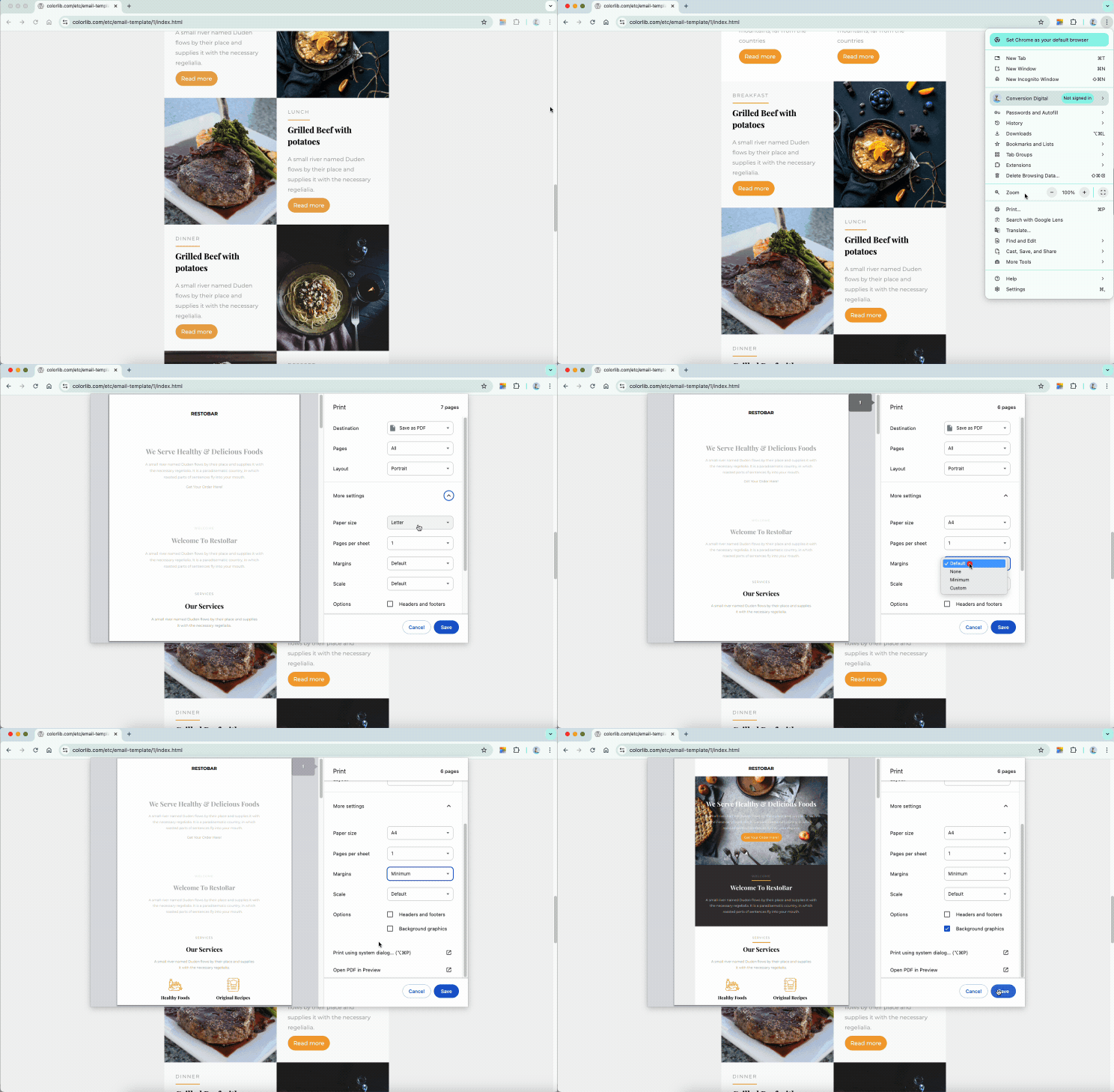
This works well for articles, static pages, and simple landing pages. For complex layouts or multi column designs, you may get better results with a dedicated HTML to PDF converter.
Method 2: Convert HTML Files To PDF With Smallpdf
If you have an .html file or an exported template, our PDF Converter gives you more control and a cleaner workflow.
Open our PDF Converter in your browser.
Click “Choose Files” to upload your HTML file, or drag and drop it into the drag-and-drop area below.
3. In the conversion options, make sure the output format is set to “PDF.”
4. Wait a moment while we process the file and render the layout.
5. Download your converted PDF, or send it directly to Google Drive, Dropbox, or OneDrive.
From the results page, you can:
Use Edit PDF to tweak text, add notes, or highlight sections.
Use Compress PDF if the file is heavy on images and you need a smaller size.
Use Merge PDF to bundle multiple newsletters or pages into one archive.
We recommend this method when you want repeatable results across many HTML templates, or when you need follow-up edits inside Smallpdf.
Want to convert your PDF?
Method 3: Turn An HTML Email Or Newsletter Into A PDF
Email newsletters are often built from responsive HTML and styled with fonts, images, and columns. That flexibility can clash with the fixed nature of PDF, so a little preparation goes a long way.
For a newsletter in your inbox:
Open the email in your client or webmail (Gmail, Outlook, etc.).
Switch to the “Print” or “View in browser” version if available.
In the browser or client, use “File” > “Print” and select “Save as PDF.”
Enable background colors and images if your design relies on them.
Choose “Portrait” for single-column layouts or “Landscape” for wide multi-column designs.
Check whether long sections split awkwardly between pages and adjust scaling if needed.
If you regularly convert the same newsletter template to PDF, we suggest designing with A4 or Letter page width in mind. For example, you might:
Use slightly narrower columns so text does not wrap oddly in PDF.
Keep key calls to action above the fold so they do not land on a separate page.
Test a few sends by converting them and checking the final PDFs.
For newsletters stored as HTML files, you can skip the email client and upload the HTML directly to our PDF Converter instead.
Manual vs. Automated HTML To PDF Conversion
You can convert HTML to PDF manually in your browser or use automated conversion with Smallpdf and other tools. Each approach has tradeoffs.
Manual (browser print) methods:
Good for one-off saves of pages you are already viewing
Quick and available on any modern browser
Limited control over advanced settings and responsive layout behavior
Automated (converter-based) methods:
Better for recurring tasks, templates, and bulk content
More consistent results across similar HTML structures
Easier to combine with other actions like editing, compressing, and merging
If you only save a page now and then, browser print might be enough. If you archive newsletters every week or prepare many client reports, automated conversion through our PDF Converter will likely save you more time.
HTML to PDF Converter Features and Options
You do not need to know every technical term, but a few key options help you control the final PDF.
1. Page Size And Orientation
Choose A4 or Letter for most documents, Portrait for standard reading, and Landscape for wide tables or multi-column layouts. This choice affects where page breaks appear.
2. Margins And Scaling
Margins control white space around the content. Scaling shrinks or enlarges the page to fit. Try to avoid heavy scaling, because it can make the text too small. Adjust margins first, then scale if needed.
3. Background Graphics And Print Styles
Some sites have a print stylesheet, which is a special CSS set made for printing. If the result looks too plain, turn on background graphics to bring back colors and images. This is especially important for marketing emails and newsletters.
4. JavaScript And Loading Time
Dynamic pages may need a short delay so content can load before conversion. Many converters have a “JavaScript delay” or similar setting. Waiting a second or two can help charts, sliders, or lazy-loaded images appear in the final PDF.
Fix Layout Issues After HTML To PDF Conversion
Even with good settings, you might see text jumps, broken columns, or awkward breaks. Here’s how to fix them.
If text feels too small, increase the scale slightly in print settings or switch from two columns to one in your newsletter design.
If elements are cut at the bottom of a page, adjust margins or move content blocks higher on the page before converting again.
If images look blurry, check the original image resolution and avoid shrinking them too aggressively.
For bigger changes, convert the PDF to Word, make edits, and convert it back:
Upload your PDF to our PDF to Word.
Download the Word file and open it in your editor of choice.
Adjust fonts, margins, headings, and page breaks.
Save and convert back to PDF with our Word to PDF feature.
You can then run Compress PDF if the final file is large due to images or rich content.
Is HTML to PDF Conversion Safe? Security and Privacy at Smallpdf
We design our platform so you can convert HTML to PDF without worrying about privacy. When you upload files or converted PDFs:
All transfers use TLS encryption to protect data in transit.
Files are stored with strong encryption at rest.
Documents are automatically deleted after an hour of processing.
Processing is automated, so no one manually reviews your content.
If you need offline workflows, you can use our desktop app for other PDF tasks. For HTML to PDF, our online converter is the simplest way to get consistent, secure results.
Turn HTML Newsletters And Pages Into PDFs With Smallpdf
Converting HTML to PDF lets you archive newsletters, save key web pages, and capture email campaigns in a format that will not shift or disappear.
With our HTML to PDF workflow, you can start from a browser view, an HTML file, or an email, then convert, fix, and compress everything in one place.
When you are ready, open our PDF Converter, upload your HTML content, and create polished PDFs you can trust for clients, audits, and long-term storage.
Frequently Asked Questions
How do I convert HTML code to PDF?
Save your HTML code as an .html file, then open it in any browser and use the print function to save as a PDF. Alternatively, upload the HTML file directly to an online converter like Smallpdf.Can I convert password-protected websites to PDF?
You’ll need to log in first, then use your browser’s print-to-PDF function while viewing the protected content. Online converters typically can’t access password-protected pages.What’s the difference between HTML and PDF formats?
HTML is dynamic and responsive, adapting to different screen sizes and allowing interactive elements. PDF creates a fixed layout that looks identical on any device but loses some interactivity.How do I convert multiple HTML files at once?
Most online converters process files one at a time. For batch conversion, you‘ll need specialized software or browser extensions that support multiple file processing.Why does my converted PDF look different from the webpage?
Responsive design elements may shift when converted to PDF‘s fixed format. Try adjusting print settings like page size, scaling, or enabling background graphics for better results.Can I edit the PDF after converting from HTML?
Yes! You can edit converted PDFs using Smallpdf‘s editing tools or by converting the PDF to Word format for more extensive changes.What file size limits apply to HTML to PDF conversion?
Most online converters have file size limits, typically ranging from 5MB to 100MB. Large HTML files with many images may need compression before conversion.Do hyperlinks work in converted PDFs?
Yes, hyperlinks typically remain functional in PDF conversions. However, some converters may strip links, so always test your converted PDF to ensure links work as expected.Convert HTML newsletters to clean PDFs with Smallpdf
