- Home
- ›
- ›Does Kindle Read PDF? Kindle PDF Support Guide
Does Kindle Read PDF? Kindle PDF Support Guide
Yes, Kindle can read PDF files. The reading experience is useful in many cases, but it has clear limits compared to native Kindle e-book formats.
Ebook Tool & Guides
PDF Reading Tools & Guides
More on PDF Converter
Reading PDFs on a Kindle can be convenient, but the experience depends on the model you use and the type of PDF you open.
We’ll explain how Kindle handles PDF files, what works well, where limitations appear, and the best ways you can improve readability.
You’ll also learn how to send PDFs to your device, optimize them with Smallpdf, and choose when it makes sense to convert to a Kindle-friendly format.
Quick Answer: Does Kindle Read PDF Files?
Kindle devices support PDF files on all current models. You can email PDFs to your Kindle, transfer them with a USB, or use “Send to Kindle apps.”
The layout is preserved, but text reflow is limited, which means:
Text does not always resize cleanly.
Zoom and pan are often needed.
Complex layouts can be harder to read on smaller screens.
Kindle Scribe offers the best PDF annotation experience today.
If you prepare your PDFs before sending them, you can avoid most readability issues and get much closer to an e-book-like experience.
How PDFs Compare to Native Kindle Formats
Kindle is built for its own formats first, with PDF support added on top. Here is what you can expect.
| Feature | Native Kindle Format | PDF On Kindle |
|---|---|---|
| Text reflow | Yes, adjusts to screen | No, fixed layout |
| Font size adjustment | Full control | Mostly via Zoom |
| Zoom | Rarely needed | Often needed |
| Annotations | Full support | Limited on some models |
| Search | Reliable | Depends on PDF type |
| Best for | Regular reading | Layout-critical docs |
Kindle supports EPUB imports via Send to Kindle, which Amazon converts to internal formats like AZW3 or KFX. PDFs are also supported on all models, but always with a fixed layout.
When PDFs Work Well on Kindle
PDFs can work very well when the original layout matters:
Academic papers with charts and diagrams
Manuals, reports, and forms that rely on exact formatting
Magazines or brochures with a fixed design
In these cases, it helps that Kindle keeps the layout intact.
When PDFs are Harder to Read
Reading becomes difficult when:
Fonts are very small.
Pages have two or more columns.
There are wide margins and little usable text on a small screen.
In those situations, converting to a Kindle-friendly format or editing the PDF before sending it often gives a better result.
How Different Kindle Models Handle PDFs
Kindle, Paperwhite, Oasis
On these models, PDFs display as fixed pages. You can:
Pinch to zoom in and out.
Drag to pan around the page.
Tap edges to move between pages.
Some PDFs support limited text reflow, but many do not. Expect more zooming and panning than with regular e-books.
Kindle Scribe
Kindle Scribe is better suited for working with PDFs.
You can write directly on PDFs that you send via Send to Kindle.
Handwritten notes stay attached to the file on the device.
Larger screen size makes dense PDFs easier to read.
If you read a lot of PDFs, Scribe is usually the most comfortable Kindle option.
How To Add a PDF To Your Kindle
You have three main ways to send PDFs to your Kindle. Here’s how each method works.
1. Email to Your Kindle Address
Go to Amazon > “Manage Your Content and Devices” > “Preferences.”
Find your Kindle email address ending in @kindle.com.
Add your personal email to the “Approved Personal Document Email List.”
Compose an email from that approved address.
Attach your PDF and send it to your Kindle email.
Amazon currently limits email attachments to around 50 MB per document. If your PDF is larger, compress it first.
Tip: If you type “CONVERT” in the subject line, Amazon will try to convert some PDFs to a Kindle format. This works best for simple, text-heavy documents.
2. USB Transfer From Your Computer
Connect your Kindle to your computer with a USB cable.
Open the Kindle drive that appears on your computer.
Open the Documents folder.
Drag and drop your PDF into that folder.
Safely eject the Kindle and unplug it.
The PDF will appear in your Kindle library after a short refresh.
3. Send To Kindle Apps and Extensions
Amazon provides Send to Kindle apps and a browser extension:
Desktop: Right-click a PDF and choose “Send to Kindle.”
Mobile: Share a PDF from other apps to send to Kindle.
Browser: Save web pages as PDFs and send them straight to your Kindle.
These options are convenient when you work on multiple devices and want your documents synced across the Kindle app and hardware.
How To Optimize PDFs for Kindle With Smallpdf
decides if the file is pleasant to read or frustrating.
Resize Fonts and Crop Margins
Use Edit PDF in Smallpdf to make the main text area larger on the Kindle screen:
Upload your PDF to Edit PDF using the drag-and-drop area below (or click to choose a file).
Increase font size where possible, especially on cover pages or titles.
Remove non-essential images or sidebars that shrink the main content.
Download the updated file and send it to your Kindle.
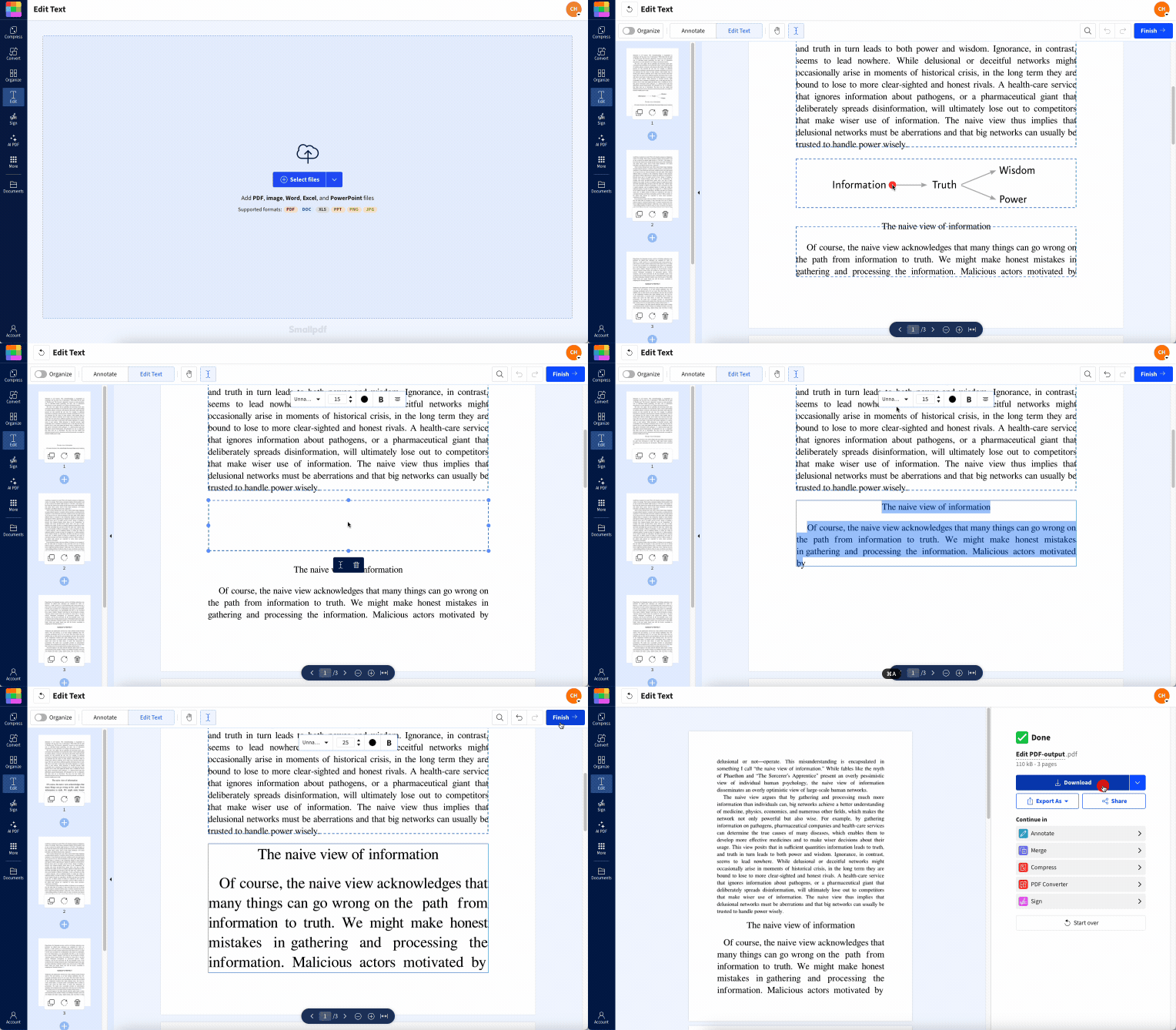
Less empty space and clearer text usually mean less zooming later.
Annotate PDFs Before You Send Them
Highlighting and note-taking can feel limited on some Kindle models. You can prepare key parts in advance:
Open your file in PDF Annotator.
Add text boxes with notes or references.
Save the annotated PDF and send it to Kindle.
The annotations become part of the page, so you can see them even when the device has simple PDF support.
Merge Multiple PDFs Into One File
If you have a series of PDFs for one topic, merge them so you read them like a single e-book:
Open Merge PDF in Smallpdf.
Drag in all the PDFs you want to combine.
Arrange them in the correct order.
Merge and download the combined file.
This makes navigation easier than jumping between many small documents.
Compress Large PDFs for Faster Sending
Some PDFs are too large for email or sync slowly:
Upload your file to Compress PDF.
Choose a compression level that keeps text sharp.
Download the smaller version and send it to Kindle.
Compression is especially useful for image-heavy documents and long reports.
When To Keep PDFs as PDFs and When To Convert
You do not always need to convert a PDF. The right choice depends on how important the original layout is for you.
Keep the file as PDF when:
The document relies on exact layout or design.
You need charts, tables, or forms to stay in a fixed position.
You are reading a scientific paper or technical manual.
In these cases, editing and compressing the PDF is usually safer than conversion.
Convert to A Kindle format when:
The document is mostly continuous text.
Fonts are small and hard to read on a small screen.
You want full control over font size, spacing, and margins.
You prefer the standard Kindle reading experience.
Conversion allows text reflow, which feels much closer to reading a normal Kindle book.
Convert With Calibre On Your Computer
Many readers use Calibre as a desktop conversion tool:
Install Calibre on your computer.
Add your PDF with the “Add books” button.
Select the book and click “Convert books.”
Choose “EPUB,” “AZW3,” or another Kindle-friendly format.
Adjust margins, fonts, and layout in the settings if needed.
Convert and then send the new file to your Kindle by email or USB.
Always keep a copy of the original PDF in case complex layouts do not survive conversion.
Use Amazon Auto Conversion With Send To Kindle
When you email a PDF to your Kindle address:
Add “CONVERT” in the subject line.
Amazon will try to convert the file to an internal Kindle format.
This can work well for simple text documents. For complex layouts, always open the converted version on your device before deleting the original PDF.
Troubleshooting Common PDF Problems on Kindle
Some issues appear often when you read PDFs on Kindle. Here is how to handle them.
1. Text Is Too Small or Hard To Read
Crop margins and enlarge content with Smallpdf Edit PDF.
Try the Send to Kindle conversion with CONVERT in the subject line.
Consider converting the PDF to EPUB or AZW3 using Calibre.
2. File Will Not Send or Sync
Check if the PDF is over 50 MB and compress it if needed.
Split a very long document into several smaller parts with Split PDF.
Use USB transfer if email keeps failing.
3. You Can’t Search Inside The PDF
The PDF may be image-based.
Run it through Smallpdf OCR to add a text layer.
After OCR, test search again on your Kindle or in a desktop reader.
4. Annotations Do Not Appear as Expected
Pre-annotate with PDF Annotator so highlights and notes are part of the page.
For Kindle Scribe, send the PDF via Send to Kindle so you can write directly on it.
5. Layout Looks Broken After Conversion
Keep a copy of the original PDF.
If images or tables have moved, use the original on Kindle instead of the converted file.
Try a different conversion tool or adjust Calibre settings to preserve more structure.
Make Your PDFs Kindle Friendly
Reading PDFs on Kindle works best when you set up the files for the device. Once you know how Kindle handles PDFs, you can decide when to keep the original layout and when to convert to a Kindle format instead.
If you optimize margins, compress large files, and add a text layer to scans with OCR, your PDFs become much easier to handle on any Kindle model.
When you are ready to prepare your next document, use Smallpdf to clean it up first, then send it to Kindle and enjoy a smoother reading experience.
Frequently Asked Questions
Can Kindle read PDF files?
Yes. All modern Kindle models support PDF files. The layout is preserved, but you may need to zoom and pan because text does not always reflow as it does in native Kindle books.Can Kindle Paperwhite read PDFs well?
Kindle Paperwhite can open and display PDFs, and the high-resolution screen helps with clarity. For smaller text or complex layouts, editing and cropping the PDF before sending it often makes a noticeable difference.Can Kindle Scribe read and annotate PDFs?
Yes. Kindle Scribe lets you read PDFs and write directly on them when they are sent via Send to Kindle. This is useful for reviewing reports, marking up study material, or taking handwritten notes. The VergeWhy does my PDF look so small on Kindle?
Most PDFs were designed for larger pages. On a smaller Kindle screen, that layout shrinks. Cropping margins and increasing content size with a PDF editor usually improves readability.Can I send any PDF to Kindle by email?
You can send most PDFs by email, as long as the file stays under the current size limit for personal documents. If your file is too large, compress or split it first.Should I keep my document as a PDF or convert it?
Keep it as a PDF when layout and design matter. Convert it to a Kindle format when it is mostly text, and you care more about comfort, font size, and long reading sessions.Is it safe to use Smallpdf before sending files to Kindle?
Yes. We use encrypted connections, follow strict security standards, and remove uploaded files automatically after processing. That helps you prepare and optimize PDFs without storing them long-term on our side.Prepare PDF files for easier reading on Kindle using Smallpdf