How To Open & Edit PDFs in Google Docs
Open a PDF in Google Docs in minutes. Edit, export, and share your document without losing important details or fighting complex settings.
More on Edit PDF
PDF Tips & Resources
More on Word to PDF
If you receive PDFs (like most of us do), but you prefer editing in Google Docs, you’re not the only one.
Knowing how to open a PDF in Google Docs, which tools convert documents well, and when to switch to a dedicated PDF editor, helps you avoid broken layouts and wasted time.
Quick Summary: How To Open a PDF in Google Docs
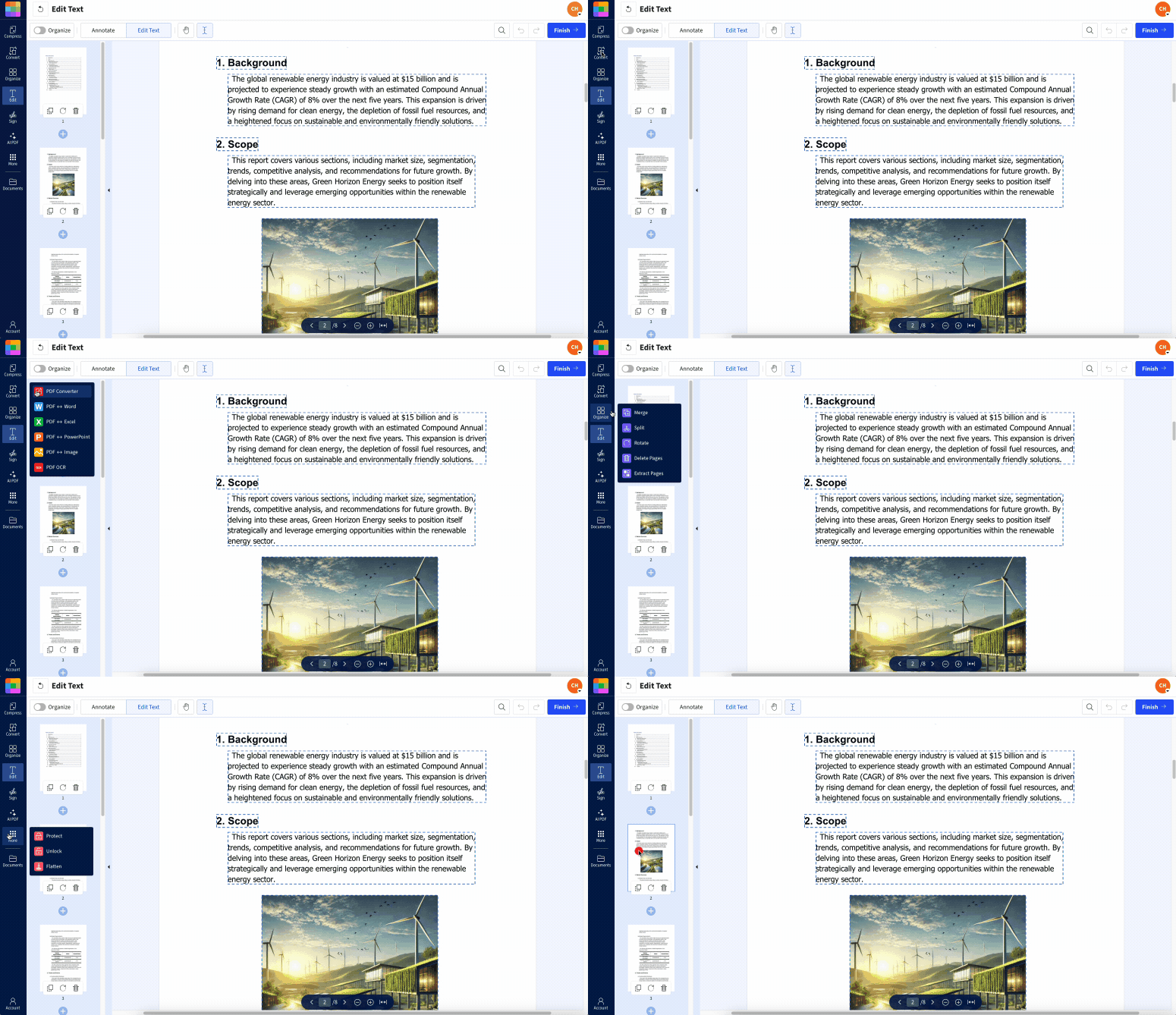
Tip: Use the tools below to upload your PDF and either run OCR, convert it to Word, or edit it while keeping the layout under control.
Once you understand these limits, you can decide when Google Docs is enough and when our features give you a better result.
How Google Docs Handles PDFs
Google Docs does not edit PDFs directly. Instead, it converts the file into a Google Doc that you can edit like any other document. That conversion step is where most layout changes happen.
A few key points about how this works:
Google Docs can open PDFs up to 50 MB in size.
Text-based PDFs usually convert better than scanned or image-only files.
Non-standard fonts are replaced with defaults, which can shift line breaks.
Tables, columns, and graphics may look different from the original PDF.
For quick text changes on simple documents, this is usually fine. For invoices, forms, or design-heavy layouts, a conversion-based workflow is more fragile.
How To Open a PDF in Google Docs (Step-By-Step)
Google Docs makes it easier by offering a way to upload, open, and even adjust PDFs. While it’s not a full-on editing powerhouse, it’s super handy for quick fixes or tweaks.
Here’s how:
Step 1: Upload Your PDF To Google Drive
Google Docs only works with files stored in Google Drive, so start there.
Go to Google Drive and sign in with your Google account.
Create a folder for PDFs so you can keep edits organized, if desired.
Click “New” > “File Upload.”
Select your PDF and wait for the upload to complete.
You can also drag and drop the PDF from your desktop into the Drive window. Once the upload finishes, confirm you can see the file in the correct folder.
Step 2: Open The PDF With Google Docs
Next, you convert the PDF into an editable Google Doc.
In Google Drive, right-click your PDF.
Choose “Open With” > “Google Docs.”
Wait while Google converts the file into a new document.
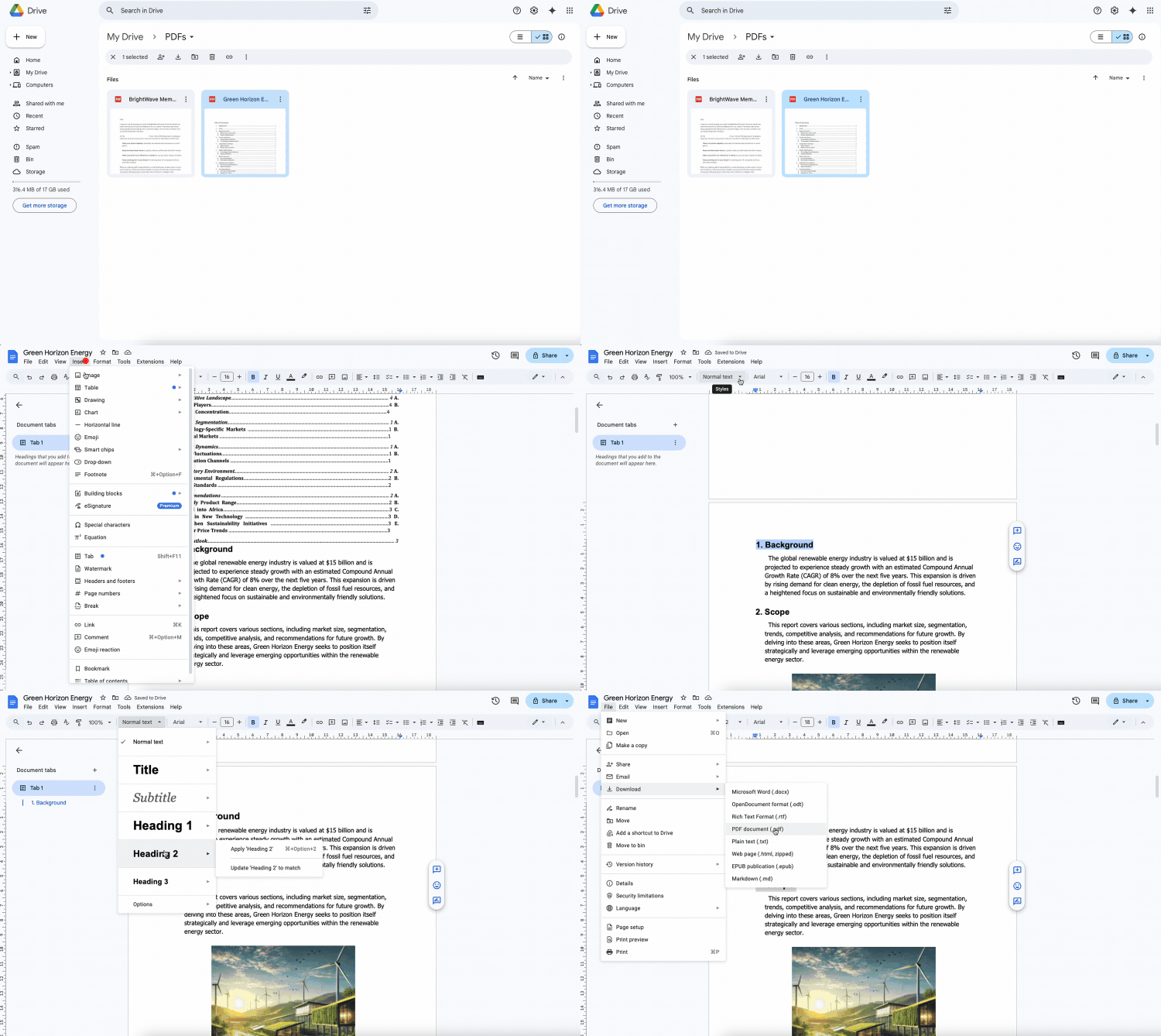
A new tab opens with the converted Google Doc. Your original PDF stays in Drive as a separate file, so you always have a backup.
If nothing happens, check your internet connection or refresh Drive. If Google Docs shows an error, your file may be too large or restricted.
Step 3: Edit, Download, or Share Your File
Once the file opens in Google Docs, you can edit it like any other document.
Click into the text and start typing to fix or add new content.
Change fonts, sizes, or colors using the toolbar.
Insert or remove images, but be ready to reposition them.
When you are finished:
To keep working in Docs, just close the tab. Changes save automatically.
To create a new PDF, go to “File” > “Download” > “PDF Document.”
To share, click “Share” in the top right and send a link or invite collaborators.
If you want to combine your updated file with other PDFs, download the PDF and use Merge PDF to put everything into a single document and reorder pages if needed.
Editing Limitations in Google Docs
Google Docs is very handy, but it’s not a full PDF editor. Knowing what it does well helps you avoid surprises.
What Usually Converts Well
Simple text in a single column
Standard fonts such as Arial or Times New Roman
Basic bullet or numbered lists
Short documents without many images or tables
What Often Breaks Or Changes
Complex tables with merged cells or heavy formatting
Multi-column layouts, sidebars, or text boxes
Forms with interactive fields or checkboxes
Special characters, scripts, and complex styling
When these elements convert, you might see misaligned text, broken tables, or images scattered in unexpected places. At that point, it often makes more sense to use the Smallpdf PDF to Word or Edit PDF instead of fighting the layout inside Google Docs.
Google Docs vs. Smallpdf: PDF Editing Options
| Feature | Google Docs | Smallpdf Features |
|---|---|---|
| How it works | Converts PDF to an editable Google Doc | Edits the PDF directly or converts to Word |
| Best for | Light text edits on simple, text-based PDFs | Layout-sensitive documents and professional exports |
| Formatting preservation | Limited, often changes layouts and fonts | High, especially via Edit PDF or PDF to Word |
| Scanned PDFs | Basic, inconsistent OCR | Advanced OCR with better accuracy |
| Forms and annotations | No native PDF form support | Add comments, shapes, signatures, and form elements |
| Batch processing | One document at a time | Handle multiple files in one workflow |
| Output formats | Google Docs, PDF, and standard downloads | PDF, Word, PPT, JPG, and more |
Use Google Docs to change text, and use our features when you care about how the PDF looks.
When To Use Smallpdf Instead of Google Docs
If you keep running into formatting issues in Google Docs, switching tools can save you a lot of time.
You might prefer our features when:
You must preserve exact layouts, fonts, and spacing.
You are working with scanned PDFs that need proper OCR.
You need to combine, split, or reorder PDF pages.
You want to add signatures, annotations, or form fields.
For example:
Use PDF to Word for a high-quality, editable DOCX version of complex PDFs.
Use Edit PDF to adjust text, images, and layout directly inside the PDF.
Use Unlock PDF before uploading if your file has simple password protection.
Use Compress PDF to shrink large files before you upload them to Drive.
If you install the Google Workspace app for Smallpdf, you can even open a PDF from Google Drive into these features without uploading it again.
Troubleshooting: When Google Docs Won’t Open or Edit Your PDF
Sometimes Google Docs doesn’t do what you expect. Here are common issues and ways to fix them.
1. Google Docs Says the File Is Too Large
Check the file size in Google Drive. Google Docs only opens PDFs up to 50 MB.
If the file is larger, run it through Compress PDF to reduce the size.
Try splitting a huge PDF into sections with Split PDF, then edit each part.
2. Layout Looks Broken After Opening
If columns, tables, or images look wrong, remember that Docs converted the layout.
Try converting the PDF to Word with PDF to Word, then open the DOCX in Docs.
For precise control, skip Google Docs and edit the layout directly with Edit PDF instead.
3. You Can’t Select or Edit Any Text
If you cannot highlight text in the original PDF, it’s likely scanned or image-only.
Run the file through OCR so the content becomes searchable text.
After OCR, you can either convert to Word or reopen the new PDF in Google Docs.
4. Google Docs Won’t Open the PDF at All
Make sure the file is in Google Drive, not just on your computer.
Check if the document is password-protected or restricted.
If you have permission, use Unlock PDF to remove simple restrictions.
Upload the unlocked version, then try “Open With” > “Google Docs” again.
How Google Docs and Smallpdf Work Best Together
You don’t have to choose one approach forever. Many workflows use both.
A simple pattern looks like this:
Use Google Docs when you need to fix a few lines of text in a simple PDF.
Use PDF to Word when you need a fully editable document with better layout control.
Use Edit PDF when you want to stay in PDF format and maintain precise design.
Use Merge PDF, Split PDF, and Compress PDF to organize and optimize the final files.
This way, you keep the convenience of Google Docs for quick edits and rely on Smallpdf features when accuracy and presentation matter most.
Open in Docs, Polish With Smallpdf
While Google Docs offers a free way to open and make basic edits to PDFs, Smallpdf provides professional tools for when you need precise control.
Use Google Docs for quick text changes, then polish your work with Smallpdf‘s advanced features when you need that extra level of quality. (the combo works great)
You’re all set to open a PDF in Google Docs, make edits, and share. Give it a try, and see how easy managing PDFs can be!
Frequently Asked Questions
Why can’t I insert a PDF into Google Docs?
Google Docs doesn’t embed PDFs directly into an existing document. Instead, it converts the PDF into a separate Google Doc. If you need to combine PDFs, download the files and use Merge PDF to create a single document.How do I make a PDF compatible with Google Docs?
Keep the layout simple. Text-based PDFs with standard fonts and a single column work best. Avoid heavy graphics, and remove password protection with Unlock PDF before you upload. For complex files, convert to Word first using PDF to Word, then open the DOCX in Docs.How do I move a PDF into a Google Doc?
First, upload the PDF to Google Drive. Then right-click it, choose “Open With” > “Google Docs,” and let the conversion finish. That creates a new Google Doc version while leaving the original PDF unchanged in your Drive.How do I get Google to open PDF files?
Upload the PDF to Google Drive, then open it from there. On desktop, right-click and pick “Open With” > “Google Docs.” On mobile, use the Google Drive app to preview PDF files, or open them in Docs when the option appears.Why won’t my PDF open in Google Docs?
Common reasons include a file that’s too large, password protection, or corrupted content. Check the size limit, remove simple protection using Unlock PDF if you can, and try re-uploading. If the file still fails, use our features to convert it to Word and edit from there.Can I edit a scanned PDF in Google Docs?
Google Docs has basic OCR capabilities, but they can be inconsistent, especially on low-quality scans. For better results, run the PDF through PDF to Word with OCR, review the converted text, and then decide if you want to keep editing in Word, Docs, or as a new PDF.What is the file size limit for PDFs in Google Docs?
Google Docs supports PDFs up to 50 MB. Larger files need to be compressed or split before you upload them. Compress PDF helps reduce size without losing readability, and Split PDF lets you break big documents into smaller, more manageable parts.Convert PDFs for easier Google Docs editing with Smallpdf Pro
