- Home
- ›
- ›Bold Text Disappears While Converting PDFs & Google Docs/MS Word
Bold Text Disappears While Converting PDFs & Google Docs/MS Word
Bold text disappearing when you export Word or Google Docs to PDF? Here’s why it happens and 3 proven fixes to get your formatting back.
More on Word to PDF
More on PDF to Word
More on PDF Converter
Your Word or Google Doc looks perfect, until you export it as a PDF and suddenly all your bolded text vanishes. This issue usually comes down to how fonts are handled during export, especially when bold styling is simulated, fonts aren’t embedded correctly, or viewers render text inconsistently.
Below, we’ll walk through the most common causes, show you how to fix the problem in Word and Google Docs, and share simple prevention steps so it doesn’t happen again.
If you already have a PDF with missing bold text, Smallpdf’s Edit PDF also lets you correct the formatting directly, without redoing the original file.
Quick Fix to Restore Missing Bold Text in a PDF
If your bolded words are gone from a PDF after export, this is the fastest way to fix it:
Open the PDF in Smallpdf’s Edit PDF.
Select the Text tool and add the missing text where needed.
Apply a real bold font weight and adjust size and placement.
Download the updated PDF with bold text restored.
You can then move on to the sections below to understand why this happens and how to prevent it next time when exporting from Word or Google Docs.
Quick start: Use the editor below to upload your PDF and reapply bold text with the Text tool.
PDF Bold Not Showing: Common Causes Explained
When you save a Word doc or Google Doc as a PDF, bold formatting can disappear because of:
Faux bold: Simulated bold that isn’t a real font weight, just a visual effect that doesn’t export properly
Font embedding issues: Unsupported or unembedded fonts that get substituted during export
Corrupt font installations: Missing or damaged font files on your device
Viewer-specific problems: Cache issues or rendering errors in different programs
Font substitution: Your system replacing fonts with similar ones that lack bold variants
This issue affects users on both Windows and Mac, especially those using custom fonts or older Word versions. Even basic fonts like Arial or Times New Roman may cause issues if bold isn’t correctly applied.
Fix PDF Bold Not Showing in Microsoft Word
Word-specific issues often stem from how the program handles font weights and export settings. Here are three proven methods to fix missing bold text when converting from Word to PDF.
Use Real Bold Font Weights (No Faux Bold)
Select your bold text in Word.
Right-click and choose “Font” from the menu.
In the Font dialog, check the “Font style” dropdown. If it shows “Bold” but the preview looks thin, your font doesn’t have a real bold variant.
Switch to a font family that includes true bold weights like Arial, Times New Roman, or Calibri.
Apply bold formatting again using Ctrl+B (Windows) or Cmd+B (Mac).
Embed Fonts When Exporting to PDF
Go to “File,” then “Options,” then “Save” in Word.
Click “PDF/XPS Options” or “Publish Options.”
Check “Embed fonts in the file” and select “Embed all characters.”
Choose “Save as PDF” instead of “Print to PDF” to preserve more formatting.
Export your document and check if bold text now appears correctly.
Reinstall or Replace Problematic Fonts (TTF vs OTF)
Open your system’s font folder (Windows: “Settings,” then “Fonts.” Mac: “Font Book”).
Search for the font you’re using and check if both regular and bold variants are installed.
If only the regular version exists, download the complete font family from Google Fonts or the font creator.
Install both TTF and OTF versions if available. OTF often handles bold weights better
Restart Word and try exporting again.
Fix Missing Bold When Exporting from Google Docs
Google Docs uses web fonts that don’t always translate perfectly to PDF. Here’s a 4-step troubleshooting process:
Switch to a Google Fonts alternative: Replace custom fonts with Roboto, Open Sans, or Lato. These have reliable bold variants.
Clear your browser cache: Old cached fonts can interfere with proper rendering during export.
Try a different browser: Chrome typically handles Google Docs exports better than Firefox or Safari.
Use “Print” instead of “Download”: Go to “File,” then “Print,” then “Save as PDF” for better font preservation.
If bold text still appears lighter or normal-weight, the issue is likely font substitution. Your system is replacing the web font with a similar one that lacks bold variants.
Make Text Bold in a PDF With Smallpdf
The easiest fix is to open your exported PDF in Smallpdf’s Edit PDF tool and reapply bold formatting manually. It only takes a minute.
Here’s how.
Step 1: Export the File as a PDF
In Microsoft Word, go to “File,” then “Save As,” and choose “PDF.”
In Google Docs, go to “File,” then “Download,” and select “PDF Document (.pdf).”
If the bold text disappears at this stage, don’t stop. That’s expected in some cases, and it’s easy to fix in the next step.
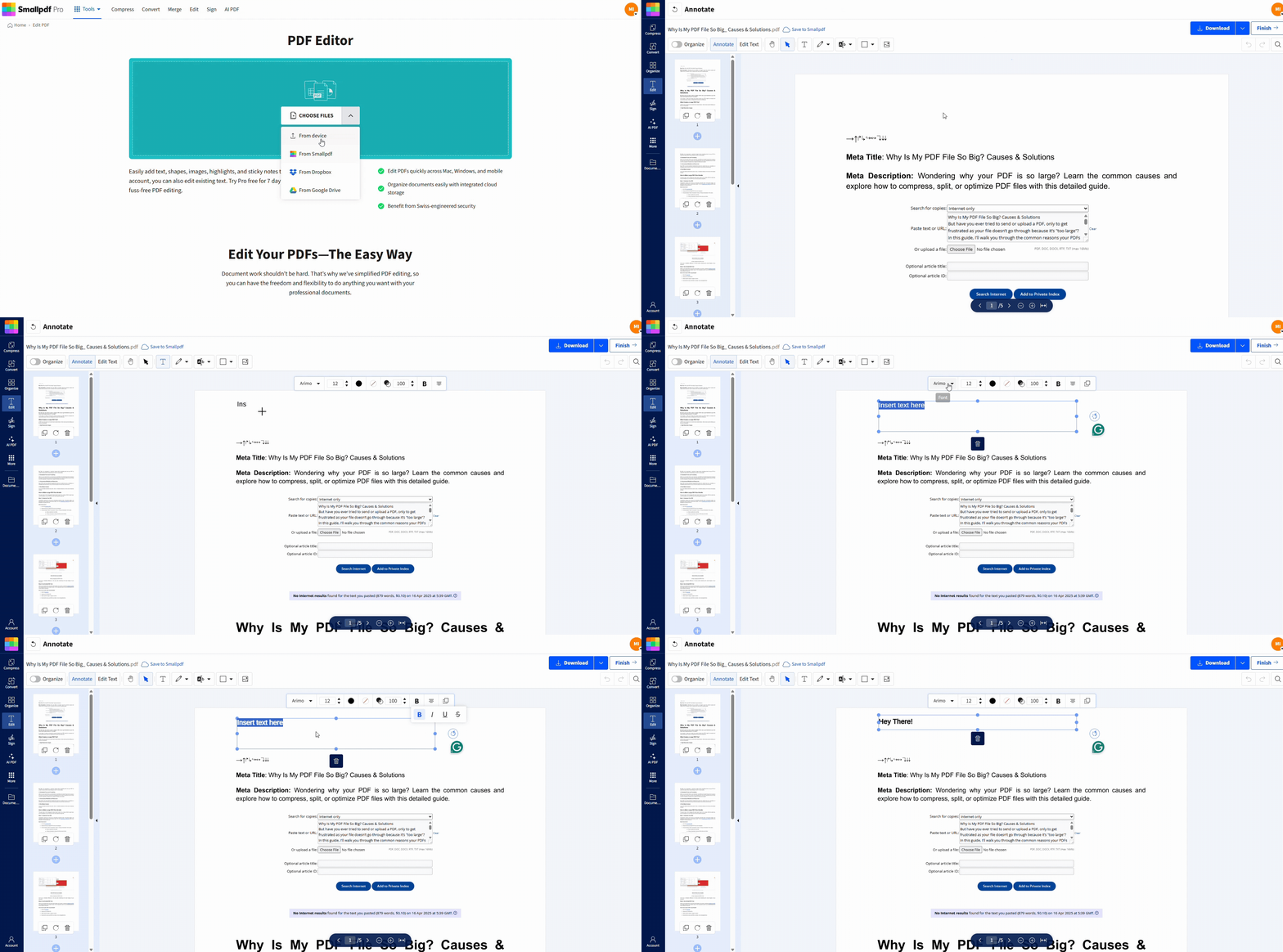
Step 2: Fix the Missing Bold Text Using Smallpdf
Open the PDF in Smallpdf’s Edit PDF.
Drag and drop the file or click “Choose File.” The PDF will load and be ready for editing.
Select the “Text” tool in the toolbar and type the text you want to correct, matching the original wording.
Highlight the text and apply a real bold font weight using the font dropdown or click the bold “B” in the toolbar.
Adjust the font size and position so the text lines up with the original layout. If needed, use the color picker to ensure the text prints clearly.
If you’re working with a form or document where your signature appears faint or a fillable field drops bold formatting, add a new text box where your name or value should be. Then, type the content, apply bold, and delete the original faded field. This works well for government forms, contracts, or any application where bold is legally required.
Smallpdf also preserves any existing hyperlinks in your document, so you won’t lose clickable elements when fixing font issues.
Prevention: How To Avoid Losing Bold When Converting to PDF
The best fix is preventing the problem altogether. Here’s your prevention checklist:
Use fonts with real bold weights: Stick to Arial, Times New Roman, Calibri, or Google Fonts that include bold variants.
Enable font embedding: Always check “embed fonts” in your export settings.
Choose “Save as PDF” over “Print to PDF”: Save as PDF preserves more formatting than printing to PDF.
Test before finalizing: Open your exported PDF in your browser to verify bold text appears correctly.
Install complete font families: Download both regular and bold versions of any custom fonts you use.
Avoid faux bold: If pressing Ctrl+B doesn’t make text noticeably bolder in your editor, the font lacks a real bold variant.
Quick test: After exporting, hit Ctrl+P (Windows) or Cmd+P (Mac) and check the print preview. If bold text looks faint there, it’ll print faint too.
Why Smallpdf Helps Fix Fonts Fast (and OCR Benefits)
Re-exporting usually won’t help if the font itself is the problem. Even if you troubleshoot every setting, Word and Google Docs can’t override missing or substituted bold weights in the exported file. With Smallpdf, you:
Manually reapply bold with real font control that works across all devices.
Use supported bold fonts that display correctly in any PDF viewer.
Work in your browser without installing anything.
Fix formatting fast, even if the original tool failed.
Smallpdf’s also OCR keeps your PDFs searchable even after editing, and our cross-platform compatibility means your fixes work whether colleagues open files on Windows, Mac, or mobile. Teams processing hundreds of documents save hours compared to re-exporting.
Still Having Issues After Fixing Bold Text?
In most cases, reapplying bold formatting in Smallpdf’s Edit PDF resolves the problem. If you’re still seeing issues, one of the situations below is usually the cause.
The PDF is Scanned, Not Editable Text
If the file started as a scan, the text isn’t actually text yet. That means bold formatting can’t be applied until the document is converted using OCR. Once OCR is enabled and the text becomes editable, you can reapply bold formatting normally.
The PDF is Locked or Restricted
Some PDFs prevent editing or font changes. If you can’t select or edit text at all, the file may be password-protected or restricted. You’ll need to unlock the PDF before changes can be applied.
The Bold Text Shows on Screen But Still Won’t Print
If PDF bold text isn’t printing correctly, the issue is often tied to font embedding or how your printer driver handles fonts. Try opening the file in a different PDF viewer and check the print preview before printing again.
The Font Still Doesn’t Look Bold Enough
If bold text appears lighter than expected, the original font may not include a true bold weight. Even after editing, the PDF may substitute a similar font. Switching to a standard font with a proper bold variant usually resolves this.
The Issue Came From The Original Export
If the problem started during export—for example, when a Word PDF export doesn’t show bold—fixing the PDF directly is usually faster than re-exporting. However, for future files, embedding fonts and avoiding simulated bold will prevent the issue from recurring.
Start Your Free Trial to Fix PDF Font Issues
Whether you’re dealing with faded signatures, missing bold headers, or form fields that lost their formatting, Smallpdf’s Edit PDF tool gets you back on track fast. Try it free, with no credit card required.
Stop wasting time re-exporting documents that still won’t display bold correctly. Fix the formatting issue directly in your PDF and get print-ready results in minutes.
Want to Fix Missing Bold Text in Your PDF?
Frequently Asked Questions
Why does bold text disappear when converting Word or Google Docs to PDF?
This usually happens because the font doesn’t have a true bold weight, isn’t embedded correctly, or gets substituted during export. When a Word PDF export doesn’t show bold, it could be that the bold styling you see on screen is simulated rather than a real font weight, so it doesn’t carry over into the PDF.How can I prevent bold text from disappearing in future PDFs?
Use fonts that include real bold variants, enable font embedding when exporting, and always choose Save as PDF instead of Print to PDF. This is the easiest way to avoid issues where a bold font doesn’t save when exporting a Word document to PDF.Why does bold text look fine on screen but not when printed?
The reason PDF bold text doesn’t print as expected is because the PDF viewer is likely struggling to render the font correctly. This could be because fonts aren’t embedded or bold weights are missing.Can I fix missing bold text without re-exporting the original file?
Yes. If the source document is already final and your bolded words are gone from the PDF, you can open the file in Smallpdf’s Edit PDF and manually reapply bold formatting using a supported font. This avoids redoing the document and works even when the original font is the problem.Does this problem affect scanned PDFs as well?
Yes. Scanned PDFs don’t contain real text, so bold formatting can’t be fixed until the file is converted into editable text using OCR. Once the text is recognized, you can edit the content and reapply bold formatting like any other PDF.Preserve bold formatting during conversions with Smallpdf
Related Articles
