- Home
- ›
- ›Convert HTML to PDF Without Losing Formatting: Fix Common Issues
Convert HTML to PDF Without Losing Formatting: Fix Common Issues
Learn how to convert HTML to PDF without losing formatting, and fix common issues like broken layouts, missing fonts, and awkward page breaks.
More on HTML to PDF
More on PDF Converter
More on Edit PDF
You can convert HTML to PDF without losing formatting by saving a clean PDF in your browser and then fixing layout issues with Smallpdf PDF to Word.
In this guide, we’ll show you how HTML and PDF handle layouts differently, how to capture a good starting PDF from a webpage, and how to repair problems so the final document looks professional.
Quick Summary: Convert HTML to PDF Without Losing Formatting
Once you follow this process a couple of times, your converted PDFs will look much closer to your original design.
Why HTML to PDF Loses Formatting
HTML and PDF see the world very differently. HTML is flexible and responds to screen size, zoom level, and device. If you change the width of the browser window, elements can move, wrap, or resize.
PDF is fixed. Every element has a position, and that position does not change. When you print or export HTML to PDF, the browser or converter has to “freeze” a flexible layout into a fixed page.
That shift can cause:
Styles that do not apply as expected
Page breaks that cut paragraphs or tables in half
Fonts that change because they are not embedded
Images that shift or resize in strange ways
Tables that overflow or lose their structure
Understanding these differences helps you decide what to fix in HTML and what to adjust after conversion.
How To Convert HTML to PDF Without Losing Formatting: Step-By-Step Guide
Smallpdf doesn’t convert HTML files directly to PDF. Instead, you capture the HTML as a PDF with your browser or system print dialog, then use Smallpdf PDF to Word to clean and refine the result.
Step 1: Save Your HTML or Webpage as a PDF
Start by turning your webpage or HTML file into a basic PDF in your browser.
Open your HTML file or webpage in Chrome, Edge, Firefox, or another modern browser.
Press “Ctrl+P” on Windows or “Cmd+P” on Mac to open the print dialog.
Set the destination or printer to “Save as PDF.”
Adjust layout options such as page size, orientation, and margins.
Click “Save” and choose where to store the PDF on your device.
This gives you a starting PDF that captures the page structure. Next, you’ll refine it.
Step 2: Convert The PDF to Word With Smallpdf
Now you can turn that PDF into an editable document so you can fix the layout.
Head over to the Smallpdf PDF to Word converter.
Upload the PDF you just created in the converter area below to turn it into an editable Word file.
3. Select Word (.docx) as the output format.
4. If available, choose “Convert selectable text only” for cleaner text.
5. Wait for the conversion to finish, then download the Word file.
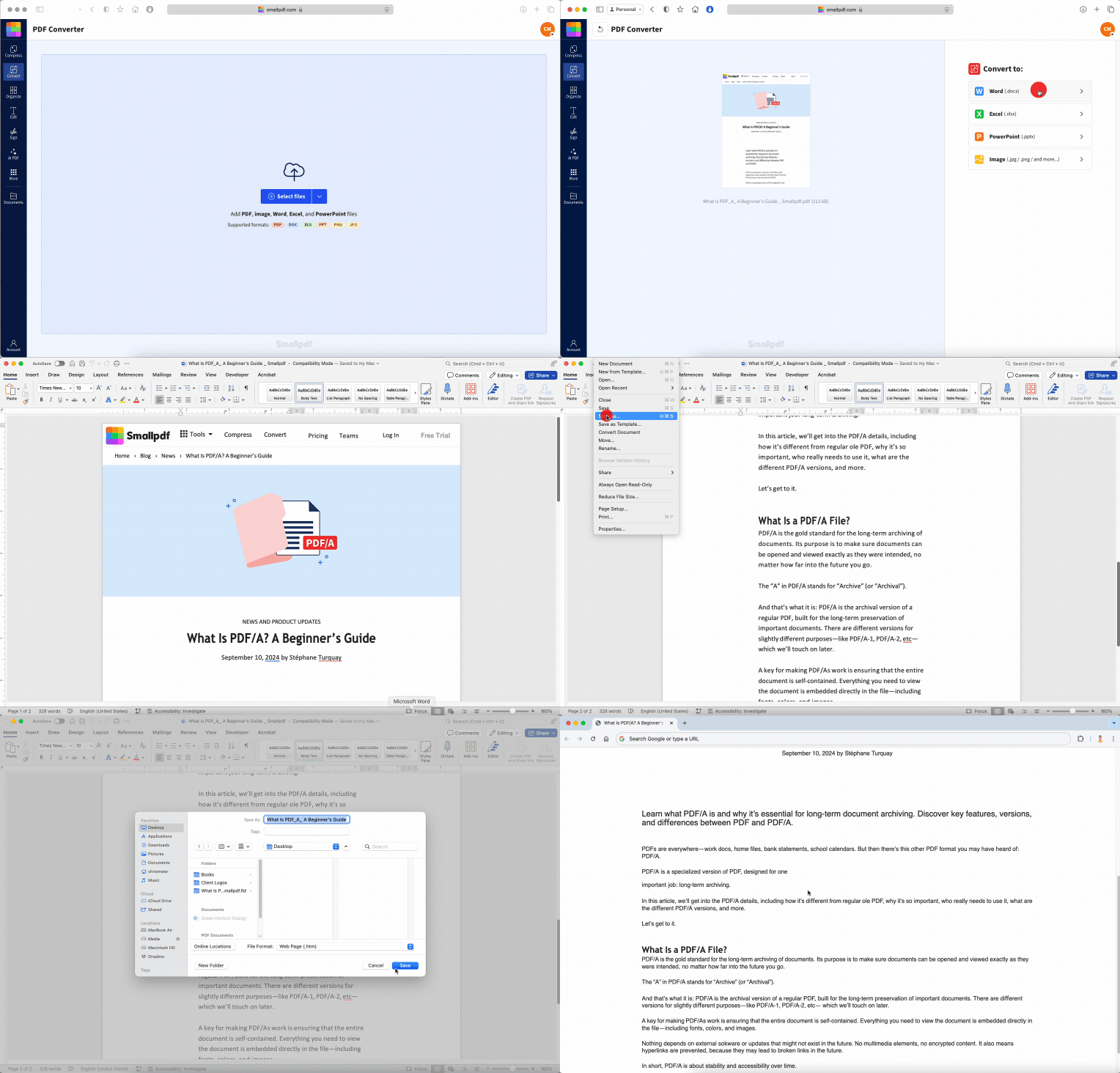
You can upload from your device or connect to Google Drive, Dropbox, or OneDrive if your file lives in the cloud.
Step 3: Clean up Layout and Formatting in Word
Next, open the converted file in your preferred editor and polish the layout.
Open the Word document in Microsoft Word, Google Docs, LibreOffice, or Pages.
Remove headers and footers you do not need, such as URLs, dates, and page counts.
Delete navigation bars, menus, banners, ads, and other elements that made sense on the webpage but not in a PDF.
Fix margins, font type, font size, and heading levels so the document feels consistent.
Resize and reposition images, charts, and tables that were moved during conversion.
You now have a clean, editable version that reflects your HTML content but works like a regular document.
Step 4: Export Back to PDF and Refine With Smallpdf
When the layout looks right, create your final PDF.
In Word or your editor, choose “Save as” or “Export” and select PDF.
Check the export settings so fonts embed correctly and the page size matches your needs.
Save the new PDF.
This two-stage method (browser to PDF, then PDF to Word and back) gives you far more control than a quick one-click conversion.
Techniques To Prevent Common HTML to PDF Issues
You can reduce the amount of cleanup by improving your HTML and CSS before you export.
1. Structure HTML for Predictable PDFs
A clear document structure helps the browser decide how to place elements on the page.
Use “<h1>” to “<h6>” for headings instead of styling regular text.
Wrap text in “<p>” tags so paragraphs break in logical places.
Use “<table>,” “<thead>,” “<tbody>,” and “<th>” correctly for tabular data.
Give images and tables fixed or max widths so they do not overflow.
The closer your HTML is to clean, semantic markup, the easier your PDF will be to edit later.
2. Control Page Breaks With CSS
Long pages often break at awkward points during printing. You can guide this behavior with CSS. For example:
h2 {
page-break-before: always;
}
.section-break {
page-break-after: always;
}
Properties like “page-break-before” and “page-break-after” help you keep headings, tables, or images together instead of splitting them across pages.
3. Keep Fonts and Spacing Stable
Fonts and spacing can shift during conversion if they are not defined clearly.
Use common web-safe fonts such as Arial, Verdana, Helvetica, Times New Roman, or Garamond when possible.
If you rely on a custom font, include it with “@font-face,” so the browser knows how to render it.
Set “line-height,” spacing, and margins for headings and paragraphs in your CSS.
These small adjustments help your exported PDF match the original HTML more closely.
How To Fix HTML to PDF Formatting Issues After Conversion
Even with good preparation, some formatting problems only show up once you see the PDF. You can still fix them using the same PDF to Word workflow.
1. Fix Broken Layouts and Misplaced Elements
If sections feel out of order or elements overlap:
Convert the PDF to Word.
Recreate a simple, logical order for headings and paragraphs.
Move or resize images and tables that ended up in the wrong spot.
Consider breaking one long HTML page into several shorter documents before exporting next time.
This approach keeps your content intact while improving readability.
2. Repair Font and Spacing Problems
If fonts change or text spacing looks uneven:
Open the converted Word document.
Select all text and set a single base font and size.
Apply consistent heading styles instead of manual formatting.
Adjust paragraph spacing and line height so the text feels balanced.
Once everything looks good in Word, export again to PDF for a clean final version.
3. Remove Unwanted Web Elements
Headers, footers, cookie banners, and sidebars often appear in the exported PDF.
Locate and delete any elements that only make sense on the web.
Keep the body content, titles, and any images that matter for the final document.
If you often convert pages from the same site, consider a print stylesheet that hides navigation and ads before you print to PDF.
These small edits can dramatically improve how professional your PDF feels.
Converting PDF to HTML Without Losing Formatting
Turning a PDF into HTML is possible, but the result depends heavily on the converter and the original layout. Many quick converters produce HTML that looks right in a browser but is difficult to maintain.
If you want a real webpage, ask yourself what you need most:
For simple sharing, link directly to the PDF.
For browsing inside a site, embed the PDF in a viewer.
For a long-term webpage, rebuild the layout in HTML and CSS using content from the PDF.
You can still use Smallpdf PDF to Word to extract text and images to Word first, then copy them into your HTML project. That way, you are working with clean content instead of a complex auto-generated layout.
Do More With Your Converted PDFs in Smallpdf
Once you have a polished PDF, you can keep working with it in Smallpdf.
You can:
Merge several PDFs into a single file with Merge PDF.
Reduce file size with Compress PDF so it is easier to email or upload.
Edit text boxes, shapes, and images with Edit PDF when you need light corrections.
Add signatures and dates with eSign for contracts and approvals.
Convert PDFs back to Word, PowerPoint, or Excel with PDF Converter when you need to reuse content.
Everything runs in your browser, so you can handle your full HTML to PDF workflow without extra desktop software.
Frequently Asked Questions
How do I convert HTML to PDF without losing formatting?
First, open the HTML page in your browser and print it to a PDF using “Save as PDF.” Then upload that PDF to Smallpdf PDF to Word and convert it so you can clean up fonts, spacing, and images. When the document looks right, export it back to PDF for a polished, shareable file.How to keep formatting when converting to PDF?
Use clean, structured HTML with proper headings, paragraphs, and tables, and define fonts, line height, and margins in your CSS. During printing, choose the right page size and orientation and preview the layout before saving. If something still looks off, convert the PDF to Word with Smallpdf, fix the layout, and export again.How to convert PDF to HTML format?
You can use online converters to turn a PDF into HTML, but the code may be complex and hard to maintain. A more controlled approach is to convert the PDF to Word, copy the text and images, and rebuild the layout in HTML and CSS. This keeps your final page clean, responsive, and easier to edit.How do I fix formatting issues when converting a PDF to Word?
Upload your PDF to Smallpdf PDF to Word. After downloading, open the Word file and adjust headings, fonts, spacing, and page breaks just like any other document. If the original PDF was well structured, the converted Word file will be easier to tidy up.How to smoothly convert PDF to Word?
Use a converter that preserves structure and text quality, like Smallpdf PDF to Word. Make sure your PDF has selectable text, not just images of text, then convert it to Word and check the result. You can then quickly correct any minor layout issues and save the document for future edits.How to fix file conversion error?
First, confirm that the file opens normally on your device and is not corrupted. If it looks fine, try uploading it again with a stable connection, or reduce the size with Compress PDF before converting. If the problem continues, create a fresh PDF from the source application and run the conversion on that new copy.Convert HTML files into well-formatted PDFs using Smallpdf Pro
Related Articles
