How to Summarize Your Invoices Using AI
Need a summary invoice fast? Upload your invoice to Smallpdf AI PDF Summarizer and pull totals, dates, and vendor details without reading every line.
Document Workflow Guides
PDF Sharing Tool & Guides
More on Smallpdf Extensions
Invoices are packed with details, but most of the time you only need a few fields. Think invoice number, due date, total, tax, and who to pay.
A good AI summary helps you confirm those details quickly, then move on with approvals, bookkeeping, or reimbursements.
Quick note before we start: Smallpdf summarizes and helps you ask questions about your files. It doesn’t replace accounting review, and complex invoices still need a quick human check.
Quick Start: Summarize Invoice Online Now
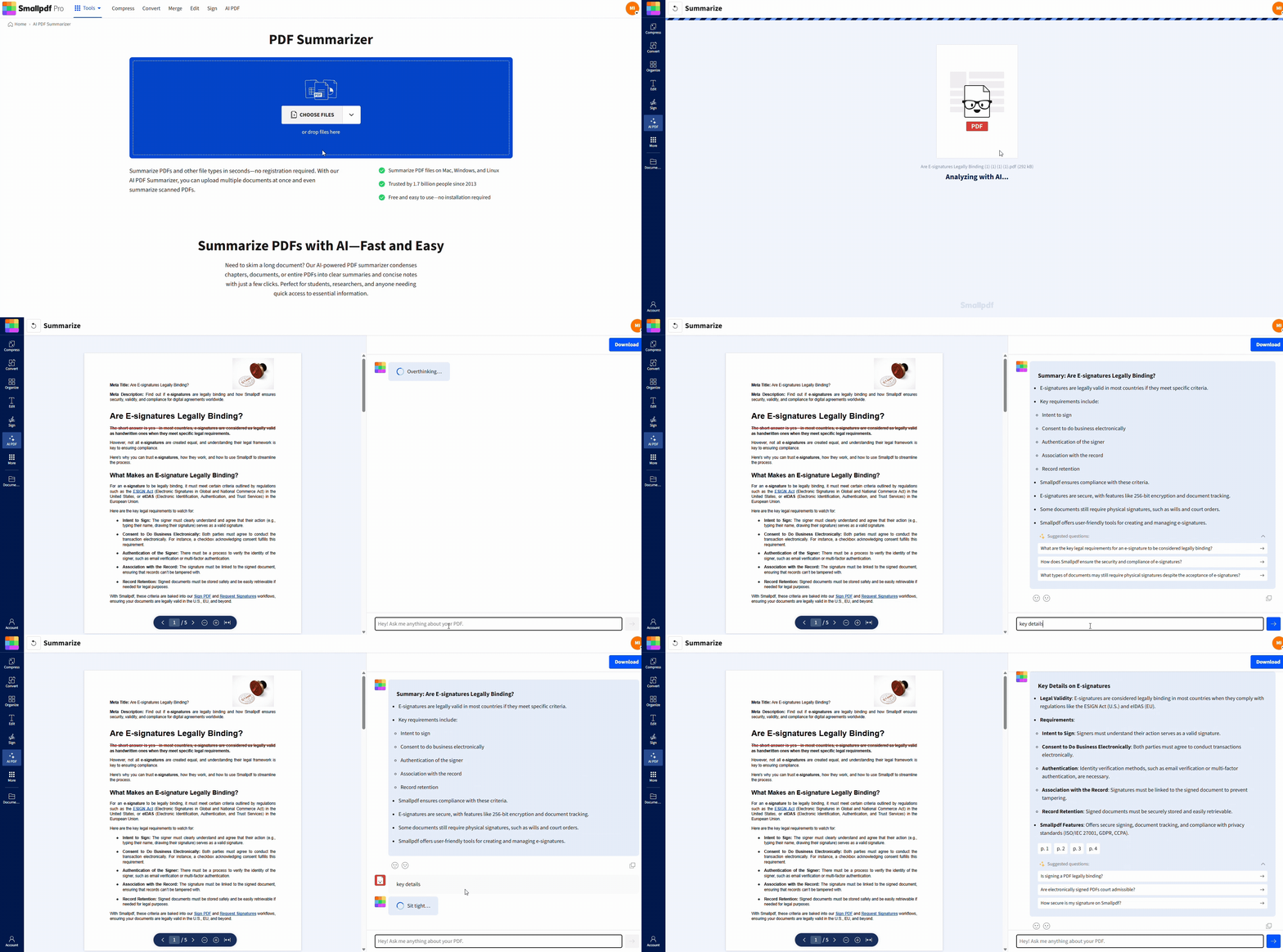
Quick start: Use the AI summarizer below to upload your invoice and get a quick summary with key details.
What We Mean by a ‘Summary Invoice’
A summary invoice is a short, readable snapshot of the important invoice fields. It’s not a replacement for the original. It’s the version you paste into an approval request, a spreadsheet, or a message to your accountant.
Here’s a simple invoice template you can copy and use.
Summary Invoice Template (Example)
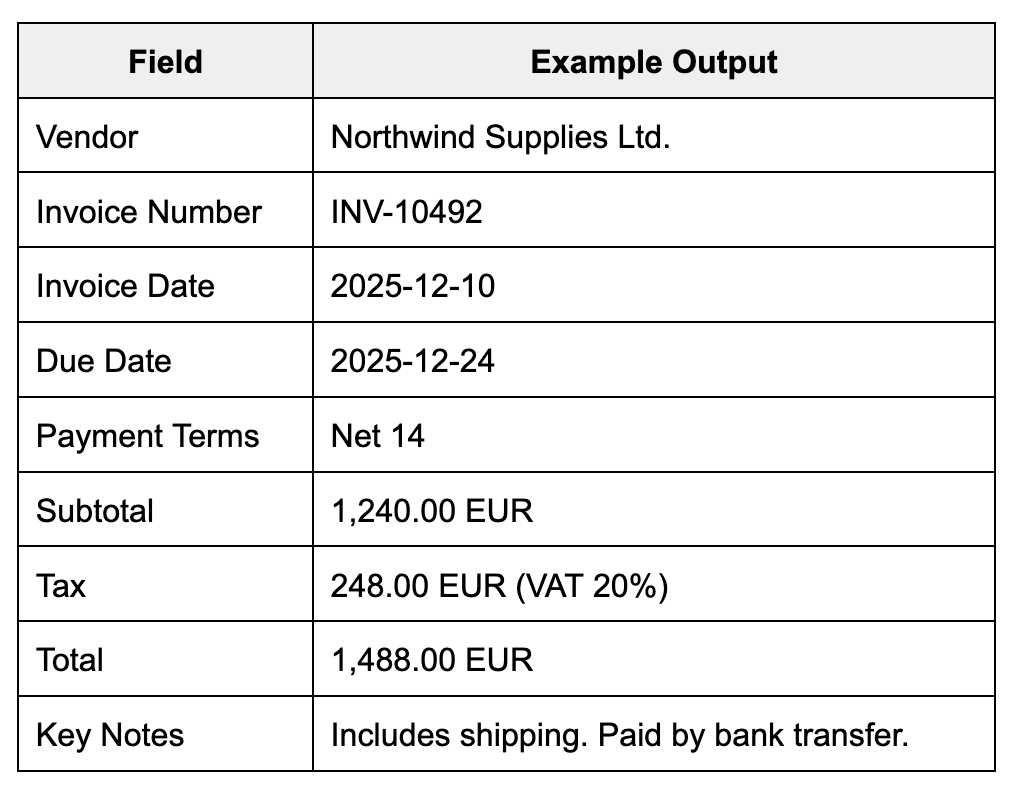
If your invoice has line items, you can add a short ‘Top Line Items’ section with two to five rows. That keeps the summary useful without turning it into a second invoice.
How To Summarize an Invoice With Smallpdf’s AI PDF Summarizer
This workflow is built for speed and clarity. Smallpdf’s AI PDF Summarizer supports multiple file types and includes an AI chat for follow-up questions.
Step 1: Upload Your Invoice
Start by uploading the invoice file, even if it’s not a perfect PDF. The AI PDF Summarizer supports PDFs and other formats, including common image files like JPG and PNG.
Click “Choose Files,” or drag and drop your invoice.
If your invoice is in cloud storage, download it first, then upload.
If it’s a scan, upload it as-is, then check readability in the preview.
Step 2: Review the First Summary
Once the file is processed, you’ll get an overview summary to skim. This is where you confirm the basics.
Focus on these fields first:
Vendor name and invoice number
Invoice date and due date
Total, tax, and currency
Payment terms (Net 7, Net 30, due on receipt)
If something looks off, don’t guess. Use the chat step next.
Step 3: Ask Targeted Questions in AI Chat
Smallpdf includes AI chat so you can pull exact answers without hunting through the page.
Use questions that mirror real work:
‘What’s the total amount due, including tax?’
‘What’s the due date and payment terms?’
‘What bank details or payment instructions are listed?’
‘List the line items and their amounts.’
‘Is there a PO number on this invoice?’
This is also where you handle messy layouts. If totals are split across pages, ask for ‘total due’ and ‘tax amount’ separately.
Step 4: Copy Your Summary Invoice Into Your Workflow
Now turn the output into something you can use immediately.
Copy the summary into your spreadsheet, approval email, or bookkeeping notes.
Paste the key fields into your invoice tracker.
Save the summary text alongside the original invoice for quick retrieval later.
If you’re building a repeatable process, keep the template from earlier and fill it with the AI’s answers. That gives you consistent summaries across vendors.
Why AI Summaries Beat Manual Skimming for Most Invoices
Manual reading works, but it’s slow and inconsistent. AI summaries help you standardize what you capture, especially when you’re handling dozens of invoices in a week.
Here’s a simple comparison that stays practical.
| Method | Best For | Main Tradeoff |
|---|---|---|
| Smallpdf AI PDF Summarizer | Fast summaries + Q&A for key fields | You still verify totals on complex invoices |
| Manual reading | One-off invoices with unusual details | Slow and easy to miss fields |
| Copy-paste into spreadsheets | Clean digital invoices | Formatting breaks and takes time |
| Scan + manual retyping | Paper invoices | Highest effort and error risk |
Smallpdf also works across devices and supports scanned PDFs, which helps when invoices arrive as photos or older scans.
Real-World Examples: How People Use Summary Invoices
These examples show what a good summary looks like in practice, not in theory.
Accountants and Finance Teams
If you’re closing month-end, you’re usually checking consistency, not reading narratives. A summary invoice helps you confirm totals, VAT/GST lines, and due dates quickly, then flag exceptions for review.
A simple pattern that works:
Summarize all invoices from one vendor.
Sort by due date and total.
Pull any invoices with missing PO numbers or mismatched tax lines for follow-up.
Freelancers and Contractors
Freelancers often need invoice summaries for reimbursements, client billing, or tax-time categories. A summary invoice lets you capture the essentials while the expense is still fresh.
Typical use:
Checking: ‘What’s the vendor, date, total, and category?’
Paste the summary into your expense log.
Keep the original invoice PDF for backup.
Small Business Owners and Admins
Approvals move faster when the decision-maker sees the key fields first. A summary invoice becomes your approval slip, while the PDF stays attached for details.
A clean approval message usually includes:
Vendor, total, due date, and payment method
Short note on what the purchase covered
Any tax line (VAT/GST) that matters for filings
Compliance, Audits, and Tax Prep
Invoice summaries help you stay organized, but the original invoice still matters for compliance. Your summary is for review and sorting. Your PDF is the source document.
Where summaries help most:
Audit prep: Consistent fields make it easier to trace payments back to documents.
VAT/GST: Summaries help you separate the subtotal and tax quickly.
Expense claims: Clear dates and totals reduce back-and-forth.
If you’re working with scanned invoices, readability matters. Smallpdf notes it can summarize scanned PDFs, which is useful when your invoices are image-based.
Best Practices and Limitations for Complex Invoice Layouts
AI does best when the invoice text is clear, and the totals are labeled. When invoices get complex, these practices keep your summaries accurate.
Use These Best Practices First
Upload the cleanest version you have, not a screenshot of a screenshot.
If it’s a photo, crop out the desk background and shadows.
Ask for specific fields instead of trusting one long summary.
Confirm currency and total due if the invoice shows multiple totals.
Watch for These Common Layout Issues
Multiple totals: ‘Total,’ ‘Total due,’ ‘Balance due,’ and ‘Amount paid’ can all appear.
Split tax lines: VAT/GST may be shown per line item, then aggregated later.
Multi-page terms: Payment instructions sometimes sit on the last page only.
Unlabeled values: Some vendors put totals in a box with no clear label.
If your invoice has any of these, treat the summary as a fast draft. Then verify against the original PDF before you pay.
Data Security and Privacy for Invoices
Invoices contain sensitive business details. Smallpdf highlights security measures like TLS encryption and ISO/IEC 27001 certification, along with compliance standards like GDPR.
If you’re handling highly sensitive invoices, keep your process tight:
Avoid public Wi-Fi for uploads.
Store summaries in the same secure location as your invoice PDFs.
Troubleshooting: Fix Common Summarization Problems
Invoice formats vary a lot. These fixes handle most issues in a few minutes.
The Summary Missed the Invoice Number or Due Date
This usually happens when labels are unusual or the scan is faint.
Ask AI chat: ‘Find the invoice number and due date exactly as written.’
Upload a clearer scan if the header text is blurry.
Check the first page, then ask again if it’s on page two.
The Total Looks Wrong
Totals can be tricky when discounts, shipping, or partial payments are involved.
Ask: ‘What is the total due today?’
Ask: ‘List subtotal, tax, shipping, and final total separately.’
Confirm the currency symbol and decimal format match the invoice.
The Invoice Is a Photo and Text Isn’t Recognized Well
If the text is fuzzy, the summary will be fuzzy.
Re-scan or re-photograph with better lighting.
Keep the camera flat and avoid glare.
The Invoice Is Very Long and the Summary Feels Incomplete
Long, multi-page invoices often contain repeated sections.
Ask: ‘Summarize page one only,’ then ‘Summarize the line items section.’
Ask for an item count and the top five highest-cost line items.
Split the invoice into smaller PDFs if it’s extreme.
Summarize Invoice Online and Keep Your Records Clean
If you’re tired of digging through invoices for the same five details, a summary invoice workflow saves real time.
Upload your invoice to Smallpdf’s AI PDF Summarizer, confirm the basics, then use AI chat to pull exact fields and paste them into your tracker.
Want to Summarize Your Invoice Now?
Frequently Asked Questions
What is an invoice summary?
An invoice summary is a short version of an invoice that lists key fields like vendor, dates, totals, tax, and payment terms. It helps you review and file faster.Can AI summarize a document like an invoice?
Yes. AI can summarize invoice content and answer questions about key fields, especially when the invoice text is clear. Smallpdf’s AI PDF Summarizer also includes AI chat for follow-up questions.Is there a free AI summarizer for invoices?
Smallpdf’s AI PDF Summarizer can summarize files online without installation. Availability of free usage can depend on limits and product rules at the time you use it.What’s the best way to record invoices after summarizing them?
Use a consistent template and store the summary alongside the original PDF. That way you can sort quickly, then verify details when needed.Can I summarize scanned invoices or invoice photos?
Yes, especially if the scan is readable. Smallpdf states you can summarize scanned PDFs, and it also supports image formats like JPG and PNG.What’s the safest way to summarize invoices online?
Use a service that protects file transfers and has clear retention and privacy practices. Smallpdf outlines TLS encryption, ISO/IEC 27001 certification, and compliance standards in its security materials.Turn invoices into clear summaries for review with Smallpdf Pro
