- Home
- ›
- ›How To Fix Word to PDF Image Quality (2026 Guide)
How To Fix Word to PDF Image Quality (2026 Guide)
Fix Word to PDF image quality issues with a few simple changes to Word and our converter. Keep your photos sharp in every PDF you share or print.
PDF Printing Tips & Guides
More on Edit PDF
More on Word to PDF
If your images look crisp in Word but turn fuzzy or dull in the PDF, the problem usually isn’t the picture itself. It’s the way Word compresses images and how the document is converted. Once you understand those steps, you can control quality instead of guessing.
Below, we walk through quick fixes first, then explain why image quality drops, how to adjust Word’s export settings, and how our Word to PDF feature helps you keep everything sharp.
Quick Fix: Improve Word to PDF Image Quality
If you need better Word to PDF image quality right away, start here. These changes solve most issues in a couple of minutes.
Use Smallpdf Word to PDF Instead of Print to PDF
Printing to PDF from Word often compresses images more than you expect. Our Word to PDF feature preserves the original image resolution so photos and logos stay sharp.
Open Smallpdf Word to PDF in your browser.
Upload your .doc or .docx file in the Word to PDF area below, or import it from Google Drive, Dropbox, or OneDrive.
Wait for the conversion to finish, then download the PDF.
This path avoids the extra compression that Word’s built-in “Print to PDF” can apply to images.
Turn Off Image Compression in Word
Word can reduce image quality as soon as you insert pictures, even before you export.
On Windows:
Go to “File” > “Options” > “Advanced.”
Scroll to “Image Size and Quality.”
Select your document and check “Do not compress images in file.”
Clear “Discard editing data” if it is enabled.
On Mac:
Go to “Word” > “Preferences” > “Save” or “Output and Sharing.”
Look for “Image Size and Quality.”
Turn off “Compress pictures in file.”
This keeps Word from shrinking high-resolution images behind the scenes.
Export at High Quality, Not Minimum Size
When you save as PDF from Word, some options trade quality for smaller file size.
Go to “File” > “Save As” and select “PDF” as the format.
Choose “Standard (publishing online and printing)” or “Optimize for: Print.”
Avoid “Minimum size (publishing online).”
If you still see quality loss after this, use our Word to PDF feature instead of Word’s export.
Why Word to PDF Image Quality Drops
Image quality doesn’t disappear at random. It usually changes because of compression defaults, DPI limits, or the conversion method.
1. Compression Defaults in Word
Word tries to keep file sizes reasonable by compressing images. That can reduce a 300 DPI photo to something closer to screen resolution.
If you insert a large photo and never adjust settings, Word may:
Downsample the image as soon as it is added.
Apply additional compression when you save or print.
Once that happens, the detail is gone. You cannot recover it later inside the same file.
2. DPI and Resampling Basics
DPI, or dots per inch, describes how much detail an image holds when printed.
Around 300 DPI works well for professional print.
Around 150 to 220 DPI is usually fine for screen viewing.
Very low DPI, around 96, can look soft or blocky when printed.
Resampling is what happens when software throws away pixels to shrink a file. After resampling, there are fewer pixels to represent the same space, which is why edges look jagged in the PDF.
3. Conversion Paths Compared
Not all conversion methods treat images the same way.
“Print to PDF” often compresses images heavily to mimic printer output.
“Save As” or “Export to PDF” usually preserves more detail.
Smallpdf Word to PDF keeps the original image resolution and layout where possible.
When in doubt, avoid the options that describe “minimum size” or “publish online only” if your document needs to look polished.
Preserve Image Quality When Converting Word to PDF
Once your images are prepared, the way you convert determines what you keep.
Windows: Export a High-Quality PDF
On Windows, you can reduce quality loss by using the export flow instead of printing.
Open your document in Word.
Go to “File” > “Export” > “Create PDF/XPS.”
Click “Options.”
Under “Optimize for,” choose “Standard (publishing online and printing)” or “Print.”
Confirm that “Bitmap text when fonts may not be embedded” is not selected unless required.
Click “OK,” then “Publish.”
This uses Word’s higher-quality export routine instead of the printer path.
Mac: Save a High-Quality PDF
On Mac, options can vary between versions, but you can still aim for print quality.
Open your document in Word.
Go to “File” > “Save As.”
Pick “PDF” as the file format.
If you see a quality selector, choose “Best for printing” or similar.
Save the file.
If those options are limited or you still see issues, upload the same document to Word to PDF on our site for a cleaner result.
Use Smallpdf on Web or Mobile
Our converter works in a browser, on desktop, and in the mobile app. That gives you a consistent path to high quality.
Go to Smallpdf Word to PDF on web or in the app.
Use the Word to PDF area below to add your file by dragging it in, or import it from cloud storage.
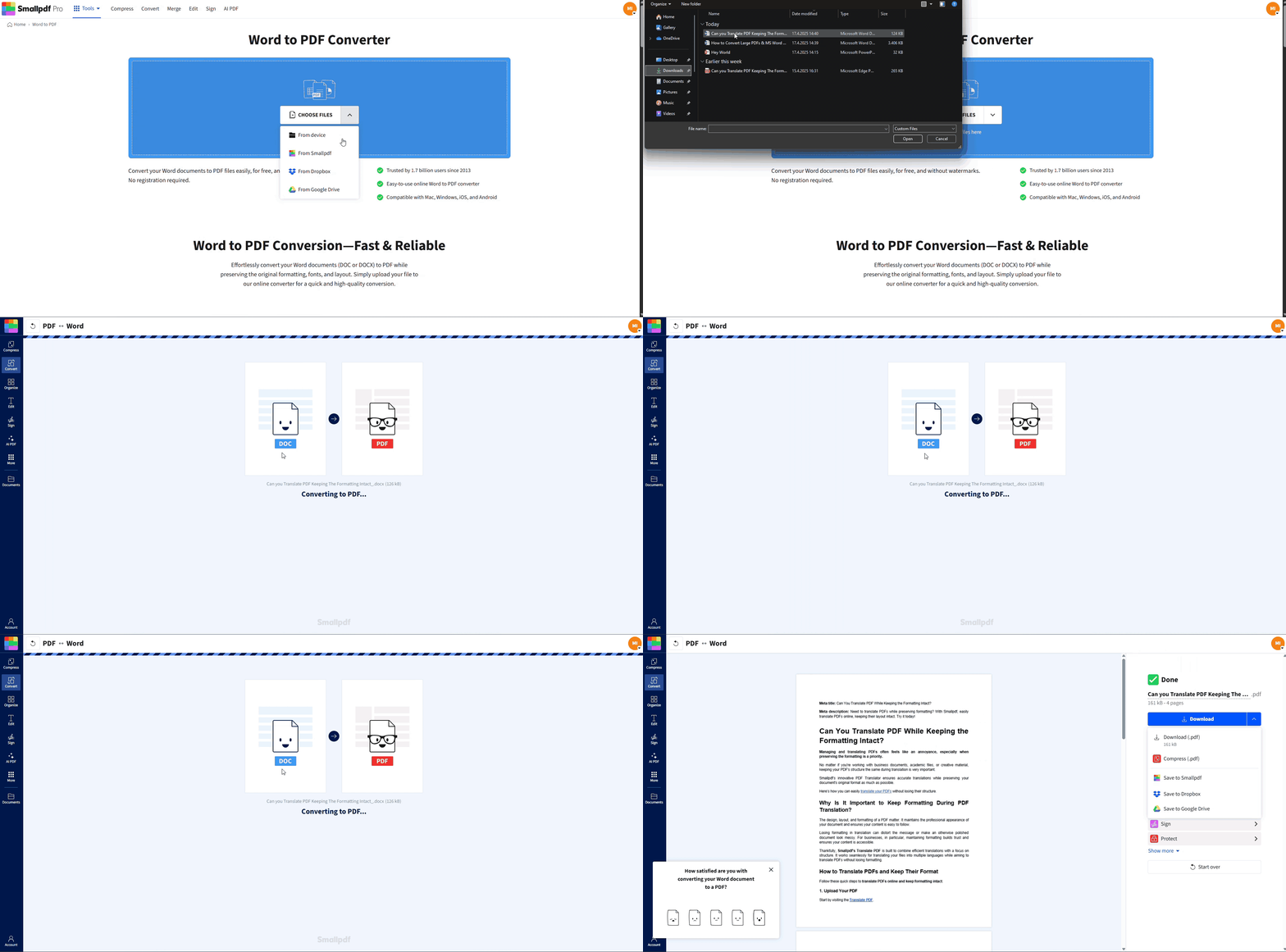
Wait for the conversion, then review the PDF in our PDF Reader.
Save it locally or back to Google Drive, Dropbox, or your Smallpdf storage.
This also sets you up to use other features, like Compress PDF or PDF Annotator, if you need them.
Best Image Settings for Sharp PDFs
You get the best results when your original images are prepared correctly.
1. Choose the Right DPI
Match DPI to how people will use your PDF.
Use 300 DPI or higher when the PDF will be professionally printed.
Use around 150 to 220 DPI for digital reading and standard office printing.
Avoid very low DPI for charts, logos, and screenshots that must remain readable.
If your source image is only 72 DPI, no converter can turn it into a true print-quality image. Starting with better files is the real fix.
2. Use the Right Color Mode
Most office and digital workflows use RGB color.
Use RGB images for documents that live on screens and office printers.
Only worry about CMYK if a professional print shop asks for it and provides specific instructions.
Keeping everything in one color mode reduces surprises when you check the PDF on different devices.
3. Optimize PDF Settings for Quality
If you work with print shops or archives, you may see extra format options.
Choose PDF/A when you need long-term preservation and consistent rendering.
Keep “optimize for image quality” or similar settings enabled when offered.
Include structure tags if you care about accessibility and screen readers.
These options make the PDF heavier than a “minimum size” export, but much clearer.
Fix Common Word to PDF Image Problems
Most Word to PDF image quality issues fall into a few familiar patterns. Here’s how to tackle each one.
1. Blurry or Pixelated Images
Blurry images come from low resolution or aggressive compression.
Try this:
Check the original image outside Word. If it looks soft at 100 percent zoom, replace it with a higher resolution version.
Turn off image compression in Word and reinsert the picture.
Export using “Save As” PDF or our Word to PDF feature, not Word’s built-in “Print to PDF.”
If the PDF looks sharp after these changes, the issue was compression, not the converter.
2. Images Shifting or Misaligned
Sometimes images move when the document becomes a PDF, which can break layouts.
Try this:
In Word, select the image and set its wrapping to “In line with text” for more predictable placement.
Avoid stacking many floating images with complex wrap settings.
Export again, then open the PDF in Edit PDF if you need to nudge positions. Upload it in the Edit PDF area below to make quick layout adjustments.
3. Images Missing After Conversion
Missing images usually mean they were linked instead of embedded, or the link broke.
Try this:
Right-click the image in Word and look for options that indicate linking.
Reinsert the image from your device to embed it directly.
Convert again using the Smallpdf Word to PDF so all embedded content is included.
Once the images are embedded, they should appear consistently in every export.
4. Colors Look Different in the PDF
Color shifts often come from profile changes between Word, your monitor, and the PDF viewer.
Try this:
Use RGB images and keep them consistent across the document.
Reconvert using Word to PDF, then view the PDF in our PDF Reader.
Compare on more than one screen to rule out a display calibration issue.
If colors still look off, avoid mixing different color profiles in the same file and keep edits in one application where possible.
5. Images Not Printing
Sometimes the PDF looks fine on screen, but prints without images.
Try this:
Open the PDF in a reliable viewer and check print settings for options that skip images or background graphics.
In Word, set images to “Bring to Front” so they are not hidden by text layers.
If needed, open the PDF in Edit PDF and ensure images are not placed behind other elements.
Once the layers are correct and printing settings allow images, they should appear in the printed output.
Make Scans and Photos Clear With OCR
If your document includes scans or photos with text, OCR helps you turn them into readable, searchable PDFs without sacrificing image quality.
When To Use OCR
OCR is helpful when:
You scanned a paper document and now have image-only pages.
You took photos of documents with your phone.
You receive a PDF where you cannot select or copy the text.
OCR reads the image and adds an invisible text layer on top, while the picture stays visible.
How To Run OCR With Smallpdf
You can combine OCR with your Word to PDF workflow.
Convert your Word file or scanned document to PDF if it’s not already in that format.
Open PDF to Word with OCR enabled.
Upload the PDF and wait for the recognition to complete.
Download the editable file or a searchable PDF, depending on your needs.
The goal is to keep images clear while making text easier to search and update.
Tips for Better Scans
OCR works best when the source scan is clear.
Scan at 300 DPI or higher for text-heavy documents.
Use even lighting without strong shadows or glare.
Keep pages flat and aligned in the scanner or camera frame.
Use high contrast between text and background.
Better scans mean fewer recognition errors and cleaner PDFs.
Why Use Smallpdf for Word to PDF Image Quality
Our features are built to keep layouts and images intact, so you do not have to wrestle with settings every time you convert.
High-Quality Rendering Without Watermarks
We keep your original resolution wherever possible and do not add watermarks to converted files. Fonts, spacing, and images stay close to what you see in Word.
This is especially important for materials with product photos, charts, or detailed diagrams.
Secure Processing on Any Device
We use TLS encryption while your files upload and download, and we delete processed files automatically after a short period.
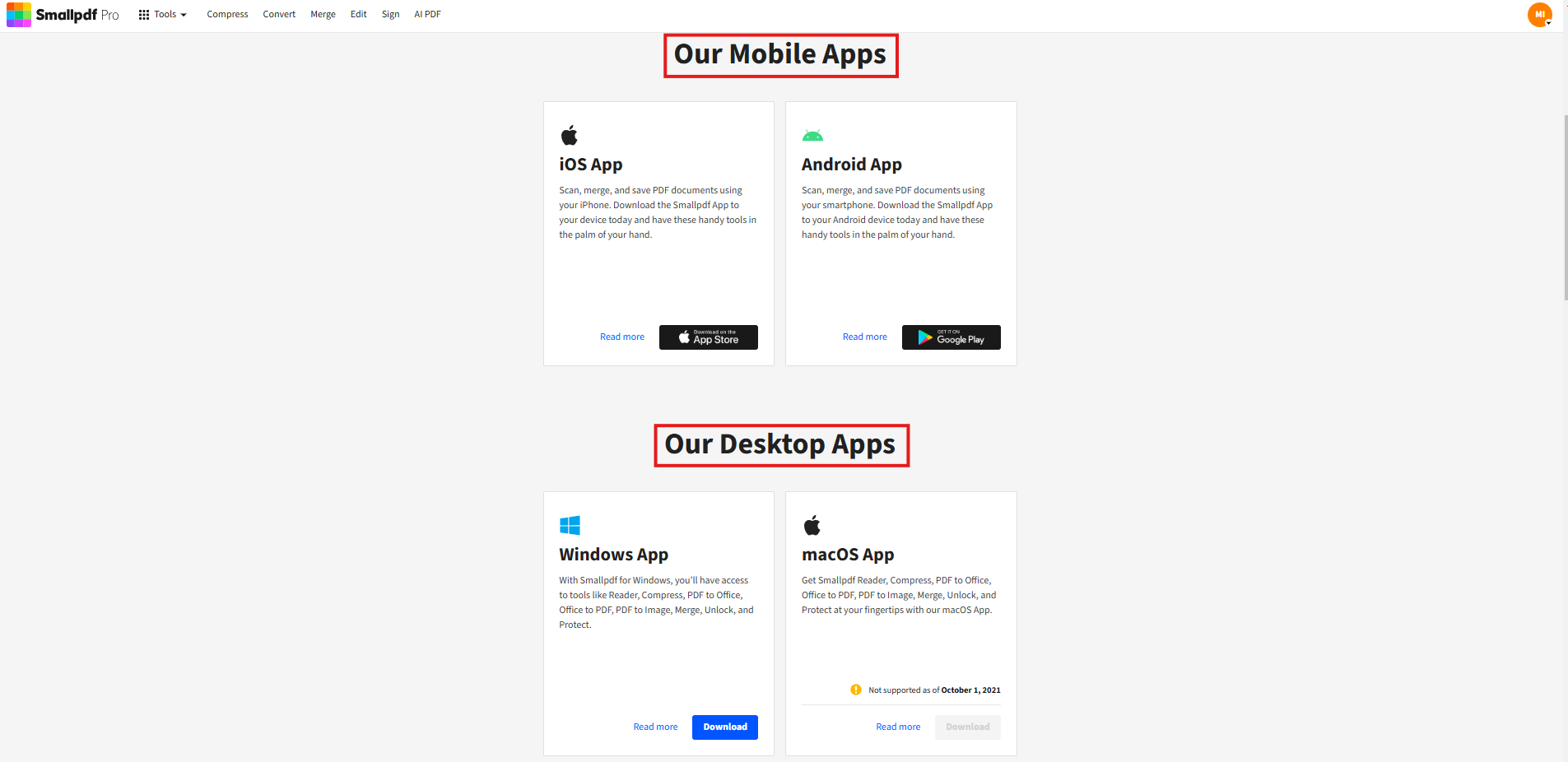
You can run conversions from a browser, Smallpdf desktop app, or Smallpdf mobile app, and get consistent results without installing extra plugins.
Connect to Cloud and Other PDF Tools
After conversion, you can:
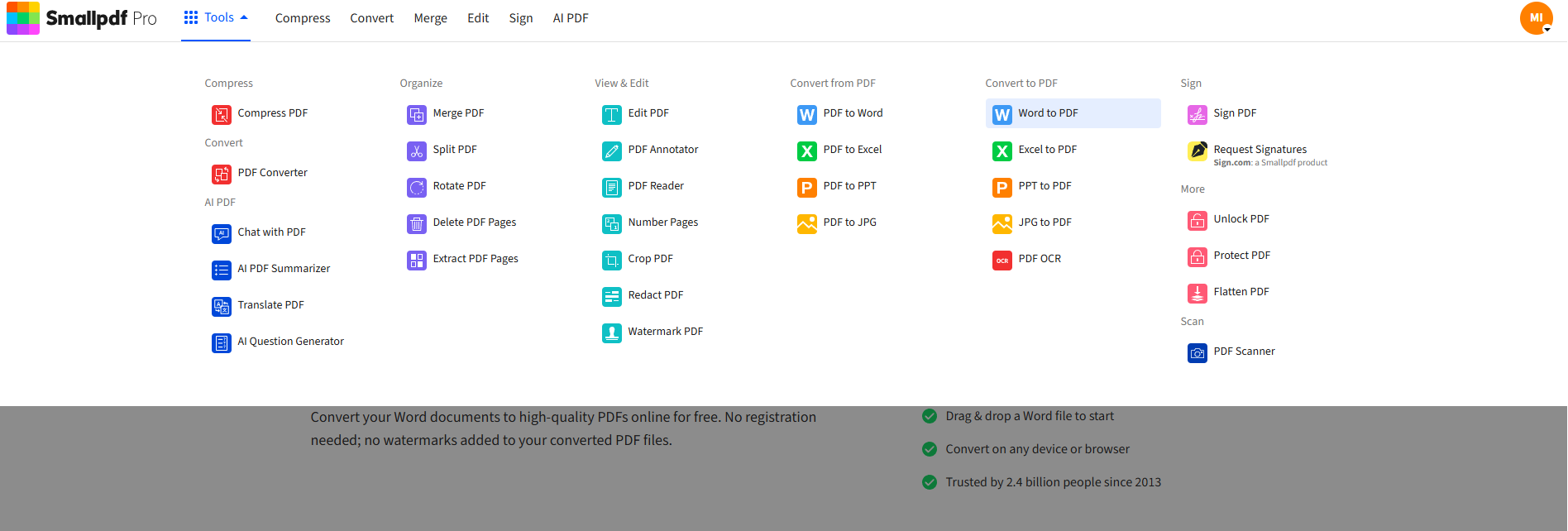
Save PDFs to Google Drive, Dropbox, or your Smallpdf storage.
Use Compress PDF when you need smaller files for email.
Use PDF Annotator to add comments, arrows, or text on top of images before sharing.
These steps help you polish the file, not just convert it.
Keep Your Word to PDF Images Sharp
Image quality problems can make a professional document look unprofessional very quickly. The good news is that most Word to PDF image quality issues come from predictable settings, not mysterious bugs.
If you start with high-resolution images, turn off unnecessary compression in Word, and use a conversion path that respects your layout, you can keep photos and diagrams as sharp in the PDF as they were in the original document. Our Word to PDF feature is built to do exactly that, then help you compress, annotate, and share the final version.
If you haven’t tried it yet, upload one of your image-heavy Word files and compare the result to a standard “Print to PDF” export. The difference is often very clear.
Frequently Asked Questions
How do I stop Word from compressing images?
On Windows, go to “File” > “Options” > “Advanced,” find “Image Size and Quality,” select your document, and choose “Do not compress images in file.” On Mac, open “Word” > “Preferences” and turn off image compression in the save or output settings.What DPI should I use for Word to PDF?
Use 300 DPI or higher for documents that will be professionally printed, and around 150 to 220 DPI for files that will mainly be viewed on screen. Anything much lower than that will usually look soft or pixelated when converted to PDF.Why are my images blurry after converting Word to PDF?
Blurry images often come from Word compressing pictures or from low-resolution originals. Check your compression settings in Word, make sure you are not using “Print to PDF” with minimal quality, and consider converting through Word to PDF to keep the original resolution.Is “Print to PDF” worse for image quality than “Save As PDF”?
It often is. “Print to PDF” treats the document like a printed page and can apply heavier compression. “Save As PDF” or exporting through a dedicated converter, such as Word to PDF on Smallpdf, usually preserves more detail and keeps images sharper.Can I convert high resolution images without losing quality?
You can keep most of the quality if you start with high-resolution images, turn off compression in Word, and use a converter that avoids extra downsampling. Our Word to PDF feature is designed to keep image resolution as close to the original as possible while still producing a practical file size.What is the maximum file size for converting Word with images in Smallpdf?
We support large files, including documents that contain many high-resolution images. If a converted PDF becomes too big to send, you can run it through Compress PDF to reduce its size while keeping text and images readable.Fix image quality issues in Word-generated PDFs using Smallpdf
