- Home
- ›
- ›HTML vs. PDF: Understanding the Differences and Use Cases
HTML vs. PDF: Understanding the Differences and Use Cases
Learn when HTML’s flexibility beats PDF’s consistency, and vice versa. Master the key differences to choose the right format for web, print, and SEO.
More on HTML to PDF
More on PDF Converter
PDF Tips & Resources
When you’re deciding how to publish or share content, the format matters. HTML is built for the web and adapts to any screen, while PDF keeps the layout fixed and reliable. And if you need to turn documents or images into a polished, share-ready PDF, Smallpdf’s PDF Converter makes that part simple.
Here’s a clear breakdown of how the two formats differ so you can choose the right one for your task.
HTML vs. PDF Quick Summary
| Choose HTML when… | Choose PDF when… |
|---|---|
| You’re publishing content for the web and need it to adapt to different screens. | You need a fixed design that looks the same everywhere. |
| SEO, search visibility, and indexing matter. | Formatting must stay consistent for printing or official documents. |
| You want to update content quickly and often. | You need a shareable, secure file—ideal for reports, invoices, or contracts. |
Start here: Use the converter below to upload your HTML or PDF and convert it to the format you need
Key Differences Between HTML and PDF
An easy way to look at it is that HTML adapts, and PDFs don’t.
HTML automatically resizes and reformats depending on where you’re viewing it—whether on a phone, tablet, or desktop. This responsive design means your content always looks great, no matter the screen size.
PDFs, on the other hand, lock in the design with a fixed layout, which is perfect when formatting matters, like for invoices, legal agreements, or print-ready documents.
Another key difference is compatibility. HTML works straight from any browser, even on mobile devices, thanks to browser rendering that interprets the code in real-time. PDFs need a reader, though most modern browsers can open them just fine.
| Feature | HTML | Best For | |
|---|---|---|---|
| Format Type | Dynamic markup | Fixed document | HTML: Web content, PDF: Print materials |
| Layout Behavior | Responsive, adapts to screen | Fixed, identical everywhere | HTML: Multi-device viewing, PDF: Consistent presentation |
| Mobile Experience | Optimized with viewport settings | May require zooming | HTML: Mobile-first content, PDF: Desktop documents |
| Editing | Real-time updates | Requires source file | HTML: Frequently updated content, PDF: Final documents |
| Offline Access | Limited without caching | Full offline viewing | HTML: Online experiences, PDF: Portable documents |
| Primary Use | Interactive web content | Document preservation | HTML: Websites and apps, PDF: Reports and forms |
When to Use HTML for Web Content
HTML rules when it comes to web content, online articles, and anything that needs to be interactive. If you’ve ever filled out a contact form, clicked a link in an article, or watched an embedded video, that’s all mostly thanks to HTML.
Think of your favorite news website, online store, or web app. They’re all HTML because they need to work seamlessly across devices. The semantic markup and DOM structure make content accessible and interactive in ways PDFs simply can’t match.
Another big advantage? SEO.
Search engines love HTML because it’s easier to crawl and index thanks to its indexability and structured data. That means if you’re writing an article or publishing important information online, using HTML makes it more likely that people will find it through a Google search.
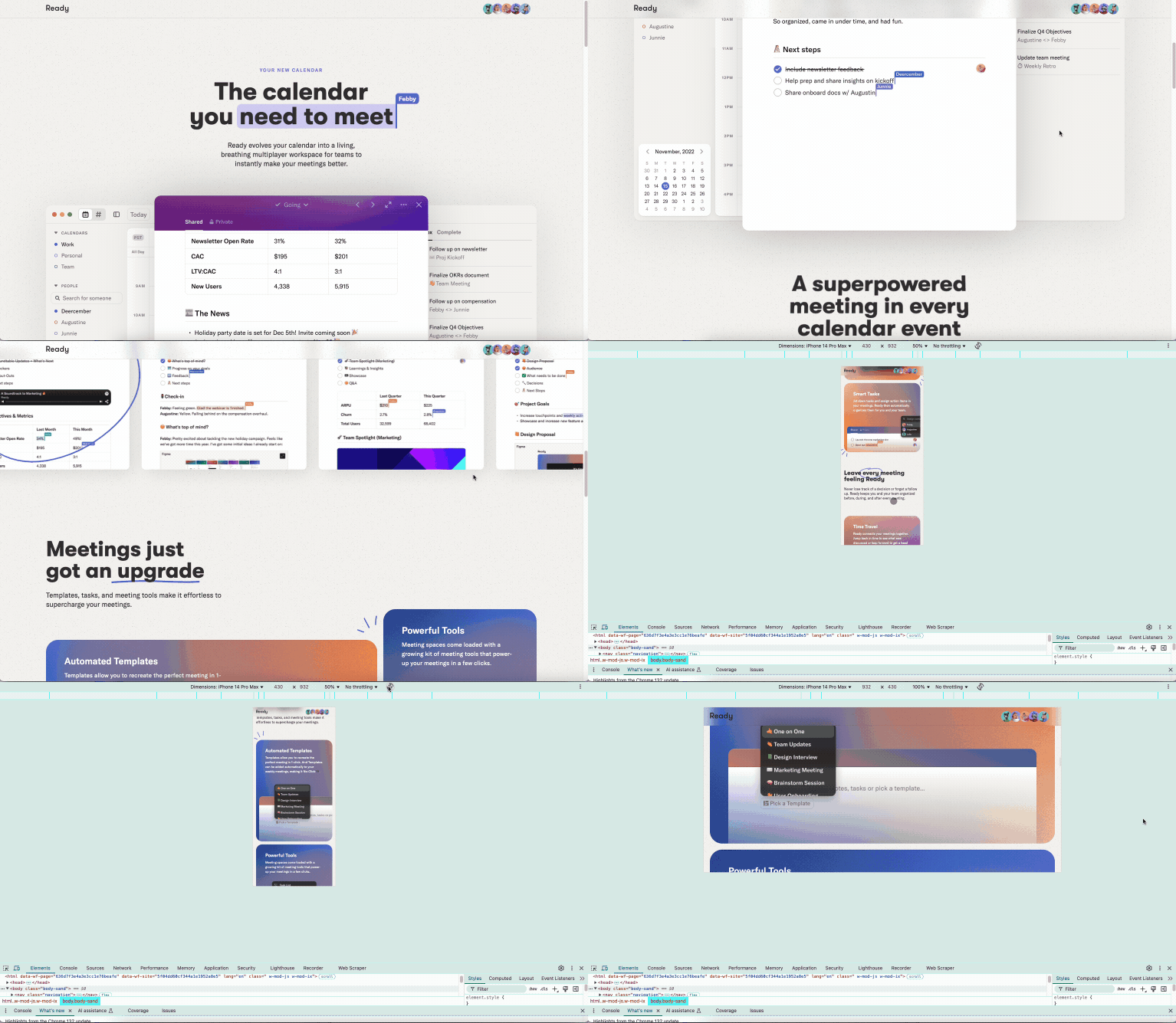
Need something interactive? HTML allows for client-side scripting, interactive forms, animations, and links, making it great for web-based content. PDFs can support some interactive features, but they don’t always work well on mobile devices.
Ideal HTML use cases:
Blog posts and articles
E-commerce product pages
Interactive forms and surveys
Educational content and tutorials
Web applications and dashboards
When a PDF Is the Better Choice
There are times when a PDF is the clear winner. If you need a document to look exactly the same everywhere, a PDF is the way to go.
For instance, PDFs are great for contracts, reports, and legal documents where consistency is key. You wouldn’t want a contract to display differently on different screens. The fixed layout and font embedding ensure cross-platform consistency every time.
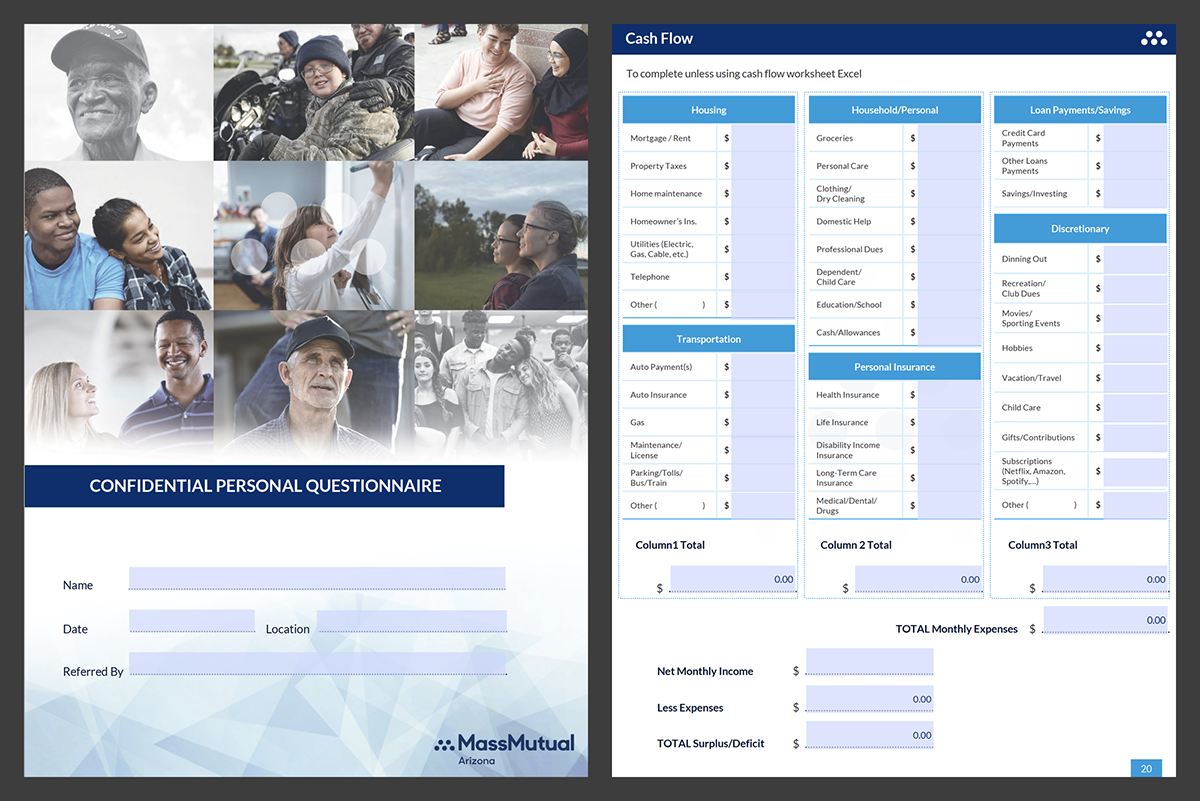
PDFs also print beautifully with perfect print fidelity. Unlike HTML pages, which can get cut off or reformat oddly when printed, PDFs stay locked in place. That’s why businesses use them for brochures, forms, and any document meant to be physically printed.
Plus, PDFs offer security features like encryption, password protection, and digital signatures that are legally binding in many jurisdictions—something HTML can’t provide on its own.
Top PDF use cases:
Legal contracts and agreements
Tax forms and official documents
Restaurant menus for printing
Event flyers and brochures
Annual reports and presentations
Invoices and financial statements
Accessibility and User Experience: HTML vs PDF
When it comes to HTML vs PDF accessibility, HTML usually wins.
HTML is built for the web, making it easy for screen readers and assistive technologies to interpret. It allows for adjustable text sizes, keyboard navigation, and other accessibility features right out of the box thanks to semantic headings and ARIA roles.
PDFs can be accessible, but they require extra work, like structured tagging and reflow settings to meet WCAG 2.2 standards. If not formatted correctly, PDFs can be a nightmare for users who rely on screen reader compatibility.
| Accessibility Feature | HTML | |
|---|---|---|
| Screen Reader Support | Built-in with semantic markup | Requires proper tagging |
| Text Scaling | Automatic with browser settings | Limited, may break layout |
| Keyboard Navigation | Native support | Needs structured reading order |
| Mobile Accessibility | Responsive by design | Often requires zooming |
Make PDFs Searchable with OCR
Not all PDFs are created equal. If your PDF contains scanned images instead of text, screen readers can’t access the content. Smallpdf’s OCR tool converts image-based PDFs into searchable, accessible documents in seconds.
OCR benefits:
Makes scanned documents screen reader compatible.
Enables text search within the document.
Improves overall accessibility compliance.
SEO and Web Visibility: How Each Format Performs
When it comes to search engine rankings, HTML has a clear advantage. Search engines like Google are built to crawl and understand HTML structure through semantic tags, meta descriptions, and internal linking.
HTML’s indexability means every heading, paragraph, and link can be understood and ranked separately. Search engines can also render the page exactly as users see it, thanks to modern renderability capabilities.
PDFs can be indexed, but they’re treated as single documents without the rich context that HTML provides. This means your carefully crafted PDF report might not appear in search results as easily as an HTML article covering the same topic.
| SEO Factor | HTML | |
|---|---|---|
| Crawlability | Excellent with structured data | Limited to text extraction |
| Page Speed | Fast loading with optimization | Slower, especially large files |
| Internal Linking | Natural link building | Treated as single entity |
| Mobile Ranking | Mobile-first indexing friendly | May rank lower on mobile |
Optimization tips:
For HTML: Use semantic markup, optimize images, implement structured data
For PDFs: Include in sitemaps, optimize file size, use descriptive filenames
Performance, File Size, and Printing
If speed matters, HTML is the clear winner. HTML is lightweight because it loads text and images separately. PDFs, on the other hand, bundle everything into a single file, which can lead to slow load times, especially for large documents with images and embedded fonts.
Opening a PDF that is saved on your computer or phone will be almost instant, even with very large files. It is when PDFs are hosted online that loading can be slow, although compressing PDFs and optimizing images can help reduce payload size, making them load faster.
When it comes to printing, PDFs excel with perfect print fidelity. Unlike HTML, which relies on browser print settings and CSS print styles, PDFs are designed for high-quality printing with proper pagination and color profiles.
| Performance Metric | HTML | |
|---|---|---|
| Load Time (Online) | Fast with optimization | Slower for large files |
| Offline Access | Limited without caching | Instant once downloaded |
| Print Quality | Variable, browser dependent | Consistent, high quality |
| File Size | Minimal for text content | Larger due to bundled assets |
Printing quality checklist:
HTML: Test print preview, use CSS print styles, consider page breaks
PDF: Check DPI settings, verify font embedding, test on different printers
Security, Consistency, and Compliance
PDFs excel at document security with built-in encryption, password protection, and digital signatures that are legally binding in many jurisdictions. These tamper-evident seals and certificate validation features make PDFs the go-to choice for sensitive documents.
HTML security depends on server-side protections and HTTPS implementation, making it less suitable for confidential documents. While you can protect HTML pages with authentication, the content itself isn’t encrypted like a PDF can provide.
For compliance with standards like Section 508 or GDPR requirements, both formats can work, but they require different approaches. PDFs need proper tagging and structure, while HTML relies on semantic markup and accessibility best practices.
Editing and Maintenance: Ease of Updates and Collaboration
Updating an HTML page takes seconds through your content management system. Anyone with access can make changes that go live immediately, making HTML perfect for frequently updated content like news articles or product pages.
PDF updates require the original source file, editing software, and re-uploading. It’s a process that can lead to version control headaches. Without a proper change management system, you might end up with multiple versions floating around.
For collaborative editing, HTML wins hands down. Multiple people can work on web content simultaneously through modern CMS workflows, while PDF collaboration typically means emailing files back and forth or using specialized software.
Workflow comparison:
HTML:
Pros: Real-time updates, multiple editors, instant publishing, easy rollbacks
Cons: Requires web access, potential for accidental changes
PDF:
Pros: Version control clarity, offline editing, consistent formatting
Cons: Slow update process, software requirements, collaboration challenges
Email and Distribution Tips
When emailing content, the best format depends on the situation.
If you’re sending a newsletter, marketing email, or announcement, HTML is the way to go. It allows for images, links, and a visually appealing layout without requiring an attachment.
If you’re sending a report, invoice, or legal document, a PDF is the safer option. It ensures the recipient sees the exact format you intended, with no weird email client issues messing up the design. One thing to watch out for though is PDF file size.
If the file is too big, it might not be delivered or could end up in the spam folder. In addition to compressing PDFs, you can also save them to cloud platforms like OneDrive, Google Drive or Dropbox and simply email a link to them.
Convert Documents and Images to PDF With Smallpdf
If you’re working with content that needs a fixed, share-ready layout, Smallpdf makes it easy to turn your documents and images into polished PDFs. You can also pull text out of a PDF when you need to reuse it in HTML or update content on your site.
How To Convert a Document or Image to PDF
Go to the PDF Converter on Smallpdf.
Upload your DOCX, XLSX, PPT, JPG, PNG, or other supported file.
Wait a moment while the file converts.
Download your new PDF.
How To Extract Text From a PDF
Open Smallpdf’s PDF to Word or OCR tool.
Upload your PDF.
Choose whether you want editable text or a searchable PDF.
Download the converted file and reuse the text in your HTML content.
Creating both an online HTML version and a downloadable PDF gives your audience options. There's one format for readability and SEO, and another for printing, sharing, or record-keeping.
Start your free trial to access all Smallpdf tools.
Want to Convert a PDF
Frequently Asked Questions
Is HTML better than PDF?
It depends on what you need. HTML is best for web content that must be interactive, searchable, and easy for search engines to index. PDF is better when you need a fixed layout, like for contracts, reports, or anything official.What’s the benefit of exporting as HTML or PDF?
HTML adapts to different screens, supports SEO, and is easy to update. PDF is ideal when the layout must stay the same, such as with invoices, reports, or documents that need a consistent, print-ready format.Which format is more accessible, HTML or PDF?
HTML is usually easier to navigate with assistive technology and works well across devices. PDFs can also be accessible, but they need proper tagging and formatting to meet accessibility standards.How exactly do HTML and PDF differ?
HTML is dynamic and adjusts to any screen, making it perfect for websites, blogs, and emails. PDF is fixed and keeps its layout no matter where it’s opened. If layout consistency matters, PDF is the stronger choice.When should you choose a PDF instead of HTML for content?
Choose PDF for contracts, reports, brochures, or anything meant for printing or consistent presentation. Choose HTML when the content needs to be interactive, searchable, and easy to update online.Can search engines index PDF content?
Yes. Search engines can index PDFs, but they read them as single documents, not structured pages. As a result, PDFs usually don’t rank as well as well-optimized HTML content.Which format is better for mobile devices?
HTML works best on mobile because it’s responsive and adjusts to any screen. PDFs often require zooming and scrolling, which can make them harder to read.Can I convert HTML to PDF without losing formatting?
You can keep most formatting when converting HTML-like content to PDF, but interactive elements (such as forms, animations, or embedded scripts) won’t carry over.Convert between HTML and PDF smoothly with Smallpdf Pro
Related Articles
