3 Ways To Convert PDF to HTML
Export PDF as HTML in just a few minutes. Turn any PDF into clean, web-ready HTML you can use on your site.
More on HTML to PDF
More on PDF Converter
More on Edit PDF
If you need to export PDF as HTML for a website, blog, or web app, you’ve got a few solid options. You can go through Smallpdf online, use desktop apps like Word or LibreOffice, or rely on browser extensions for quick one-offs.
PDF and HTML don’t always get along perfectly. PDFs lock layout in place, while HTML reshapes itself to fit screens and browsers. That’s why fonts, images, and columns don’t always survive conversion without a little help. The method you choose has a big impact on how much cleanup you’ll need afterward.
Below, we’ll walk through three main ways to export PDF as HTML, show where each shines, and explain how Smallpdf fits into a smooth workflow.
PDF To HTML Methods
Before we get into the steps, here’s a quick comparison to help you pick the right path.
| Method | Best for | Time | Result quality | Works free?` |
|---|---|---|---|---|
| Smallpdf + Word (online) | Simple PDFs, quick exports, no install | 2–3 mins | Good, easy to edit | Yes |
| Desktop apps (Word/LibreOffice) | Complex layouts, offline work, fine control | 3–5 mins | Very good, more setup | Yes / Mixed |
| Browser extensions | One click from browser, simple documents | 1–2 mins | Good, very convenient | Yes |
| Calibre | Long, text-heavy PDFs, reports, eBooks | 3–5 mins | Good text structure | Yes |
If you want something fast and browser-based, start with the Smallpdf route. If layout accuracy matters more, desktop export gives you extra control.
How To Export PDF as HTML Online With Smallpdf
Online conversion is the easiest place to start. The idea is simple: convert your PDF to Word with Smallpdf, then export that Word file as HTML.
This works best for text-focused PDFs without very complex magazine-style layouts.
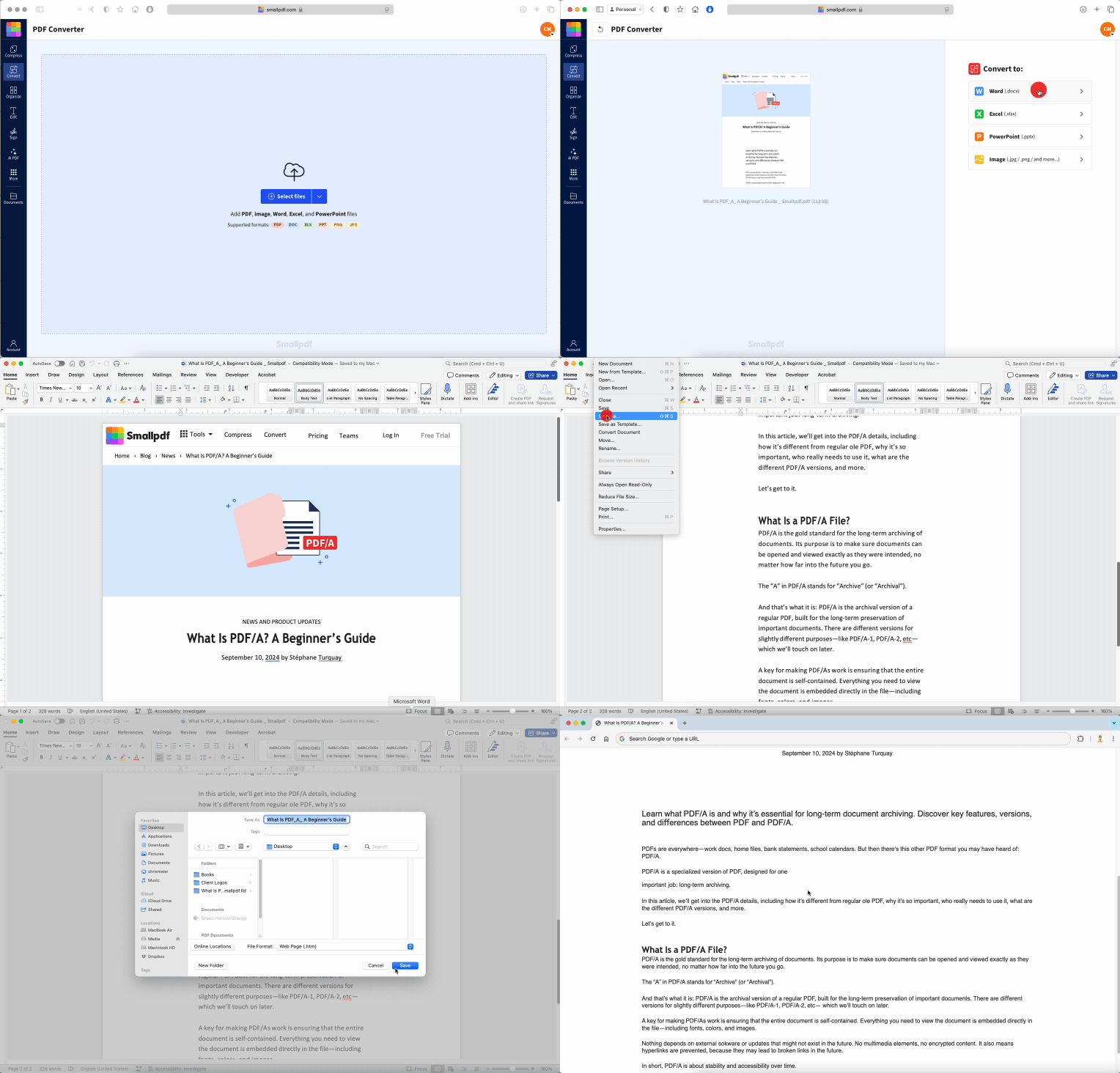
Step 1: Convert PDF to Word With Smallpdf
First, turn your PDF into an editable document.
Go to Smallpdf’s PDF to Word feature.
Click “Choose Files” or drag and drop your PDF into the upload area below.
2. Wait a few seconds while we convert it to DOCX.
3. Download the Word file to your computer.
If your PDF is scanned, choose the option with OCR so we can turn images of text into real, selectable text before you export HTML.
Step 2: Export From Word as HTML
Next, use your word processor to export the content as HTML.
In Microsoft Word:
Open the DOCX file you just downloaded.
Go to “File” > “Save As” or “Save a Copy.”
Choose “Web Page (.htm, .html)” as the file type.
Save to a folder where you can find the HTML file and media.
Word will create an HTML file plus a folder with images and supporting files. You can upload both to your site or copy the HTML into your CMS and remap images as needed.
Online Method: Pros And Cons
Pros:
No software installation, everything runs in your browser
Works on Windows, Mac, Linux, and Chromebooks
Great for simple reports, articles, and text-heavy PDFs
Files protected with TLS encryption and auto deleted after a short period
Cons:
Complex layouts may still need manual cleanup in HTML
Requires an internet connection for the Smallpdf step
Export quality depends partly on how Word interprets the layout
Export PDF as HTML With Desktop Apps
Desktop apps give you more control over export settings and work well when you care about layout details or need to handle several files in one sitting.
Use Word or LibreOffice for HTML Export
You can combine Smallpdf with your local software for better control.
Open the DOCX in “Word” or “LibreOffice Writer.”
Tidy up headings, tables, and spacing if needed.
In Word, go to “File” > “Save As” and choose “Web Page (.htm, .html)”.
In LibreOffice, go to “File” > “Export,” then choose XHTML (.html; .xhtml) and confirm.
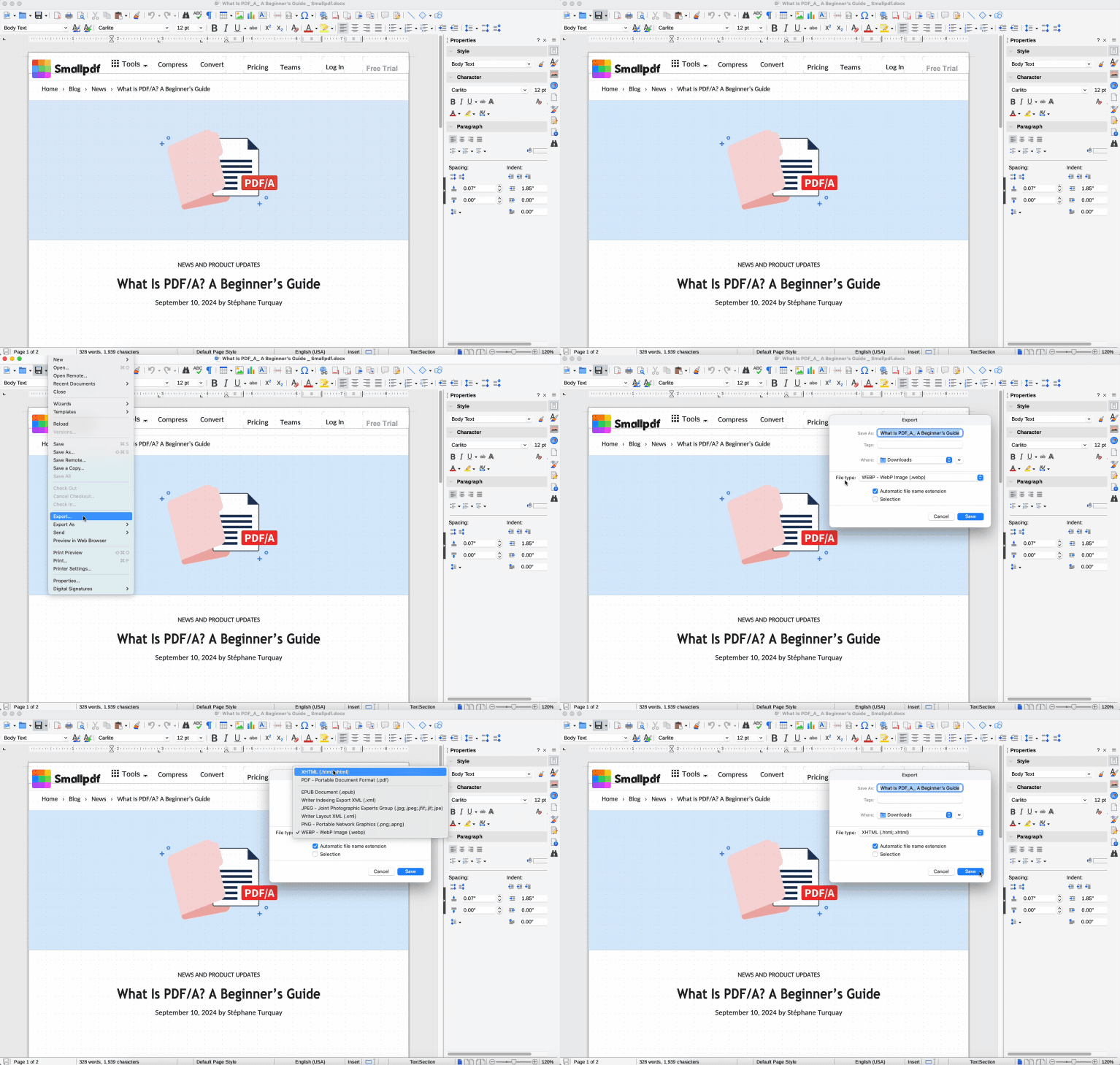
If your PDF is simple, you can also try opening it directly in LibreOffice and exporting to HTML. Just keep in mind that images and layout may not carry over as well as they do with the DOCX route.
Desktop Method: Pros And Cons
Pros:
Works offline once your file is on your device
More export options for structure, encoding, and images
Better for long documents with tables and styled headings
Cons:
Requires installed software and occasional updates
Export settings can feel technical at first
Results still might need HTML tweaks for production sites
Export PDF as HTML With Browser Extensions
Browser extensions are handy when you want to export PDF as HTML directly from the browser, with as few clicks as possible.
Convert With the Smallpdf Chrome Extension
The Smallpdf Chrome Extension hooks into your browser so you can send PDFs to our converter without opening the website manually.
Install the Smallpdf Chrome Extension from the Chrome Web Store.
Right-click a PDF link in your browser or a local PDF in Chrome.
Choose “Convert with Smallpdf,” then select PDF to Word.
Download the converted DOCX and export it to HTML from Word as before.
You’re still using the same conversion engine as on smallpdf.com, just with faster access from the right-click menu.
When Browser Extensions Work Best
Browser extensions make sense when you:
Open most of your PDFs in the browser already
Need quick one-off exports without visiting a separate site
Work with straightforward PDFs that don’t rely on complex layouts
For heavy batch work, the direct web interface or desktop apps will give you more control.
Convert PDF to HTML With Calibre
Calibre is an eBook manager that also converts PDFs into HTML-based bundles. It’s useful when you’re dealing with long, text-heavy PDFs that feel like books or manuals.
Step-By-Step: PDF to HTML With Calibre
Download and install Calibre on your computer.
Open Calibre and click “Add books” to import your PDF.
Select the PDF and click “Convert books” in the toolbar.
Choose “HTMLZ” as the output format and start the conversion.
Once Calibre finishes, locate the HTMLZ file and unzip it with 7-Zip, WinRAR, or your system’s unzip feature.
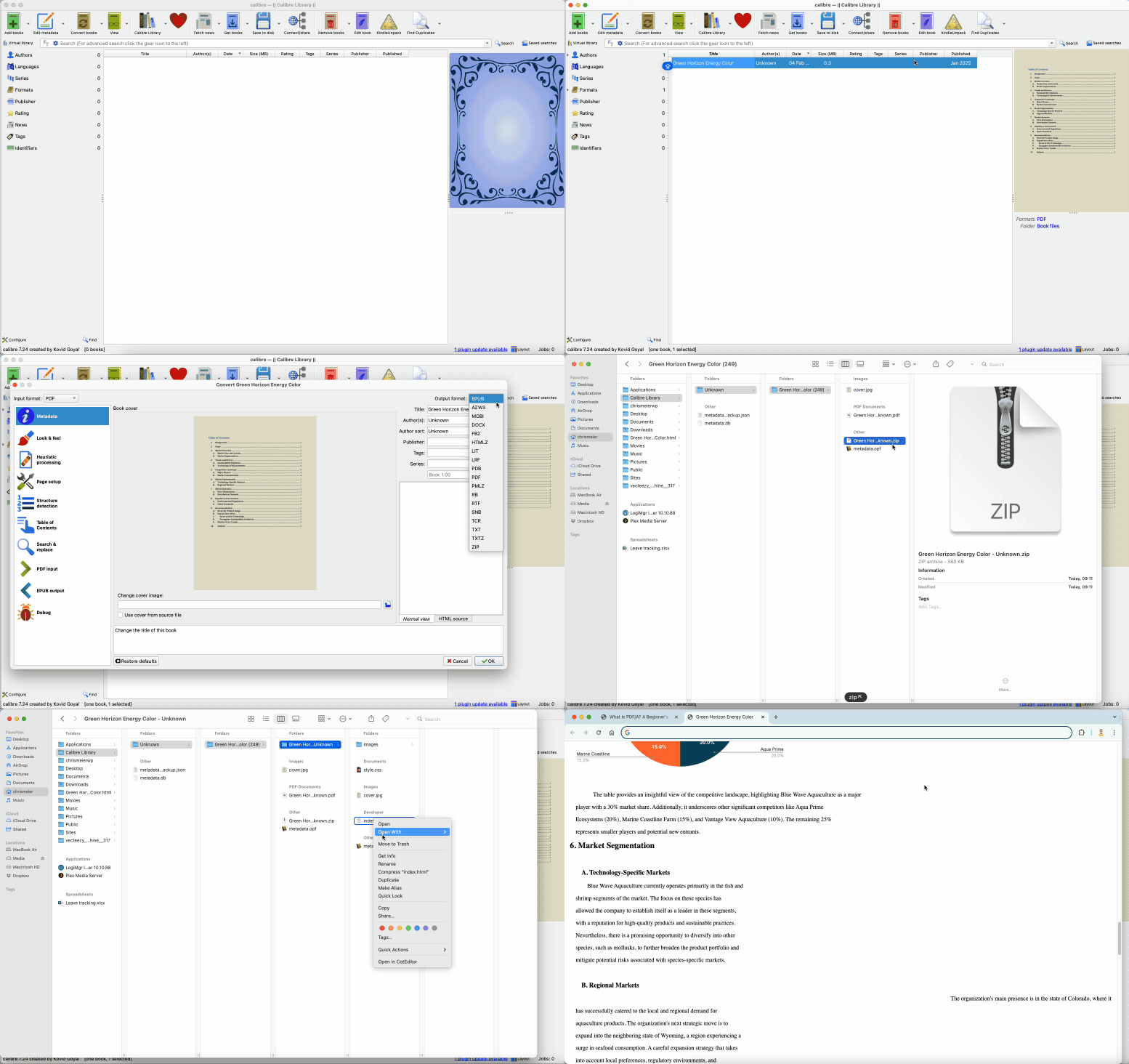
Inside the unzipped folder, you’ll see:
An HTML file with your main content
A CSS file with basic styling
An images folder for extracted visuals
Extra files for the eBook structure that you can usually ignore
You can now open the HTML in a code editor, tweak the markup, and drop it into your website or app.
Calibre Method: Pros And Cons
Pros:
Great for long PDFs that read like books
Keeps content structured into sections and chapters
Free and available on major desktop platforms
Cons:
Not ideal for heavy design, multi-column layouts, or brochures
Produces several files, not a single HTML page
Requires more manual editing if you want a polished web page
Why Use Smallpdf In Your PDF to HTML Workflow
You don’t have to pick only one method. In practice, a combination that starts with Smallpdf and ends in the editor or CMS you already use often works best.
Clean Text With OCR and Smart Layout
When a PDF is scanned, it’s just a set of images. Our OCR feature turns those images into real text before you export anything as HTML.
That means:
You can select, copy, and edit text after conversion.
Tables and paragraphs are recognized more accurately.
You spend less time fixing broken lines and random spacing.
Start with PDF to Word with OCR, then export the result as HTML from Word, LibreOffice, or Calibre.
Security And Privacy Built In
We take file security seriously:
TLS encryption protects your files during transfer.
Files are auto-deleted from our servers after an hour of processing.
We follow strict security standards, so you can convert business docs with confidence.
Example: Turning A Report Into HTML Fast
A team with a long PDF report can:
Upload the report to Smallpdf PDF to Word with OCR.
Download the DOCX and clean up headings and tables.
Export the polished document as HTML from Word.
Paste the HTML into their CMS, adjust styles, and publish.
What would have taken hours of copy-paste work becomes a short, predictable workflow.
Start Exporting PDFs as HTML With Smallpdf
Exporting a PDF as HTML doesn’t have to be complicated. Once you know your options, you can match the method to the file in front of you.
For quick wins, use Smallpdf PDF to Word in your browser, then save the document as HTML from your editor. For long reports or eBooks, mix in Calibre or LibreOffice.
Along the way, Smallpdf helps you handle scanned pages, shrink file sizes, and keep your data secure.
Ready to turn your PDFs into web-ready HTML?
Export PDF to HTML for Free
Frequently Asked Questions
Is there a difference between exporting and converting a PDF to HTML?
In most cases, exporting and converting mean the same thing. Desktop apps often say “Export as HTML,” while online services talk about “Convert PDF to HTML.” Both take your PDF content and turn it into HTML code.Can I batch export multiple PDFs as HTML?
Yes, but the method matters. Some desktop apps support true batch export, where you point to a folder and export all PDFs. With Smallpdf, you can batch convert PDFs to Word with a Pro plan, then export each DOCX to HTML from your editor.What happens to images and fonts when I export PDF as HTML?
Images are usually saved as separate files and linked from the HTML. Custom fonts are often replaced with standard web-safe fonts, unless you embed custom font files and update the CSS. Tables and lists generally convert well, but you may need to adjust spacing and alignment.Can I export a scanned PDF as HTML with real text?
Yes. Use OCR first. With Smallpdf, you can convert a scanned PDF to Word with OCR enabled, then export that Word file as HTML. That gives you selectable text instead of a block of images.Why does my HTML look different from the original PDF?
PDF uses a fixed layout. HTML reshapes itself to fit screens, fonts, and browsers. Elements like multi-column layouts, tight image wrapping, and custom fonts don’t always translate exactly. Expect to do a bit of HTML and CSS cleanup for pixel-perfect results.Is it better to embed a PDF instead of exporting it as HTML?
If you just want visitors to view or download the original document, embedding a PDF can work. If you want the content to be searchable, responsive, and part of your site’s design, exporting the PDF as HTML is the better long-term option.Convert PDF files into HTML format using Smallpdf
Related Articles
