- Home
- ›
- ›What Security Features To Look for in PDF Software
What Security Features To Look for in PDF Software
If your PDFs include personal data, contracts, or financial details, you need the right security features. Here’s how to choose them with confidence.
More on Protect PDF
More on Edit PDF
More on Unlock PDF
PDF security features help you control access, remove sensitive data, and reduce leaks when you share documents beyond your desk.
If you work with PDFs long enough, you’ll run into the same problem. A file that was safe on your laptop becomes risky the moment it’s emailed, shared in a chat, or uploaded to a portal. That’s where PDF security features earn their keep.
Some features protect access, like passwords and encryption. Others reduce exposure, like redaction. Then there are deterrent features, like watermarks, that make sharing feel less casual.
The best PDF software doesn’t force you to pick one. It helps you layer the right protections based on the document and the people receiving it.
We’ll break down the key PDF security features to look for, the risks of skipping them, and the situations that call for stronger controls.
Quick Feature Checklist for PDF Security
Use this as your fast buyer checklist. If your PDF software covers these, you’re in a strong place.
| PDF Security Feature | What It Does | Best For | If You Skip It |
|---|---|---|---|
| Password protection | Limits who can open the file | Client files, internal reports | Anyone can open forwarded copies |
| Encryption | Scrambles PDF content during protection | Personal and financial data | Passwords become easier to bypass in weak systems |
| Redaction | Removes sensitive data permanently | Legal, HR, compliance docs | “Hidden” text can still be recovered |
| Watermarking | Adds visible ownership or status marks | Drafts, proposals, brand assets | Files get shared with no context or control |
| Permissions controls | Limits printing, copying, editing | Training, templates, IP | Recipients can copy or reuse content freely |
| Secure sharing | Uses controlled links and expiry | Review cycles, remote teams | Old versions spread and live too long |
If you want to test any of these right now, we offer dedicated features like Protect PDF, Redact PDF, and Watermark PDF in the browser.
How To Choose the Right Security Level
Not every PDF needs the same protection. The right setup depends on the document, the recipient, and the fallout if something leaks.
Start with these questions:
What’s inside the PDF? Personal data, financials, legal terms, strategy, or IP.
Who needs access? One person, a team, or external partners.
How will you share it? Email, cloud link, portal upload, or internal system.
How long should access last? A day, a week, or indefinitely.
What happens if it spreads? Reputation risk, compliance issues, or real financial damage.
A draft proposal might only need a watermark plus a time-limited share link. A payroll report needs stronger controls, like password protection, encryption, and redaction for anything not required.
Password Protection and Encryption
PDF password protection is usually the first line of defense. It’s also the most misunderstood.
What To Look for in Password Protection
A solid PDF password feature supports two common control types:
Open the password that blocks viewing without the password.
Permissions password that limits actions like printing or copying.
When you evaluate software, don’t think password protection is all you need. Look for strong encryption under the hood. Smallpdf’s Protect PDF tool gives you encrypted password protection for locking PDFs.
Risks of Weak Encryption
If a platform uses weak protection, the password becomes a speed bump, not a barrier. Strong encryption helps ensure the file contents stay unreadable without the right key.
If your PDFs contain client data or financial details, treat encryption as non-negotiable.
How to Password Protect a PDF With Smallpdf
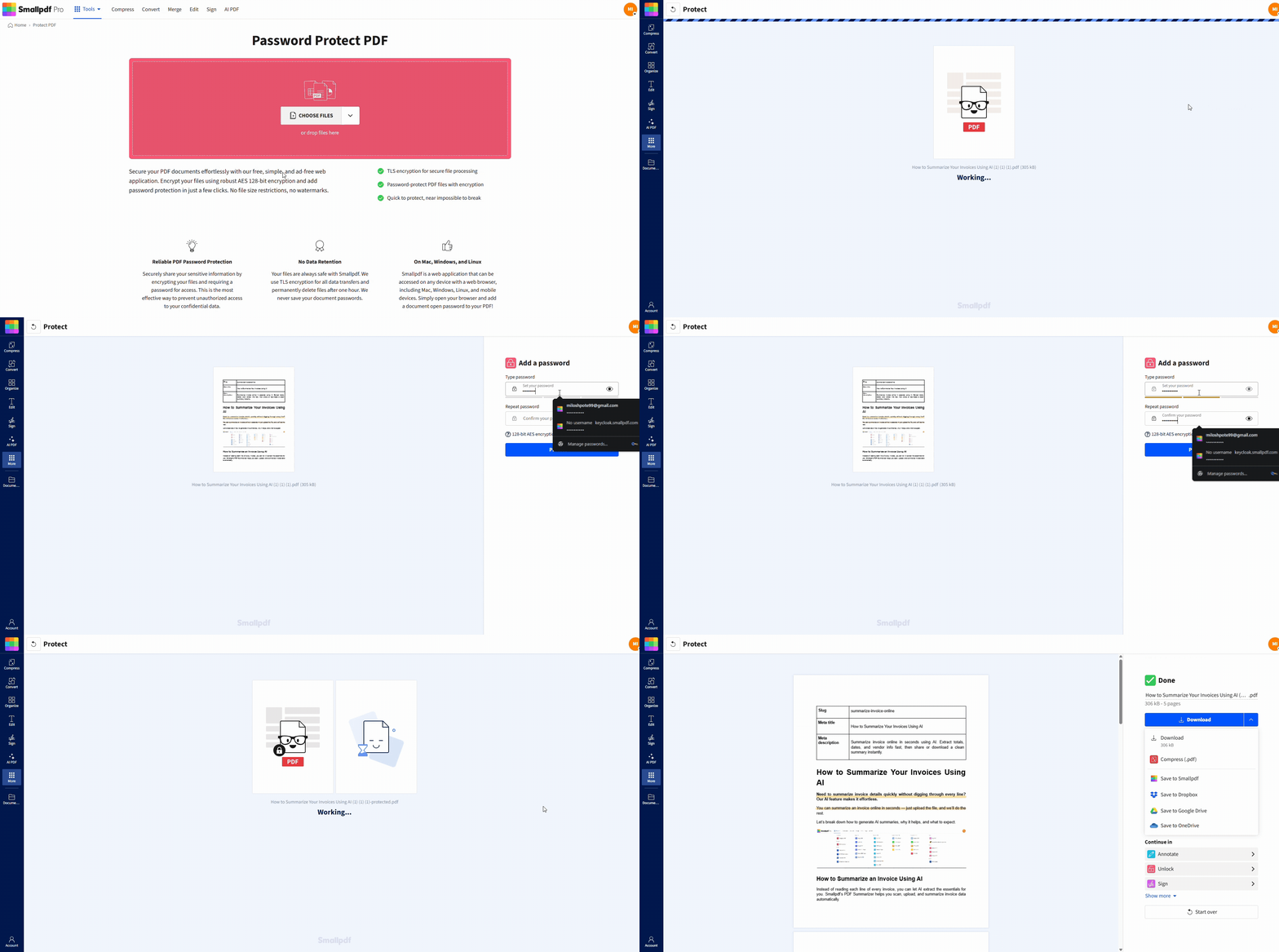
If you need to lock a PDF fast, here’s the clean workflow.
Step 1: Open Smallpdf Protect PDF
Head over to Protect PDF.
Upload your file from your device, Google Drive, Dropbox, or OneDrive.
Use the Protect PDF tool area below to upload or drag-and-drop your file and add a password
Step 2: Set a strong password
Use a long password with a mix of letters, numbers, and symbols. Avoid anything tied to the project name.
Step 3: Download the protected PDF
Save the secured copy to the right place, then share the password through a different channel than the file itself.
Redaction That Actually Removes Data
Redaction is serious because mistakes here can expose information you thought you hid.
Redaction vs. Covering Text
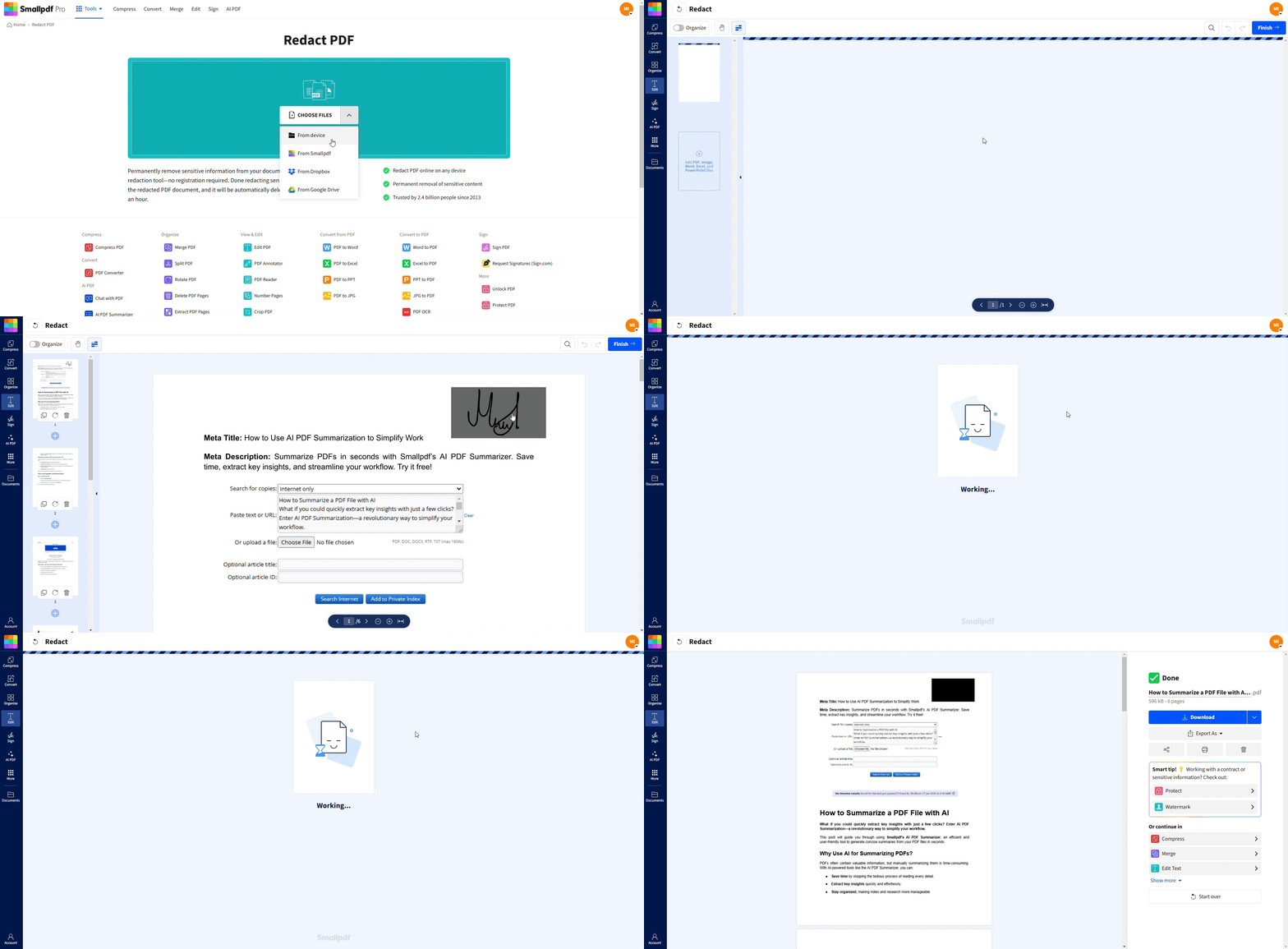
A white box or a black rectangle placed on top of text is not the same as redaction. In many cases, the original content still exists underneath and can be copied or recovered.
True redaction removes the underlying text or image content permanently. That’s the point of a dedicated redaction feature.
Our Redact PDF page offers permanent removal of sensitive information, with security and compliance positioning.
What to Redact
Use redaction for things like:
ID numbers and account numbers
Home addresses and phone numbers
Personal health or HR details
Internal pricing, margins, or vendor terms
Any confidential notes left in a draft
The Compliance Angle
If you handle regulated data, redaction mistakes can turn into real compliance issues. Even outside regulated industries, accidental disclosure can create contractual problems and reputational damage.
The safest approach is simple. Remove sensitive content, then double-check the final PDF before sharing.
Watermarking for Deterrence and Clarity
Watermarking won’t stop a determined bad actor, but it’s great for reducing casual sharing and confusion.
What to Use Watermarks For
Watermarks work best when you need the recipient to see context immediately, like:
‘CONFIDENTIAL’ on internal reports
‘DRAFT’ on contracts in negotiation
‘INTERNAL USE ONLY’ on training guides
A company name on branded materials
Our Watermark PDF feature supports adding custom text watermarks directly in the browser.
Where Watermarks Help Most
Proposals shared across multiple stakeholders
Decks or PDFs that get forwarded often
Files that may be printed and left around
Drafts that should not be treated as final
Permissions, Printing Controls, and DRM-Style Limits
Some PDF software offers tighter controls that limit what recipients can do. These are often described as permissions or DRM-style restrictions.
Controls Worth Looking For
If you really want secure document processing, consider tools that:
Block copying and text selection.
Restrict printing or limit print quality.
Prevent editing and page changes.
Limit access to certain viewers or devices in high-security systems.
These controls are useful for templates, IP-heavy documents, and paid training materials.
Permissions can vary by PDF viewer. Some restrictions are easier to bypass than others, especially when the recipient uses powerful desktop software. Treat permissions as part of a layered approach, not your only lock.
Secure Sharing, Expiry, and Access Hygiene
Security isn’t only about the PDF file itself. It’s also about how you share it.
What to Look For in Sharing Features
Time-limited links that expire
The ability to stop sharing by replacing or removing the link
Clean version control so reviewers don’t open the wrong file
If you’re sharing something sensitive, aim for controlled access plus a clear end date. It reduces the chance that an outdated version keeps circulating months later.
Common Scenarios and the Best Feature Combo
Here are real situations where the right feature mix saves you.
1. Legal Contracts in Review
Use password protection for access control, then add a watermark like ‘DRAFT’ so forwarded copies keep context. If the contract contains personal details, redact anything not required before sending.
2. Financial Reports To External Partners
Use encryption-backed password protection, watermark the file, and keep sharing limited to the smallest group possible. If sections include bank details or personal data, redact those fields first.
3. HR PDFs and Employee Records
Redact first, then protect with a password. HR files often contain more sensitive data than people realize, like addresses, IDs, and compensation details.
4. Proposals and Sales Docs
Watermark plus time-limited sharing works well here. It keeps the document professional while reducing forward-forever behavior.
5. Training Materials and Internal Playbooks
Use permissions restrictions to discourage copying and reuse, then watermark to keep ownership visible. If content is highly sensitive, consider sharing through controlled systems instead of attachments.
Why Teams Use Smallpdf for PDF Security Steps
When people shop for PDF security, they usually want two things. Strong protection and low friction.
We run in the browser, so your team doesn’t need installs just to secure a file. We also support core security features like Protect PDF, Redact PDF, and Watermark PDF, plus clear privacy and security commitments in our support and Trust content.
If you’re building a repeatable process, a simple pattern works well. Edit first, redact second, then lock and share last.
Next Steps for Choosing PDF Security Features
If you want a simple way to pick the right protections, match the security level to the document risk, then layer features that solve different problems.
Redaction removes data. Passwords control access. Watermarks discourage casual sharing. Controlled sharing reduces version chaos.
When you’re ready to secure a real file, start with Smallpdf Redact PDF for sensitive information, then lock the final version with Smallpdf Protect PDF before you share it.
Frequently Asked Questions
How do I check if a PDF has security?
Open the PDF in a standard PDF reader and look at document properties or security settings. Many readers show if the file is password-protected or has printing and copying restrictions.What are the security risks of PDFs?
The biggest risks are accidental sharing, hidden sensitive data, weak password protection, and fake redaction. If you only cover text visually, the original content may still be recoverable.What are the levels of PDF security?
Most workflows fall into four practical levels: Basic access control, strong encryption, permanent removal through redaction, and controlled distribution through permissions and sharing rules.What is security in a PDF?
It’s any method that controls access, prevents unwanted actions, or reduces exposure of sensitive content. In real life, that’s usually passwords, encryption, redaction, watermarks, and sharing controls.How do I secure a PDF for compliance?
Start by removing sensitive data with true redaction, then apply access control with password protection. Store and share files in a way that limits who can access them and for how long.What's the difference between an electronic signature and a digital signature?
A digital signature is a specific, stronger type of e-signature. It's verified cryptographically rather than just drawn or typed. The more sensitive the document, the more likely you need digital signing rather than a basic electronic one.What does an LTV timestamp do?
Long Term Validation timestamping records when a document was signed and, combined with cryptographic fingerprinting, lets anyone check later that the signature is intact. If someone alters the file after signing, the verification fails.Does Smallpdf delete files after processing?
Our support guidance explains that we remove files automatically after one hour of processing for most tools, with some differences for specific flows like storage and signing.Keep business documents safe with Smallpdf Pro