Can ATS Read PDF Resumes in 2026?
Create an ATS-friendly resume in PDF or Word. Learn when PDFs work, when DOCX is safer, and how to fix files so ATS can read PDF correctly.
PDF Tips & Resources
More on Edit PDF
PDF Sharing Tool & Guides
If you’re applying online, your resume almost always passes through an applicant tracking system (ATS) first.
Can ATS read PDF resumes, or should you always send Word files instead?
The short answer is that text-based PDFs can work well, but DOCX is still the safer format when you are unsure.
Quick Answer: Can ATS Read PDF Resumes?
Yes, most modern systems can read a clean, text-based PDF. Problems appear when the file is scanned, image-only, or locked in ways that block text extraction.
Use this as a quick guide:
Safe PDFs: When the text is selectable, fonts are standard, and there are no graphics-heavy layouts
Risky PDFs: Scans, screenshots, or resumes built as images inside a PDF
Safest overall: A well-formatted DOCX file, if the job posting allows it
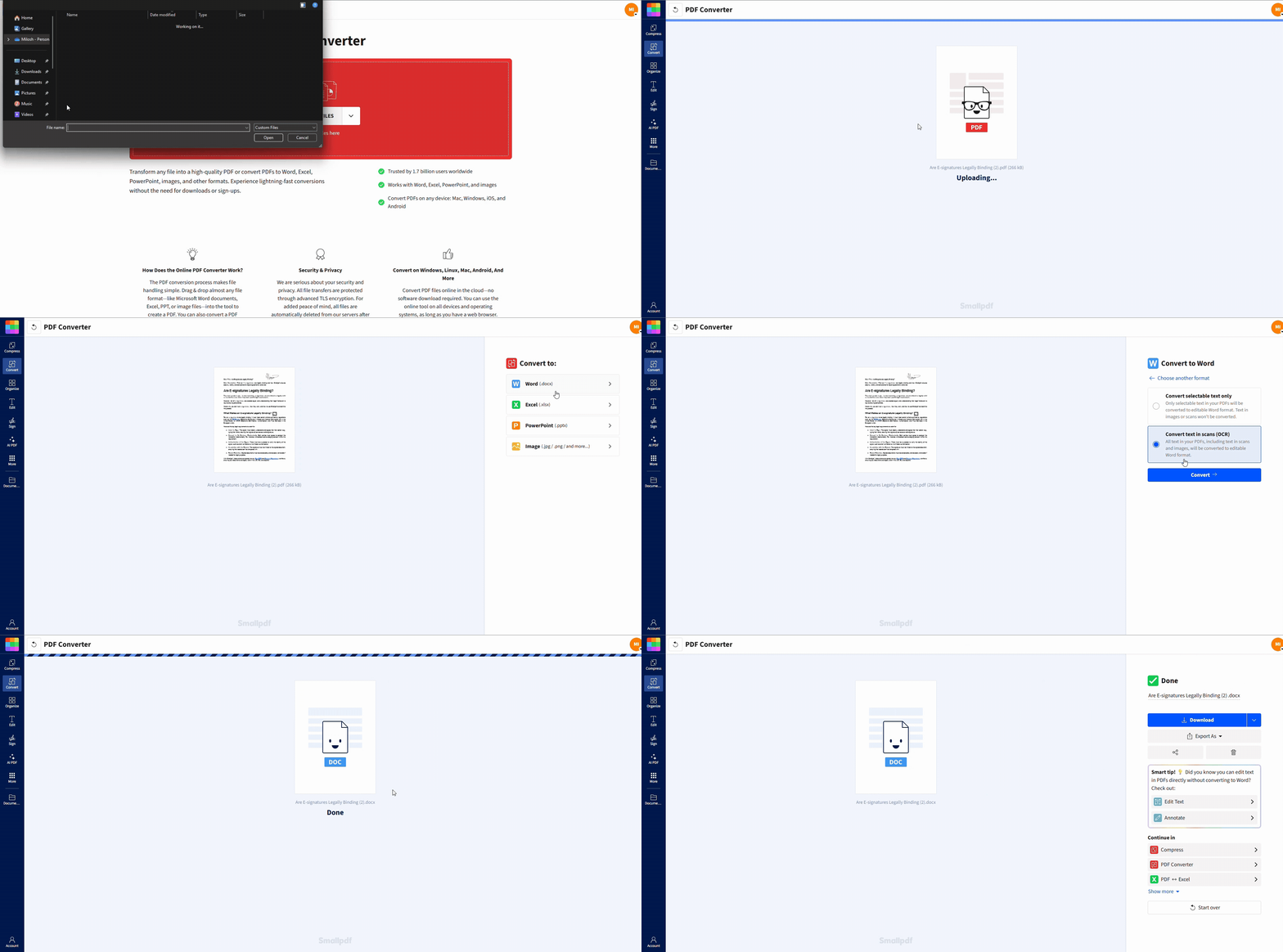
You can use our PDF Converter, OCR, and compression features to turn risky PDFs into resumes that ATS can parse more reliably.
What Is an ATS-Friendly Resume?
An ATS-friendly resume is designed so that software can read it before a recruiter does. Applicant tracking systems scan, parse, and rank your resume based on how well it matches the job description.
Most ATS will:
Scan and extract text from your resume.
Identify key data such as job titles, dates, skills, and education.
Match your wording against required and preferred keywords.
Rank or group candidates so recruiters can review the best fits first.
If your resume uses complex layouts, images, or unreadable PDFs, the software may skip important details or fail completely. That can keep you out of the shortlist, even when you have the right experience.
PDF vs. DOCX for ATS: When To Use Each
Both PDF and DOCX can work with ATS, but they behave differently. It helps to understand where each format is strong.
When PDF Works Well for ATS
Use PDF when you want your resume to look exactly the same on every screen, and you know the file is text-based. PDF can be a good choice when:
You’re sending a final version to a recruiter who confirms PDFs are fine.
You use a simple, single-column layout with standard fonts.
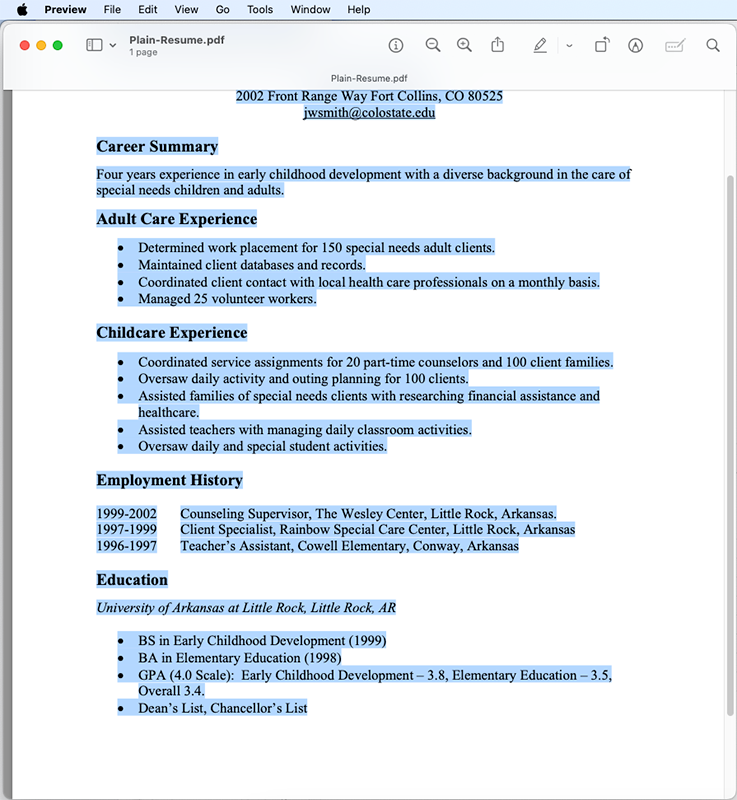
You’ve tested that all text is selectable and appears in order.
You also get these benefits:
Visual consistency across devices and email clients
Less risk of accidental edits after you send the resume
Reliable printing if the recruiter prefers a paper copy
When DOCX Is the Safer Choice
DOCX files often parse more reliably, especially with older or stricter ATS software. Choose DOCX when:
The job posting doesn’t specify a format, and you want maximum ATS compatibility.
You are using online application portals that mention “Word document” as an example.
You want to tweak keywords and sections quickly for each application.
A simple DOCX file with clear headings, standard fonts, and a single-column layout is still the safest option for getting through ATS scanning.
Types of PDFs and How ATS Sees Them
Not all PDFs are equal. ATS software treats them differently depending on how they were created.
1. Text-Based PDFs
These come from exporting a Word document or another editor directly to PDF. ATS systems usually read them well if:
Text is selectable with your cursor
Headings and paragraphs follow a logical order
Fonts are standard and not embedded in unusual ways
2. Scanned or Image-Only PDFs
These are the worst formats for ATS. They look like a resume to human eyes, but are just images to the software. The result:
No searchable text
No keywords to match
Very low chance of passing automated screening
You can fix this by running the file through OCR to convert images into real text before sending it.
3. Secured or Locked PDFs
If your PDF uses passwords or strong restrictions, ATS may not be able to extract text. In that case, the system might skip the resume altogether.
Removing unnecessary security from your application copy can prevent that problem.
ATS Resume Formatting Best Practices
Format matters as much as file type. These simple choices make your resume easier for ATS to parse.
1. Use a Simple, Single-Column Layout
Avoid anything that breaks the reading flow. Stick to:
One column from top to bottom
No tables, text boxes, or sidebars
Clear spacing between sections and entries
Complex grids may look modern, but often confuse parsing.
2. Use Keywords and Standard Section Headings
ATS software looks for familiar headings and key terms, for example:
Headings such as “Work Experience,” “Education,” “Skills,” and “Certifications”
Keywords from the job description that match your real experience
Both acronyms and full terms, for example, “Search Engine Optimization (SEO)”
Place important keywords in your experience and skills sections instead of keyword lists at the bottom.
3. Avoid Graphics, Logos, and Decorative Elements
Graphics rarely help ATS performance and can cause real problems, so keep things simple.
Use plain bullet points instead of icons.
Skip logos, headshots, and decorative borders.
Avoid charts or graphics that hold important information.
Everything that matters should appear as text that you can highlight.
4. Test Your Resume With a Plain Text Check
Before you upload your PDF or DOCX, run a quick test:
Copy the full resume and paste it into a plain text editor.
Confirm that sections appear in the right order.
Check that dates, job titles, and company names are easy to read.
Make sure your contact information does not disappear from headers or footers.
If the plain text version looks messy, adjust your layout and try again.
Troubleshooting Common PDF Resume Issues
PDF resumes fail ATS checks for a few predictable reasons. Scan your ATS resume to see how good you’re doing before fixing anything. You can usually fix them in a few steps.
1. File Size Is Too Large
Some job portals and email systems limit file size. To avoid upload errors:
Aim for a resume under 2 MB if possible.
Use our compression feature to reduce size while keeping text crisp.
Remove large background images or unnecessary graphics.
2. Fonts Don’t Display or Parse Correctly
Unusual fonts can cause text extraction issues. To reduce that risk:
Use standard fonts like Arial, Calibri, Times New Roman, or Helvetica.
Avoid script or display fonts in the main body of your resume.
Export again if you see missing or replaced characters in the PDF.
If you still have issues, open the file in Edit PDF and reset any problematic text blocks.
3. Resume Is Scanned or Image-Only
If you built your resume by scanning a printed page, ATS will not see any text. To repair this:
Run the file through our OCR feature to convert images into searchable text.
Review the converted document for any recognition errors.
Save the new version as a clean PDF or DOCX before you apply.
4. PDF Is Password-Protected or Restricted
Security features are useful for private documents, but they can block ATS parsing. For application copies:
Remove password protection using our unlock feature if you have the right to do so.
Save a separate, unsecured version only for job applications.
Keep your master resume secured in your own storage.
How To Make a PDF Resume ATS-Friendly With Our Features
If you prefer sending a PDF, you can still make it as ATS-friendly as possible by preparing it first. A simple workflow looks like this:
Start with a clean DOCX resume that follows ATS formatting best practices.
Convert it to PDF using our PDF converter for a clean export.
Compress the file so it stays small and uploads smoothly.
Use OCR if you imported any scanned sections or external pages.
Open the final PDF and run a quick text selection test to confirm everything is readable.
With this process, you keep the visual benefits of PDF while giving ATS a clear, searchable version of your resume.
Frequently Asked Questions
Can ATS read PDF files?
Yes, many modern applicant tracking systems can read text-based PDFs correctly. The problems start when the PDF is scanned, image-only, or heavily locked, because the system cannot extract real text from the file.Should I use PDF or Word for ATS?
Both formats can work, but DOCX usually offers the most reliable parsing. If the job posting does not specify a format, a well-formatted Word resume is the safer choice, with a PDF version kept for direct recruiter emails.How do I know if my resume is ATS-friendly?
Try the plain text test and, if possible, an ATS checker. If the content appears in the right order, all sections are visible, and text is selectable in your PDF, your resume is likely readable by most systems.What fonts work best for ATS?
Standard, widely supported fonts are best, such as Arial, Calibri, Times New Roman, or Helvetica. These fonts are easy for ATS to parse and look professional to recruiters reviewing your resume.Can ATS read columns and tables in my resume?
Many systems still struggle with multi-column layouts and tables. They may read text out of order or skip parts entirely. A single-column layout without tables gives you the highest chance of clean parsing.How do I convert a scanned PDF resume so ATS can read it?
Use OCR to transform the scanned pages into real text. Once the conversion is complete, review the document for mistakes, then save it as a fresh PDF or DOCX before you upload it to any applicant tracking system.Convert resumes for better ATS parsing with Smallpdf Pro
