Sample PDF—Download Free Test PDF
Need a free PDF to experiment with? Download our one-page test PDF and try Smallpdf features without risking a real contract, invoice, or form.
Document Workflow Guides
PDF Sharing Tool & Guides
More on Sign PDF
Get a test PDF document download you can trust. Grab our one-page sample and try edits, conversions, and signatures without touching real files.
Free Test PDF Document Download
If you’re about to compress a client file, convert a contract to Word, or test a signature workflow, it helps to have a throwaway PDF first. That’s the point of this page.
Get started right away with our optimized test PDF. We’ve compressed this file to make sure it’s as easy as possible for you to load and save.
Test PDF Document Download (one-page PDF)
You’ll also see how fast uploads feel, how conversions handle fonts, and how edited PDFs look on different devices.
What’s Included in the Sample PDF
This sample is built for quick checks, not reading.
Single-page layout, so tests stay fast.
Optimized file size around 50 KB for instant downloads.
No password, no restrictions, no locked layers.
Works in standard PDF readers and modern browsers.
A Simple Smallpdf Workflow to Test With This File
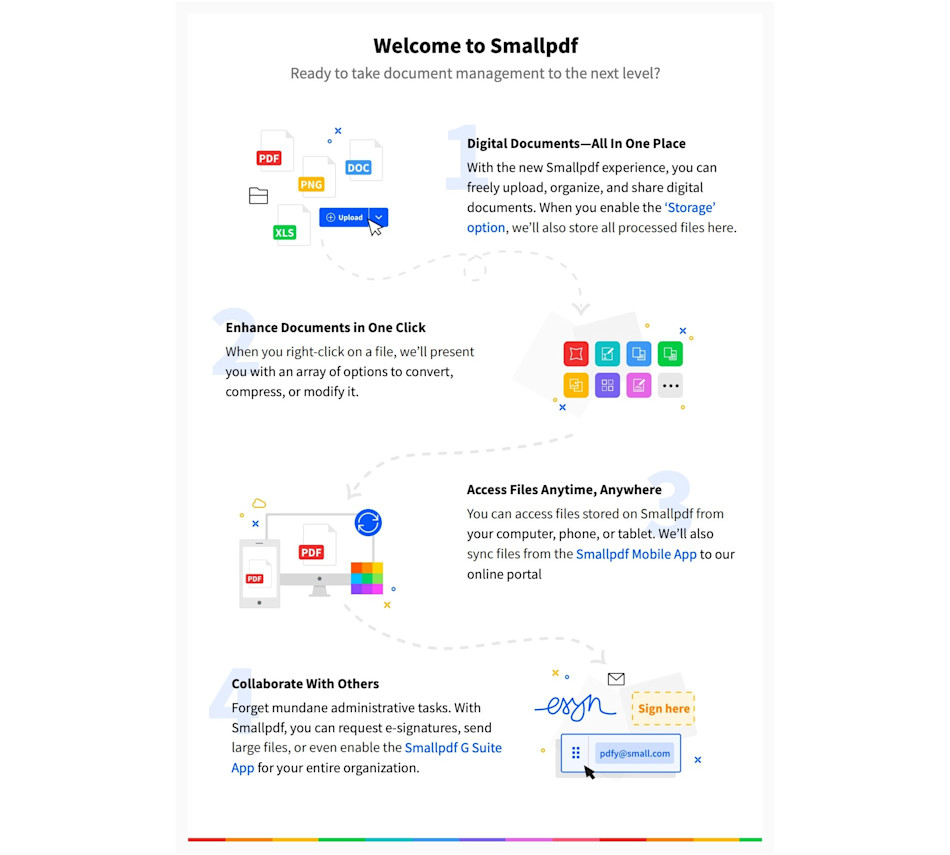
To keep things practical, we recommend one clean workflow you can repeat anytime:
Download the sample.
Run one task.
Download and check the result.
Repeat with a new feature.
This lets you spot changes in layout, file size, and text quality without guessing what caused the difference.
How To Test a PDF With Smallpdf: Step-by-Step Guide
Step 1: Download the Sample PDF
Get the Test PDF Document Download. Save it to your device so you can re-upload it any time.
If you prefer cloud storage, you can keep it in Google Drive, Dropbox, or OneDrive and pull it in from there when you’re testing.
Step 2: Test Compression With Smallpdf Compress PDF
Open Compress PDF, then upload your sample from your device or your cloud storage. Choose your compression level, then click “Compress.”
Download the result and compare the size and page clarity. On a tiny file like this, the difference may be small, and that’s normal.
Step 3: Test Conversion With Smallpdf PDF to Word
Next, open the PDF to Word and upload the same sample PDF. Convert it, then download the DOCX file.
Open the Word file and check spacing, font rendering, and line breaks. This is the fastest way to see how a conversion behaves before you try it on a contract or report.
Step 4: Test Edits With Smallpdf Edit PDF
Open Edit PDF, upload the sample, then add one or two edits. Try adding a text box, highlighting a line, or placing a small image.
When you download the updated PDF, open it in a different viewer too, like your browser and a desktop reader. That’s how you catch display differences early.
Step 5: Test Signing With Smallpdf Sign PDF
Open the Sign PDF, upload the sample, then add a signature and date. Place it near the bottom of the page so you can judge alignment and spacing.
Download the signed file and zoom in to confirm it looks sharp and professional.
Step 6: Share the Result the Way You Normally Would
If your workflow includes sharing, generate a share link or send the file to a colleague. Open it on a phone and a laptop to confirm the PDF still looks right.
This step matters most for files that will be reviewed on mobile.
This method is the best because it’s fast, reliable, and doesn’t require any technical skills. Plus, the process is secure, which is important when you’re working with sensitive financial information.
Common Use Cases for Test PDFs
Test PDFs aren’t just for curiosity. They help you validate a workflow before you bring real data into it.
Software and web teams use a small PDF like this to confirm upload handling, processing speed, and download behavior. It’s also handy for checking how different browsers handle the same file.
Training and education teams use test PDFs for live demos, since there’s no sensitive content on-screen. It keeps workshops smooth, especially when you’re teaching conversion or signing steps.
QA and IT teams use sample PDFs to confirm consistency across devices, PDF viewers, and internal systems. If a converted file breaks a layout, a test PDF helps you isolate the issue faster.
Operations teams use a sample file to confirm standard steps, like compressing a PDF under an upload limit, then sharing it for approval. It’s a clean way to document a process.
Mini Case Study: A Repeatable Pre-Flight Check for Important PDFs
Here’s an example workflow you can copy when you’re about to process a high-stakes document.
An HR coordinator needs to send an offer letter as a signed PDF. Before touching the real letter, they run the sample PDF through the same steps. They compress it to check file size behavior, convert it to Word to confirm the formatting stays stable, and sign it to confirm placement looks right.
Once the sample passes, they repeat the exact same sequence on the real offer letter. The goal isn’t perfection. It’s predictability.
Why Start With a Test PDF First
A test file gives you two big advantages.
First, it removes risk. You can try conversions, edits, and signatures without worrying about overwriting something important.
Second, it makes issues obvious. If text spacing changes after conversion, or a signature looks blurry after exporting, you’ll see it right away on a safe file and adjust your steps.
This is also a smart way to check real-world details, like file size limits in a portal, how a PDF prints, or how it looks inside a specific PDF viewer.
How To Create Your Own Test PDF Document Download
Sometimes you need a test file that matches your exact layout or font setup. Here are reliable ways to make one.
Step 1: Save a Webpage as a PDF
Open the page you want, then press Ctrl + P on Windows or Command + P on Mac. Change the destination to “Save as PDF,” then save it.
This is great for layout testing since webpages often include mixed text and images.
Step 2: Export a PDF From Microsoft Word
Create a short document with a title, a paragraph, and a small image. Then go to “File” > “Export” and choose “Create PDF/XPS” if you see it.
This method helps you test how Word formatting survives the PDF export.
Step 3: Download a PDF From Google Docs
Open Google Docs, add a few lines of text, then go to “File” > “Download” > “PDF Document (.pdf).”
This is useful when you want a quick, clean PDF without desktop software.
Step 4: Build a Layout Test With Placeholder Text
Create a short page with headers, short paragraphs, and a table. Export it as a PDF, then use it to test conversions and edits on structured content.
This is the closest match to invoices, forms, and internal reports.
More Sample PDFs You Can Try
If you’re testing something specific, a one-page file might not be enough. Different PDFs stress different features.
A multi-page sample is best for split and merge checks, page thumbnails, and performance testing. It’s also the right option when you want to see noticeable compression changes.
A form-style sample helps you practice filling fields and checking how form elements behave after exporting or sharing. If you often deal with onboarding paperwork, this is the most realistic test.
A layout-heavy sample, like an invoice format, helps you test tables, spacing, and alignment. It’s the fastest way to see if a conversion keeps the structure intact.
File Size and Optimization Notes
Our main sample is kept small so you can download it instantly and start testing right away.
If your goal is compression testing, pick a larger PDF. Compression results are easier to measure when a file has multiple pages, high-resolution images, or heavy embedded fonts.
As a rule of thumb, use the one-page sample to test workflow and UI behavior. Use multi-page samples to test file size reduction and performance.
Security and Privacy When You Use Smallpdf
Even if you’re testing with a sample, your files should still be handled responsibly.
Smallpdf protects files with TLS encryption during upload and processing. Files are automatically deleted after a short period, and our systems are designed around secure handling and privacy standards, including ISO 27001 and GDPR compliance.
If you want the details, you can review our Trust Center for the full breakdown of how processing and retention work.
Troubleshooting Download and Viewing Issues
If the download doesn’t start, check your browser’s pop-up or download settings and allow downloads from smallpdf.com. Some browser extensions can block file downloads, too, so it’s worth disabling them for a quick test.
If the PDF won’t open after downloading, try opening it directly in your browser first, then try a different PDF reader. Outdated readers can cause display problems, especially with fonts.
If the file looks corrupted, clear your browser cache and download it again. Cached files sometimes create odd viewing issues that disappear on a fresh download.
Frequently Asked Questions
What is a PDF and what does a sample PDF include?
A PDF (Portable Document Format) is a file format that preserves document formatting across all devices. Our sample PDF includes text, basic formatting, and standard page layout. Perfect for testing PDF tools.Can I download sample PDFs for free?
Yes! All our sample PDFs are 100% free to download and use. No sign-up required.What file size should a sample PDF be?
Sample PDFs typically range from 50KB to 500KB. Ours is optimized at ~50KB for quick downloads while maintaining quality. Our new multi-page, image-heavy sample PDF is intentionally larger. This lets you test how compression affects bulkier files. You can see how much smaller you can make it, how image quality changes, and how quickly the tool processes bigger PDFs.Can I share the sample PDF with others?
Absolutely. Feel free to send or embed it in tutorials, demos, or classroom examples. The file is fully open and safe to distribute.Is the sample PDF safe to open?
Yes. All files processed through Smallpdf are encrypted and deleted automatically after one hour. Learn more in our Trust Center.How do I test PDF tools on mobile devices?
Download the Smallpdf mobile app for iOS or Android to test all our tools on your phone or tablet. The sample PDFs work perfectly on mobile, too.Can I edit the sample PDF without signing up?
Yes, but free users can perform up to two tasks per day. For unlimited access to all editing features, try our 7-day free trial.What’s the difference between test PDFs and production PDFs?
Test PDFs are designed for experimentation and learning. They‘re simple, unrestricted, and safe to modify. Production PDFs contain your real work and often need security features like passwords or digital signatures.Work with sample PDFs more smoothly using Pro tools
