How to Encrypt a PDF Online for Free
Protect sensitive PDFs with free 128-bit AES encryption using Smallpdf’s online tool—no software needed, works on any device in under a minute.
More on Protect PDF
More on Edit PDF
More on Unlock PDF
Encrypt your PDF: Click “Choose file” above to upload your document, add a password, and download a protected PDF.
PDFs are great for sharing, but sometimes you need to make sure no one can open a file without your permission. Whether it’s a strategic report, a confidential plan, or an unpublished manuscript, adding a password keeps it out of the wrong hands. Many basic PDF lockers don’t encrypt properly, which makes their protection easy to bypass.
Smallpdf uses strong 128-bit AES encryption so only people with the password can open the file. Even better, you encrypt your PDF quickly and for free.
Quick Steps to Encrypt a PDF
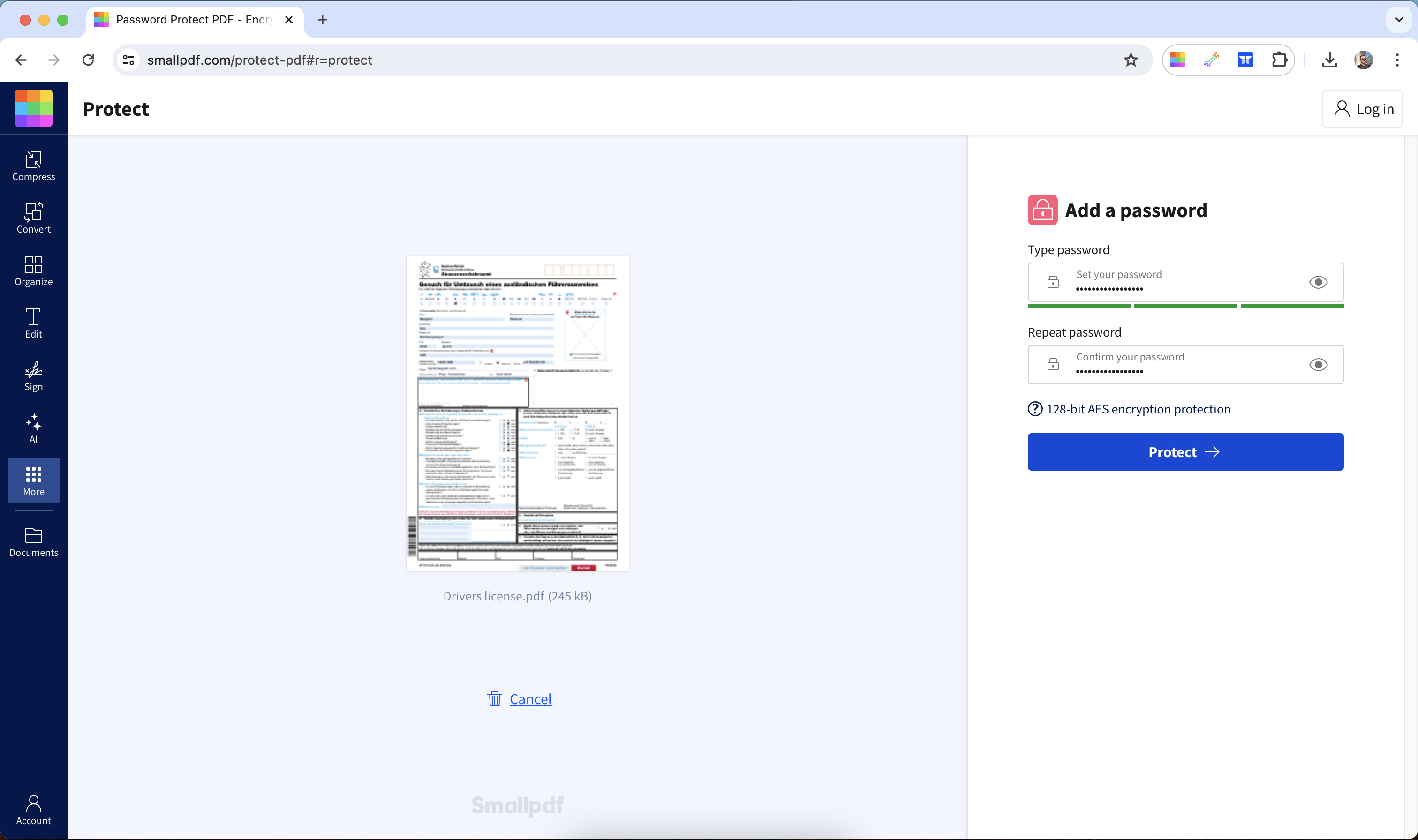
How to Encrypt a PDF Online with Smallpdf
Smallpdf uses AES-128 bit encryption—the same standard used by banks—to protect your documents. Your file is deleted after one hour automatically for maximum privacy.
Step-by-Step Guide
Upload your PDF file to our Protect PDF tool.
Enter the password you want to use.
Click “Protect” and let the tool work its magic.
Download the encrypted PDF file.
Best Practices for Strong Passwords
Even the strongest encryption won’t help if people can guess your password easily. Avoid using simple passwords like your birthday. Aim to use a unique word with at least seven characters, including a mix of numbers, capital letters, and special symbols.
The stronger the password, the less likely it is that someone can gain unauthorized access.
Is Smallpdf Encryption Secure?
It’s not just secure—it’s the most reliable online tool to encrypt your digital documents. We use TLS encryption for all online file transfers, and our servers delete your file after one hour of processing for stronger security. You can learn more on our Privacy page.
Since Smallpdf is an online platform, you can access the tools through your favorite internet browser (Firefox, Edge, Safari, Chrome, etc.). It also doesn’t matter if you’re using Windows, Linux, or Mac—as long as you have an internet connection, you can encrypt your PDFs for free.
How to Encrypt a PDF Offline
While online tools like Smallpdf offer the quickest solution, you can also encrypt PDFs using desktop software. Here are the most common methods.
Encrypt PDFs on Mac with Preview
Mac users can encrypt PDFs directly in Preview without additional software:
Open your PDF in Preview.
Go to “File,” then “Export.”
Click on the “Encrypt” checkbox.
Set your password and confirm it.
Click “Save.”
Password-Protect PDFs in Microsoft Word
You can create encrypted PDFs directly from Word documents:
Open your document in Microsoft Word.
Go to “File,” then choose “Info” and “Protect Document.”
Select “Encrypt with Password.”
Enter and confirm your password.
Go to “File” and select “Save As” and choose PDF format.
Remove or Change PDF Passwords
Need to modify or remove password protection from your encrypted PDFs? Here’s your options.
Remove a Password You Know
If you have the original PDF password, you can use our online Unlock PDF tool to remove the encryption from the PDF. Afterward, you can set a new password or download the now decrypted file. Upload your file in the Unlock PDF area below to decrypt it and download an unlocked copy
If You Forgot the Password
In the case that you’ve lost or forgotten your password, unfortunately, there’s nothing we can do. Our password protection is so strongly encrypted that you must know the exact password to access its content.
This is why we emphasize the importance of noting down the password of the file. Since paper can get lost, destroyed, or thrown out, we recommend using a password manager like 1Password or Dashlane to store the file’s password.
Who Encrypts PDFs with Smallpdf?
Millions of users trust Smallpdf to protect their sensitive documents. From freelancers securing client contracts to HR departments protecting employee records, PDF encryption is essential for:
Legal professionals sharing confidential case files
Healthcare providers protecting patient information
Financial advisors securing investment documents
Students protecting thesis drafts and research
Businesses sharing proprietary information
Start Your Free Trial to Access All Smallpdf Tools
Ready to protect all your documents? Start your free trial to access unlimited encryptions and 30+ PDF tools.
Frequently Asked Questions
How do I password protect multiple PDFs at once?
Currently, Smallpdf processes files individually for security reasons. However, with our Pro plans, you can encrypt unlimited PDFs without daily limits, making batch processing faster.What’s the difference between encryption and password protection?
Password protection and encryption are often used interchangeably for PDFs. When you add a password to a PDF, the file content is encrypted using algorithms like AES-128, making it unreadable without the correct password.Can encrypted PDFs be hacked?
Smallpdf uses AES-128 bit encryption which would take thousands of years to crack with current technology. Your files are also automatically deleted after one hour for additional security.How do I share an encrypted PDF securely?
Never send the password and encrypted file in the same email. Instead, share the password through a separate communication channel like phone, text message, or secure messaging app.Can I encrypt a PDF without software?
Yes! Online tools like Smallpdf let you encrypt PDFs directly in your browser without downloading or installing any software. This works on any device with internet access.Does encrypting a PDF increase file size?
Encryption adds minimal overhead to your PDF file size, typically less than 1% increase. The security benefits far outweigh this small size addition.Encrypt and protect PDF files online using Smallpdf Pro
