- Home
- ›
- ›How to Fix the "Failed to Load PDF Document" Error
How to Fix the "Failed to Load PDF Document" Error
Seeing the “failed to load PDF document” error? Open the file in Smallpdf PDF Reader, or follow a few checks to fix the browser, device, or PDF file.
Quick Takeaways
If you see “failed to load PDF document” in Chrome, download the PDF first instead of opening it in the browser preview.
Try the PDF in Smallpdf PDF Reader before changing lots of settings. It helps you check whether the file itself can open.
Clear your browser cache if the same website keeps showing the error.
Turn off extensions one by one if the PDF failed to load after you installed an ad blocker, VPN, or privacy tool.
If the same file fails on every device and every reader, ask for a fresh copy. The PDF may be damaged.
It usually happens when your browser tries to preview a PDF but can’t finish loading it. The file might be too large, the download may have stopped halfway, the website may be blocking the viewer, or your browser’s PDF setting may be getting in the way.
What “Failed to Load PDF Document” Actually Means and Why It Happens
“Failed to load PDF document” usually means your browser or app tried to open a PDF, but something blocked the file from loading fully.
But it doesn’t always mean the PDF is broken. Sometimes the browser never got the full file. Sometimes the website sent the file in a way the built-in viewer couldn’t handle. Sometimes a browser extension, weak connection, old cache, or device setting gets in the way.
The most common causes are:
The PDF didn’t download fully.
Your browser’s built-in PDF viewer couldn’t load it.
The website preview is broken.
Your browser cache is holding onto an old or incomplete version.
An extension is blocking the file.
The PDF is large, scanned, protected, or damaged.
So, the fastest fix is to separate the file from the preview. Download it first, then open it with a proper reader.
How to Fix “Failed to Load PDF Document” in Chrome
Chrome’s built-in PDF viewer works for most everyday files, but it can still struggle with large PDFs, protected files, broken website previews, or incomplete downloads.
Start with the simplest test and download the PDF instead of opening it in the browser tab. Right-click the PDF link and choose “Save link as,” or use the download button if the file opened from Gmail, Drive, or another web preview. Then open the saved file from your Downloads folder.
If the PDF opens after downloading, the file is probably fine. The browser preview was the problem.
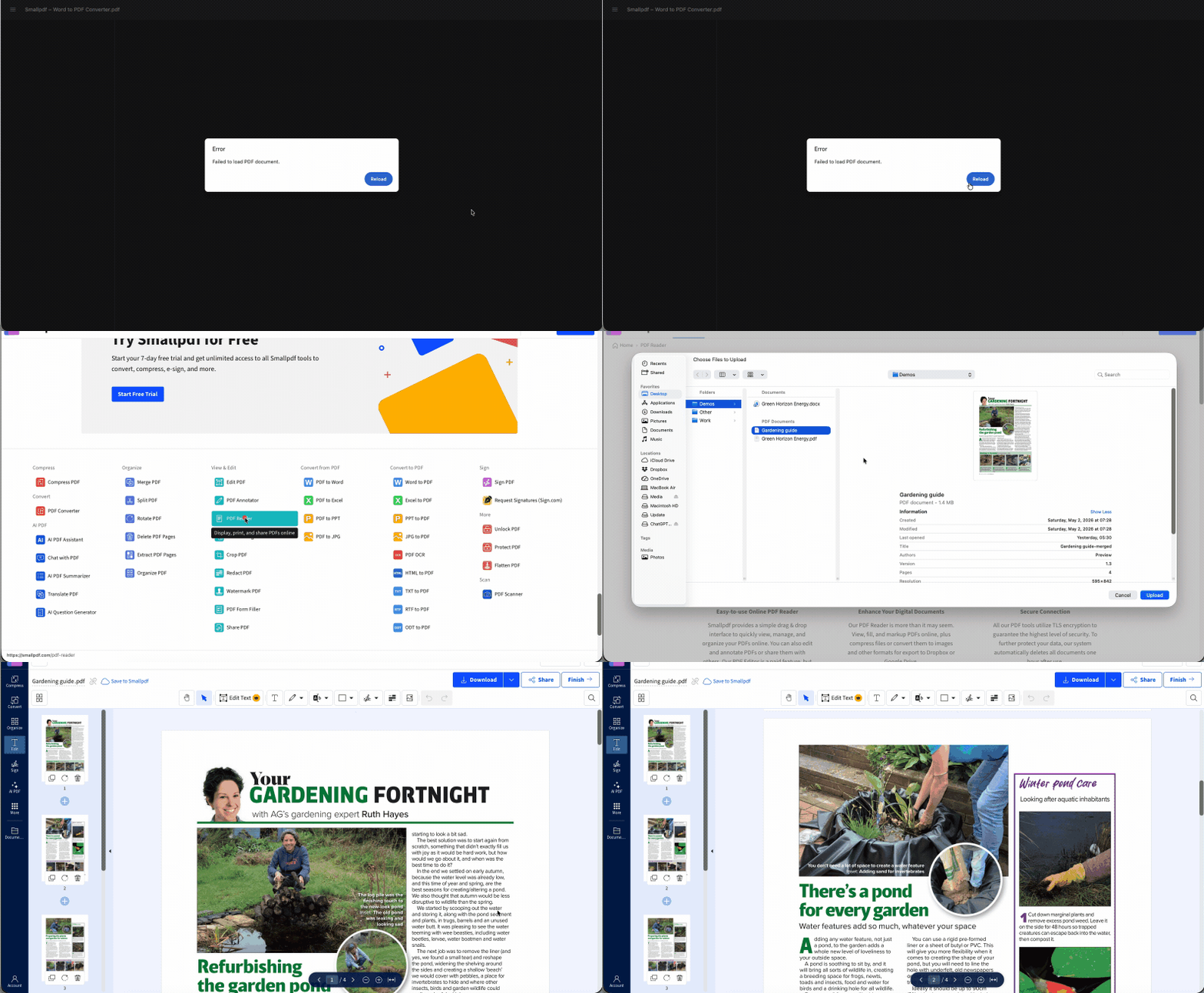
If it still doesn’t open, upload the file to Smallpdf PDF Reader. This gives you a quick second check without installing anything. If the PDF opens in Smallpdf, Chrome is likely the issue. If it fails there too, the file may be damaged or incomplete.
You can also try these quick Chrome checks:
Refresh the page and sign in again if the file came from a portal or account dashboard.
Clear Chrome’s cached files if the same website keeps showing the error.
Temporarily turn off extensions like ad blockers, privacy tools, VPN add-ons, or download managers.
Close open tabs that might be using too much memory.
Change Chrome’s PDF setting so PDFs download instead of opening in Chrome.
Try another browser to confirm whether the issue is Chrome-specific.
To change Chrome’s PDF setting:
Open “Settings” in Chrome.
Select “Privacy and security.”
Open “Site settings.”
Select “Additional content settings.”
Open “PDF documents.”
Choose whether PDFs should open in Chrome or download first.
How to Fix the Same Error on Mac, iPhone, and Android
The same error can show up when you open a PDF in your device’s default PDF reader, an email preview, a file manager, or an app’s built-in reader. The wording may change slightly, but the problem is usually the same. The reader can’t load the file properly.
Start by saving the PDF to your device. Then open it from the saved location instead of relying on a preview inside Mail, Messages, WhatsApp, a cloud app, or another app.
On Mac, save the PDF to Finder first. Then Control-click the file, choose “Open With,” and try Preview or another PDF reader. If one reader fails but another opens the file, the PDF is probably fine.
On iPhone, save the PDF to the Files app. Then open it from Files instead of the email, message, or app preview. If it still won’t open, use Smallpdf PDF Reader from your mobile browser and upload the saved file there.
On Android, download the PDF to your device first. Open it from your Files or Downloads app. If your phone asks which app to use, choose a PDF reader rather than the app preview where the error first appeared.
A small detail can make a big difference here. Built-in readers inside email, messaging, and cloud storage apps are useful for quick viewing, but they don’t always handle larger, protected, or slightly unusual PDFs well.
When None of the Above Work: The File Itself May Be Corrupted
If the same PDF fails in Chrome, another browser, Smallpdf PDF Reader, and your device’s PDF app, the file itself may be the problem.
A corrupted PDF can happen when the file wasn’t created properly, the upload failed, or the download stopped halfway. You might also get this issue with files exported from older software, files renamed by mistake, or PDFs pulled from a broken website.
Start by downloading it again from the original source.
If someone emailed the file to you, ask them to send a fresh copy. Don’t ask them to forward the same email again if possible. Ask them to export or attach the original PDF again.
If you created the file yourself, go back to the original document and export a new PDF. For example, use Word to PDF, JPG to PDF, or Excel to PDF if the source file came from a document, image, or spreadsheet.
If the file is very large, compress it before sharing or reopening it. Smallpdf Compress PDF can make image-heavy files easier to send and handle. This can help when the PDF loads slowly, freezes, or times out in a browser preview.
How to Avoid the Error Next Time
You can’t prevent every PDF loading issue. Websites break. Connections drop. Files get sent badly. But a few habits can save you from seeing the same error again.
Download PDFs before opening them when the file is large, private, or coming from a portal. Browser previews are handy, but they’re not always the most reliable way to open a document.
Keep your browser updated. Browser PDF viewers change over time, and older versions may struggle with newer or more complex files.
Avoid opening the same file from too many preview layers. For example, a PDF inside Gmail, inside Chrome, inside a company portal has more chances to fail than a PDF saved directly to your device.
Compress large, scanned PDFs before emailing them. Smaller files are easier for browsers and email previews to load.
Use Smallpdf PDF Reader when you want a quick second opinion. If the PDF loads there, you can stop worrying about the file and focus on the browser or app instead
Frequently Asked Questions
What does “failed to load PDF document” mean?
It means your browser or app tried to open a PDF but couldn’t load it fully. The PDF may not be broken. The issue can come from Chrome, a browser preview, a weak connection, an extension, or an incomplete download.Why does the error happen on some PDFs but not others?
Some PDFs are larger, scanned, protected, or built with features that browser viewers handle less well. A simple one-page PDF may open fine, while a long report or form-heavy PDF fails in the same browser.Can I read the PDF without changing any browser settings?
Yes. Download the file first, then open it in the Smallpdf PDF Reader. This lets you read the PDF in your browser without changing Chrome settings or installing a desktop app.How do I know if the PDF file itself is corrupted vs. just blocked by my browser?
Try the file in another browser, another device, and Smallpdf PDF Reader. If it opens in one of them, the file is probably fine. If it fails everywhere, ask the sender for a fresh copy.Will a VPN cause PDFs to fail to load?
Yes, sometimes. A VPN or privacy extension can block scripts, downloads, or website previews. Turn the VPN off for a moment, reload the page, and try downloading the PDF again.Handle corrupted or hard-to-open PDFs more easily with Pro