How to Save iPhone Notes as PDFs
Need to keep a meeting note, checklist, recipe, or scanned document in a format that is easy to send and print? Here’s how to save a note as a PDF on iPhone with the Notes app you already use.
Quick Takeaways
On iPhone, open the note, tap “Share,” choose “Markup,” then tap the file name to save as a PDF in the Files app.
Exporting creates a separate PDF. Your original note stays in the Notes app.
Export notes one at a time, then use Merge PDF when you need to combine them.
Check images, tables, and scanned attachments before exporting. A multi-page scan or PDF attached to a note may not export in full.
Update the original note before exporting again when you need to correct the content.
We'll also walk you through tips for exporting multiple notes into one file, fixing messy layouts, and creating PDFs from Notes on iPad or Mac. Between your Apple devices, your browser, and Smallpdf, you have all that you need. No extra software to install.
You don’t need to copy your note into another app or take screenshots. Notes can create a PDF directly from the note.
Here’s how to save a note as a PDF on iPhone:
Open the Notes app and select the note you want to export.
Tap the “Share” icon.
Tap “Markup.”
Review the PDF preview. You can use Markup to draw, add text, or make a quick note before saving.
Tap the file name to save the PDF to your Files app.
Choose where you want to keep or send the file.
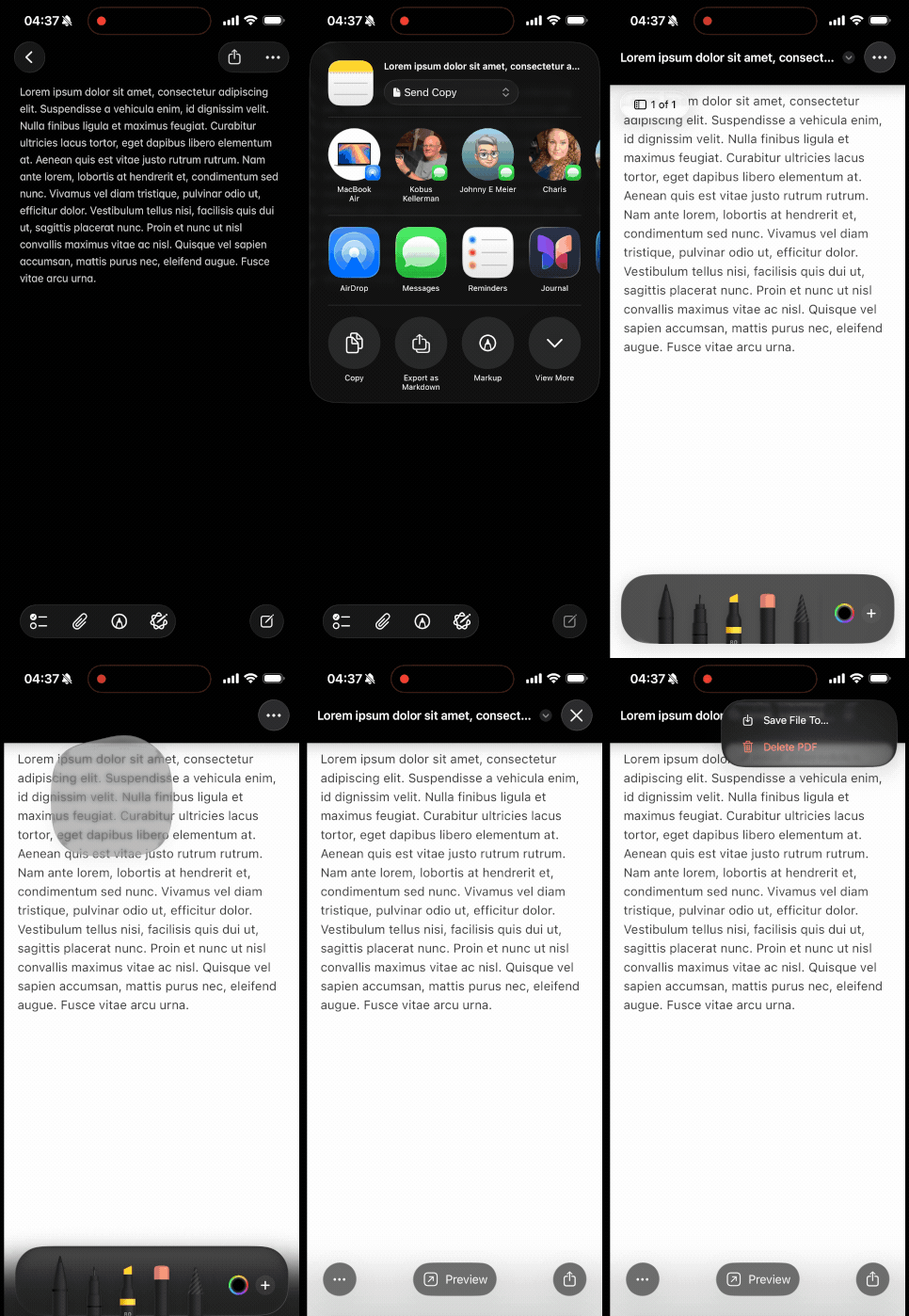
That’s how easy it is to save a note as a PDF without printing it first. Give the file a clear name when you save it, especially if you export notes often. “June Meeting Notes.pdf” is easier to find later than a generic filename.
Before you tap Share, read through the note once. Checklists, links, images, attachments, and tables can all change how the final pages look. If you spot a typo or an unfinished item, fix it in Notes first. Then export a fresh PDF.
Want to add something after the export, such as a comment or a short line of text? You can use Edit PDF for small changes and even some formatting edits. For larger changes, update the original note and save a new PDF so your source copy stays accurate.
Can You Combine Several Notes Into One PDF?
You can, but with Smallpdf. Notes exports individual notes as individual PDFs.
Save each note as a PDF on your iPhone.
Open Merge PDF in your mobile browser.
Upload the exported PDFs.
Drag the page thumbnails into the right order.
Tap “Finish” to create one combined PDF.
Download the completed file or share it from your device.
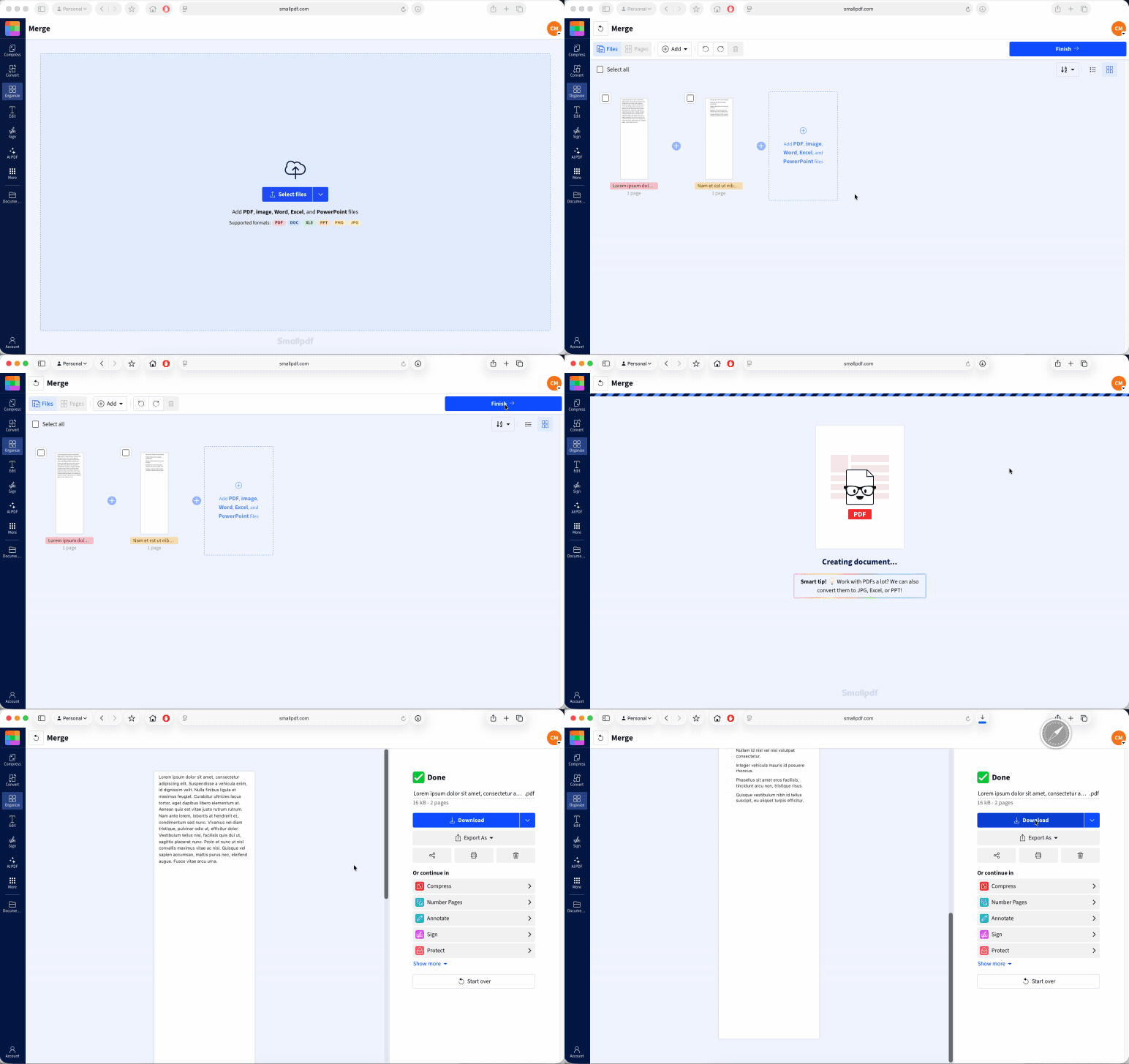
This is the ideal sequence for travel plans, class notes, project records, or a collection of recipes. You can also mix note PDFs with other supporting PDFs, such as a ticket confirmation or a scanned receipt.
Check the page order before you finish. A combined PDF is easier to use when it starts with the main note, then moves through supporting information in a logical order. If you need to move individual pages after merging, use Organize PDF to rearrange or remove them.
Why Does the Exported PDF Look Messy?
An exported note can look different from the version you see in Notes. Usually, the issue comes from the content inside the note rather than the PDF itself.
Long blocks of text may break across pages in awkward places. A wide table can feel cramped. Several large images can push a short note across multiple pages. And attachments need a careful check before export.
Check Scans and PDF Attachments First
Apple creates the PDF using the way attachments are currently displayed in the note. There is one limitation worth knowing. When a note contains a multi-page PDF or scanned document, the exported note PDF includes only the first page of that attachment.
So, do not rely on one note export to capture a full scanned document. Export the note as a PDF, save the original multi-page scan or attachment separately, then combine both files with Merge PDF. That gives you one complete document without losing pages.
Tidy the Original Note Before You Export
A few quick edits can make a big difference:
Remove empty lines that do not serve a purpose.
Break up very long paragraphs.
Check that images appear in the order you expect.
Split a large table into smaller sections if it is hard to read on a phone.
Put a clear title at the top of the note.
Then export the note again. Since the original stays in Notes, you can make corrections and create a new PDF whenever you need to.
Keep Large Files Easy to Send
Photos and scanned documents can make an exported PDF large. If the file is too big for email or a work portal, use Compress PDF after export. Download the smaller version, then check that text and images are still clear before you send it.
How to Convert a Notes to PDF on iPad and Mac
The iPad process is the same as on an iPhone. Open the note in Notes, tap the “Share” icon, choose “Markup,” then tap the file name to save the PDF.
On a Mac, Notes gives you a direct export option:
Open Notes and select the note.
Choose “File,” then “Export As” and “PDF.”
Give the file a name. You can add Finder tags if that helps you sort your files.
Click “Save.”
That’s how easy it is to save notes as PDFs across your Apple devices. The menu looks different, but the result is the same—a separate PDF copy of your note.
If you use iCloud Notes, export from the device that gives you the clearest view of the note. A large table may be easier to check on Mac, while a short note is easy to save from your iPhone. Review the PDF after export, especially when it includes photos, scans, or several attachments.
Frequently Asked Questions
Does exporting change or delete the original note?
No. Exporting makes a separate PDF copy, so the original note remains in Notes. You can continue editing the note after you save the PDF, but those later changes will not appear in the file you already exported.Can I export all my notes as PDFs at once?
On iPhone and iPad, export the notes you need one by one. Then use our Merge PDF tool to put them into one document. This gives you control over the file order and lets you leave out notes that do not belong in the final PDF.Do checklists and tables from Notes still work in the PDF?
The PDF keeps a record of how the checklist or table looked when you exported it. Treat it as a finished copy, rather than a note you can keep updating. To tick more boxes or change table content, edit the original note and save a new PDF.Save iPhone Notes as PDFs with Smallpdf Pro