How to View Comments in a PDF
Learn how to read comments on PDF files, including visible text annotations, collapsed notes, mobile viewing, printing, search, and quick fixes.
Quick Takeaways
PDF comments can appear as visible text annotations on the page or as collapsed notes that can be expanded when needed
Text annotations usually show in any PDF reader, including a browser preview.
Notes often appear as a small rectangle, speech bubble, or comment icon.
Click a note icon to open the full comment.
Notes don’t open in some PDF readers, even when you click on them.
Text annotations are easier to print and search than note comments.
PDF comments are not all the same. Annotations show up as text placed directly on the page. Notes are collapsed by default and only open when you click the small comment icon.
Review and annotate: Upload your PDF below, check each page for existing notes, then add visible text annotations with Smallpdf if needed.
Why You Can’t See Comments in Some PDFs and How to Fix It
The first thing to check is what kind of comment you’re dealing with.
Some comments are added as text annotations. These are better than notes because they are immediately visible, no matter what PDF reader you are using. They can be added to the margins, in blank spaces, or next to a highlighted section. Unfortunately, this does also mean that too many comments can make the document look cluttered and messy.
Notes are more discrete. They are collapsed by default, and all you will see are small yellow squares or speech bubbles wherever a note has been added. Click on it, and it expands to show the full text of the note. Click elsewhere on the page and the note collapses again.
Notes sound perfect for when you want a page to look less cluttered. But the problem is that some PDF readers don’t support notes. The yellow square or speech bubble shows up, and when you hover over it, the cursor might even change like it does over hyperlinks. But click on it, and nothing happens. The note stays collapsed.
Try this:
Look for small note icons, speech bubbles, or rectangles on the PDF.
Click or tap each icon to open the full comment.
Zoom in if the icons are hard to see.
Open the PDF in a different reader if the notes won’t expand.
Ask the sender whether the comments were added as notes or visible text annotations.
If the comment is visible text on the page, it should be easy to read. If it’s a collapsed note, you may need the right PDF reader to open it.
How to View Comments in a PDF Online
To view comments in a PDF online, open the PDF in a reader that can show annotations and note icons.
Text annotations are the easiest. If someone typed a comment directly onto the PDF page, you should see it as soon as the file opens. This type of comment is visible in most readers, including browser previews.
Notes need one extra step. If no visible comments show up in the document, look for a small comment icon, speech bubble, or rectangle. Click it, and the full note should open. If it doesn’t, try another PDF reader.
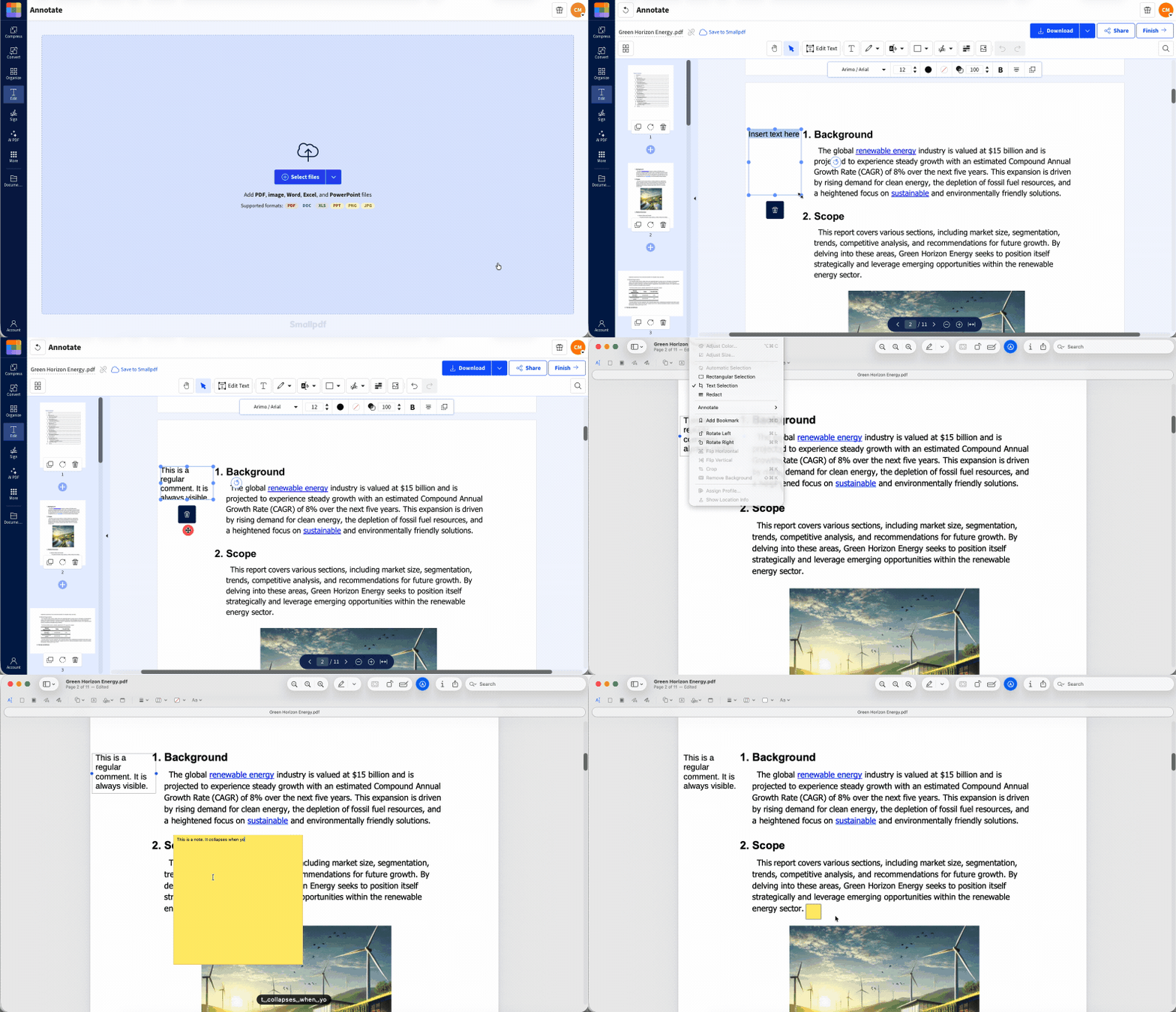
If you’re reviewing a marked-up document, check every page. Notes can be easy to miss, especially when they sit in the margins or near a highlighted sentence.
Smallpdf can help when you need to add visible text annotations or mark up a PDF. But for reading collapsed note comments, use a PDF reader that can expand those notes properly.
How to View PDF Comments on iPhone, iPad, and Android
You can view PDF comments on mobile, but small screens make notes easier to miss.
Visible text annotations are usually simple. Open the PDF and read the typed comments on the page. They should appear the same way as the rest of the visible PDF content.
Collapsed notes need more attention because a smaller screen means the yellow rectangles or speech bubbles are more difficult to see. Once you find the notes, tap the icon to open it. If nothing opens, the app you’re using doesn’t support that type of note.
For quick checks, mobile is fine. For long review documents with lots of note comments, desktop is easier. You get more space to see icons, open notes, and move through the file without missing anything.
How to Print, Export, or Search Through All Comments in a PDF
Printing and searching depend on how the comments were added.
Text annotations are usually straightforward. Because the comment sits visibly on the page, it should print with the PDF. You can also search for specific words using the normal search function in your PDF reader.
Notes are different. Even if you print the document with a note expanded, it might not show up. There’s also the problem of only being able to expand one note at a time. Another risk is that, if it does show up when printing, the expanded note might block some of the document's original text.
There are a few simple steps to follow to ensure all notes show up when printing:
Select “Print” to open the Print dialog.
On Windows, find the “Comments & Forms” dropdown menu.
Select “Document and Markups.”
If needed, go to “Edit,” then “Preferences,” then “Commenting.”
Check “Print Notes and Pop-Ups.”
On macOS, select “File,” then “Print.”
Check “Show Notes” to print comments.
The other problem with notes is that they aren’t searchable. But you should be able to copy and paste both comments and notes to a separate document for easy reference.
If you ever want to make sure the comments you add to a PDF are always visible, use PDF Annotator and add them as text annotations instead of collapsed notes.
Upload your document to PDF Annotator or click on "Choose files" below
Select the text tool.
Click where you want the comment to appear.
Type your comment directly onto the PDF.
Adjust the placement so it’s easy to read.
Download the updated PDF.
You can also change the font color, text size, text color, and background color of the added text. PDF Annotator also lets you add shapes, images, and highlights to specific parts of the document. It’s free to use with a daily limit of two documents. Switching to Pro removes the limit, and you can try Pro first with a 7-day free trial.
Comments Still Not Showing? Troubleshooting Checklist
If comments still aren’t showing, don’t assume they’re gone. They may be hidden, collapsed, flattened, or unsupported by the PDF reader you’re using.
Start with the basics. Text annotations should be visible on the page. Notes may only show as small icons until clicked.
Then check the reader. Some PDF readers show note comments properly. Others only show the collapsed icon. If the note won’t expand, open the file somewhere else.
Ask the sender whether the comments were flattened.
Ask for a new copy if the comments are missing from the file.
Flattened comments may still appear visually, but you may not be able to open, move, copy, or search the original note comment.
Frequently Asked Questions
How do I read comments on a PDF for free?
Open the PDF in a reader that supports comments. Most do. Text annotations should appear on the page. For note comments, look for a small speech bubble, rectangle, or comment icon, then click it to open the full note. Some PDF readers and browsers don’t support notes in PDFs.How do I see who made each comment in a shared PDF?
Click the comment or open the note panel if your PDF reader has one. If the author’s name was saved with the comment, it should appear there. Annotations don’t usually include the author’s name.Can I view comments in a password-protected PDF?
Yes, if the password lets you open the file and view annotations. If the file has restrictions, some comments may be harder to access or edit. Ask the file owner for an unrestricted copy if needed.Why do my comments look fine on desktop but disappear on mobile?
Mobile PDF readers don’t always handle note comments the same way as desktop readers. Text annotations should usually appear, but collapsed notes may stay hidden or be hard to tap. Try another PDF reader or open the file on the desktop.Can I view PDF comments offline on my phone?
Yes, if the PDF is saved on your phone and your PDF reader supports the comment type. Visible text annotations should show offline. Collapsed notes may need a reader that can expand note comments properly.View comments, notes, and feedback more smoothly using Pro
