- Home
- ›
- ›PDF Not Recognizing Text? Why It Happens and How to Fix It
PDF Not Recognizing Text? Why It Happens and How to Fix It
Need to know why your PDF text isn't being recognized? Smallpdf helps fix scanned and image-based PDFs so you can search, select, and copy text easily
Quick Takeaways
A readable page can still be an image with no searchable text behind it.
PDF OCR reads printed words in scanned PDFs and creates text you can search and select.
Clear, upright scans give OCR a better chance of reading the page correctly.
Check the OCR output file, not the original scan, when testing search and copy-paste.
OCR can improve access to printed text, but faint print, handwriting, and complex tables may still need a manual check.
You can see every word on the page, but search finds nothing and copy-paste produces a blank space. Frustrating. But it happens with PDFs sometimes
A PDF usually fails to recognize text because the page is a scan or image rather than a document with real text characters. A blurry scan, unusual font, damaged text layer, or incomplete download can cause similar problems. Here's how to fix most issues using Smallpdf.
Why Your PDF's Text Isn't Recognized
PDFs can contain different types of content. Some are exported from a word processor and contain proper text characters. Others are photographs or scanned images stored inside a PDF file.
The difference is easy to test. Open the PDF, select a word with your cursor, then search for that word using “Ctrl+F” on Windows or “Command+F” on Mac.
If you can select individual letters and search finds the word, the PDF already has text. If the entire page selects as one block, or search returns nothing, the file probably needs OCR (optical character recognition).
The Page Is a Scan or Image
Scanned forms, phone photos, screenshots, and photocopied records often become image-only PDFs. You can see the words because they are visible in the image, but your device won’t treat them as text.
Fix: Use PDF OCR
PDF OCR reads printed text from image-based PDFs and creates a searchable copy. Upload the file, let the tool process it, then download the completed version.
Keep the original scan as well. It gives you something to check against when a name, date, or number is unclear.
The Scan Is Blurry, Faint, or Crooked
OCR must be able to tell the difference between letters, numbers, punctuation, and background marks. Faint ink, shadows, glare, folded pages, or motion blur can make that difficult.
A low-quality scan can turn “8” into “3,” mix up “O” and “0,” or miss a line entirely.
Fix: Start With a Clearer Page
When you have the paper original, scan it again in good, even light. Put the page on a flat surface, keep the camera or scanner steady, and make sure it is in focus.
For a digital file that is sideways or surrounded by scanner borders, use Rotate PDF or Crop PDF before you run OCR again. Those changes can make the page easier to read, though they cannot restore detail that was never captured.
The PDF Has a Broken Text Layer
Some PDFs let you select text but still fail at search or copy-paste. You may get symbols instead of letters, words in the wrong order, or spacing that does not match the page.
This can happen when a file uses an unusual font map or was created through a poor conversion.
Fix: Export a New PDF From the Source Document
Go back to the original Word file, spreadsheet, or presentation if you have it. Export a fresh PDF, then test search and copy-paste again.
When the source file is unavailable, run OCR on a copy of the PDF and compare the result with the original page. Check names, headings, prices, dates, and account numbers before relying on the extracted text.
The File Is Damaged or Incomplete
A download can stop partway through. A cloud-storage preview can also behave differently from the saved PDF.
The page may appear in the preview, but search, selection, or OCR may not work properly.
Fix: Download a Fresh Copy
Download the original PDF again and save it to your device. Open the saved copy in a current browser or PDF reader, then test it before processing.
If it still fails to open properly, ask the sender for a new export. Processing a damaged file rarely fixes the missing content.
OCR can sometimes misinterpret some characters, so always check the new document against the old document. You can always use Edit PDF to make small corrections to the new document.
How to Make Text Selectable and Searchable With Smallpdf OCR
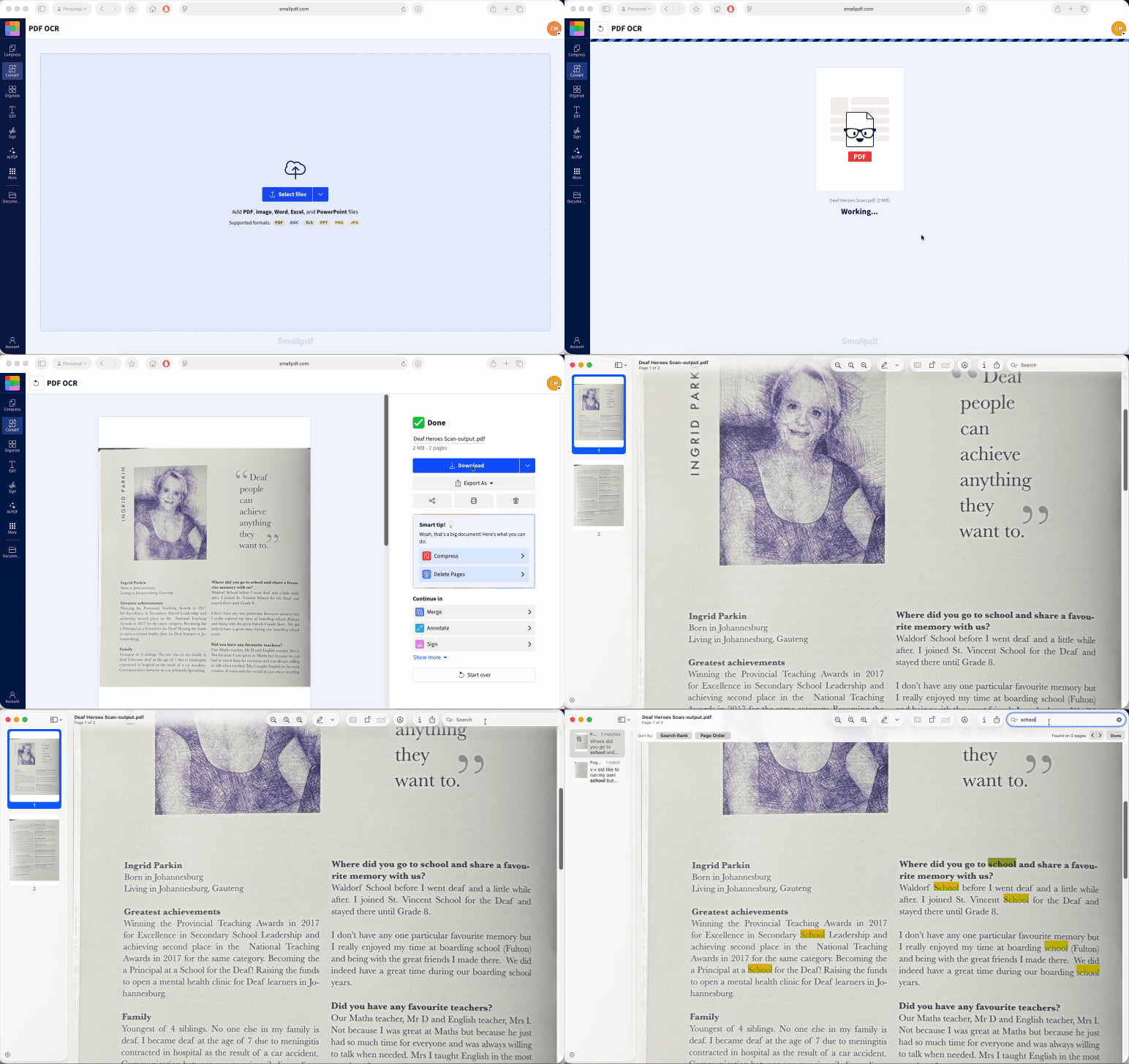
Need to turn a scan into a PDF you can search? Smallpdf PDF OCR works in your browser, so there is no software to install.
Open PDF OCR.
Upload the scanned or image-based PDF.
Let Smallpdf process the pages.
Download the new PDF when it is ready.
Open the downloaded file.
Search for a clear word that appears on the page.
Select and copy a short sentence to confirm the text layer is working.
OCR creates a new file. Do not overwrite or delete the original scan until you have checked the result.
For larger wording changes, PDF to Word can turn the PDF into an editable Word document. Review the converted file carefully before using it as a replacement for the original.
Why Your PDF Is Still Not Searchable After OCR
When a PDF is not searchable after OCR, start with the simplest explanation. You may be opening the original scan again instead of the processed copy.
Look at the filename and location of the file you opened. The OCR version may be in your Downloads folder while the original is still open in an email, cloud-storage preview, or browser tab.
If you are definitely using the new file, try searching for a large, clear word from the middle of the page. If one word works but another does not, the text layer exists, but OCR may have read some characters incorrectly.
Run the file through OCR again only after checking the page quality. Rotate sideways pages, remove dark borders, and rescan faint pages where possible. Avoid compressing a poor scan before OCR, as compression can remove fine details around letters.
Why Only Part of Your PDF's Text Is Recognized
Sometimes a PDF lets you search and copy some text, but not all of it. This usually means the file is a mix of real, selectable text and image-based content. For example, a document might include properly exported text on some pages, while other sections (like scanned pages, screenshots, or embedded images) contain text that looks readable but isn’t recognized as text.
This mix can happen when documents are combined from different sources or when parts of a file are scanned instead of digitally created. As a result, search and copy-paste may work in some areas but fail in others.
Running the file through OCR can help fix this. OCR scans the entire document and converts any image-based text into real, searchable text, making the whole PDF consistent.
Keep in mind that OCR accuracy still depends on the quality of the original content. Faint scans, unusual fonts, or complex layouts like tables and sidebars may still need a quick review after processing.
How to Avoid Text-Recognition Problems in Future PDFs
A clean source page gives you a better result later. Scan from the original document where possible instead of using a photocopy, screenshot, or photo of a photo.
Keep pages flat, upright, and fully in frame. Avoid shadows across text, and check that the whole document is sharp before saving it.
For everyday paper documents, PDF Scanner lets you capture pages from your phone, crop them, rotate them, and save them as PDFs. You can then use OCR when you need searchable text.
It also helps to keep a proper digital original for documents you create yourself. Export PDFs from the original Word file, spreadsheet, or presentation instead of printing and scanning the document again.
Frequently Asked Questions
Why can I see the text on screen but not copy it?
The PDF probably contains an image of text rather than real text characters. This is common with scans, screenshots, and phone photos. PDF OCR can create a searchable copy.Will OCR change the original layout or appearance of my PDF?
OCR usually creates a separate processed copy while keeping the page image in place. Keep the original file so you can compare the result when accuracy is important. Some changes to the layout or appearance can happen with complex documents.Why does copied text come out with wrong characters or spacing?
The scan may be unclear, the font may be unusual, or the page may contain columns and tables. OCR can also struggle with handwriting, very small text, and text placed over images.Do I need software installed to make a PDF searchable?
No. PDF OCR works in your browser. Upload the file, download the processed copy, then test search and selection.Can OCR recognize text in another language or in special fonts?
OCR can read many common printed languages, but results depend on the print quality, language, font, and layout. Check the output against the original where names, numbers, or exact wording need to be correct.Can a blurry PDF prevent text recognition?
Yes. OCR cannot reliably read text that is too faint, blurred, pixelated, or obscured by shadows. A clearer scan gives you a better result.Fix text recognition issues in seconds with Smallpdf Pro tools