- Home
- ›
- ›Why Can't I Save a PDF? 6 Common Reasons and Fixes That Actually Work
Why Can't I Save a PDF? 6 Common Reasons and Fixes That Actually Work
Why can’t I save a PDF? Usually, the issue comes from the app or the way the PDF was opened. Smallpdf has easy fixes for you, no new software needed.
Quick Takeaways
If your PDF won’t save, first try “Save As” and choose a new file name and folder.
If you’re asking, “Why can’t I save a PDF to my computer?” check your Downloads folder, storage space, and file permissions.
If “Save to PDF” is not working in a browser, use the print menu again or try another browser.
If a PDF is read-only, save a copy instead of trying to overwrite the original.
If the PDF is not saving after edits, open it in Edit PDF, make your changes, and download a fresh copy.
A PDF that won’t save can quickly become a problem when you’ve filled in a form, added comments, signed a document, or need to send the final version now. And the issue usually appears after you’ve already done the work.
Why Won’t My PDF Save? Common Causes and Quick Fixes
There are many places you could encounter a problem with a PDF not saving. Chrome, Edge, Preview on Mac, email previews, cloud folders, and form-heavy PDFs can all stop you from saving a PDF. But once you know what the cause is, fixing it is usually easy.
Cause 1: The PDF Is Read-Only, Locked, or Permission-Protected
Some PDFs are set up so you can view them, but not change or overwrite them. This can happen with read-only files, password-protected documents, locked files on Mac, or PDFs where editing and saving changes have been restricted.
Most times you can open the PDF without any problems. You might even be able to type, highlight, or add notes to the document. But when you try to save, the changes don’t stick, or you get a message that changes are not allowed.
Solution
Use “Save As” first and create a new copy with a different file name. If you own the file and have permission to change it, check whether the file is locked or password protected.
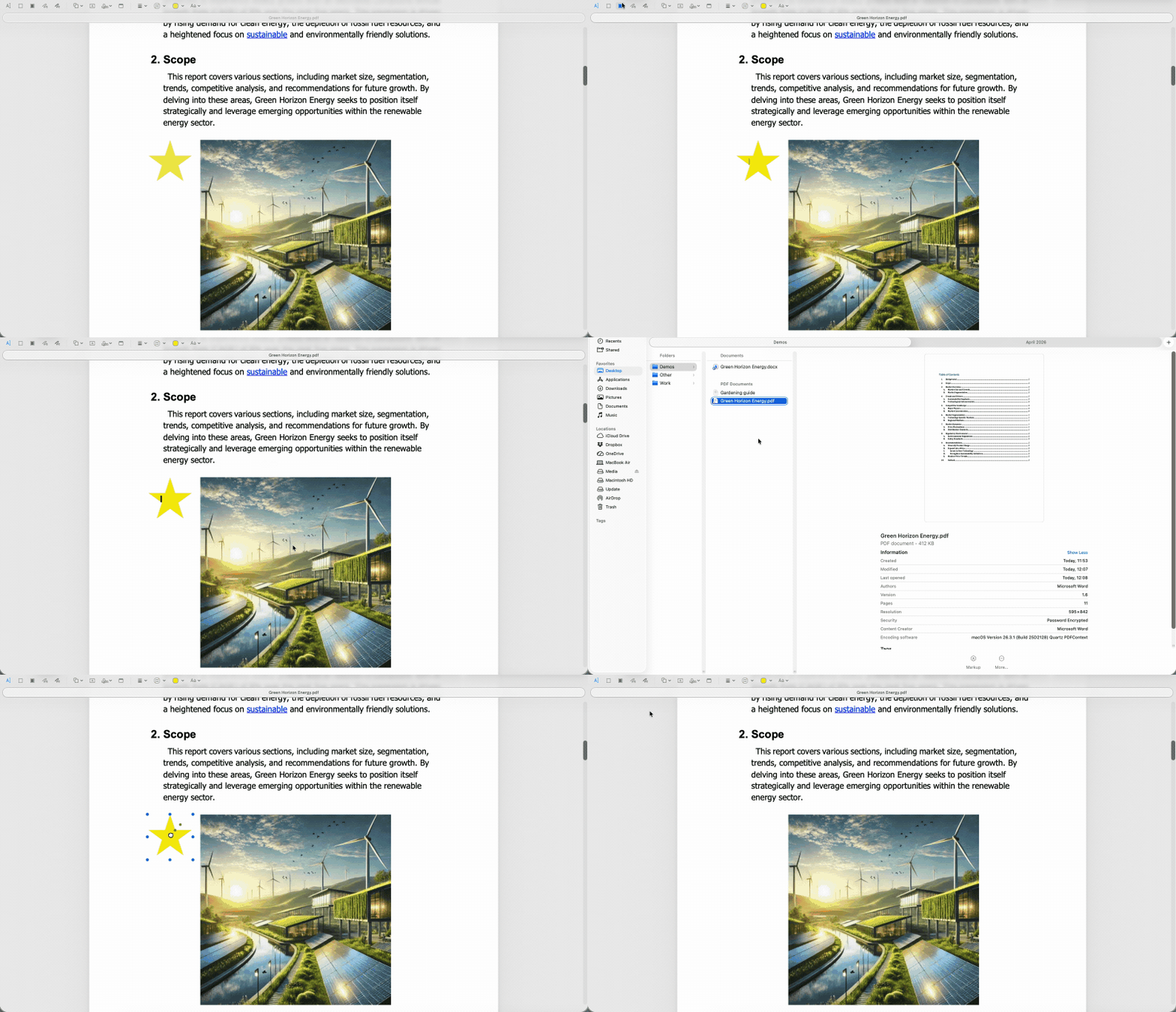
On Mac, select the PDF in Finder, open “Get Info,” and check whether “Locked” is selected. If it is, deselect it and try saving again.
If the PDF has editing restrictions, ask the sender for an editable version or the correct password. You can also use Smallpdf Unlock PDF if you own the file and have permission to remove the restriction.
Cause 2: The PDF Was Opened From a Temporary Preview
This is one of the most common reasons a PDF won’t save properly. The file may have opened from an email preview, browser tab, messaging app, cloud preview, or online portal instead of a normal saved location.
In that case, you’re not always working on a proper local copy. You may be editing a temporary version, so the app has nowhere reliable to save your changes.
Solution
Download the PDF first. Save it to a clear location like Desktop, Downloads, or Documents. Then open that saved copy and make your changes there.
If your usual reader still gives you trouble, open the saved file in Smallpdf PDF Reader or Edit PDF and download a clean copy when you’re done.
Cause 3: The App Doesn’t Support the Changes You Made
Some apps can display PDFs but don’t save every type of change.
For example, an app may let you type in a form field, draw a mark, or add a note, but then fail to save those changes correctly. Or it may save a visual copy that looks different when opened somewhere else.
Solution
Use a PDF tool that supports the type of change you need.
Use Smallpdf Edit PDF for text, images, and page edits. Use PDF Form Filler for forms. Use PDF Annotator for notes, highlights, and markups. Once you’ve finished, download the completed copy and reopen it to check that the changes are saved.
Cause 4: Your Device or Folder Won’t Let the App Save the File
Sometimes the PDF is fine, and the app is fine, but the save location is the problem.
You may be trying to save to a restricted folder, a work-managed location, an external drive, or a cloud folder that isn’t syncing properly. The file may also be opened in another app, which can block saving over it.
Solution
Use “Save As” and choose a simple local folder, such as Desktop or Downloads. Give the file a new name so you’re not trying to overwrite the original.
If that works, the first save location was the issue.
If you’re using a work device or shared drive, check whether your organization blocks saving to certain folders. If the file is open in another app, close that version and try again.
Cause 5: Your Device, Cloud Storage, or Browser Has Run Out of Space
A PDF may fail to save if there isn’t enough storage available. This can happen on your computer, phone, cloud drive, or browser storage.
It’s more likely with large, scanned PDFs, image-heavy reports, long manuals, design proofs, or files with many pages.
Solution
Check your available storage and free up space if needed. Empty the trash or recycle bin, remove old downloads, and check whether your cloud storage is full.
If the PDF is very large, use Smallpdf Compress PDF to reduce the file size. Then try saving, uploading, or sharing it again.
Cause 6: The PDF Is Damaged or the Export Failed
If the PDF still won’t save after you’ve tried a different folder, a different app, and a fresh copy, the file may be damaged. Or, if you’re creating a PDF from another file, the export process may have failed.
This can happen when a download stops halfway, the source file has broken elements, or the app crashes while creating the PDF.
Solution
Download the PDF again from the original source. If someone sent it to you, ask for a fresh export rather than a forwarded copy of the same attachment.
If you’re making the PDF yourself, go back to the original Word, Excel, PowerPoint, or image file and export it again. You can also use Smallpdf tools like Word to PDF, Excel to PDF, JPG to PDF, or PDF Converter to create a clean new PDF.
Quick Fix: Save a Clean Copy With Smallpdf
If you’ve already tried the obvious fixes and the PDF still won’t save, skip the app that’s giving you trouble.
Open the PDF in Edit PDF, make your changes, and then download a clean copy. This is often faster than digging through browser settings, app permissions, and hidden folder rules.
Smallpdf works in your browser. Upload your file, make the change you need, and download the finished version. Edit PDF is a Pro feature, but you can try it out first by signing up for a free 7-day trial.
For confidential files, use sensible checks before uploading anything online. Smallpdf uses 256-bit TLS encryption, holds ISO 27001 certification, and automatically deletes uploaded files after one hour.
Frequently Asked Questions
Why can’t I save a PDF in Chrome or Edge?
Chrome and Edge often open PDFs in a browser preview. That preview may not save form entries, annotations, or downloads properly. Download the PDF first, then open the saved copy in a PDF reader.Why can’t I save a PDF on my Mac?
The PDF may be locked, read-only, open from Mail, or stored in a folder where you don’t have save permission. Try “Save As,” choose Desktop or Downloads, and check Finder’s “Get Info” panel for the “Locked” setting.How do I save a PDF that says “read-only”?
Use “Save As” and create a new copy with a different file name. If the PDF has owner permissions that block changes, ask the sender for an editable copy or the correct password.Is it safe to save a confidential PDF using an online tool?
Use an online tool only if you’re comfortable with its security setup and your organization allows it. Smallpdf uses TLS encryption, has ISO 27001 certification, and automatically deletes uploaded files after one hour.Fix PDF saving issues faster with Smallpdf Pro tools