- Home
- ›
- ›Why Can't I Open a PDF? 8 Causes and How to Fix PDF Not Opening
Why Can't I Open a PDF? 8 Causes and How to Fix PDF Not Opening
PDF won’t open? Fix damaged files, browser errors, locked PDFs, and app problems on Windows or Mac with quick checks anyone can follow.
Quick Takeaways
If your PDF won’t open, start by downloading it again. A broken or incomplete download is one of the easiest problems to fix.
If you can’t open a PDF in Chrome, Gmail, or another browser preview, save it to your device first. Then open it with a PDF reader.
If PDF files are not opening on Windows or Mac, check the default app for “.pdf” files and make sure your PDF reader is up to date.
If the PDF asks for a password, you’ll need the correct password from the sender. If you own the file and have permission, Smallpdf Unlock PDF can help.
If the same PDF won’t open anywhere, ask the sender to resend a clean copy. You can also try opening it in another reader to confirm whether the file is damaged.
Getting an error message that your device is unable to open a PDF usually comes at the worst time. You need to submit a form urgently, read a statement, send a contract, or print something fast.
But most issues related to PDFs not opening have a clear cause. And once you know whether the problem is, the fix is usually quick.
8 Common Reasons a PDF File Won’t Open
“Why can’t I open a PDF?” is one of those search terms that typically peaks around a new OS release and during tax season. And it’s usually because of one of a few simple problems. The file might not have been downloaded properly. Your device might be opening it with the wrong app. Or the PDF may need a password before you can view it.
Let’s go through the most common reasons, plus the fastest fix for each one.
1. The PDF Didn’t Download Properly
This is the sneaky one. A PDF can look like it was saved correctly but still be incomplete. Maybe your internet dropped for a few seconds. Maybe the browser stopped the download early. Maybe the file came through as zero KB or much smaller than expected.
If the PDF won’t open and you just downloaded it, check the file size first. A tiny file size is often a clue that the download failed.
The Fix
Download the PDF again from the original source. If it came from an email, save the attachment to your device instead of opening it inside the email preview. If it came from a website, refresh the page and try the download again.
Still stuck? Try another browser. A PDF that fails in one browser may download cleanly in another.
2. The File Isn’t Really a PDF
Sometimes a file has “.pdf” at the end, but it isn’t a real PDF. This can happen when a file is renamed by mistake, exported incorrectly, or saved from a webpage instead of downloaded properly.
For example, a webpage may save an HTML file with a PDF-looking name, or sometimes with no file extension at all. Your computer tries to open it, but the contents don’t match or the extension is missing. That’s when you get errors like “file type not supported” or “unable to open PDF.”
The Fix
Right-click the file and check its details. If the file came from a website, download it again using the site’s actual PDF download button. If someone sent it to you, ask them to resend the original file instead of a renamed copy.
If the file is another document type, convert it properly. Smallpdf has tools for Word to PDF, JPG to PDF, and more.
3. The PDF Is Damaged
A damaged PDF may refuse to open in every app. This sounds similar to the first problem in this list, but this one is often the result of a problem when the PDF was created.
You might see an error message saying the file is corrupted, damaged, or cannot be read. Or nothing happens at all. Annoying, yes. But not always hopeless.
The Fix
Download the file again if you got it from a website or cloud folder. If it came by email, ask the sender to resend a fresh copy rather than forwarding the same attachment again.
If you created the PDF yourself, go back to the original Word, image, spreadsheet, or presentation file and export it as a new PDF. For a cleaner export, you can also use the relevant Smallpdf converter, such as Word to PDF, JPG to PDF, or Excel to PDF.
4. Your PDF Reader Is Outdated
PDFs are common, but they aren’t all built the same way. Some include forms, comments, signatures, layers, embedded fonts, or newer PDF features. Older PDF readers can struggle with those.
So, if PDF files won’t open in your usual app, but they open somewhere else, your reader may be the problem.
The Fix
Update your PDF reader, then restart it. If that doesn’t work, open the file in another app or browser.
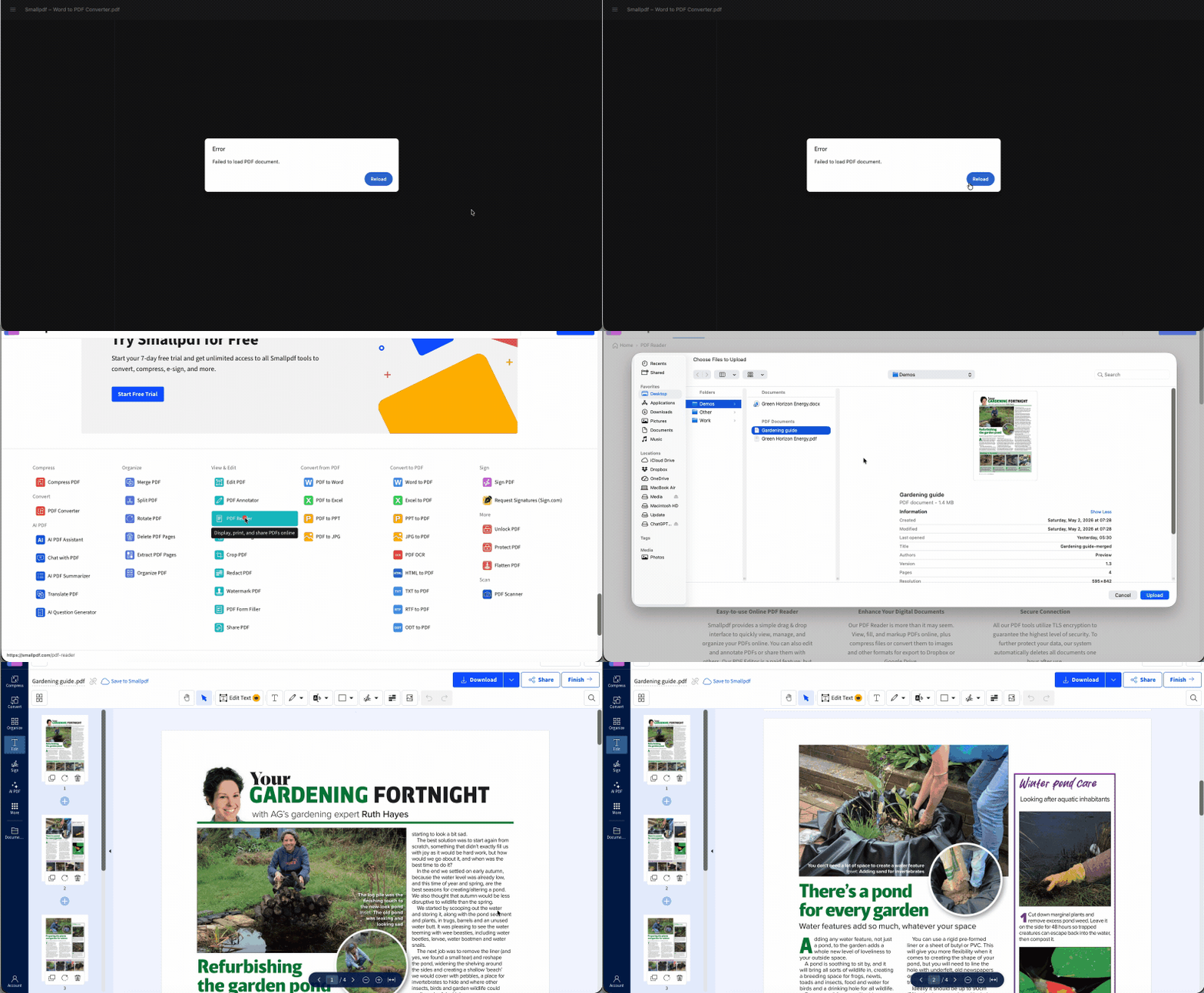
Use the online reader: Upload your PDF with “Choose file” below to open, view, and check the file right away
You can also use the Smallpdf PDF Reader in your browser. No installs. No sign-up to start. Upload the PDF and see if it opens there.
5. The PDF Is Password Protected
Some PDFs are locked with a password. Others open normally but block certain actions, like editing, copying, or printing. If you don’t have the right password, the file may not open at all.
This is common with bank statements, contracts, medical forms, payslips, and other private documents.
The Fix
Ask the sender for the password. If you own the file and have permission to remove the password, use Smallpdf Unlock PDF. Upload the file, enter the password, and download the unlocked copy.
Don’t try to bypass security on files you don’t own or don’t have permission to access.
6. Your Browser Is Blocking or Mishandling the File
If the problem is that your PDF won’t open in Chrome, the browser may be the issue rather than the file.
Chrome, Edge, Safari, and Firefox can open many PDFs directly in the browser. But browser PDF viewers are sometimes limited. They may struggle with large files, secured files, form-heavy PDFs, or files served strangely by a website.
The PDF may also download instead of opening, or open a blank tab.
The Fix
Download the PDF first. Then open it from your Downloads folder using a PDF reader or Smallpdf PDF Reader.
In Chrome, you can also check the PDF document setting. Go to “Settings,” then “Privacy and security.” Look for “Site settings,” then “Additional content settings,” and then “PDF documents.” From there, choose whether PDFs should open in Chrome or download first.
7. The File Is Too Large for Your Device or App
Large PDFs can take a while to open. If your device is low on memory, or your browser is already loaded with tabs, the PDF may freeze, show a blank page, or crash the viewer.
This happens a lot with scanned documents, image-heavy reports, design proofs, and long manuals.
The Fix
Close any extra tabs and apps you have open, then try again. If the file opens but runs slowly, compress it with Smallpdf Compress PDF to make it easier to share and handle.
If the file still won’t open, try opening it on a device with more memory or use an online reader instead of a built-in preview pane.
8. Your Device Doesn’t Know Which App to Use
Sometimes the PDF is fine, but your device is confused. It may try to open the PDF in the wrong app, an old app, or an app that no longer exists.
This is common after software updates, app removals, or after switching PDF readers.
The Fix
Check below for detailed steps on changing default PDF readers on Windows and macOS
How to Fix PDF Not Opening on Windows 10 and 11
If a PDF won’t open on Windows, start with the file. Then check the app.
First, download the PDF again. If it came from email, save it to your Downloads folder before opening it. Then right-click the file, choose “Open with,” and try another PDF reader or browser.
If that works, the file is fine. Your default app is probably the issue.
Next, change your default PDF viewer permanently:
Open “Settings.”
Go to “Apps.”
Choose “Default apps.”
Search for PDF or scroll to “Choose defaults by file type.”
Find “.pdf.”
Pick the app you want to use.
If PDF files are not opening after that, update your PDF reader and restart your computer. Still nothing? Try Smallpdf PDF Reader in your browser. If it opens there, you’ve narrowed the issue down to your Windows app settings or local PDF software.
How to Fix PDF Not Opening on Mac
Mac usually opens PDFs in Preview by default. Preview works well for everyday PDFs, but it can still run into problems with damaged, very large, password-protected, or form-heavy files.
Start simple. Save the PDF to your Mac, then open it from Finder. If it came from Mail or a browser, don’t rely on the preview window. Download the file first.
Then try this:
Control-click the PDF in Finder.
Choose “Open With.”
Select Preview, Safari, or another PDF reader.
If one app fails, try another.
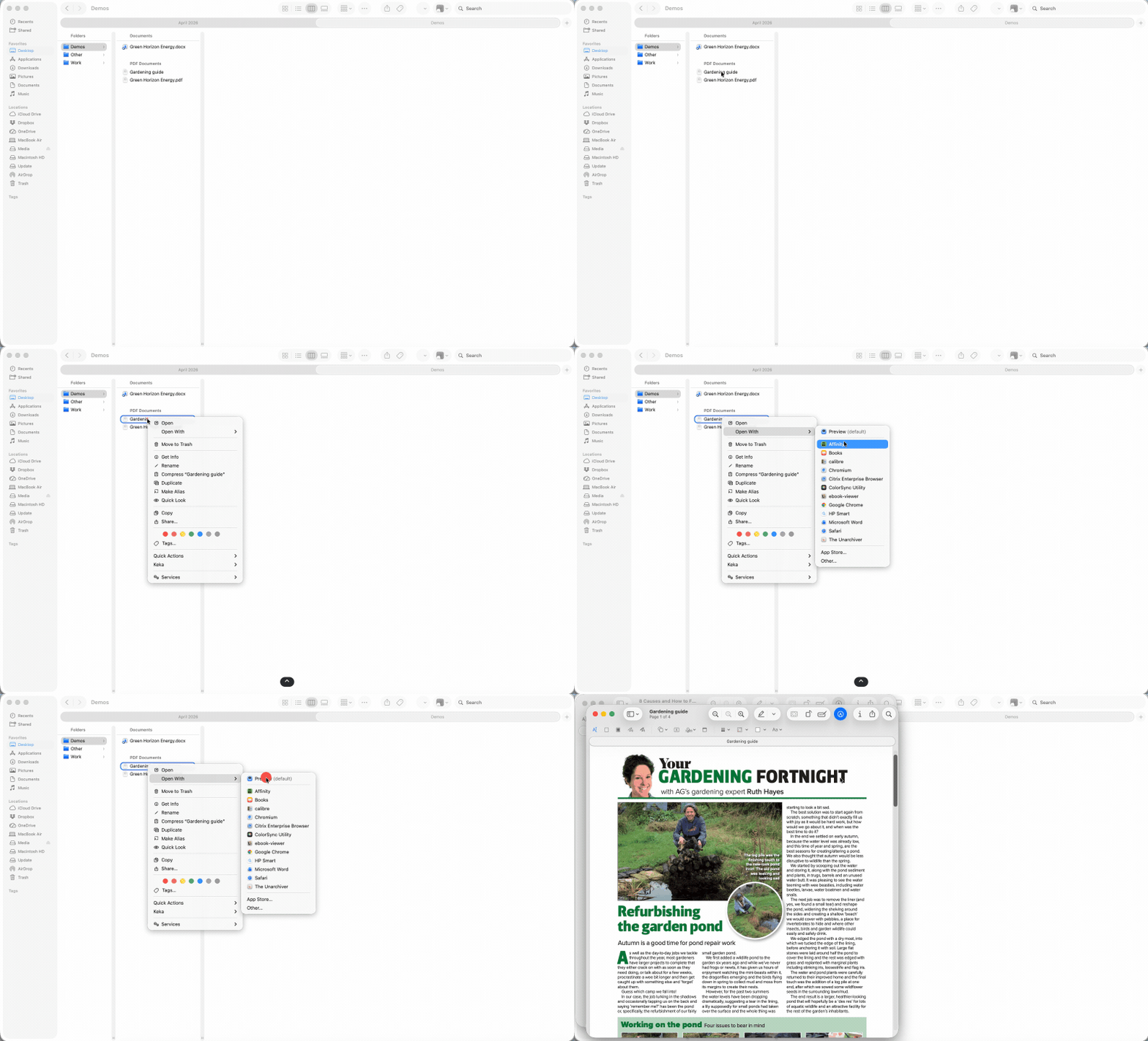
To permanently change the default PDF app on Mac, select the PDF in Finder and choose “Get Info.” In the “Open with” section, choose the app you want, then click “Change All.”
If you’re still unable to open the PDF, test it in the Smallpdf PDF Reader. If it opens online, your Mac app may need an update or reset. If it doesn’t open anywhere, the file may be damaged.
Quickest Fix is to Open Any PDF in Smallpdf’s Free Online PDF Reader
If you’re tired of testing apps, browsers, and settings, use Smallpdf PDF Reader as a quick file check.
Open Smallpdf PDF Reader, upload your PDF, and see whether it loads. It works in your browser, so you don’t need to install anything. This is handy when you’re on a work laptop, a borrowed device, or a phone where the built-in PDF viewer keeps failing.
Use it when:
You want to confirm whether the PDF itself is broken.
Your desktop PDF app keeps freezing.
You’re opening a PDF on a device without a good reader installed.
A Gmail or browser preview won’t load properly.
The PDF opens, but the layout looks strange in your usual app.
If the file opens in Smallpdf, download a fresh copy and keep working. If it doesn’t, ask the sender to resend the document.
How to Prevent PDF Opening Issues in the Future
Most PDF opening problems come from bad downloads, old apps, large files, or unclear file handling. A few habits can save you from repeat errors.
Download the full file before opening it. Email and browser previews are convenient, but they’re not always reliable for larger or protected PDFs.
Keep your PDF reader updated. If you only open PDFs now and then, this is easy to forget.
Avoid renaming random files to “.pdf.” The file extension needs to match the actual file type.
Compress large PDFs before sending them. Smaller files are easier to email, download, open, and store.
Send PDFs through trusted links or cloud storage when files are large. This reduces broken email attachments and incomplete downloads. You can share the document with a secure link instead of an attachment
Keep an original copy. If you edit, compress, or convert a PDF, save the source file somewhere safe.
Smallpdf can help with reading, compressing, converting, and fixing common PDF workflow issues in your browser. With a free account, you can work with a limited number of files each day. Switching to Pro removes that daily limit and gives you access to extra features. You can try Pro first with a 7-day free trial.
Frequently Asked Questions
What would cause a PDF file not to open?
A PDF may not open because the download failed, the file is damaged, the PDF reader is outdated, the file is password protected, or your device is using the wrong app. Large PDFs can also freeze weak or overloaded devices.How do I fix a PDF file that won’t open?
Download the PDF again, try another browser or PDF reader, update your PDF app, and check whether the file needs a password. If the PDF still won’t open, ask the sender for a fresh copy.Why won’t my PDF open in Chrome but works in Smallpdf PDF Reader?
Chrome’s built-in PDF viewer can struggle with some PDFs. If the file works in Smallpdf PDF Reader, the PDF itself is probably fine. Download it and open it with another reader or change Chrome’s PDF settings.Why can’t I open a PDF attachment in Gmail?
Gmail’s preview may fail if the file is large, damaged, blocked, or slow to load. Download the attachment first, then open it from your device. If that fails too, try another PDF reader or ask the sender to resend the file.Why does my PDF open in a browser instead of my PDF reader?
Your device or browser is set to open PDFs automatically in the browser. Change the default PDF app on Windows or Mac, or update your browser’s PDF document settings so PDFs download instead of opening in a tab.Fix PDF opening issues and access your files faster with Pro
