How to Add a Text Box to a PDF
Add a text box to a PDF online with Smallpdf. Place notes, labels, form answers, or quick edits in your browser. No software or registration needed.
Quick Takeaways
You can add a text box to a PDF online with Smallpdf PDF Annotator or Edit PDF.
On desktop, upload your PDF, choose the text tool, click where you want the box, type, and download.
On iPhone, iPad, or Android, you can use Smallpdf in your mobile browser or the Smallpdf mobile app.
You can use text boxes for comments, form answers, labels, white-out edits, and simple corrections.
If your PDF is scanned, locked, or read-only, you may need PDF OCR, permission changes, or a different tool before you can edit the underlying text.
A text box is useful when you need to fill in a blank space, add a quick note, label part of a form, cover an old detail with a correction, or mark up a document for someone else. And it’s one of those small PDF edits that should take a minute, not a whole afternoon.
How to Add a Text Box to a PDF on Desktop
The fastest way to add a text box to a PDF on a laptop or desktop is to use Smallpdf in your browser. No installs. No complicated setup.
Open PDF Annotator or Edit PDF.
Upload your document to PDF Annotator.
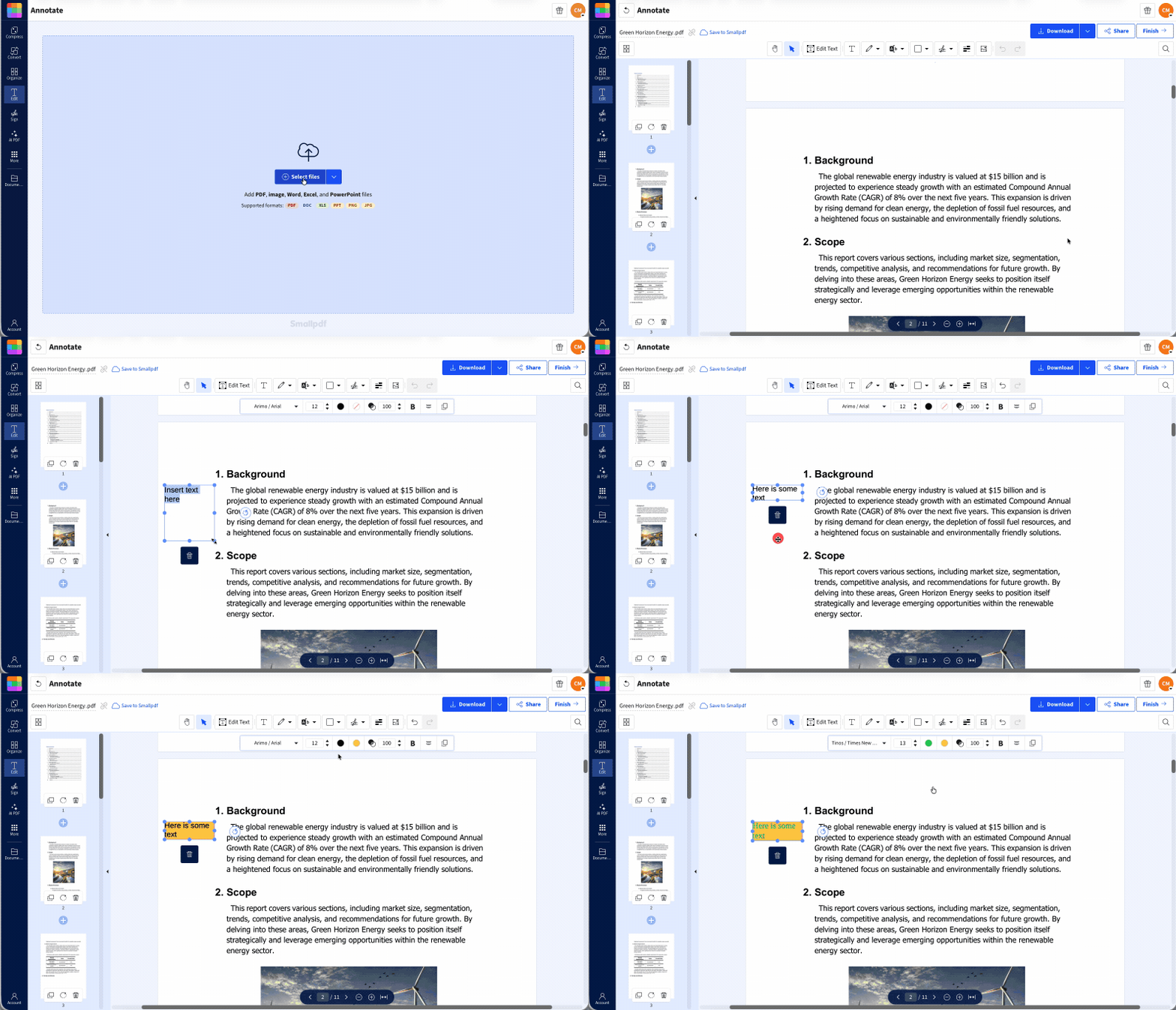
Select the text tool.
Click the spot where you want the text box to appear.
Type your text.
Move or resize the box until it sits in the right place.
Change the font colour, or size if needed.
Download your updated PDF.
Add text to your PDF: Click “Choose file” below to upload your document, then place, resize, and style your text box in PDF Annotator.
Use PDF Annotator when you mainly want to add notes, labels, comments, or visual markups.
Edit PDF is available to Pro subscribers only. This is the tool to use when you want to make direct edits to the text and other elements in your PDF, not just adding a text box. If that is what you need to do, sign up for a 7-day free trial to unlock all Pro features.
How to Add a Text Box to a PDF on Your Phone
You can also add text boxes to PDFs from your phone or tablet. The exact buttons may look a little different depending on your device, screen size, browser, and app version, but the basic idea stays the same: open the PDF, choose a text tool, tap where you want the box, and type.
On iPhone and iPad
To add a text box to a PDF on iPhone or iPad:
Open Smallpdf in Safari or open the Smallpdf mobile app.
Choose PDF Annotator and upload your document.
Tap the text tool.
Tap the page where you want the text box and type your text.
Resize or move the text box with your finger.
Double tap the text to change the font, size, or color.
Save or download the finished PDF.
This works well for quick fixes, like filling in a missing detail, adding your name to a form, or writing a short note on a document before sending it back. If you need to add multiple text boxes, highlight text, or insert images, it might be easier working on your laptop or desktop.
On Android
To add a text box to a PDF on Android:
Open Smallpdf in your mobile browser or use the Smallpdf Android app.
Select PDF Annotator and upload your document.
Tap the text tool.
Tap the page where you want the text box and type your text.
Resize or move the text box with your finger.
You can double tap the text to change the font, size, or color.
Save or download the completed document.
If your phone screen feels too cramped, zoom in before placing the text box. This helps when you’re working with small form fields, tables, checkboxes, or signature lines.
How to Style Your Text Box With Borders, Fill, Transparency, and Fonts
Once you know how to add a text box to a PDF, the next step is making it look right. A text box that’s slightly too large, too dark, or in the wrong font can make a document look messy.
Start with placement. Get the text box positioned exactly where the reader expects to see it. If you’re filling in a form, line up the text with the original field. If you’re adding a comment, place it near the part of the page you’re talking about.
Only then should you start adjusting the styling.
Choose a colored background when you want the text box to stand out as a note, label, or instruction.
Choose a font size that matches the document. Too large, and the text looks pasted on. Too small, and the reader may miss it. When you’re adding text to a form, try matching the surrounding text as closely as you can.
Keep the text short. A text box is best for small additions, not long paragraphs.
Useful Smallpdf tools for this workflow include PDF Annotator, Edit PDF, PDF to Word, and Word to PDF.
How to Add a Text Box to Scanned, Locked, or Read-Only PDFs
Adding a text box to a scanned, locked, or read-only PDF is a little trickier.
With scanned PDFs, you should still be able to add text boxes without too much effort. You would just need to play around with the text size and maybe the background color to ensure it stands out. If the original, scanned document is a little cramped, you might be better off using PDF OCR to make all the text editable. If you’re a Pro subscriber, you can then use Edit PDF to space the text out a bit more, especially in areas where you want to add text boxes.
A locked or read-only PDF may have restrictions that block editing, copying, printing, or adding changes. If you own the file or have permission to edit it, you can use Unlock PDF to remove the restriction first.
Be careful with official forms, legal documents, contracts, school records, and financial documents. A text box can add information, but it may not be the right method for every document.
Why Can’t I Add a Text Box to My PDF?
If you can’t add a text box to your PDF, it’s usually because you’re using a PDF viewer instead of a PDF editor, or the file has editing restrictions.
Some PDF viewers are built for reading only. They let you open, zoom, scroll, and print, but they don’t always let you add new text or annotations. Open the file in a PDF editing or annotation tool instead, like Smallpdf PDF Annotator or Edit PDF.
The other common issue is file protection. Some PDFs are locked to stop editing, commenting, copying, or changes to the page. If you own the file or have permission to edit it, unlock the PDF first, then try adding your text box again.
Frequently Asked Questions
How do I add a text box to a PDF for free?
Use Smallpdf PDF Annotator in your browser. Upload your PDF, choose the text tool, click where you want the text box, type your text, and download the updated file.How do I add a text box to a PDF without a border showing?
Using the text tool in PDF Annotator does not add a border around the text. You can change the background color, but that is optional and transparent by default.Can I add a text box to a PDF on my phone or iPad?
Yes. Open Smallpdf in your mobile browser or use the Smallpdf mobile app, upload your PDF, choose the text tool, tap where you want the box, and type. Precise placement can be trickier on a smaller screen.How do I add a text box over existing text or a white-out area?
Select the text tool, type the new text, then change the text box background color to white. This hides the original text so only the new text shows. For bigger edits, use Edit PDF or convert the file with PDF to Word first.Add text boxes to PDFs more precisely with Pro