Can a PDF Have a Virus?
Yes, although “malware” is usually the more accurate word. A harmful PDF may contain a dangerous link, an embedded file, a script, or specially made content that targets a security flaw in the software used to open it.
Quick Takeaways
PDF files can carry malicious links, scripts, embedded attachments, or code designed to exploit outdated software.
Simply opening a specially made PDF can cause harm in rare cases, although many attacks still need you to click a link, open an attachment, or enter information.
A familiar logo, professional design, or password does not automatically make a file safe.
Scan unexpected PDFs before opening them and check the sender through a separate contact method when possible.
Keep your operating system, browser, PDF reader, and antivirus protection updated.
Smallpdf is not an antivirus scanner. Only upload a file after you trust its source and your security software has found no threat.
Most PDFs are perfectly normal. Still, an invoice, delivery notice, job application, or shared document can look convincing while trying to steal your login details or infect your device. The safest response is to simply pause, check where the file came from, scan it, and keep your software up to date before opening anything unexpected.
Can a PDF Really Have a Virus?
Yes. A PDF can contain visible text and images, along with hyperlinks, forms, actions, JavaScript, multimedia, and files stored inside the document. Those functions have legitimate uses, but attackers can abuse them. The PDF Association’s summary of the PDF standard lists JavaScript, actions, URLs, forms, and embedded files among the format’s supported capabilities.
People often use “virus” as a general name for any harmful file. Technically, the threat may be a trojan, downloader, spyware program, ransomware installer, phishing page, or exploit rather than a self-replicating computer virus.
The distinction doesn’t change what you should do. An unexpected PDF deserves the same care as any other attachment, especially when the message pressures you to act quickly, pay an invoice, reset a password, or review a supposed legal notice.
A PDF can cause trouble in two broad ways. It may directly target a weakness in the software that processes the file, or it may persuade you to take the next unsafe step yourself. The second route is often easier for an attacker because the PDF only needs to look believable.
How a PDF Can Carry Malware
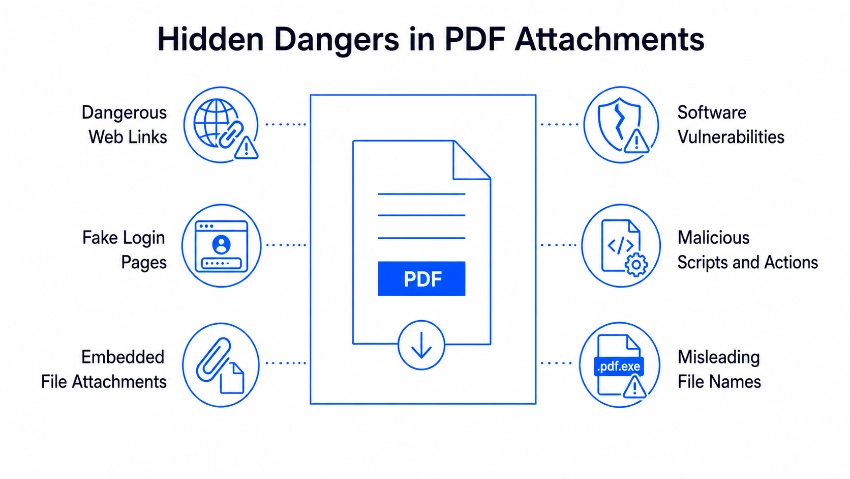
A malicious PDF may use one method or combine several. Some warning signs are obvious. Others are hidden in the file and can’t be spotted by looking at the first page.
Dangerous Links and Fake Login Pages
The PDF may include a button or link that opens a fake sign-in page. The page can copy the branding of a bank, delivery company, cloud storage service, employer, or government department closely enough to look real at first glance.
Entering your email address, password, card details, or one-time code gives that information to the attacker. The PDF itself may never install anything. It has still done its job by sending you to the trap.
Be wary of shortened links, strange domains, misspelled addresses, and buttons that hide the destination. If the document claims to come from an account you use, open the service through its usual app or type the known website address yourself rather than following the PDF link.
Scripts, Actions, and Software Flaws
PDFs can contain scripts and actions that respond when a document opens or when you select an item. Most modern viewing software limits risky behavior, but a specially made file may try to exploit an unpatched flaw.
Microsoft has previously released security updates for PDF-processing vulnerabilities that could allow remote code execution when a system handled malicious PDF content incorrectly. That history is why regular updates are so important.
A current browser or reader is much harder to attack than an old version that has missed months or years of fixes. Harder does not mean impossible, so source checks and antivirus scanning still belong in the process.
Files Hidden Inside the PDF
A PDF can contain another file as an attachment. That file might be a spreadsheet, archive, script, shortcut, or program. A harmless-looking document can then ask you to open the embedded item to see an invoice, listen to a message, or view “protected” information.
Don’t open an unexpected attachment from inside a PDF. Ask the sender what they included and why. If the message came through work, send it to your IT or security team for inspection.
A Misleading File Name or Extension
A file called ‘Invoice.pdf.exe’ is an executable program, not a PDF. Windows may hide the final extension, leaving you with a name that appears to end in ‘.pdf’.
Turn on file-name extensions in your system and check the complete name before opening the file. Microsoft also advises checking that the file type matches what you expected and avoiding unexpected attachments from unknown senders.
Even a genuine ‘.pdf’ extension doesn’t prove the content is safe. It only tells you how the file is labelled and structured.
Can Simply Opening a PDF Give You a Virus?
It can, but this is less common on a fully updated device. Opening a file makes your browser or PDF reader process its contents. If the document targets a security flaw that still exists in that software, the attack may begin without another click.
More often, the PDF needs your help. It may ask you to select a link, enable an action, download another file, open an embedded attachment, or type your password into a website. A message that creates urgency, such as “payment overdue,” “account suspended,” or “document expires today,” is trying to get you past the moment when you would normally stop and check.
Preview panes warrant care too. A preview still asks software to read and display at least part of the file. Don’t assume a file is safe simply because you viewed it inside an email app or browser rather than opening it in a separate reader.
If you have already opened a suspicious PDF, stay calm and take a few practical steps:
Close the document without selecting links or opening anything inside it.
Run a full antivirus or malware scan on the device.
Check that your operating system, browser, and PDF software are updated.
Tell your workplace IT team if the file reached a managed device or company account.
Change any password you entered after opening the file, using a different trusted device if possible.
Watch the affected account for unfamiliar sign-ins, messages, or payment activity.
On Windows, you can right-click a saved file, choose “Show more options,” and select “Scan with Microsoft Defender.”
How to Open or Convert a Risky PDF More Safely
A file that you genuinely believe is malicious should not be opened, converted, or uploaded to an online service. Delete or quarantine it, report the message, and ask your IT team or security provider to inspect it.
Sometimes the situation is less clear. Perhaps the sender is genuine, but the attachment was unexpected, or your email service displayed a warning. Use this process before you read or convert it:
Verify the sender. Contact the person or company through a phone number, app, or website you already trust. Don’t reply to the suspicious message for confirmation.
Check the full file name. Confirm that the extension really is ‘.pdf’ and that the name doesn’t end with another extension.
Scan the file before opening it. Use your device’s current antivirus software and follow any workplace security rules.
Update the software that will process it. Install pending security updates for your operating system, browser, and PDF reader.
Avoid links and embedded attachments. If you only need the visible document, there is rarely a good reason to open extra files stored inside it.
Stop if anything feels wrong. Unexpected password prompts, warnings, downloads, or requests to enable content are reasons to close the file.
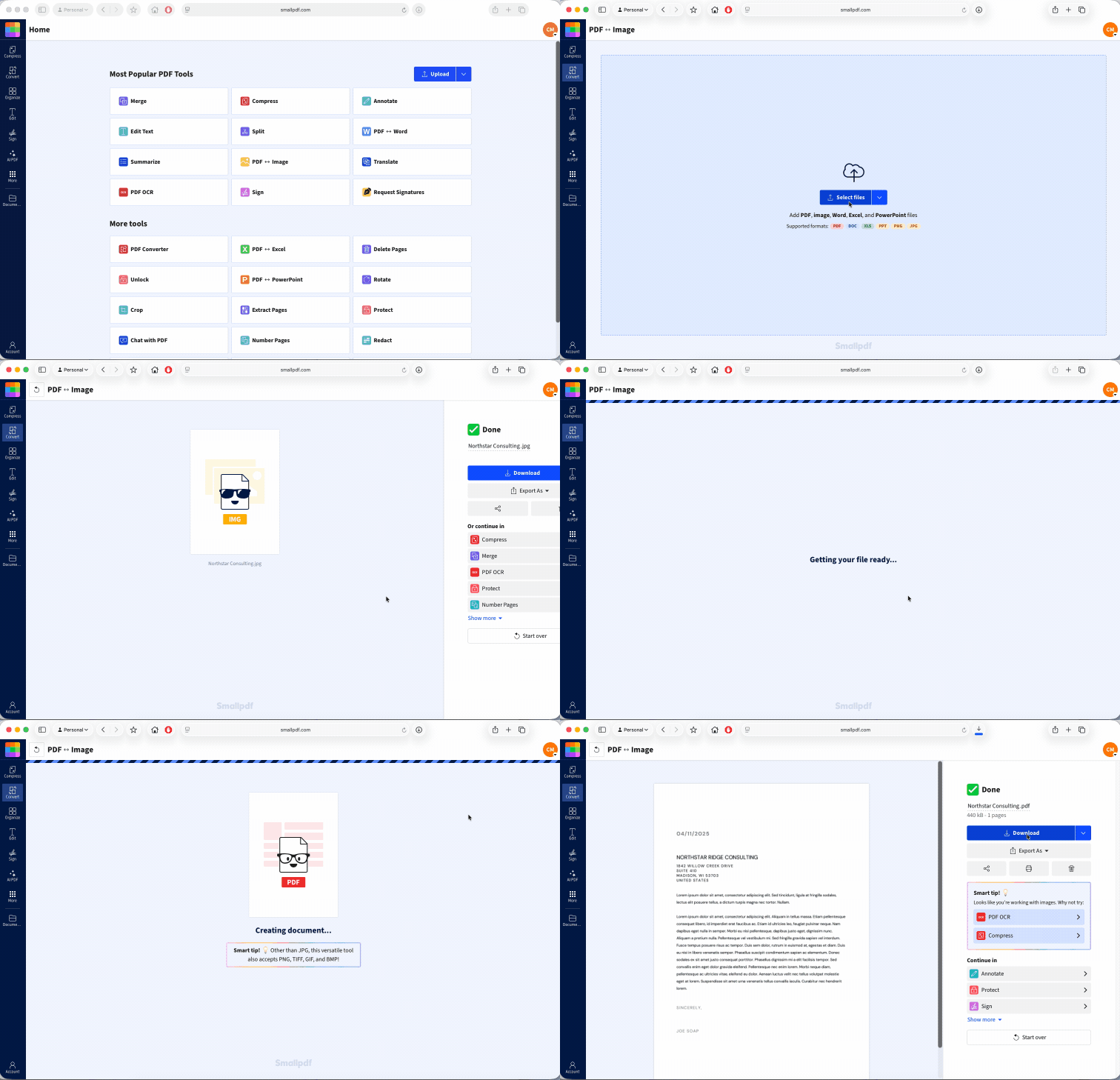
Once you have verified the sender and the file has passed your security checks, you may prefer a static image copy for reading. PDF to JPG converts each PDF page into a JPG image. The new images contain pictures of the rendered pages rather than the original PDF’s links, forms, scripts, or embedded attachments.
You can then use JPG to PDF to combine those page images into a fresh image-based PDF if you need the document in PDF format again.
This conversion route has clear limits. Links will no longer work, form fields will become static, searchable text may be lost, and screen readers may not be able to read the page content properly. Most importantly, conversion is not a malware scan or proof that the source file is safe. Check the file first.
Smallpdf uses TLS encryption for file transfers, holds ISO/IEC 27001 certification, and automatically deletes files processed through free tools after one hour. Those controls protect files during online processing, but they do not replace antivirus software or source verification.
You can use PDF to JPG and JPG to PDF for free, although daily usage limits apply. If you regularly convert, compress, protect, or work with several documents, Smallpdf Pro gives you unlimited access to all 30+ tools and unlimited document downloads. You can try Pro free for 7 days.
How to Protect Your PDFs and Devices Going Forward
Good habits reduce the chance of one convincing attachment catching you at the wrong moment.
Keep automatic updates turned on for your operating system, web browser, email app, and PDF software. Security fixes often close the exact flaws that malicious files try to use. Keep real-time antivirus protection active too, and scan any attachment that arrives unexpectedly.
Check the message around the file. Does the sender normally contact you this way? Were you expecting an invoice, application, or shared document? Does the email address match the person or organization it claims to represent? A polished PDF can still arrive inside a fake message.
When you create PDFs for other people, keep them simple unless interactive functions are necessary. Avoid attaching extra files inside the document, use clear link text, and tell the recipient what you are sending before the attachment arrives. A small bit of context makes a real document easier to tell apart from a fake one.
Back up important work regularly. If malware damages or encrypts files, a separate current backup gives you a clean copy to return to without relying on the affected device.
Frequently Asked Questions
Are PDFs safer to open than Word or Excel files?
No common document format is automatically safe. Office files may contain macros or dangerous links, while PDFs can contain scripts, links, embedded files, or content made to target a viewer flaw.Is it safe to open a PDF in my web browser instead of downloading it?
No viewing method makes an unexpected PDF automatically safe. Opening it in a browser still makes software process the file, so scan it first or report it without opening it.Can a password-protected PDF still contain a virus?
Yes. The password controls who can open the document. It doesn’t check the file for malware. Depending on the scanner, encryption can make automated inspection harder until the password is available.Does printing a PDF carry any virus risk?
The paper printout cannot carry malware, but you usually have to open the PDF before printing it. Any software-based risk happens while the device reads the file, not after the words and images are on paper.Is a PDF safe if my antivirus didn’t flag it?
Not necessarily. Antivirus scanning lowers the risk, but no scanner catches every new or carefully hidden threat. Check the source, keProtect your PDFs with Smallpdf Pro