Can ChatGPT Summarize a PDF?
Can ChatGPT summarize a PDF? Yes. Upload the file, ask for the type of summary you need, and ChatGPT can pull together an overview, section-by-section notes, or answers about the document.
Quick Takeaways
ChatGPT can summarize uploaded PDFs and answer questions about their text.
A 100-page document isn't automatically too long, but dense text, large files, scans, and complex layouts can affect the result.
On some ChatGPT plans, embedded PDF images are not read as part of the document text. ChatGPT Enterprise supports visual retrieval for PDF images, charts, and diagrams.
You should check names, dates, figures, conditions, and conclusions against the source before relying on any AI summary.
Smallpdf's AI PDF Summarizer creates an overview after upload, supports follow-up questions, and includes page references to help you check the source.
There are limits, though. A clean, text-based report is much easier to process than a blurry scan full of charts and handwritten notes. Long PDFs can also produce shallow summaries when the prompt is too broad. This guide explains how the process works, what can go wrong, and how Smallpdf's AI PDF Summarizer gives you a tool built specifically for this job.
Can ChatGPT Summarize a PDF? What It Can and Can't Do
ChatGPT supports PDF uploads and can summarize, extract information, or answer questions based on the file's contents. On the web or app, attach the PDF to a new chat and give a clear instruction. OpenAI currently sets a hard limit of 512 MB per file and a 2-million-token cap for text and document files. Free users can upload files too, although their daily upload allowance is lower.
To use ChatGPT to summarize a PDF:
Open a new ChatGPT conversation.
Select the attachment button and upload your PDF.
Ask for a summary and state the length, format, and focus you need.
Read the result, then ask follow-up questions about unclear or important sections.
Check the summary against the original document before using it in your work.
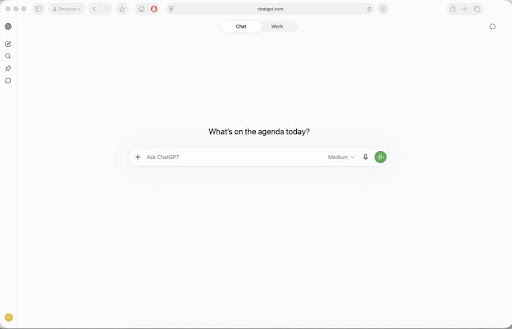
A prompt such as “Summarize this PDF” will work, but it leaves a lot open to interpretation. You will usually get a better result when you say what the summary is for and what must be included.
For example:
“Summarize this report in 500 words for a manager who hasn't read it. Include the main findings, all deadlines, and any risks. Add a page reference after each point.”
You can also ask ChatGPT to create study notes, explain technical sections in plain language, list decisions from meeting minutes, or compare two parts of the same document. It can pull specific text from a table when that table has been read correctly as digital text.
What can't it promise? A perfect reading of every page, layout, chart, image, or footnote. On ChatGPT plans other than Enterprise, PDF processing is text-based, which means embedded images are discarded during document retrieval. Enterprise users have visual retrieval for PDFs uploaded in a conversation, allowing ChatGPT to interpret embedded graphs, diagrams, and images as well as text.
This is a distinction that is easy to miss. A report may contain a written discussion on page 20 and the numbers supporting it in a chart on page 21. A text-only summary may capture the discussion while overlooking what the chart shows.
The Easier Way: Summarize Any PDF With Smallpdf's AI PDF Summarizer
ChatGPT is a general assistant that can work with many file types and requests. When the job is simply to understand a PDF, Smallpdf's AI PDF Summarizer gives you a more direct route.
Upload the document and the tool creates an overview. You can then use suggested questions or AI chat to examine a topic in more detail, choose a shorter or longer format, and copy or download the finished summary. Clickable page references take you back to the source when you want to confirm a point. The tool works in a browser on desktop and mobile devices, with no installation required.
How to Summarize a PDF With Smallpdf
Open the AI PDF Summarizer.
Drag and drop your file into the upload area, or select it from your device.
Read the automatic document overview.
Use the suggested questions or type your own follow-up prompt.
Copy or download the summary when you're done.
Summarize your PDF: Click “Choose file” above to upload your document, get an instant overview, and explore details with AI chat.
You can ask for a short overview, bullet-point notes, a detailed recap, or answers about one section. The same tool supports PDF, Word, Excel, PowerPoint, JPG, and PNG files. Smallpdf also uses OCR to make scanned or image-based PDF text readable for analysis.
For example, you could ask:
“Summarize the report's findings and recommendations separately.”
“List every deadline and the person responsible.”
“Explain pages 14–18 in plain language.”
“Create revision notes from this chapter and include page references.”
The first summary is a starting point. Follow-up questions help you pull out the parts you need instead of accepting one general recap.
A free Smallpdf account lets you try the AI PDF Summarizer, but usage limits apply. Smallpdf Pro gives you unlimited access to AI tools, unlimited document downloads, and all 30+ PDF tools. You can try Pro free for 7 days.
Smallpdf protects uploads with TLS encryption, holds ISO 27001 certification, and automatically deletes files after one hour. You should still follow your employer's, school's, or client's rules before uploading confidential material to any online service.
Why ChatGPT May Struggle With Long or 100-Page PDFs
A 100-page PDF doesn't cross a fixed ChatGPT page limit. One hundred pages of short presentation slides may contain less text than a 30-page research paper. File size, token count, page density, document structure, and scan quality tell you far more than the page total.
Very long files can still cause problems. ChatGPT may focus on the sections it retrieves as most relevant instead of treating every paragraph equally. A general prompt can also produce a summary that covers the main theme but skips an appendix, qualification, exception, or short clause near the end.
Scanned PDFs add another hurdle. A scan is made from page images rather than normal digital text. If the file lacks an optical character recognition (OCR) text layer, there may be little usable text for ChatGPT to retrieve. Crooked pages, faint print, handwriting, and tightly packed columns make recognition harder.
You don't have to abandon the file. Change the way you approach it:
Ask for a section map before requesting the final summary.
Summarize the document in parts, such as pages 1–25, 26–50, and so on.
Ask for a separate list of dates, figures, obligations, warnings, or recommendations.
Request page references and check them in the source.
Run a scanned file through PDF OCR before summarizing it when the text can't be selected.
If you need to know how to get ChatGPT to summarize long text, the same rule applies. Divide the job by topic or section instead of asking for one broad recap. Then ask for a final summary based on the smaller outputs.
This takes a little longer, but it reduces the chance that a short section disappears from the finished answer. It also makes errors easier to spot because you can compare each part with a smaller section of the source.
How Accurate Are ChatGPT's PDF Summaries?
ChatGPT can produce a clear and useful summary, especially when the PDF has clean text and a logical structure. But a fluent answer can still leave something out, merge two separate ideas, misread a number, or state a guess as though it came from the file.
Accuracy depends on both the document and your prompt. A well-formatted policy with headings and selectable text gives the model a cleaner source than a photocopied contract with stamps over the wording. A request for “the main points” also gives ChatGPT more freedom than a request to list every deadline and cite the page where it appears.
Use a few checks to make the result safer to use:
Compare all names, dates, amounts, percentages, and quoted conditions with the PDF.
Ask ChatGPT to separate information stated in the file from its own explanation.
Request page references, then open those pages and confirm the claim.
Ask a second, narrower question about any section with legal, medical, financial, academic, or workplace consequences.
Treat the summary as a reading aid, not a replacement for the full document when a decision depends on exact wording.
You can also test the summary itself. Ask, “Which sections received little or no coverage in your summary?” Then compare that answer with the table of contents. It won't catch every omission, but it can reveal areas that need another prompt.
For tables, ask for the row and column labels along with each figure. For research papers, request the method, sample size, limitations, and conclusion as separate items. For a contract, ask for the parties, dates, payment terms, renewal conditions, cancellation terms, and liabilities. Specific prompts leave less room for accidental gaps.
ChatGPT vs. Smallpdf for PDF Summaries: Which Should You Use?
Both can help you understand a PDF. The better choice depends on whether you want a general conversation tool or a PDF-focused workflow.
| What You Need | Smallpdf AI PDF Summarizer | ChatGPT |
|---|---|---|
| A quick PDF overview | Upload the file and receive an automatic overview | Upload the file and write a prompt |
| Detailed follow-up questions | Use built-in AI chat and suggested questions | Ask in the same chat |
| Scanned PDF support | OCR is included for scanned and image-based PDFs | May need OCR first. Embedded PDF visuals depend on the plan |
| Source checking₹ | Clickable page references are built into the summary workflow | Ask for page references and verify them |
| Work beyond summarizing | Links directly into other Smallpdf document tools | Useful for rewriting, planning, coding, and many other tasks |
| Minimal setup | Works in your browser with no sign-up needed to start | Requires a ChatGPT account and available upload allowance |
ChatGPT makes sense when the PDF is one part of a wider task. You might summarize a report, turn the findings into a presentation outline, draft an email, and create discussion questions in the same chat.
Smallpdf is the simpler choice when you want to upload a PDF, get a summary, check the original pages, and continue working with the document. Chat with PDF is also useful when you don't need a general summary and would rather ask direct questions from the start.
Neither tool removes the need to check the source. Use the summary to find and understand information faster, then return to the PDF for exact wording before making an important decision.
Frequently Asked Questions
Is it safe to upload a confidential or sensitive PDF to ChatGPT?
Check whether you have permission to share the file first. On personal ChatGPT accounts, uploaded files may be used to improve models when “Improve the model for everyone” is turned on. You can switch it off under Data Controls. Temporary Chats aren't used for training and are deleted from OpenAI's systems within 30 days.Can ChatGPT pull specific tables or figures out of a PDF?
Yes, when the table is available as readable digital text. Embedded charts, diagrams, and other PDF visuals are currently read directly only through ChatGPT Enterprise's visual retrieval. Other plans use text-based PDF retrieval and discard embedded images.Can ChatGPT summarize a PDF written in another language?
Yes, ChatGPT can summarize PDFs in many languages and can translate the summary when asked. The result depends on language support, source quality, and whether a scanned document has accurate OCR text. Translate PDF gives you a document-focused option when translation is the main task.Do I need a paid ChatGPT plan to upload and summarize a PDF?
No. Free users can upload files, although OpenAI currently limits them to three file uploads per day and may lower limits during busy periods. Paid-plan allowances are higher, and availability can also depend on the model and workspace settings.What's the easiest way to summarize a PDF without uploading it to ChatGPT?
Upload it to Smallpdf's AI PDF Summarizer instead. It creates an automatic overview, lets you ask follow-up questions, and gives you page references for checking the original document.Turn long PDFs into clear summaries with Smallpdf Pro