Can You Unflatten a PDF?
Usually not. Flattening permanently combines editable elements with the page. Smallpdf helps you work with the flattened file by editing detected text, running OCR, or adding new form fields.
Quick Takeaways
A fully flattened PDF can’t usually be returned to its original layered state.
Edit PDF may detect text blocks that you can change, even though the original editing structure is gone.
PDF OCR can recover selectable text when the page has been flattened into an image.
Flattened comments, stamps, and form fields can be recreated, but their original properties and history are normally lost.
Keep an editable source copy before flattening any PDF you may need to change later.
Can you unflatten a PDF and get every text box, comment, signature, and form field back exactly as it was? Usually, no. Flattening combines separate PDF elements with the page content, and the file no longer keeps the same editable structure.
But that doesn’t always leave you stuck. Smallpdf can’t reverse flattening or restore deleted layers, but you may still be able to edit detected text, use OCR to recover text from image-based pages, or add new form areas over the flat document. The right method depends on what happened when the PDF was flattened.
Can You Really Unflatten a PDF?
Flattening takes separate elements in a PDF and merges them into static page content. Depending on the file and the flattening method, those elements may include text boxes, form entries, checkboxes, comments, highlights, stamps, signatures, and layers.
Once those objects have been merged, there is no reliable way to remove flattening in a PDF and restore all the original parts. The finished page may look exactly the same, but the file no longer knows that a yellow mark was once a highlight, a name was entered into a form field, or a note had an author and timestamp.
There is still an important difference between reversing the flattening and recovering usable content. You may be able to select or edit text if the PDF kept a text layer. If the page became a single image, OCR can read the words and create a new text layer. You can also place new text, shapes, comments, or signature areas over the page.
So, how do you unflatten a PDF? You rebuild the parts you need rather than separating the old layers. Start by testing the file in Edit PDF. If the editor recognizes the text, you may only need a few quick changes. If it doesn’t, move to OCR.
It also helps to check whether the file is truly flattened. A PDF can seem flat because it is scanned, password-protected, opened in a limited viewer, or saved without interactive fields. Try selecting a line of text, clicking a former form area, and checking whether comments appear in your viewer’s comment panel. If nothing responds, the content is probably static.
How to Make a Flattened PDF Fillable Again With Smallpdf
Smallpdf doesn’t support unflattening a PDF. Instead, you can use Edit PDF to detect text blocks, change existing wording where possible, and add new content over the flat page.
Method 1: Edit Detected Text Blocks
Open Edit PDF in your browser.
Upload the flattened PDF from your device or connected cloud storage.
Switch to the text editing option and click the text you want to change.
If Smallpdf detects the text as an editable block, update, delete, or move it as needed.
Add new text, images, shapes, or annotations where the original elements can’t be recovered.
Export the edited file as a new PDF.
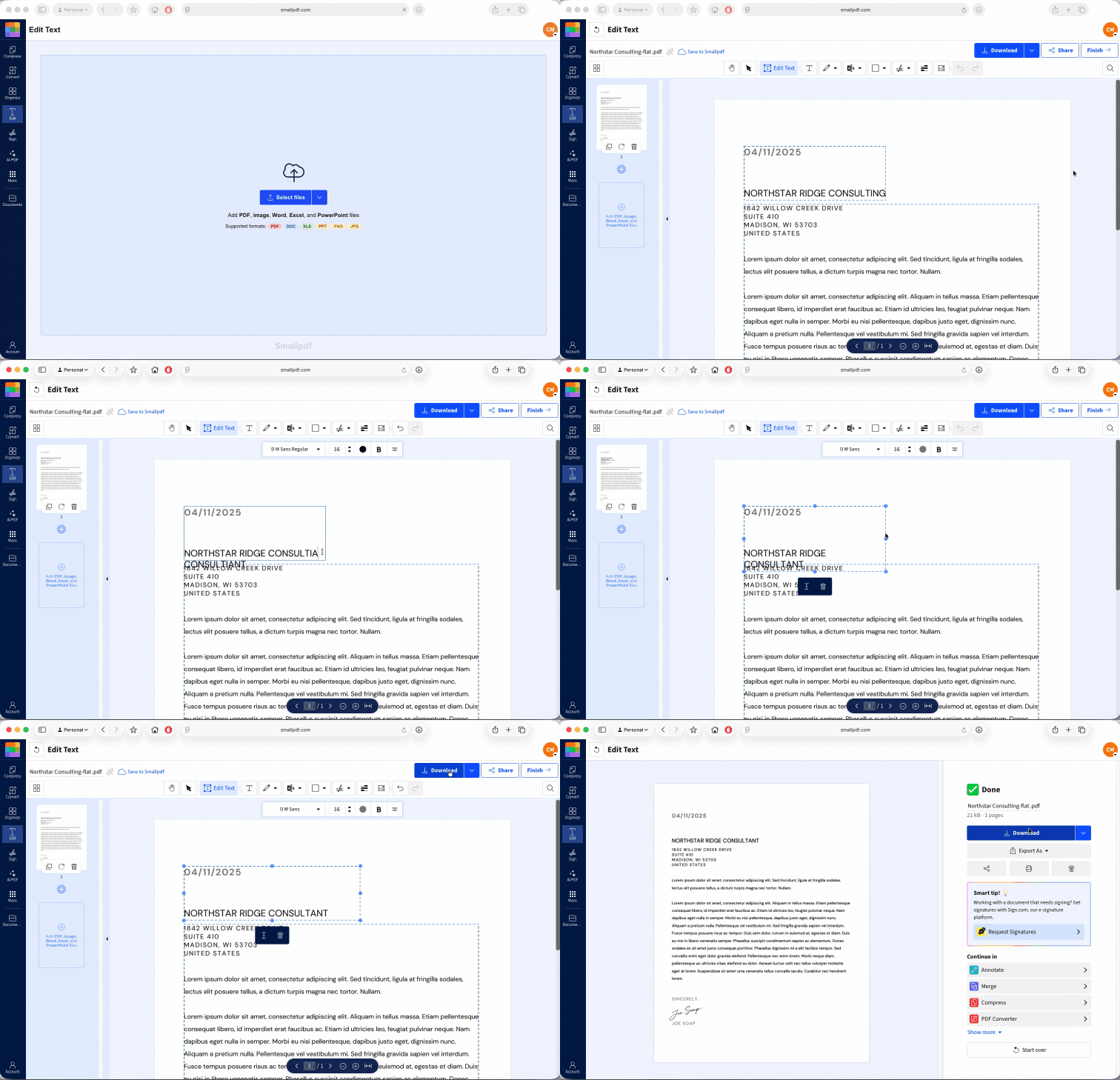
This method works best when the PDF still contains digital text. The editor is finding new editable areas in the current file. But it isn’t restoring the original text boxes, font settings, field names, or layer order. Direct editing of existing text is a Pro feature, and you can test it with a 7-day free trial.
Keep the first export as a separate copy. If a font isn’t available or the detected text breaks into several blocks, you may need to adjust the size, position, and spacing so the replacement text fits the page cleanly.
Method 2: Use OCR When the Page Is an Image
If you can’t select text and Edit PDF doesn’t detect usable blocks, the document may have been rasterized during flattening. In plain terms, each page now behaves like a picture.
Use PDF OCR to create selectable text:
Open PDF OCR and upload the file.
Let the tool scan the pages and recognize the text.
Download the processed PDF or continue to another Smallpdf tool.
Open the OCR version in Edit PDF and make your changes.
Read through the final copy before sharing it.
OCR is very useful, but it isn’t perfect. Blurry scans, unusual fonts, handwriting, multi-column layouts, faint printing, and tightly packed tables can lead to wrong characters or awkward spacing. Watch for common mix-ups such as “0” and “O,” “1” and “I,” broken words, or missed punctuation.
For a long or formal document, compare the edited version with the flattened original page by page. A quick proofread can catch small OCR errors before they become part of the new PDF.
Can You Recover Comments or Markups After Flattening?
Usually, you can recover their appearance, but not the original comments themselves. A flattened highlight may remain as a yellow strip, and a note may still be visible on the page. However, the PDF may no longer keep the annotation type, author name, date, replies, status, or movable comment box.
The same applies to stamps, drawings, and handwritten marks. Once they become static page content, you can’t reopen them as the original annotation objects. You can add fresh notes or markings with PDF Annotator, but these will be new annotations.
Before rebuilding anything, look for an earlier copy. Check the source folder, email attachments, shared cloud storage, document history, or ask the person who created the PDF. Recovering the unflattened file will usually save time and preserve information that can’t be reconstructed from the flat version.
If no earlier copy exists, use the visible page as your reference. Add replacement comments beside the relevant text and include any missing context in the note itself. For example, if the old mark only says “Change this,” your new comment should explain what needs changing so the next person isn’t left guessing.
How to Add New Fillable Areas to Any Flat PDF
You can turn a flat page into a form people can complete again, although you won’t recover the original form field settings. With Edit PDF or PDF Annotator, you can add text areas, checkbox-style shapes, date spaces, and signature zones over the existing layout.
Upload the PDF to Edit PDF or PDF Annotator.
Use the Text tool to add clear entry areas for names, addresses, dates, or short answers.
Add rectangles for checkbox-style options and circles for single-choice questions.
Mark larger areas for signatures, initials, or longer responses.
Add short labels where the old form no longer makes the expected input clear.
Export the new PDF and test every page before sending it out.
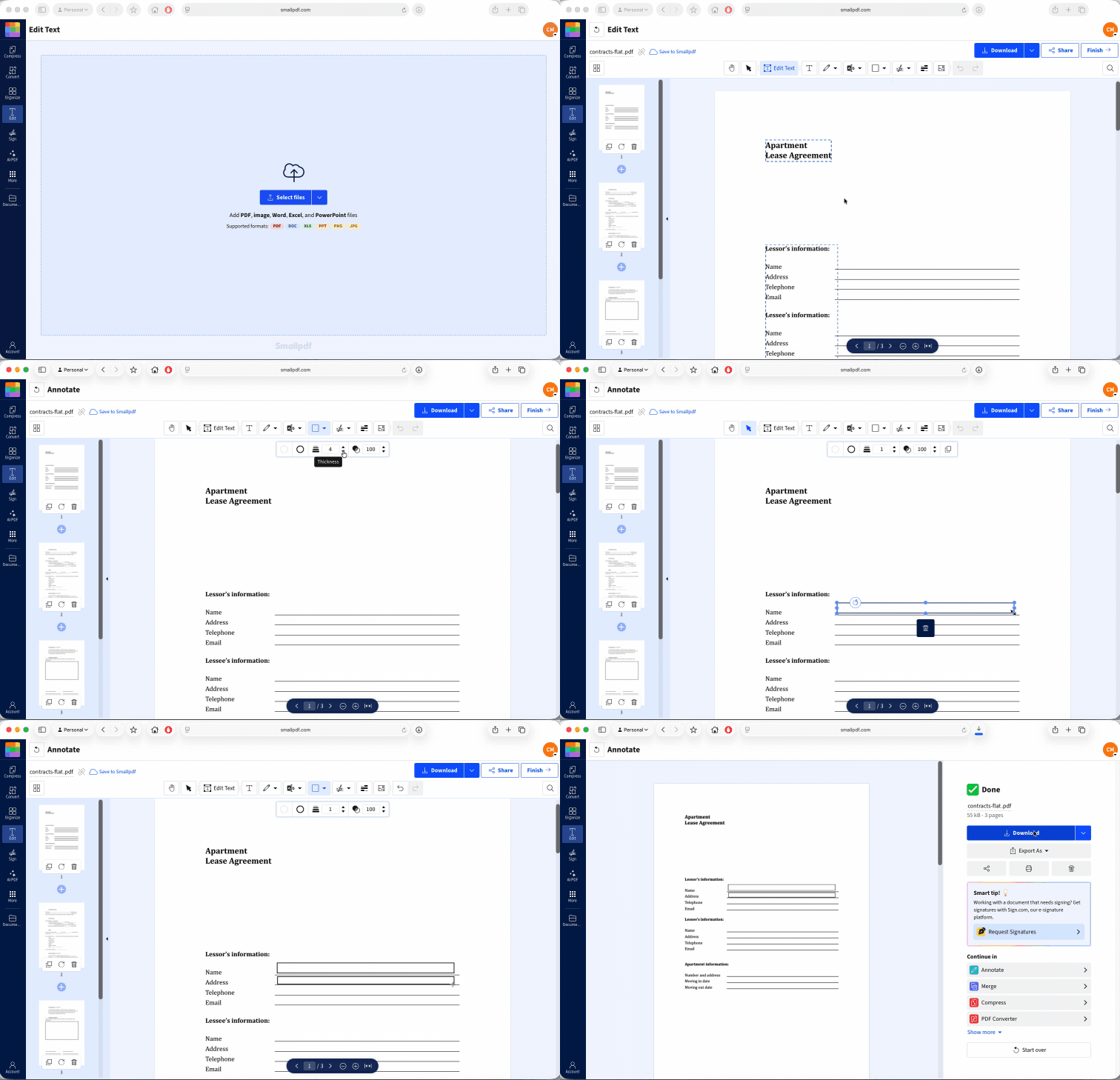
This gives you a practical form-style document for straightforward input. It does not automatically recreate dropdown menus, required-field rules, calculations, tab order, validation, or the original field names. If those settings were part of the old form, you will need the original unflattened PDF to recover them.
Test the finished file in the same way your recipient will use it. Type into each text area, mark every checkbox-style option, add a sample signature, and check the document on a phone if mobile completion is likely. Small placement errors are much easier to fix before the form reaches twenty people.
If the PDF already contains working form fields and you only need to complete them, use PDF Form Filler. A truly flattened form won’t have those active fields, so you will need to type over the page or rebuild the areas first.
Frequently Asked Questions
How do I know if my PDF has actually been flattened?
Try selecting text, clicking form fields, and opening the comments panel. If the content only behaves like one static page and no interactive objects appear, the PDF has probably been flattened or rasterized.Does flattening a PDF reduce its file size?
Sometimes, but not always. Flattening may remove some document complexity, while image-heavy flattening can keep the file large or even make it larger. Use Compress PDF when file size is the main concern.Will flattening remove a digital signature’s validity?
It can. The signature may remain visible, but flattening or editing the file can remove its verification data or cause the signed document to fail validation, so keep the original signed PDF and check its status before making changes.Is it safe to edit a flattened PDF in an online tool?
It can be, provided you use a reputable service and follow any privacy rules that apply to the document. Smallpdf uses TLS encryption, holds ISO 27001 certification, and automatically deletes uploaded files after one hour if you don’t save it to your Smallpdf account.Can I unflatten a scanned PDF the same way?
A scanned PDF is already image-based, so there are no original text boxes or fields to restore. Use PDF OCR to create selectable text, then edit or add new form areas to the processed copy.Does adding new form fields change the original page content?
New text areas, shapes, and annotations are placed over the static page. Save the result as a new file so the untouched flattened PDF remains available as a reference.Will the person who flattened the file know I edited it?
A standard PDF doesn’t usually send a notification when someone edits it. However, a shared workspace, document management system, version history, changed metadata, or digital signature check may show that the file was modified.Make flattened PDFs usable again with Smallpdf Pro