- Home
- ›
- ›Why Can't I Copy and Paste Text from a PDF?
Why Can't I Copy and Paste Text from a PDF?
Wondering why you can’t copy and paste from a PDF? Smallpdf can help fix most causes, from scanned pages to copy restrictions, in your browser.
Quick Takeaways
If you can’t copy text from a PDF, first check whether any of the text is selectable. Try dragging across one sentence. If nothing selects, the page may be a scan or image. Use Smallpdf PDF OCR to turn it into selectable text.
If your PDF won’t let you copy text because it’s protected, you can sometimes get around this by using Smallpdf’s Unlock PDF tool.
If copied text pastes as strange characters, the PDF may have font encoding problems. Converting it to Word can give you cleaner copy.
If you can’t copy and paste from a PDF in your browser, download the file and open it in a different PDF reader.
If you work with PDFs often, remember that free accounts include a limited number of files each day. Smallpdf Pro removes that daily limit, gives you access to extra features, and includes a 7-day free trial.
PDF text often looks quite normal on the page. But try to copy and paste it, and suddenly it starts behaving strangely. Sometimes nothing selects. Sometimes the pasted text turns into broken symbols. Sometimes the PDF won’t let you copy text at all.
The fix depends on what kind of PDF you have.
Why PDF Copy and Paste Fails: Reasons and Fixes
PDF copy and paste fails for a few common reasons. The file may be scanned, protected, badly encoded, or opened in a limited viewer.
Here’s how to tell what’s going on.
The PDF Is a Scan or Image
This is the most common solution to why you can’t copy text from a PDF.
A scanned PDF is really a picture of a page. It may look like normal text, but your computer sees one flat image. That means you can zoom, print, and view it, but you can’t select the words like you would in a Word document.
This happens with scanned contracts, invoices, ID documents, old forms, printed reports, receipts, and books scanned on a copier.
Quick Fix
Run OCR on the file. OCR stands for Optical Character Recognition. It reads the image and turns the visible words into selectable text.
With Smallpdf PDF OCR, you upload the scanned PDF, let the tool process it, then download a version where the text can be searched, selected, and copied.
After OCR, test one paragraph before copying a large section. Scans with blurry text, shadows, folds, handwriting, or skewed pages may still need a quick check.
The PDF Has Copy Restrictions
Some PDFs are set up to block copying. You may be able to open and read the file but not select or copy text. You might also see greyed-out options when you right-click.
This often happens with contracts, internal reports, purchased documents, bank files, and forms shared for viewing only.
Quick Fix:
If you own the file or have permission from the owner, use Smallpdf Unlock PDF with the correct password.
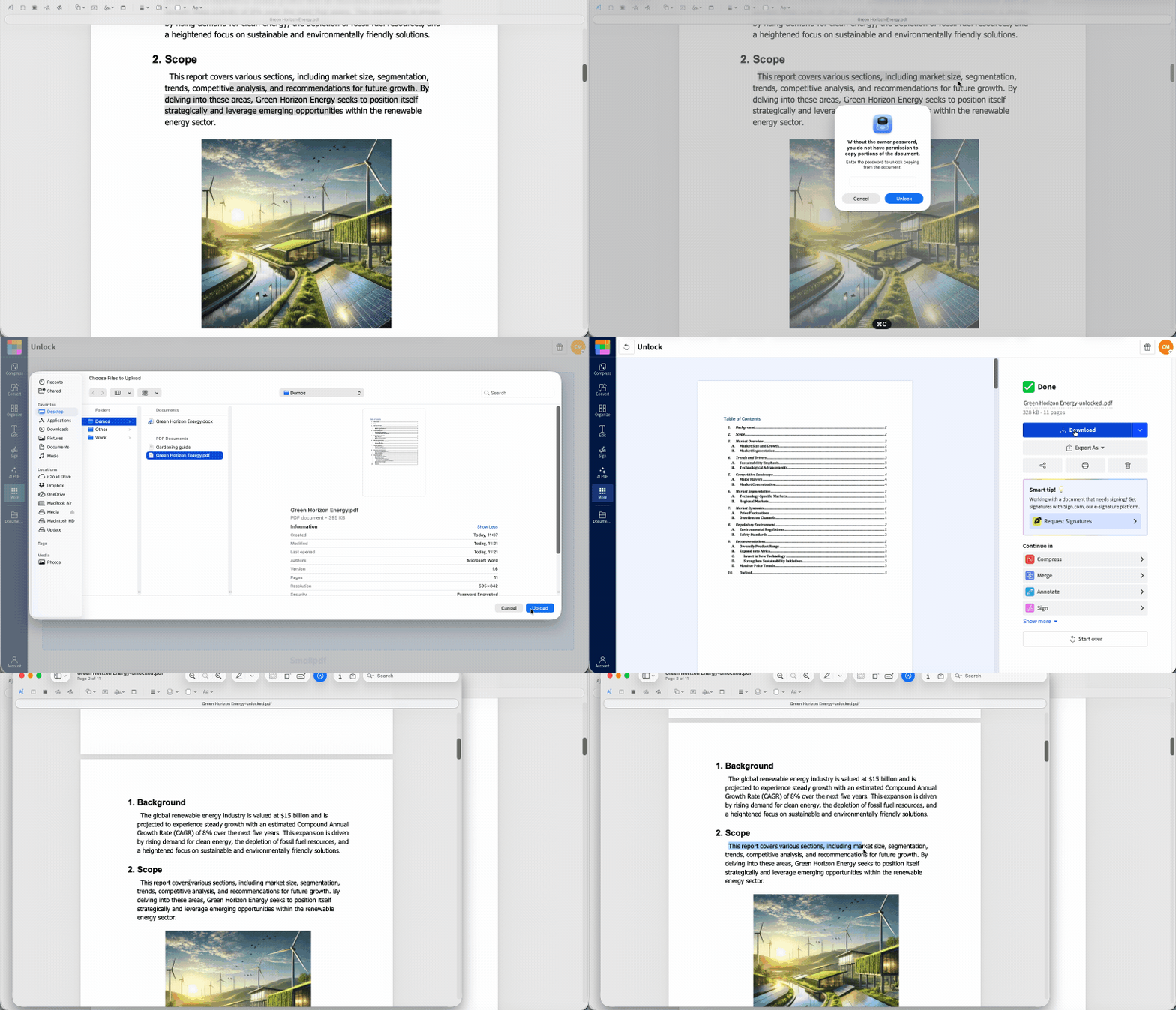
Open your protected file: Upload your PDF below, use the correct password, and unlock the document
If you don’t have permission, ask the owner for an editable or copyable version. Don’t try to remove restrictions from a file you’re not allowed to change.
The PDF Uses Strange Font Encoding
Sometimes you can select the text, but the pasted version looks wrong. You copy “Invoice number 5482,” and it pastes as boxes, symbols, missing spaces, or random letters.
That usually points to a font or encoding issue. The PDF may have been created with embedded fonts, custom symbols, or text mapping that doesn’t carry over cleanly when copied.
Quick Fix:
Try copying from another PDF reader first. If that fails, convert the PDF to Word and copy from the converted file instead.
The Text Is Part of an Image Inside the PDF
A PDF can include a mix of both real text and image-based text. For example, the first few pages may copy fine, but a scanned appendix or pasted screenshot in the middle won’t copy at all.
This makes the file confusing. One page works. The next one doesn’t.
Quick Fix:
Check whether you can select individual words on the other pages. If you can, the page that won’t let you copy probably needs OCR.
Use Smallpdf PDF OCR for the pages that behave like images. If only a few pages are affected, you can Extract PDF Pages first, run OCR on them, then use Merge PDF to combine them back into the main file if needed.
The PDF Is Damaged or Poorly Created
A badly made PDF can open but still behave strangely. Text selection may jump across columns, skip lines, copy headers into the middle of a paragraph, or paste every word on a new line.
This often happens with PDFs created from older software, web pages, design files, or documents with complex columns and tables.
Quick Fix
Try a different route instead of normal copy and paste.
Use PDF to Word if you want editable text with layout. If the PDF came from a scanned or image-based source, run OCR first.
For tables, don’t copy huge sections at once. Try copying one table or column at a time, then clean it up in Word, Excel, or Google Sheets.
How to Copy Text From a Chromebook or Browser
On a Chromebook, most PDFs open in Chrome by default. That’s fine for reading, but it can cause copy problems with scans, protected files, and unusual formatting.
Start with the simple test. Open the PDF and try to select one sentence. If the cursor grabs the words cleanly, copy with Ctrl + C and paste with Ctrl + V.
If that doesn’t work, try this:
Download the PDF to your Chromebook.
Open it from the Files app instead of the browser preview.
Try selecting a short line of text.
If nothing selects, use PDF OCR.
If the text selects but pastes badly, convert the PDF to Word.
If the file is protected, ask for permission or use Unlock PDF with the correct password.
The same logic works in most browsers. A browser is a good first try, but not the final answer. If you cannot copy text from a PDF in Chrome, Edge, Safari, or Firefox, download the file and test it somewhere else.
Smallpdf works in the browser, so you can use PDF OCR, PDF to Word, or Unlock PDF without installing desktop software.
How to Prevent Copy Problems When Creating PDFs
If you create PDFs for other people, you can save them a lot of frustration by making the text easy to copy from the start.
Start with a clean source file. Word, Google Docs, Excel, PowerPoint, and similar tools can export real text into a PDF. That means the recipient can usually select and copy the words later.
Avoid turning text into images unless you really need to. A screenshot of a page may look fine, but it removes normal copy and paste. The same goes for scanning a printed document when you still have the original digital file.
A few habits help:
Use “Save as PDF” or “Export as PDF” from the original document when possible.
Keep text as text instead of flattening every page into an image.
Embed common fonts when your software gives you that option.
Check the finished PDF by selecting one sentence and pasting it into a blank document.
Use OCR before sharing scanned documents if people need to search or copy the text.
Be careful with copy restrictions. If the recipient needs to reuse text, don’t block copying unless there’s a real reason.
If you’re sending a form, test both the blank and completed versions. Form text can behave differently once it’s filled in and saved.
When a PDF won’t let you copy text, don’t fight the same file for 20 minutes. Work out what kind of problem you have first.
Smallpdf gives you a few browser-based routes for this, and free accounts can work with a limited number of files each day. Pro removes that daily limit, gives you access to extra features, and includes a 7-day free trial.
Frequently Asked Questions
How do I copy text from a PDF that won’t let me copy?
First, check whether the text is selectable. If the PDF is scanned, run PDF OCR. If it’s protected, you’ll need the correct password and permission from the owner. If the text copies badly, convert the PDF to Word with Smallpdf.Why does the text come out as strange characters or gibberish when I paste it?
The PDF may have font encoding problems, custom fonts, or a poor text layer. Try opening it in another reader. If that fails, convert the PDF to Word, then copy from the converted file.Can I copy text from a PDF without downloading any software?
Yes. Smallpdf is an online suite of PDF tools that work in your browser. No software to install, and you don’t even need to register. Just select the tool you need to use, upload your document, and download the converted document.Why can’t I copy text from a PDF in my browser?
Browser PDF viewers can struggle with scanned files, protected PDFs, large files, and unusual fonts. Download the PDF and open it in another reader. If the text still won’t copy, use PDF OCR or convert the file.Is it legal to remove copy restrictions from a PDF?
Only remove restrictions if you own the file or have permission from the owner. Some PDFs are protected for privacy, copyright, or internal control. If you’re unsure, ask the sender for an editable or copyable version.Why can’t I copy text from a PDF on my iPhone or Android?
The PDF may be scanned, protected, or hard to select in the mobile viewer. Press and hold on the text first. If that doesn’t work, use PDF OCR or convert the file in your mobile browser.Copy text from PDFs more reliably with Smallpdf Pro