Why Can't I Delete Pages from a PDF?
Having trouble deleting pages from a PDF? Learn why it happens and remove pages easily with Smallpdf
Quick Takeaways
Many browser viewers and basic reading apps can open PDFs but can't permanently delete pages.
Smallpdf's Delete PDF Pages tool lets you remove pages, rotate them, add others, and export a new copy online.
Password protection or editing restrictions may need to be removed before you can change the page order.
Scanned pages can be deleted without optical character recognition (OCR).
Page numbers, table of contents links, bookmarks, and internal links may need checking after pages are removed.
Keep the original PDF until you've opened and checked the finished file.
Trying to remove a page from a PDF and finding the option missing or greyed out is frustrating. In most cases, either the app you’re using doesn’t support page deletion, or the file has restrictions that prevent changes.
Both problems are common, but neither means you need to rebuild the whole PDF. You can use Smallpdf's Delete PDF Pages tool to remove unwanted pages in your browser. If the document is protected, you may need to remove its restrictions first. With the file owner's permission, of course.
Why a PDF Won't Let You Delete Pages
Deleting a PDF page sounds simple enough, but the button you need isn't always available. Some apps are built mainly for reading, while some files deliberately limit editing. The issue becomes noticeable in a few ways. There might be no trashcan icon, or the delete option might be disabled. Sometimes you might be able to delete a page, only to find the page is still there after you’ve saved the document again.
Start by working out which of these two situations you're dealing with.
Reason 1: Your PDF Viewer Can't Remove Pages
A PDF viewer will usually let you zoom, search, print, download, or temporarily rotate the page on your screen. Those controls don't necessarily change the file itself.
This is especially common when you open a PDF in a browser tab, email preview, cloud storage preview, or basic reading app. You might see page thumbnails in a sidebar, but selecting one and pressing Delete may do nothing. In some viewers, the Delete key only clears selected text or closes a panel. It doesn't remove a document page.
It's easy to mix up deleting content with deleting a whole page. Erasing a paragraph from page 6 still leaves page 6 in the PDF. Page deletion requires a page management tool that rebuilds the document without that page.
Fix 1: Delete the Pages With Smallpdf
Delete PDF Pages gives you a thumbnail view of the whole document, so you can choose exactly what stays and what goes. It works in your browser, with no software installation required.
Open Delete PDF Pages or Drag and drop your PDF into the upload area, or select “Choose Files” from the below drop box
Find the page you want to remove and click its trashcan icon.
Add, rotate, or duplicate other pages if you need to make further changes.
Click “Finish,” then download or share the updated PDF.
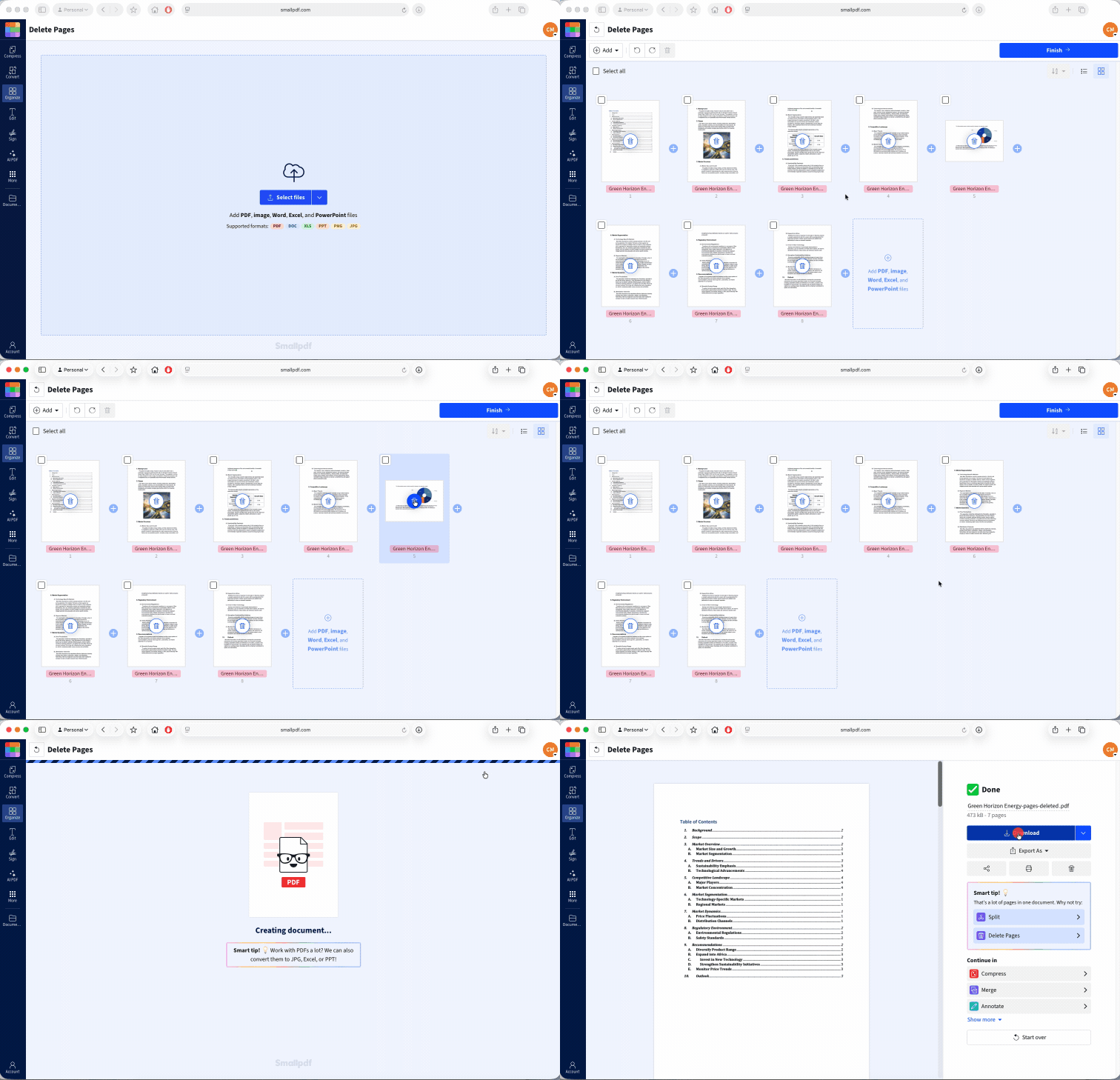
The tool creates a new version rather than removing pages from the only copy on your device. Keep the original nearby until you've opened the downloaded file and checked that every intended page is present.
For a long report, don't rely on thumbnails alone. Open a larger preview before deleting pages that look similar, such as repeated forms, invoices, appendices, or blank divider sheets. A few seconds of checking can save you from repeating the job.
If you also need to rearrange several pages, add a replacement page, or rotate pages that were scanned sideways, Organize PDF puts those controls in one place.
You can delete PDF pages for free, but daily usage limits may apply. Smallpdf Pro gives you unlimited access to 30+ PDF tools, and you can try it free for 7 days.
Reason 2: The PDF Has Security Restrictions
Some PDFs use passwords or permission settings to stop people from editing, copying, printing, or reorganizing the document. You can read the file normally, but page controls remain unavailable.
This often happens with contracts, official forms, financial records, course materials, and documents sent for review. A shared folder can create a similar issue when you only have viewing access or don't have permission to save a replacement file.
A digital signature can add another complication. Removing even one page changes the signed document. The signature may then show as invalid because the file no longer matches the version that was signed.
Fix 2: Remove Restrictions With Permission
If you own the document or have permission to change it, use Unlock PDF before returning to the page deletion tool.
Save a separate copy of the protected PDF.
Upload it to Unlock PDF.
Enter the password when prompted.
Download the unrestricted copy.
Open that copy in Delete PDF Pages and remove the unwanted pages.
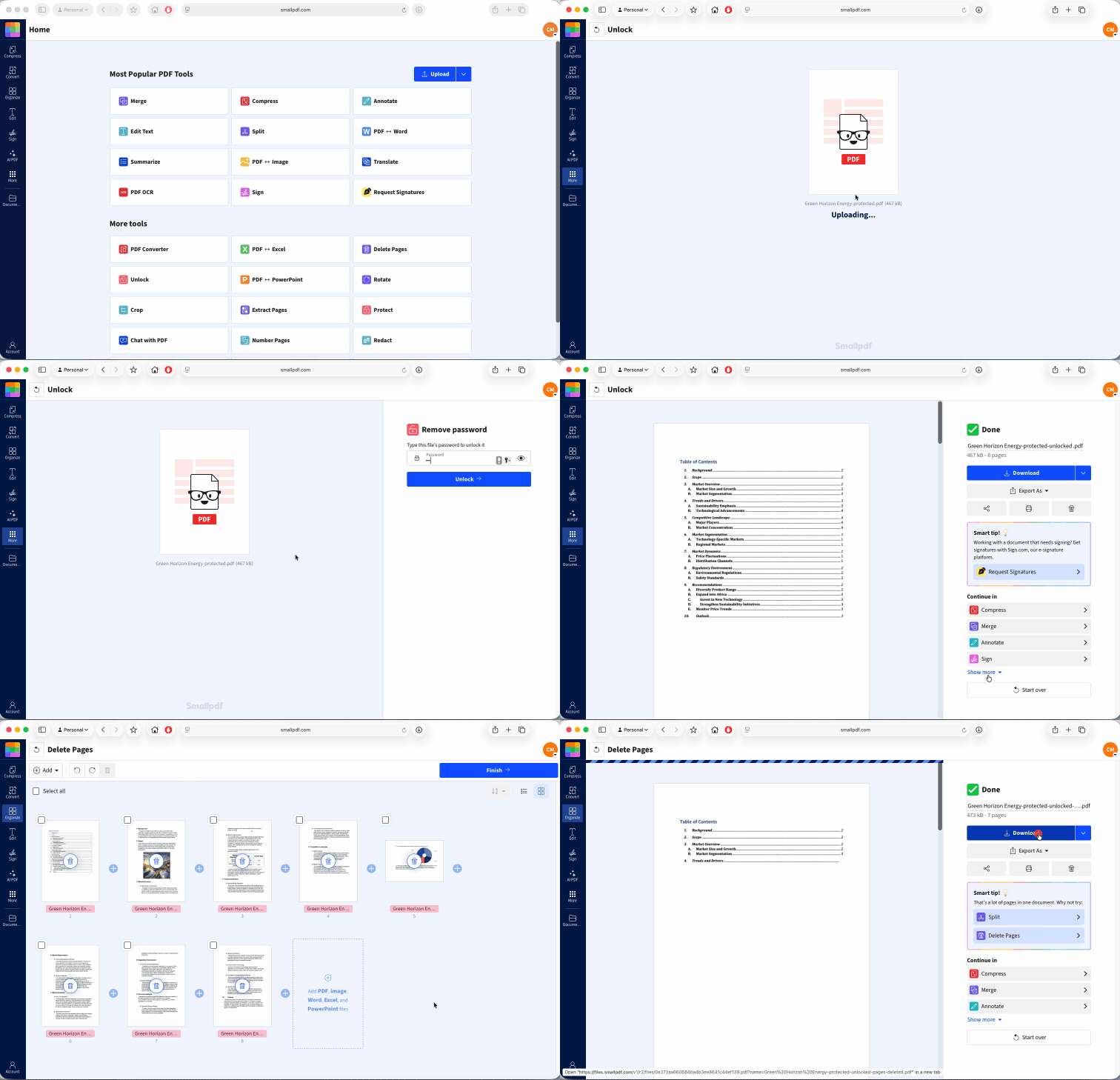
Only remove restrictions from files you're allowed to edit. If you don't have the password or permission, ask the owner for an unrestricted copy.
For a digitally signed PDF, keep the signed original unchanged. Ask the sender for an unsigned working copy, remove the pages there, and complete the signing process again once the document is final. That keeps the signed record and the edited draft clearly separated.
Can You Delete a Page from a Scanned PDF?
Yes. A scanned PDF still contains separate PDF pages, even though each page may be stored as an image. Delete PDF Pages can remove those pages in the same way it removes pages containing selectable text.
You don't need OCR for this job. OCR is used to recognize words inside a scan so the text can be searched, copied, or edited. Removing an entire page only requires the PDF to have a separate page object.
The process is still simple:
Upload the scanned PDF to Delete PDF Pages.
Review the thumbnail for each scanned sheet.
Open a larger preview when a page looks blank or unusually faint.
Click the trashcan icon on every page you want to remove.
Finish the task and download the cleaned file.
Check faint pages carefully. A nearly blank scan may contain a light signature, handwritten note, stamp, or text from the reverse side of thin paper. Enlarging the preview helps you avoid deleting real content by mistake.
There is one limit to keep in mind. If several paper sheets were captured inside one long PDF page, the tool will see that content as a single page. You can't delete half of it with a page deletion control. You would need to rescan the sheets as separate pages or recreate that part of the document.
Can Deleting a Page Affect the PDF's Page Numbers or Links?
It can affect anything that refers to a page position, even though the formatting on the pages you keep should stay intact.
PDF viewers usually count the remaining pages automatically. Delete page 3 from a 10-page document, and the file will now contain nine pages. Printed page numbers are different. If “Page 4” is written into the footer as part of the page content, it may still say “Page 4” after becoming the third page in the new file.
The same issue can appear in a typed table of contents. An entry that says “Budget Summary—Page 12” won't rewrite itself when earlier pages are removed. Review visible page numbers and page references after the deletion, especially in reports, manuals, proposals, and study materials.
Bookmarks and internal links also need a quick test. A link that originally opened a deleted page may stop working or lead somewhere unexpected. Links to websites or email addresses on the pages you keep should usually remain available, but any link located on a deleted page disappears with that page.
Use this order when the document has several page-based references:
Delete unwanted pages.
Reorder or rotate the pages you are keeping.
Check the table of contents, bookmarks, and internal links.
Add fresh numbers with Number Pages once the final page order is set.
If the old page numbers are part of a scan or fixed page image, adding new numbers may leave both sets visible. In that case, update the original source document where possible, or recreate the affected pages before making the final PDF. You could also use PDF Annotator to add a white square over the incorrect page number before adding the new page number.
Frequently Asked Questions
Will deleting a page change the rest of the document's formatting?
No. Removing a page shouldn't change the fonts, images, margins, or layout on the pages you keep. Page references, bookmarks, printed numbers, and a table of contents may still need updating.Can I get a deleted page back if I remove the wrong one?
Use the original PDF and repeat the process, leaving that page in place. Smallpdf exports an updated copy, so your source file remains available unless you choose to overwrite or delete it yourself.Does deleting pages reduce the PDF's file size?
Usually, but the reduction may be smaller than you expect. PDFs can reuse fonts, images, and other resources across several pages, so removing one page won't always remove every related file element. Use Compress PDF if the finished document is still too large.Why does the page reappear after I save and reopen the file?
You may have reopened the original PDF, viewed a cached browser copy, or closed the tool before exporting the change. Check the downloaded file's name and location, refresh your viewer, and open the updated copy directly from your downloads folder.Can I delete pages without installing any software?
Yes. Delete PDF Pages works in a modern browser on computers, tablets, and phones. Upload the file, remove the pages, and download the new PDF.Why can someone else delete pages from the same PDF but I can't?
They may have the password, an unrestricted copy, editing access to the shared folder, or a tool that supports page management. Compare the file versions and permissions before assuming you're both working from the same copy.