- Home
- ›
- ›Why Can't I Highlight Text in a PDF? 4 Reasons and How to Fix Them
Why Can't I Highlight Text in a PDF? 4 Reasons and How to Fix Them
Can’t highlight text in PDF files? Smallpdf can help with scanned, locked, or hard-to-select text and other quick fixes right in your browser.
Quick Takeaways
If you’re unable to highlight text in a PDF, check whether you can select the text first.
Scanned PDFs behave like images, so the highlighter can’t attach to real text.
If the highlight tool is greyed out, the file may be protected, read-only, or opened in a limited preview.
If a PDF won’t let you highlight in Chrome, Gmail, Preview, or another browser preview, download it first.
Smallpdf PDF Annotator lets you mark up a PDF in your browser and save a fresh copy.
Sometimes you need to highlight text in a PDF when reviewing a contract, studying a report, or pulling out important details before sharing the file with someone else. Here's some solutions if you suddenly find yourself unable to highlight text in your PDFs.
Why Won’t My PDF Let Me Highlight?
We’ve all encountered a PDF at some point that looks normal but behaves weirdly when you try to work with it. That’s because PDF text can be stored in different ways.
Some PDFs contain real selectable text, and those are usually easy to highlight. Others are scanned pages, protected files, or documents opened inside a limited preview window. That’s when you get stuck wondering why you can’t highlight text in PDF files, even if you can clearly see the words.
The easiest test is to try to select one sentence with your cursor. If you can select the words, the PDF has real text. If you can only draw a box, drag the whole page, or select nothing at all, the file probably needs another approach.
Cause 1: The PDF Is Scanned
A scanned PDF is a picture of a page. You can see text, but your PDF reader only sees a flat image. Many modern scanners and even mobile phones have optical character recognition (OCR) technology built in. So, this issue is less common but can still trip you up occasionally.
Solution
Use OCR to turn scanned text into selectable text.
Upload the file to PDF OCR, convert the scanned pages into readable text, then open the new file in Smallpdf PDF Annotator. After that, try highlighting again.
If you only need to mark the page visually, you can also use PDF Annotator to draw over the section or add a note beside it.
Cause 2: The PDF Is Protected or Read-Only
PDFs can have permissions set that limit editing, copying, printing, or commenting. You can open and read the file, but the highlight tool may be blocked. It’s common with contracts, statements, application forms, internal documents, and files shared for viewing only.
Solution
First, try to save a copy. Open the PDF in Smallpdf PDF Annotator and check whether you can add a visible markup to the copy.
If the file is password-protected or has editing restrictions, ask the sender for an editable version or the correct password. If you own the file and have permission to change it, use Smallpdf Unlock PDF, then open the file in PDF Annotator and add your highlights.
Cause 3: You Opened the PDF in a Browser or Email Preview
Browser and email previews are convenient, but they’re not always reliable for editing. Browser PDF previews might not always include annotation tools. For example, Chrome allows you to draw on a PDF, and this includes a highlight option. But Safari on macOS doesn’t have any markup tools.
Solution
Download the PDF first.
Save it to your device, then open it in the Smallpdf PDF Annotator. Add your highlights, download the finished copy, and keep that version.
This is the easiest fix when a PDF won’t let you highlight inside a browser tab or email preview.
Cause 4: You’re Using the Wrong Tool Mode
Some PDF apps have separate modes for selecting text, moving pages, filling forms, drawing, commenting, and highlighting. If you’re in the wrong mode, your cursor may draw boxes instead of selecting text.
Solution
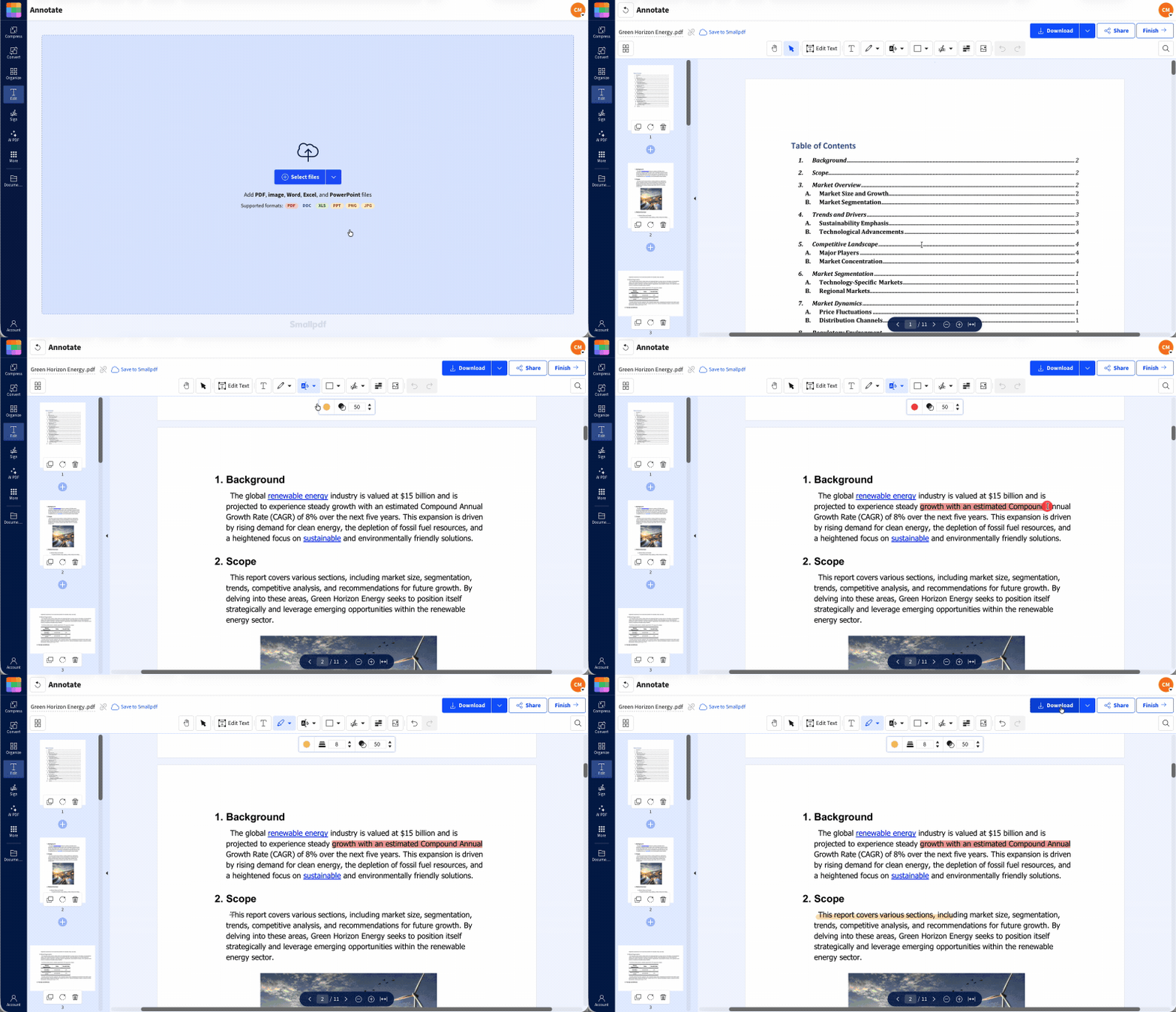
Switch to the highlight, annotate, or comment tool in your PDF app. Or use PDF Annotator for more options and better control.
Upload your document to PDF Annotator.
Select the highlight tool and color.
Drag over the text or area you want to mark.
If the text won’t select properly, use a freehand mark, shape, or note instead.
Click “Download” to save your marked-up copy.
Smallpdf is free to use with daily limits. Switching to Pro removes those limits, and you can try it first by signing up for a free 7-day trial.
How to Avoid Text Highlighting Errors Going Forward
The best fix is to keep your PDFs editable enough for the job you need to do.
If you want people to review a document, send a version with selectable text. Avoid sending screenshots of text unless that’s the only file you have. If you scan a document, run OCR before sending it for review.
If you’re sharing a form, test it before sending. Open it on another device and check whether the fields, comments, and highlights behave as expected.
If you’re adding comments for a team, use one tool and one saved copy. Passing the same PDF through too many apps can flatten comments, break layers, or make highlights harder to edit later.
And if you receive a PDF that behaves strangely, don’t fight the same broken preview for too long. Upload it to Smallpdf PDF Annotator and see whether you can mark it up there. If it works, download a clean copy and continue.
Frequently Asked Questions
Why is the highlight tool greyed out in my PDF?
The PDF may be protected, read-only, opened in a limited preview, or missing selectable text. Download the file first, then try Smallpdf PDF Annotator. If it’s scanned, run PDF OCR before highlighting.How do I highlight a scanned PDF?
Use PDF OCR first to make the scanned text selectable. Then open the new file in Smallpdf PDF Annotator and use the highlight tool. If you only need a visual mark, you can draw on the page instead.Why can’t I highlight text on my Mac?
Safari on macOS does not include markup tools. Save the file to your Mac first, then try opening it in Preview or uploading it to Smallpdf PDF Annotator. If the text won’t select, run PDF OCR and try again.Why does my highlight only mark a small box instead of the text?
That usually means the app isn’t detecting real text. The page may be scanned, flattened, or image based. Use PDF OCR to make the text selectable, or use a visual markup like a box, note, or freehand mark.Fix highlighting issues and mark up PDFs with ease using Pro
