- Home
- ›
- ›How to Convert PowerPoint to Google Slides for Free
How to Convert PowerPoint to Google Slides for Free
Convert your PowerPoint to Google Slides in minutes using Smallpdf, then make any final edits before presenting.
Quick Takeaways
Upload your PPT or PPTX to Google Drive. Once the upload and conversion are complete, the file appears with the yellow Google Slides icon.
Keep the original PowerPoint file on your device until you have checked every converted slide.
Fonts and text spacing are usually the first things to review after conversion.
Embedded PowerPoint videos become images, so you may need to add the video again in Google Slides.
Google accepts presentations up to 100 MB when converting them to Google Slides.
If you only need a copy that looks the same for viewing or sharing, PPT to PDF may be a better fit than an editable conversion.
Need to know how to convert PowerPoint to Google Slides without paying for another app? Upload the PPT or PPTX file to Google Drive. The presentation is converted during upload and appears with the yellow Google Slides icon, ready to open and edit.
The process is free with a Google account and works without PowerPoint installed. Keep the original PowerPoint file on your device until you’ve reviewed the converted deck. Custom fonts, text boxes, embedded media, complex diagrams, and some animations might still move or change.
How to Convert a PowerPoint to Google Slides
Google Drive handles the PowerPoint-to-Google-Slides conversion during upload, so you no longer need to open a preview or save a separate Slides copy. The steps work for both PPT and PPTX files.
Step 1: Check the PowerPoint File
Open the deck before uploading it, if you can. Make sure the slides load correctly and remove anything you no longer need, such as hidden slides, unused media, or duplicate layouts.
You should also note the slide size. A standard presentation may use 4:3, while many newer decks use 16:9. Knowing the original resolution makes it easier to spot a layout change after conversion.
If the file is larger than 100 MB, reduce its media or split it before trying again.
Create a PDF Backup (Smallpdf)
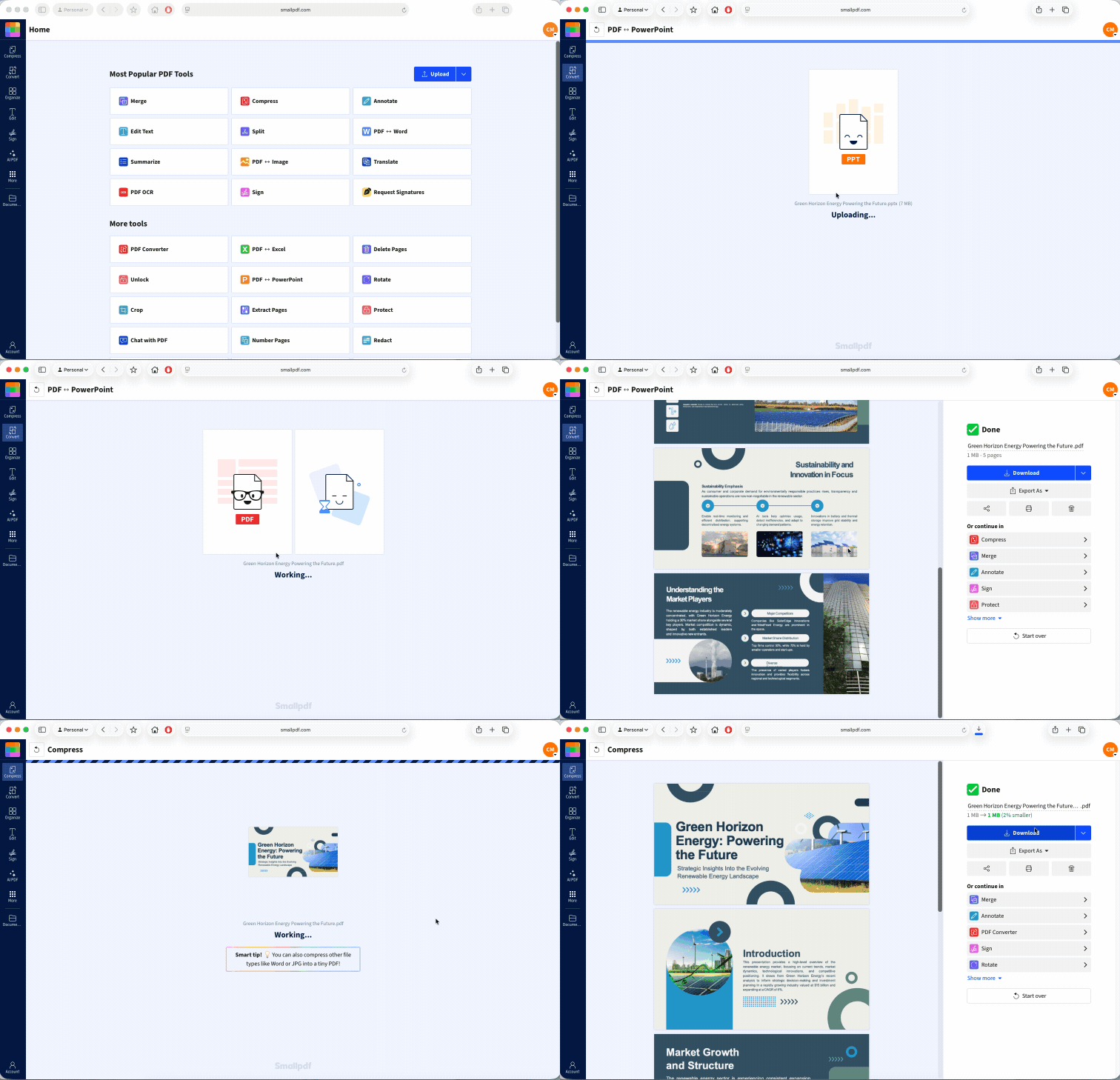
Before uploading the presentation to Google Drive, save a PDF copy with Smallpdf’s PPT to PDF tool. This gives you a fixed version of the original slides that you can use to compare fonts, spacing, images, and layouts after conversion.
Upload your PPT or PPTX file to Smallpdf PPT to PDF or drop the file in the drop area below
Download the converted PDF and keep it with your original presentation.
Use the PDF as a visual reference to compare fonts, spacing, images, and layouts after converting to Google Slides.
Step 2: Upload the PPT or PPTX to Google Drive
Sign in to Google Drive on your computer.
Click “New.”
Choose “File upload.”
Select the PowerPoint file from your device.
Wait for the upload to finish.
Step 3: Open and Review the Converted Presentation
Double-click the file with the yellow Google Slides icon. It should open directly in the Slides editor. Rename it if needed, then run through the presentation before you edit, present, or share it. Don’t assume every slide made the trip perfectly. Run the presentation from beginning to end and check:
Text boxes, line breaks, and bullet spacing
Fonts, colors, and background images
Charts, diagrams, and SmartArt
Videos, audio, animations, and transitions
Speaker notes and clickable links
Open the original PowerPoint file from your device beside the Google Slides version when something looks wrong. This makes it easier to see whether an object moved during conversion or was already out of place. Pay close attention to overlapping text boxes, changed line breaks, cropped images, and objects that have shifted off the slide.
Why Your Converted Slides Look Different and How to Fix Them
PowerPoint and Google Slides use different font libraries, media handling, animation controls, and layout systems. Simple decks often convert cleanly. A heavily designed presentation may need a few repairs.
Issue 1: Fonts Were Replaced
A font can change when it isn’t available in Google Slides. The substitute may be wider, narrower, taller, or shorter, which can push text onto another line and move nearby objects.
Fix: Select the affected text and choose a similar font from the Slides font menu. Then check the font size, line spacing, and text box width. For future conversions, use a font available in both environments before uploading the deck.
Check headings first. One substituted heading font can create different line breaks across dozens of slides.
Issue 2: Text or Images Moved
Text may overflow a box, crop differently, or sit too close to another object after a PPTX-to-Google-Slides conversion. The font substitution may be responsible, but the slide size or original layout can also cause it.
Fix: Start with “File,” then “Page setup” and confirm that the presentation uses the right ratio. Google Slides supports Standard 4:3, Widescreen 16:9, Widescreen 16:10, and custom sizes.
Next, resize the text box rather than shrinking the text immediately. A small box change often fixes the slide without making the copy harder to read. Reposition images last, once all the text is stable.
Issue 3: Videos or Audio No Longer Work
Embedded PowerPoint videos don’t stay playable during Office-file editing in Google Slides. Embedded charts and videos in PowerPoint files are converted to images.
Fix: Upload the video to Google Drive or use a supported online source, then choose “Insert,” and “Video” in Google Slides. Slides can add video from YouTube, a URL, or Google Drive. For audio, upload an MP3 or WAV file to Drive and insert it from there.
Test the media while signed in and again through the same sharing permissions your audience will use. A video stored in Drive may fail for someone who doesn’t have permission to open it.
Issue 4: Animations or Transitions Changed
Some PowerPoint effects have no exact Google Slides match. Others may transfer but play with different timing or behavior. Certain Slides animations may also not work in some browsers.
Fix: Open “View,” then “Motion” and rebuild the affected animation with a supported option. Keep it simple where possible. An appear, fade, or basic slide transition is usually easier to test than a sequence of overlapping effects.
Run the slideshow rather than checking only in the edit view. Timing problems often become obvious only during playback.
Issue 5: SmartArt or Charts Became Harder to Edit
Google converts SmartArt into Google Drawings, while embedded charts may become images. The slide can still look close to the original, but you may lose the editing controls you had before conversion.
Fix: Leave the object as an image when you only need to present it. If the figures will change, rebuild the chart with Google Sheets and place it in Slides, or recreate the diagram with native shapes. That takes longer once, but it saves you from worrying about later updates.
Can You Convert PowerPoint to Google Slides on Mobile?
You can open and edit PowerPoint files on a phone or tablet with the Google Slides app. On iPhone and iPad, the app imports PPT and PPTX files. On Android, it imports PPT, PPTX, and ODP files.
A simple mobile workflow would be:
Replace the current numbered steps with:
Open the Google Drive app.
Tap the “+” button and choose “Upload.”
Select the PPT or PPTX file from your device.
Wait for the upload and conversion to finish.
Look for the yellow Google Slides icon, then tap the file to open it.
Review the slides before editing or sharing the presentation.
The mobile apps are useful for quick edits, but a computer is better for comparing versions and fixing a complex layout. The larger screen gives you clearer control over themes, page setup, media, and animations. It’s also easier to spot overlapping text boxes, cropped images, and other layout changes.
For a presentation with custom fonts, videos, detailed charts, or tightly placed objects, do the first full review on a larger screen. Then use your phone for small changes, comments, or presenting.
Frequently Asked Questions
Can I convert it back to PowerPoint later without losing changes?
Yes. Open the Google Slides file and choose “File,” “Download,” and “Microsoft PowerPoint (.pptx).” Most content should remain editable, but check fonts, media, diagrams, and animations again because converting between formats twice can cause new differences.Can I convert several PowerPoint files to Google Slides at once?
Yes. You can select and upload several PowerPoint files to Google Drive, and Drive will convert each one during upload. Open and check each presentation separately, since formatting problems may differ from one deck to the next.Will embedded videos in my PowerPoint still play in Google Slides?
No. Embedded videos in PowerPoint files are converted to images. Upload the video to Drive or use a supported online source, then add it again through “Insert” and “Video.”Why are my fonts replaced after converting to Google Slides?
The original font may not be available in Google Slides. Slides substitutes another font, and the different character widths can change line breaks, spacing, and text-box fit.Do I need a Google account to convert a PowerPoint?
Yes. You need a Google account to upload the PowerPoint file and keep the converted Google Slides presentation in Drive. Some extra Workspace features require a paid plan, but the basic conversion is free.Can I convert PowerPoint to Google Slides without PowerPoint installed?
Yes. Upload the PPT or PPTX file directly to Google Drive. Drive converts it to Google Slides during upload, so you don’t need PowerPoint installed.