How to Edit Text in the PDF24 Creator
PDF24 doesn’t actually let you edit existing text directly. But that doesn’t mean you’re stuck. This guide walks through the workarounds PDF24 offers.
Can You Edit Existing Text in the PDF24 Creator?
PDF24 does not support directly modifying existing text in a PDF document. You can only add entirely new text, blank out old text, or convert the PDF to an editable format, like a Word document, to make changes. If you’re expecting to click on a sentence and retype it, PDF24 won’t do that.
That said, PDF24 does offer three workarounds for getting around this limitation:
Add new text: Place a fresh text box on top of your PDF using the annotation tool.
Convert and edit: Turn your PDF into a Word document, make your changes there, then convert it back to PDF.
Mask old text: Cover unwanted text with a white or colored shape, so it’s no longer visible.
Each approach works differently, and the right one depends on what you’re trying to fix. The sections below walk through each method step by step.
How to Add New Text to a PDF Using PDF24 Tools
Adding new text is the closest thing to “editing” that PDF24 offers without converting your file. You’re placing a text box on top of your existing document, which works well for annotations, notes, or filling out missing details.
1. Open the PDF24 Annotate PDF Tool
Go to PDF24 and find the Annotate PDF option. This tool handles most text-adding tasks.
2. Upload Your PDF File
Drag and drop your file into the upload area, or click to browse your folders.
3. Click “Add Text” and Type Your Content
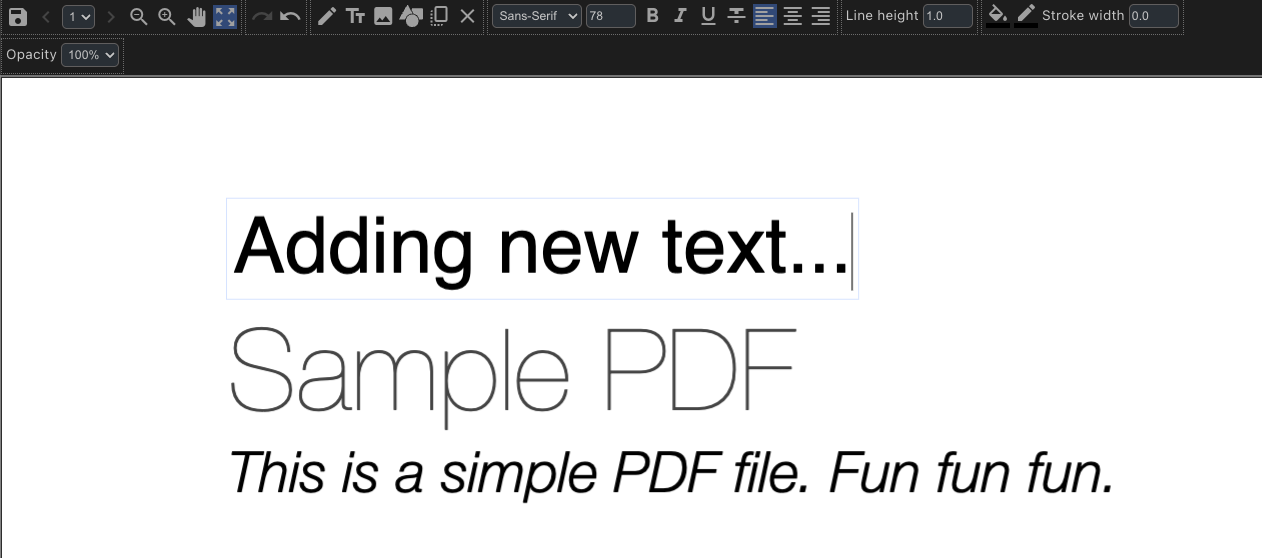
Once your PDF loads, click the “Add Text” button in the toolbar. A text box appears on the page. Double-click inside it to start typing, then drag the box wherever you want it.
4. Adjust Font, Size, and Color
A small formatting toolbar lets you change the basics: font size, text color, and sometimes font style. Adjust until the new text looks right alongside your existing content.
5. Save and Download Your Edited PDF
When everything looks good, click the “Save PDF” icon in the top-right, then click “Download.” Your updated PDF is ready to share or print.
Tip: Position all your text boxes carefully before saving. Moving them around after download means starting the whole process over.
How to Edit Existing Text by Converting to Word
What if you want to change the original text itself, like fixing a typo or updating a date? Since PDF24 doesn’t have a true text-editing engine, the workaround is to convert your PDF to Word, edit it there, and convert it back.
1. Use the PDF24 PDF to Word Converter
Go to the PDF to Word Converter on the PDF24 website. Upload your PDF, and the tool generates a Word document you can download.
2. Open the Word File and Make Your Edits
Open the converted file in Microsoft Word, Google Docs, or LibreOffice. Now you can freely add, delete, or change any text in the document.
3. Convert the Word Document Back to PDF
Once your edits are done, head to the PDF24 Word to PDF Converter. Upload your Word file, and you’ll get a fresh PDF with all your changes.
This round-trip method works, though it’s not always perfect. Complex layouts, unusual fonts, or embedded images sometimes shift during conversion. Always double-check your final PDF before sending it anywhere important.
How to Mask or Redact Text in the PDF24 Creator
Sometimes you don’t want to edit text at all. You just want to hide it. Maybe there’s sensitive information, or you’re covering up outdated content. PDF24’s masking feature handles this by placing a shape over the text you want to conceal.
A quick note on terminology: redaction refers to permanently covering sensitive information so it can’t be recovered. PDF24’s approach is visual masking, which hides text on the surface but doesn’t always remove it from the underlying file data.
1. Open the PDF24 Annotate PDF Tool
Start in the same Annotate PDF tool you used to add text.
2. Select “Add Shape” and Choose a Rectangle
Click “Add Shape” in the toolbar, then pick a rectangle. This becomes your cover-up tool.
3. Position the Shape Over the Text You Want to Hide
Drag the rectangle over the text. Set the fill color to white if you want it to blend in, or black for a classic redaction look.
4. Save and Download the Updated File
Click the “Save PDF” icon in the top-right, then click “Download” to finalize. Keep in mind that the original text may still exist in the file’s data layer. This method hides text visually but doesn’t guarantee true redaction.
Limitations of Text Editing in PDF24 Tools
Before committing to PDF24 for editing tasks, it helps to know exactly where the tool falls short.
| Limitation | What It Means |
|---|---|
| No inline text editing | You can’t click on existing text and retype directly. |
| Scanned PDFs | Text in image-based PDFs isn’t recognized without OCR (optical character recognition, which converts images of text into editable characters). |
| Font matching | When converting to Word and back, fonts may shift or look different. |
| Password-protected files | Locked PDFs can’t be edited until you unlock them first. |
If any of the limitations above affect your workflow, you might find yourself looking for an alternative.
Edit PDF Text the Easy Way with Smallpdf
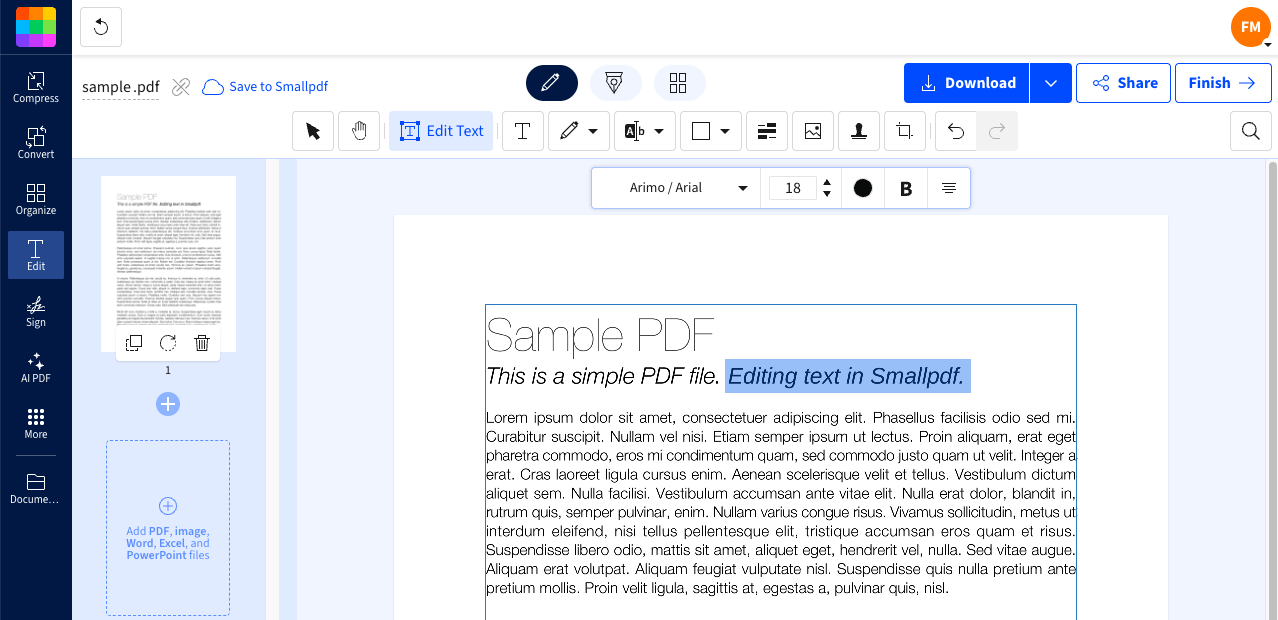
When PDF24’s workarounds start feeling like too much effort, Smallpdf's PDF editor offers another option. You can edit text directly, add text, annotate, and work with your documents directly in your browser: no conversions, no downloads, no back-and-forth.
Edit PDF text online: Click “Choose file” below to upload your document, then edit text, add notes, and annotate directly in your browser.
Here’s what makes it different:
Browser-based: No software to install, no desktop app required.
Drag-and-drop upload: Just drop your file and start editing.
All-in-one editing: Edit text directly, add text boxes, highlight sections, and annotate in one place.
Frequently Asked Questions
How do I edit already existing text in a PDF using the PDF24 Creator?
The PDF24 Creator doesn’t support direct text editing. Your best option is to convert the PDF to Word using PDF24’s converter, make your changes in a word processor, then convert the document back to PDF. Or use Smallpdf’s secure and easy-to-use PDF editor, which lets you directly edit text in PDFs.Why can’t I select or change the text in my PDF with PDF24 tools?
PDF24 only allows adding new text or masking existing text with shapes. The tool lacks a full text-editing engine, which is why you can’t click on original text and modify it directly.Is the PDF24 Creator free to use for editing PDFs?
Yes, PDF24 offers free online tools for basic PDF tasks. However, features like direct text editing aren’t available. You’re limited to adding new text, masking content, or converting to other formats for editing.Make direct PDF text edits in seconds with Smallpdf Pro