How to Add a Date to a W-9 Tax PDF Form
Need to date a W-9, but the field won’t let you type? Here’s how to add a date to a W-9 PDF in your browser using Smallpdf. Whether you have a fillable form, a scanned copy, or a date box that refuses to work.
Quick Takeaways
Use PDF Form Filler to type into a working date field or place text on a nonfillable W-9 PDF.
If you can’t add a date to your W-9, the form may be a scan, a flat PDF, or password-protected.
Review your W-9 before adding a date and signature. A new copy is usually safer than changing a completed form.
You can add your signature and date in one go with Sign PDF.
Send the completed form to the requester.
On the current IRS Form W-9, the date line appears beside the signature line in Part II, Certification. Fill out the form carefully, review it, then add the date when you are ready to sign. If the person or company requesting your W-9 gives you instructions, follow those first.
How to Add a Date to a W-9 PDF With Smallpdf
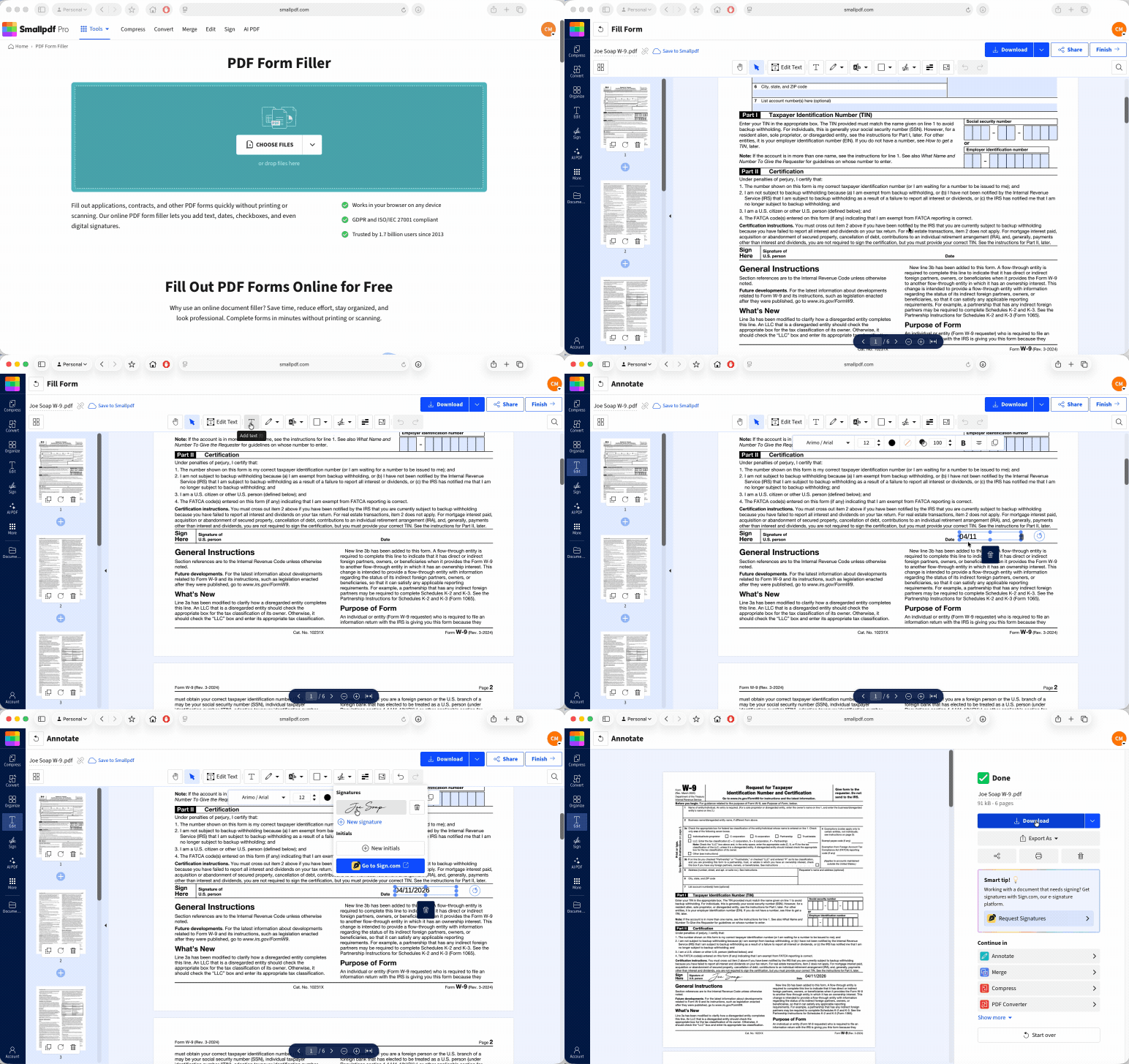
How you add a date to a W-9 PDF without printing it first becomes easy with Smallpdf. Keep the original blank or unsigned copy somewhere safe, especially if you may need to correct something later.
If you are adding a date to a scanned W-9, zoom in before you place the text box. A small adjustment to the font size or position can stop the date from covering the signature line.
Add the date to your W-9: Click “Choose file” below to upload your tax PDF, then place the date exactly where it belongs.
Why You Can’t Add a Date to Your W-9
If you can’t add a date to your W-9, the fix usually depends on the type of PDF you received. Start by clicking the date field. If nothing happens, the form may not have editable fields built in.
The Date Field Is Not Fillable
Some W-9 PDFs are flat files. They look like forms, but there are no clickable boxes underneath. This is common with scans, files printed to PDF, and older copies sent as attachments.
You can still add a date to the W-9 PDF. Upload it to PDF Form Filler, choose “Add Text,” and place a text box over the date line. Type the date, resize the text if needed, and check it at 100 percent zoom before you download the final copy.
Do not place the date anywhere else on the page. Keep it on the line beside your signature so the form stays easy for the requester to read.
The PDF Is Password-Protected
A password-protected W-9 may open but block you from typing or saving changes. Ask the requester for an editable copy first. They may have a current version with working fields or a preferred portal for collecting the form.
If you own the document, have permission to edit it, and know the password, Unlock PDF can remove password protection before you use PDF Form Filler. Do not remove restrictions from a file you are not allowed to change.
The Form Has Already Been Signed
A date should show when you signed the form. If you already signed the W-9 and then notice the date is missing or wrong, don’t add a new date over the old copy and send it without telling anyone.
Start with an unsigned copy, correct the date, and sign again. If you do not have an unsigned version, ask the requester whether they want a newly completed W-9. That gives them one clean form instead of two versions with conflicting details.
How to Sign and Add a Date to a W-9 at the Same Time
Have a completed W-9 that only needs your signature and date? Use Sign PDF to do both in the same session.
Open Sign PDF and upload the W-9.
Review the form one last time. Check your name, taxpayer identification number, and any fields you completed.
Add your signature where the form says, “Signature of U.S. person.”
Add the date beside it.
Click “Finish,” then download or share the completed PDF.
Smallpdf lets you add a signature, initials, text, and dates to a PDF. You can draw your signature, type it, or upload an image of it. Use the method the requester accepts.
This is often easier than filling out the W-9 in one tool, saving it, then opening another program to sign it. But take your time before you sign. The signature and date appear in the certification section of the form.
If the requester asks you to use a specific signing method, secure portal, or file format, use that process instead. They may have their own rules for receiving tax documents.
How to Fill Out a New W-9 From Scratch
Sometimes the fastest fix is starting again with a clean, current W-9. This is a good option if you have a damaged scan, a locked form, several wrong fields, or a PDF that has already been signed.
Form W-9 is used to give your taxpayer identification number to a requester that needs it for certain IRS information reporting. It is for U.S. persons, including resident aliens. For help with the details on the form itself, ask the requester or a qualified tax professional.
Get the current official Form W-9 from the IRS website.
Save an untouched copy before you start.
Open the file in PDF Form Filler.
Complete the fields that apply to you. Read the form instructions before entering your taxpayer identification number or selecting a tax classification.
Review every page. Check spelling, numbers, checkboxes, and the date line.
Add your signature and date with Sign PDF if the requester needs them.
Send the finished W-9 to the requester, not the IRS.
A fresh copy gives you a simpler way to fix a missed date, a typo, or an outdated address. Keep your blank copy separate from the completed version so you know which file is ready to send.
Frequently Asked Questions
Is the date required on a W-9?
The official W-9 includes a date line beside the signature line in Part II, Certification. Use the date you sign the form and follow the requester’s instructions.Can I add a date to a W-9 on my phone?
Yes. Open PDF Form Filler in your mobile browser, upload the W-9, and type into the field or add a text box over the date line. You can also use Sign PDF to add your signature and date before you download the form.What date format should I use on a W-9?
The current form labels the space simply “Date” and does not show a required layout. However, the preferred format is MM/DD/YYYY, ensuring you use the full four-digit year.Can I fix a wrong date on a W-9 I already signed?
Yes, but start with a clean unsigned copy where possible. Correct the date, review the form, and sign it again. Tell the requester you are sending a corrected version, so they do not use the earlier copy.Add dates to W-9 PDF forms more accurately with Pro